
When working with Flow, it's common to end up with two separate collections that share a common key. For example, a collection of Accounts and a related collection of Contacts. Historically, merging these into a single collection meant nesting loops. You'd iterate the first collection, then use a nested loop to find matches in the second. This approach is expensive on limits and hard to maintain. It also doesn't scale well with record volume. That's where the Transform element comes in. It lets you join collections declaratively. You just map the output fields to expressions referencing your input collections, and Flow handles the matching and looping under the hood. No nested loops, no manual assignments.
In this post, we'll walk through how to actually set up a Transform element to join two collections.
Join Types
Joining collections isn't unique to Flow. It's a concept borrowed from database theory, and it includes a few common types. An inner join returns only the records that match in both collections. A left outer join keeps all records from the first collection, and adds matching data from the second where it exists. A full outer join keeps all records from both collections, matching them where possible.
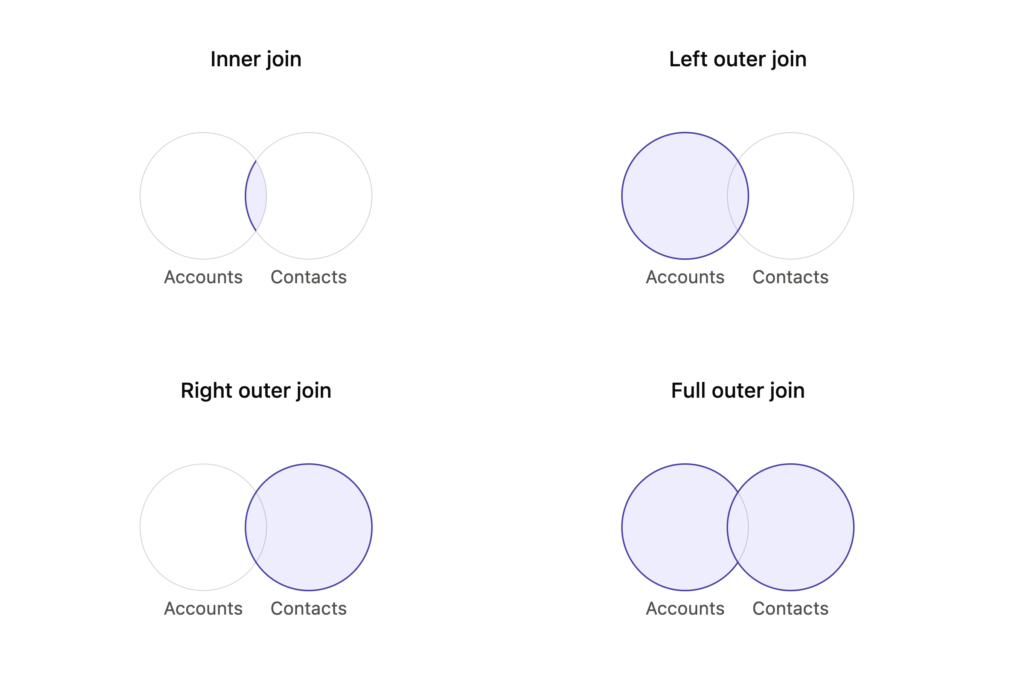
The Transform element in Flow supports inner joins. This means it only includes records that have a matching key in both input collections. If an Account has no related Contact, or a Contact has no matching Account, the join excludes both. Keep this in mind, since it directly affects which records end up in your final collection.
How to Use the Transform Element to Inner Join Collections in Flow
Let's look at an example of how to inner join collections. In this example, we'll build a data table of Contacts with their related external users (Community users).
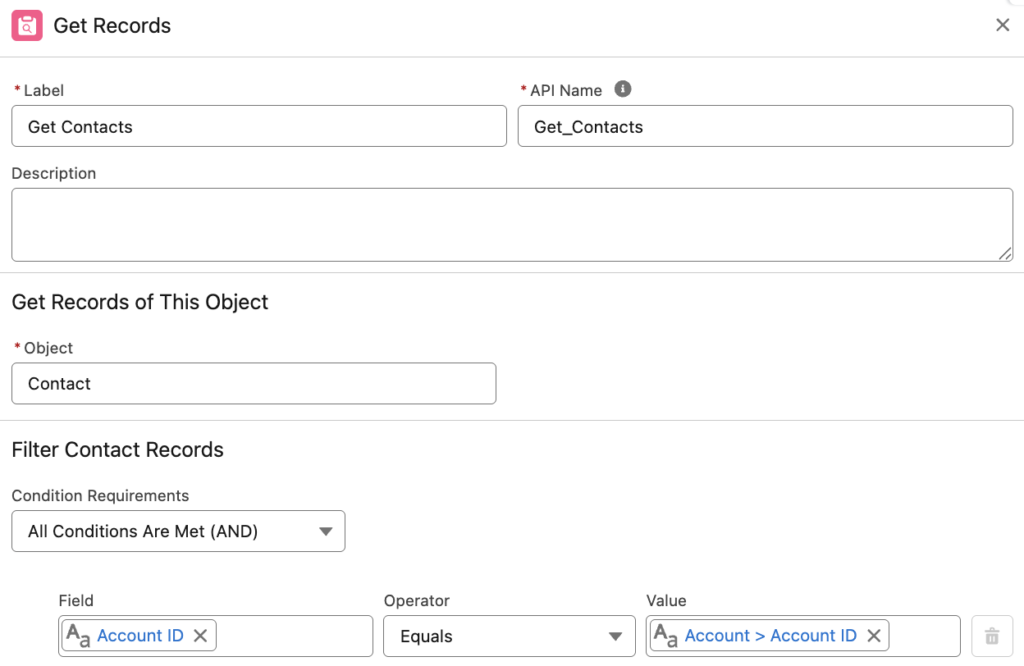
1- Use the Get Records element to find the Contacts of an Account record.
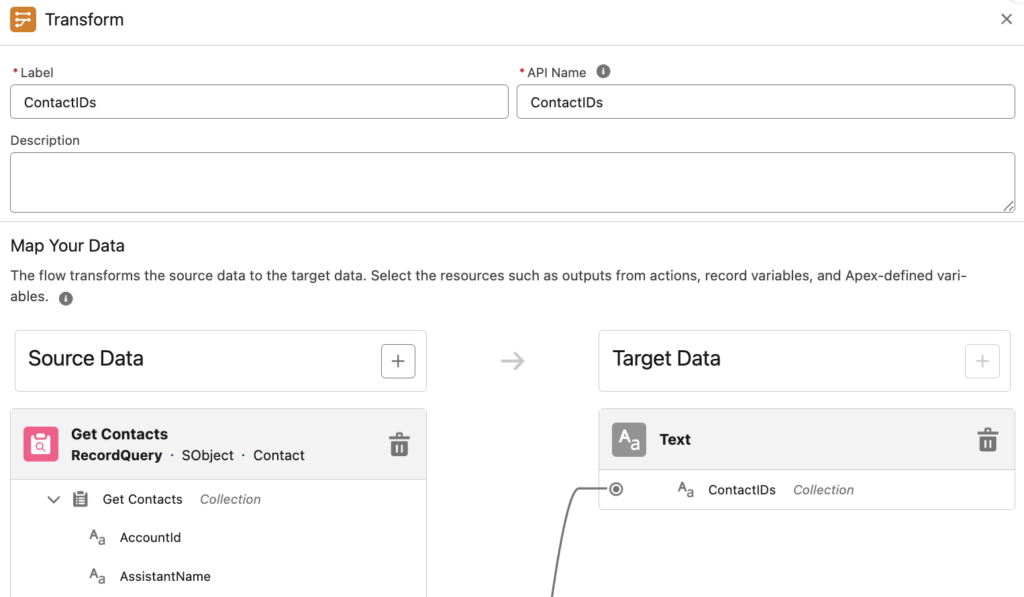
2- To find the Users related to those Contact records, you need the IDs of the Contacts. Use a Transform element to create a text collection of Contact record IDs.
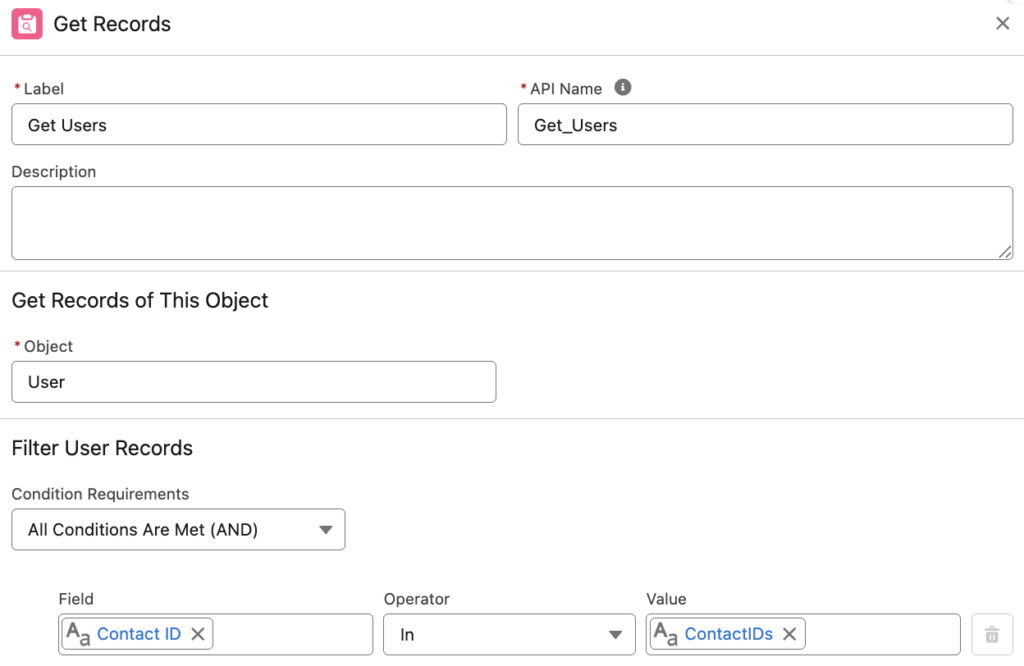
3- Now that you have the Contact record IDs, use another Get Records element to get the Users related to those Contacts.
4- You now have two different record collections. But you want to display one data table with columns from both. So you need to join these collections first.
Add a Transform element to inner join them. Select both record collections as the source data. Then choose a target data type. Here's the tricky part: what should the target data be? You can choose Contact or User as the target, but then you'll need to map fields to unused fields.
In some cases, it's better to use an Apex-defined collection instead. For this purpose, I created an Apex class you can use for assigning and transforming any data. Keep in mind this class is mostly for displaying records in a data table. It doesn't do anything beyond that. It simply has dummy text, number, boolean, date, and date/time fields you can use for assigning values.
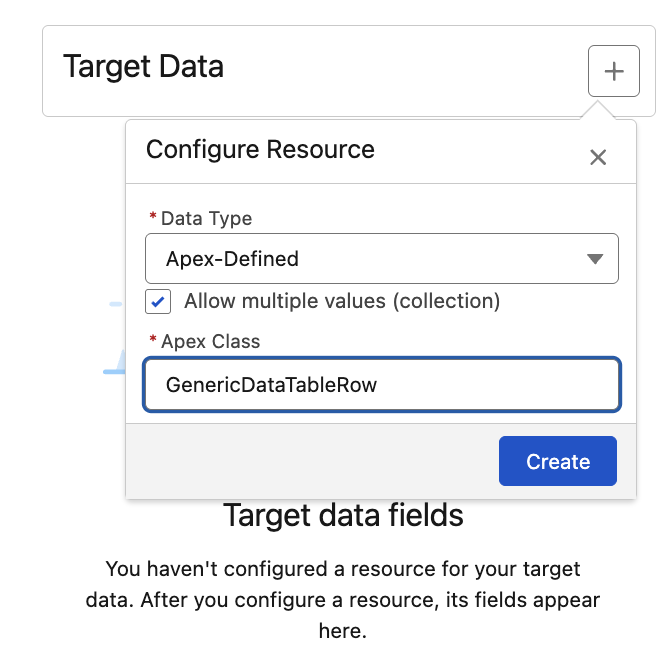
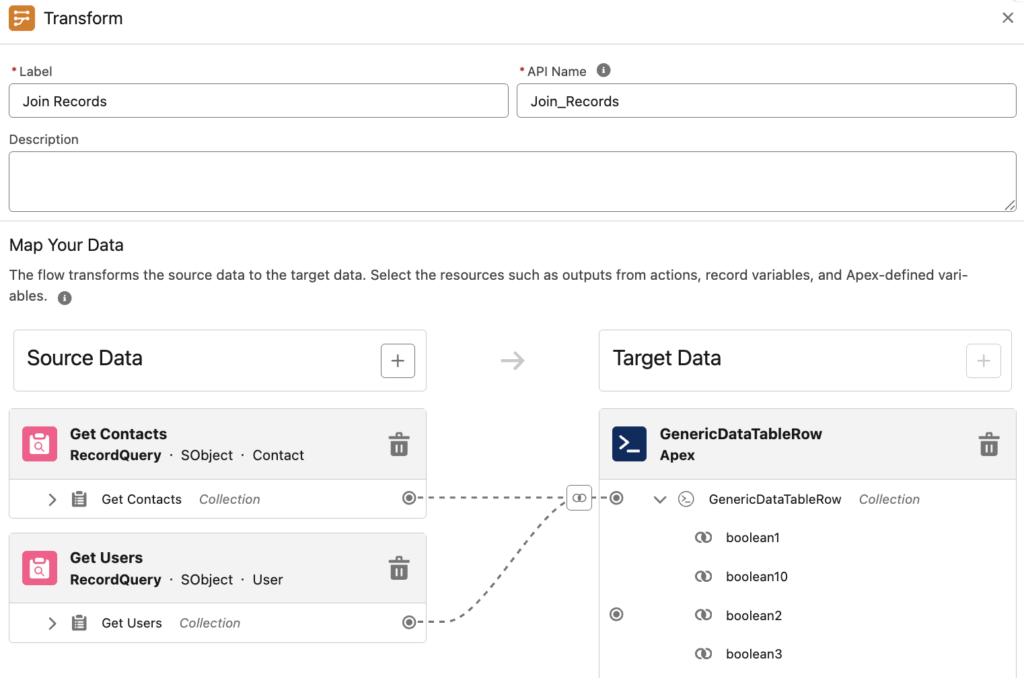
Select join keys from source collections. These are fields that are common between both collections. In this example, Contact Id is the key.
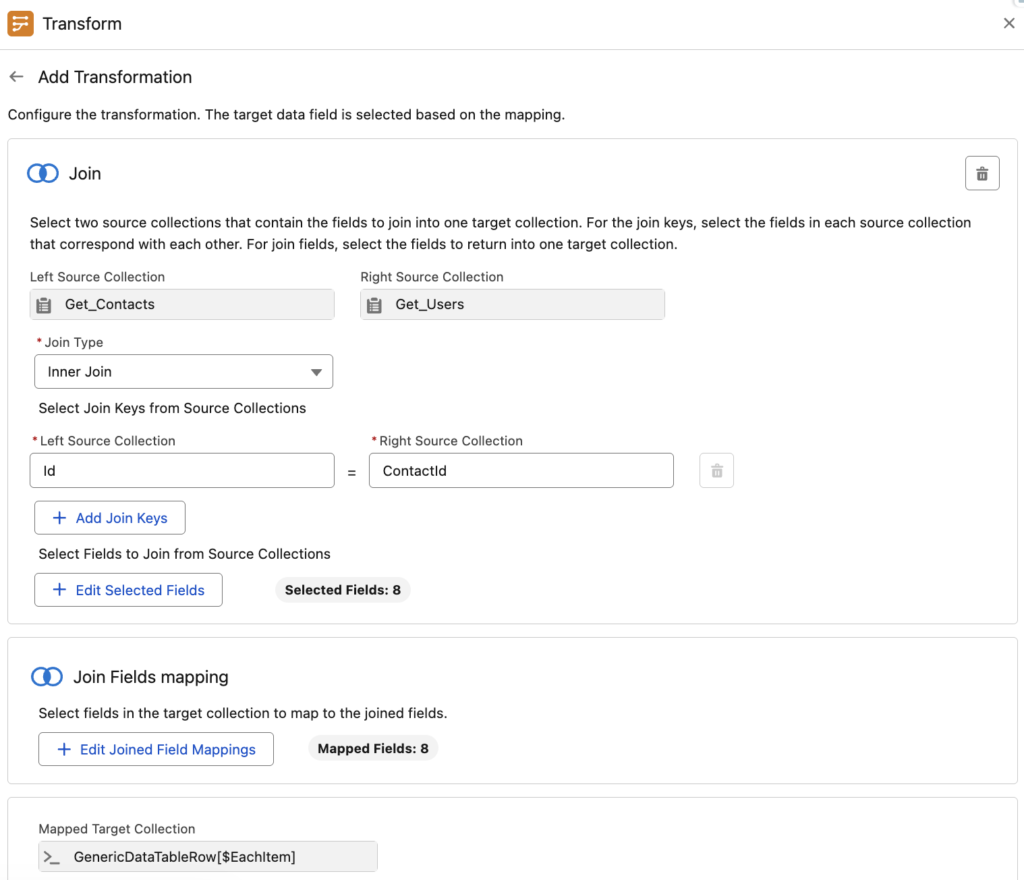
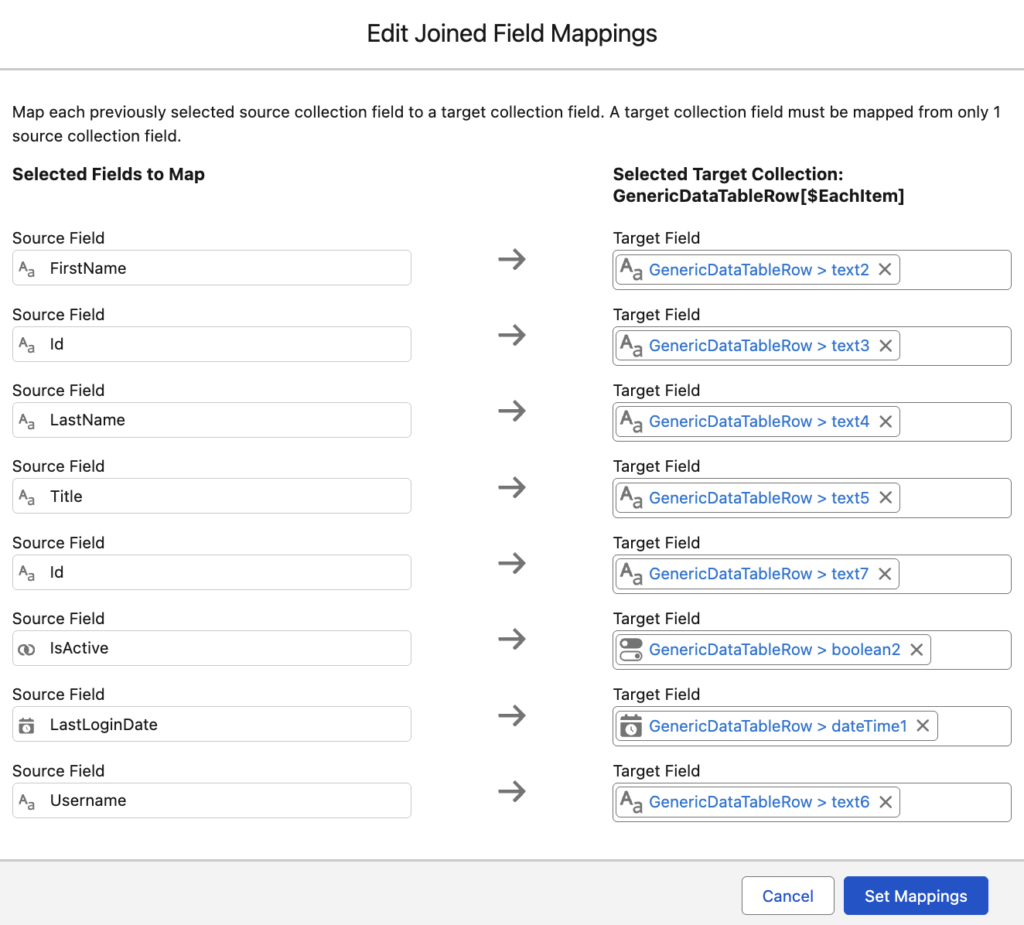
Then select the fields you want to store in the target collection, and map each one to a target collection field. If you're using the "GenericDataTableRow" Apex-defined variable (installation links below), you can use any dummy/placeholder field as the target.
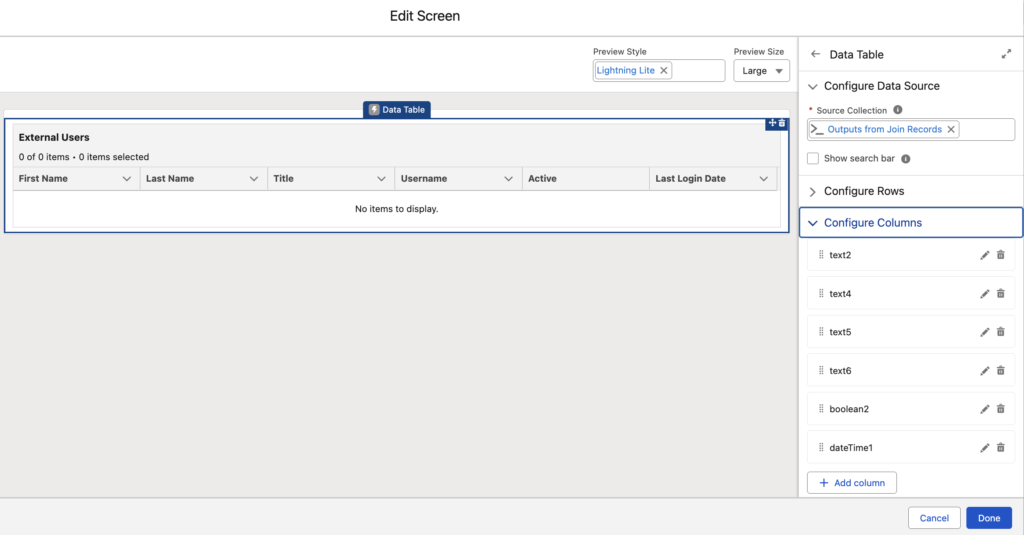
5- To display the joined collection, add a Screen element with a Data Table component. Choose the output of the previous Transform element, and configure the columns you want to display. Don't forget to write meaningful labels.
The Result
Here is the data table that we built. As you can see, it contains fields from both the Contact and User objects.

The Transform element is a powerful addition to Flow. It's fast, especially compared to nested loops, and doesn't eat into your element count. Salesforce also keeps improving it with every release. Support for inner joining collections is a great example of that progress. As Transform continues to evolve, it's becoming one of the most efficient ways to work with collections in Flow.
Installation Links
Here are the installation links of the Apex defined variable used in this example.
Use this link to install in production or developer edition environments.
Use this link to install in sandbox environments.
Leave a Reply