
Salesforce Hosted MCP Servers went Generally Available at TDX 2026. It is a genuine turning point for how AI assistants interact with your org. Instead of building a custom integration or running a local server, you can now expose your Salesforce data and automation directly through Salesforce-managed infrastructure. You can connect via OAuth, and let Claude query records, run reports, and even trigger flows in natural language. No more clicking through Lightning Experience or waiting on a dev team to build an API layer. In this post, you will learn how to connect Claude to your Salesforce org with Salesforce hosted MCP servers.
What is MCP?
MCP, or Model Context Protocol, is an open standard that lets AI applications like Claude talk to external tools and data sources in a consistent, predictable way. Think of it as a universal translator. Instead of every AI tool needing its own custom-built connector for every system, an app exposes its capabilities once as an MCP server. Then any MCP-compatible client (Claude, ChatGPT, Cursor, you name it) can plug in and use it.
In the Salesforce context, this means an AI agent can run SOQL queries, create or update records, and execute Apex actions or flows. All while Salesforce enforces its usual security model underneath: field-level security, sharing rules, and standard user permissions. You're not bypassing governance, you're just adding a new, conversational front door to it.
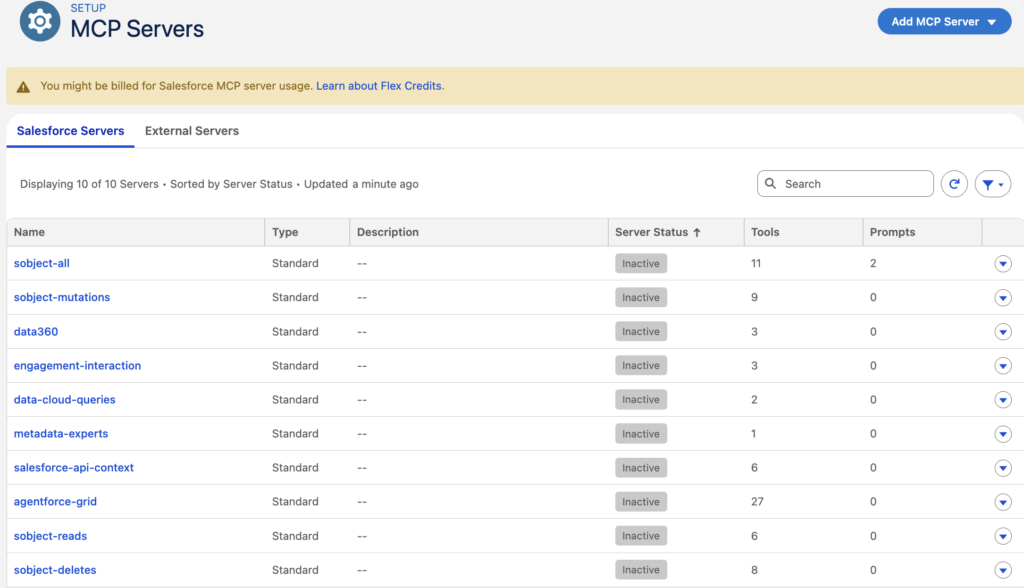
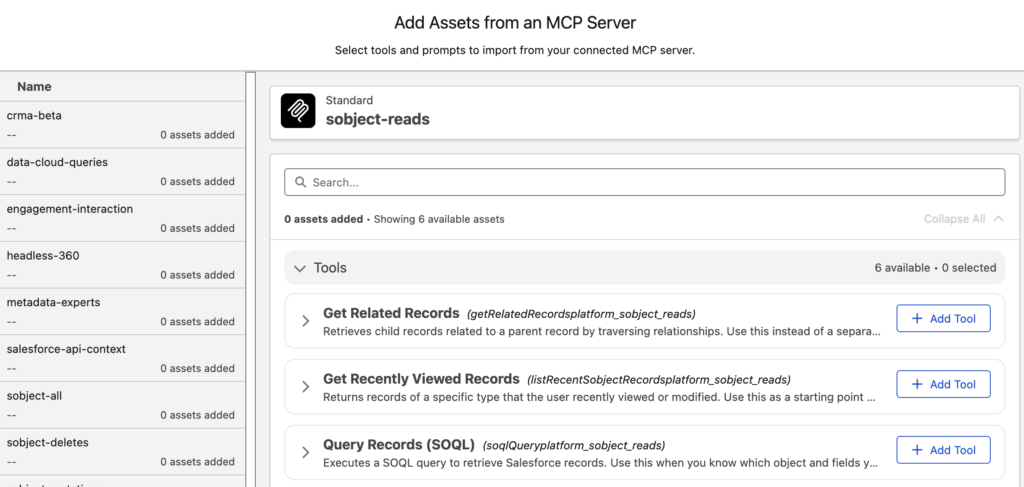
Salesforce ships with a set of standard MCP servers out of the box. You'll find them in Setup under MCP Servers. Each one is inactive by default. You choose which servers to activate for your use case. For example, sobject-all gives broad read and write access, with 11 tools and 2 prompts. sobject-reads and sobject-mutations split that access into read-only and write-only servers.
Let's see the steps to connect Claude with Salesforce hosted MCP servers.
Creating an External Client App
Before Claude can connect, Salesforce needs to know it's allowed in. That's where an External Client App comes in. Follow these steps to create an External Client App.
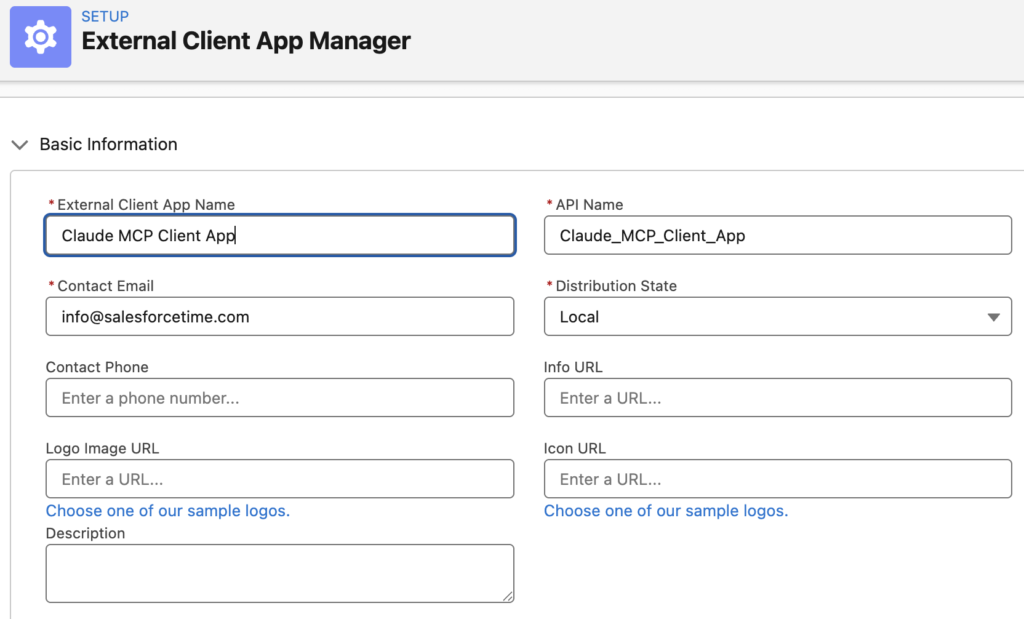
1- In Setup, search for External Client App Manager and then create a new one. Give it a name like "Claude MCP Client App" and enter a contact email.
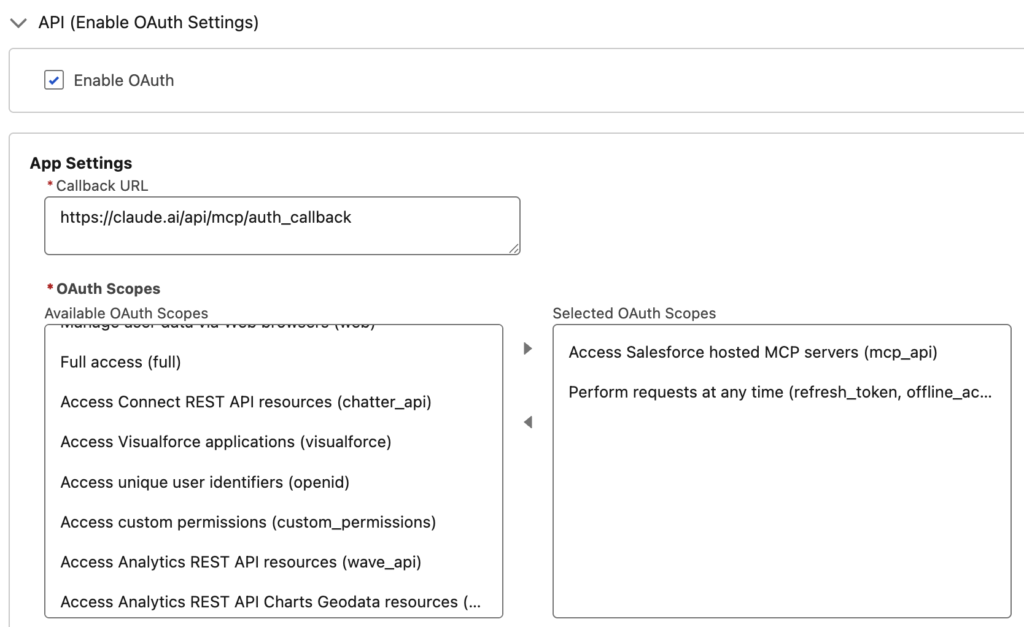
2- Expand the API section and enable OAuth Settings. Set the callback URL to https://claude.ai/api/mcp/auth_callback and add the OAuth scopes mcp_api and refresh_token, offline_access.
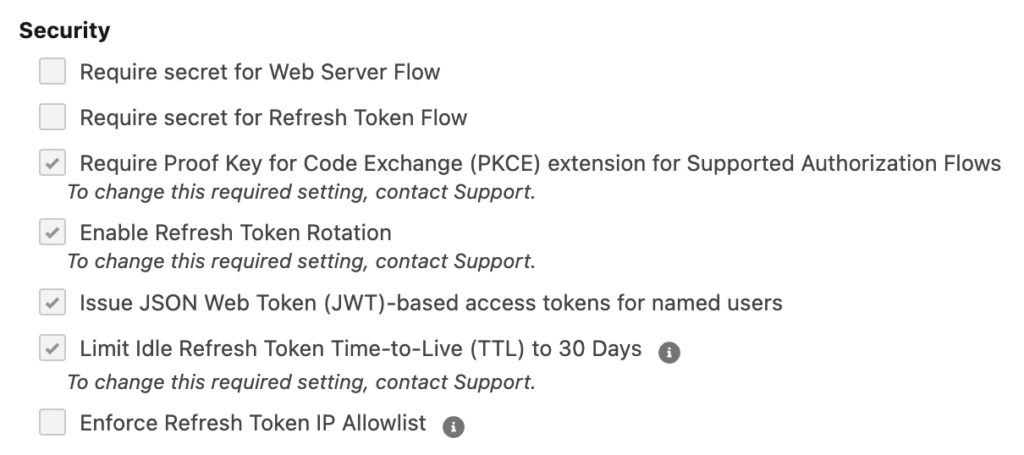
3- Make sure that these are checked:
Require Proof Key for Code Exchange (PKCE) extension for Supported Authorization Flows
Issue JSON Web Token (JWT)-based access tokens for named users
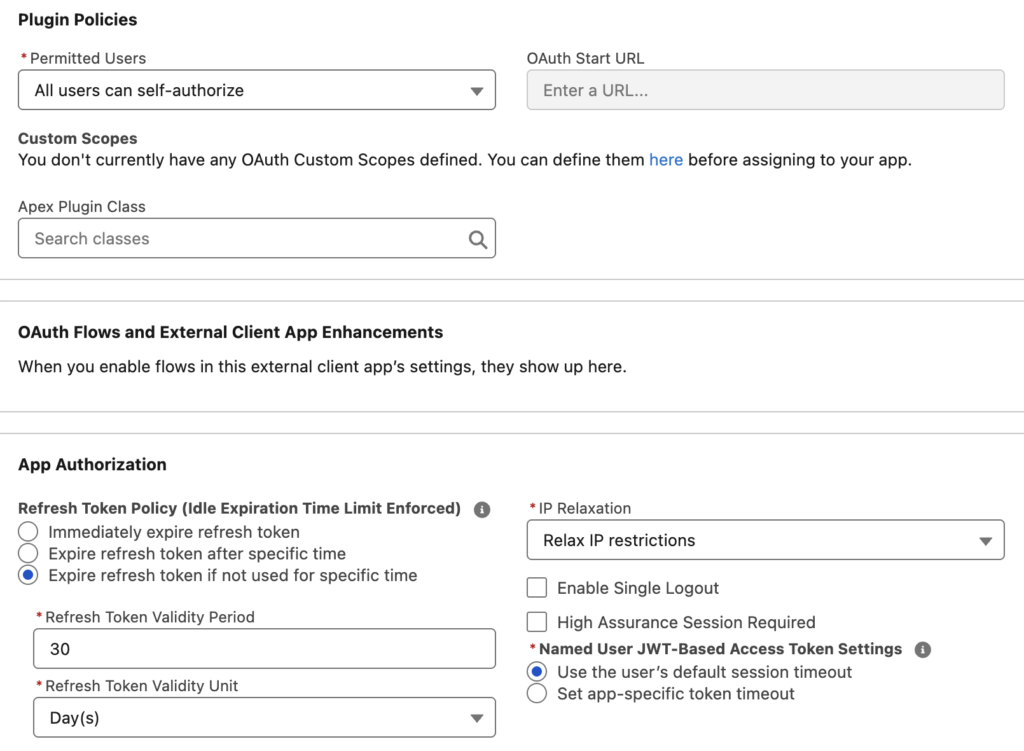
4- Go to Policies -> OAuth Policies and set Permitted Users to "All users may self-authorize" and set IP Relaxation to Relax IP restrictions.
5- Then, go to Settings and find the Consumer Key and Secret. You will need it later.
Activating an MCP Server
It's time to activate an MCP server. This tells Salesforce which tools Claude can actually use. You can pick from the standard servers, or build your own.
When you build your own custom MCP Server, you can add standard assets from an MCP Server.
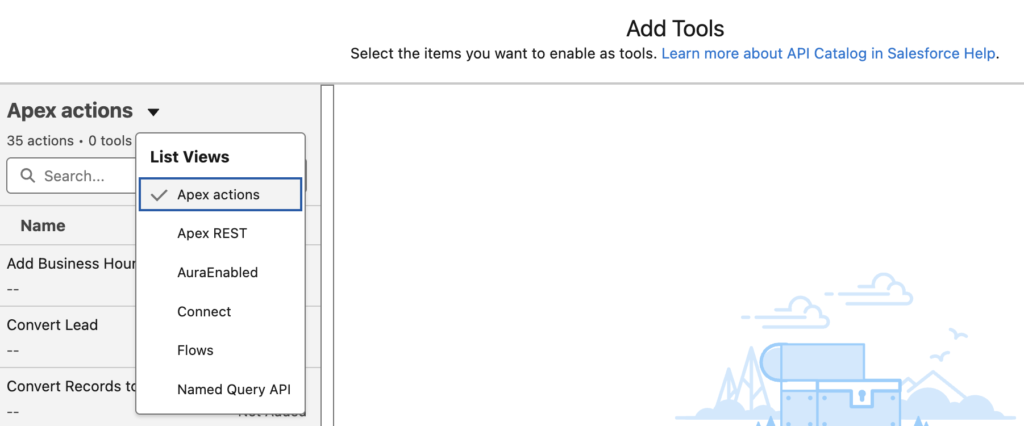
You can also add tools like Apex actions, Apex REST, AutaEnabled, Connect, Flows, and Named Query API.
Let's start with the standard option and activate "sobject-all".
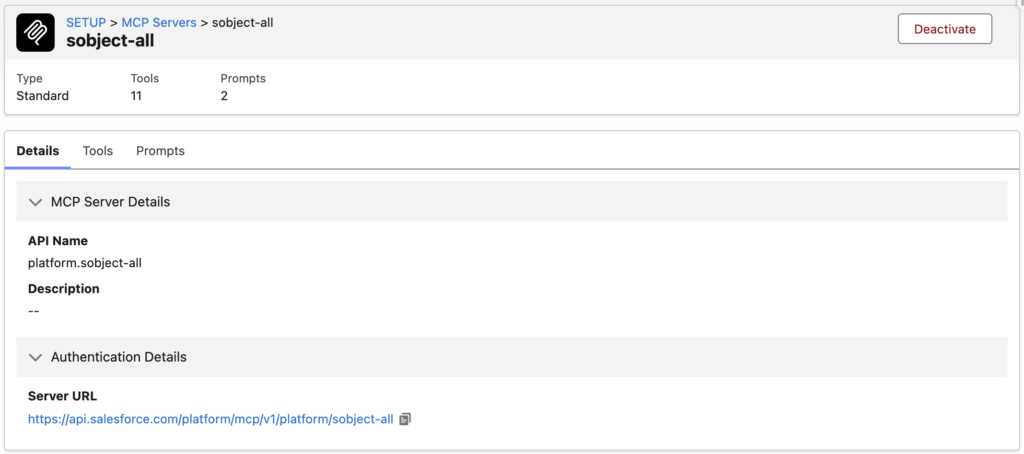
Copy the server URL, you will need it later.
Connecting Claude to Salesforce
With the server activated, you're ready to bring Claude into the picture. This last step happens on the Claude side, not in Salesforce. Here's how to set it up.
1- Go to Claude.ai and log in. Click Customize in the left sidebar and then click Connectors.
2- Click Add, then select Add custom connector. Enter a name for the connector, like "Salesforce MCP".
3- Enter the Server URL (the one you copied in the previous step).
4- Enter your Client Key and Client Secret to Advanced Settings.
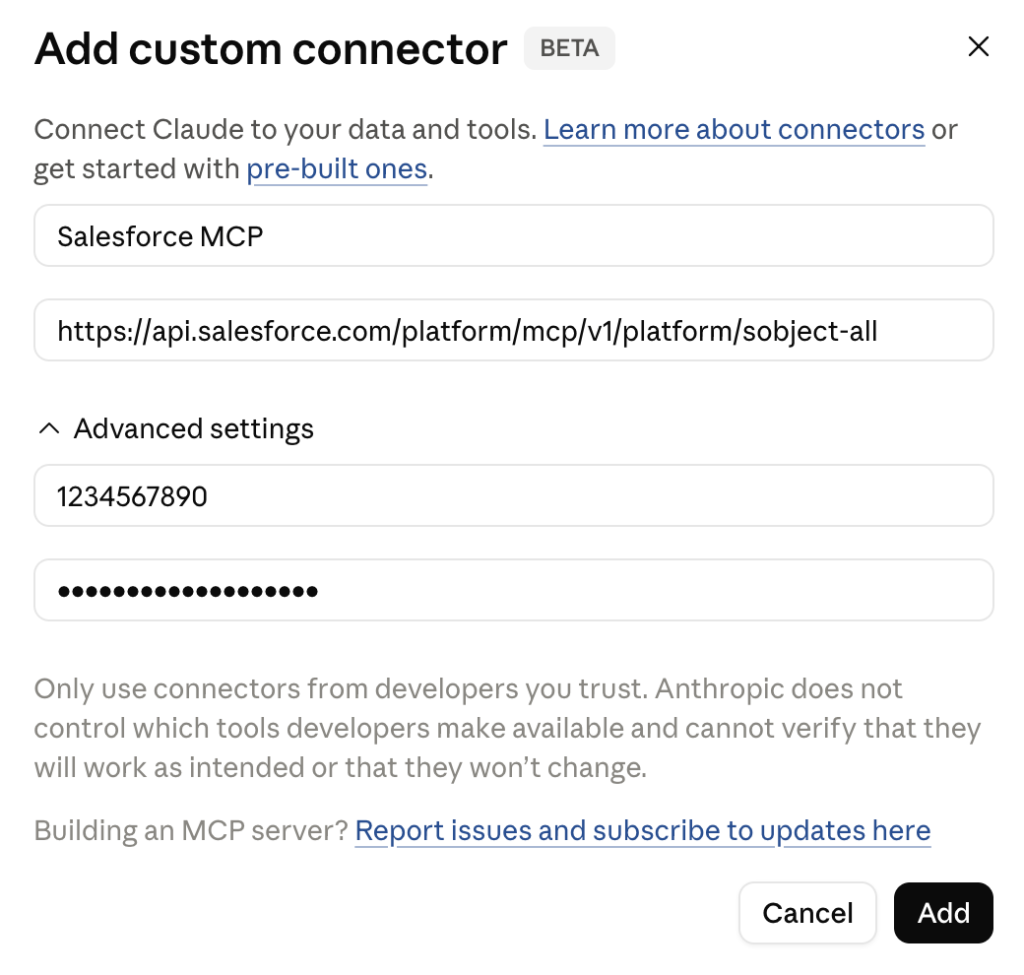
5- Click Connect to connect Claude to your Salesforce environment with MCP. It will ask you to login to Salesforce, follow the steps to complete the connection.
Testing the Integration
After this step, Claude will be connected to your Salesforce environment. From there, you can use natural language to perform actions in Salesforce.
After you ask a question, Claude may ask for permission to use the connector. Click Always allow.
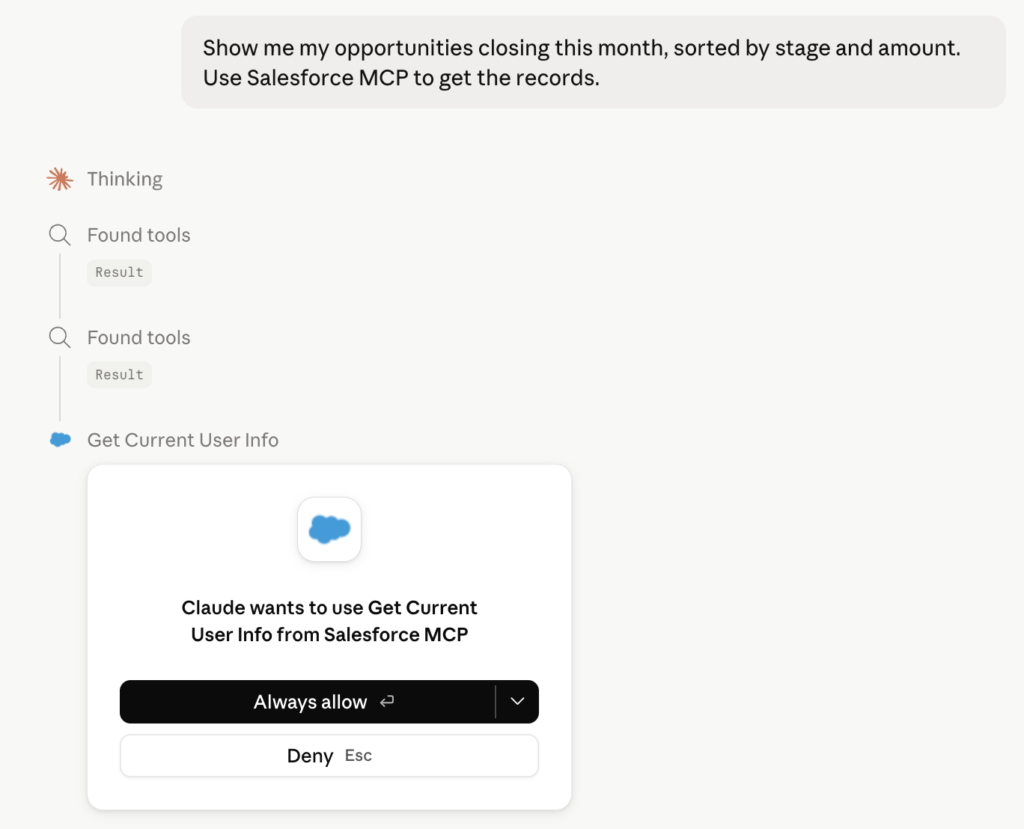
After allowing Claude to use the Salesforce MCP, it answers the question based on your Salesforce data.
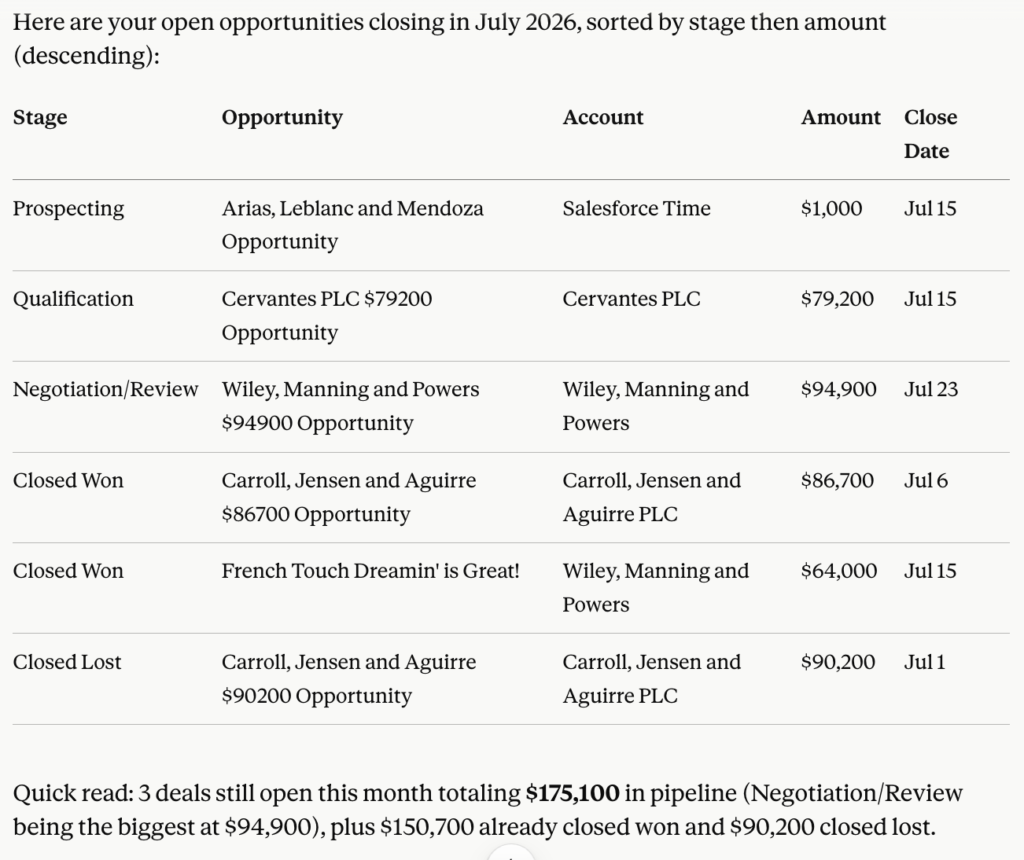
Now, let's ask Claude to visualize the results.
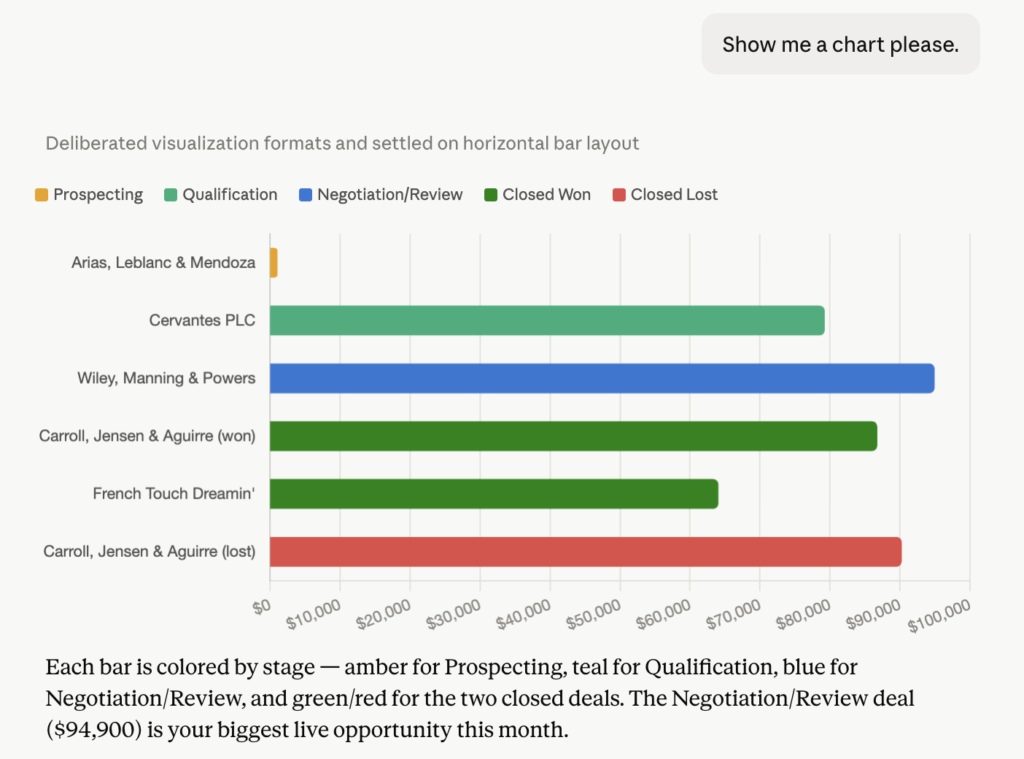
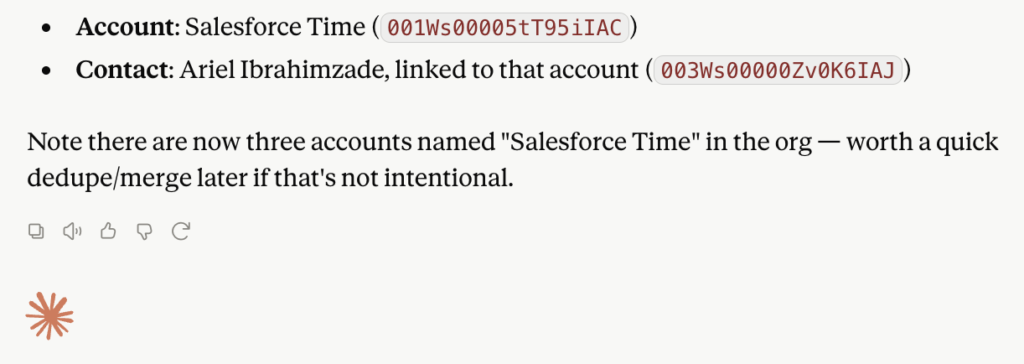
And of course, depending on the MCP server you're using, Claude can do more than just query records. For example, it can create an account and a related contact. In my case, it also flagged that the new account record might be a duplicate, and warned me.
Leave a Reply