Salesforce's Summer '26 release is just around the corner, and it's packed with fresh enhancements for Salesforce Flow. Here is a quick look at what is new in Flow.

1- Data Table Enhancements
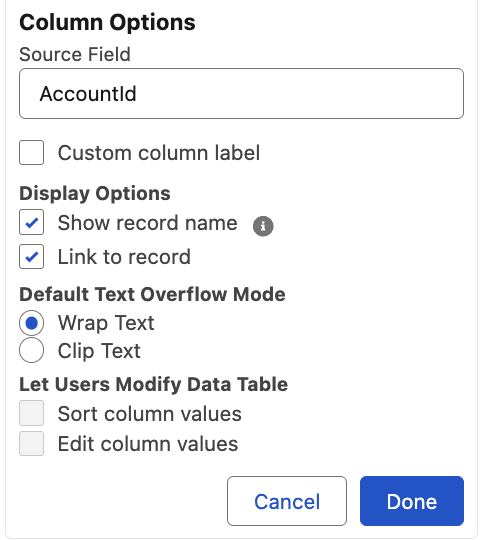
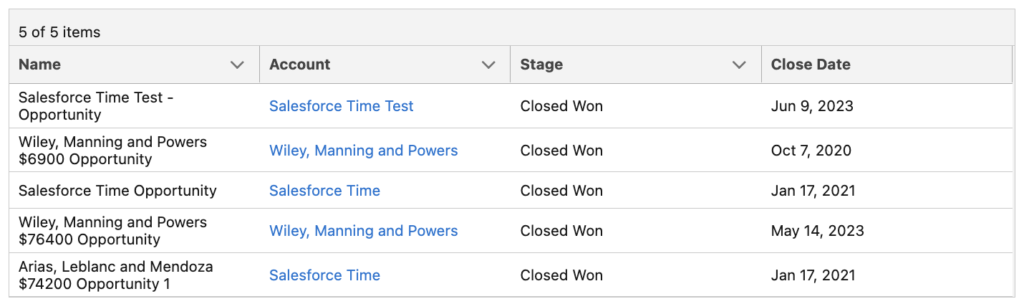
Starting with the Summer '26 release, when you display a lookup field in a data table, it can now show the related record’s name instead of the record Id. This is something many of us have been waiting for. You can also configure it to display the value as a link to the record. This means no more workarounds to display clickable record names!
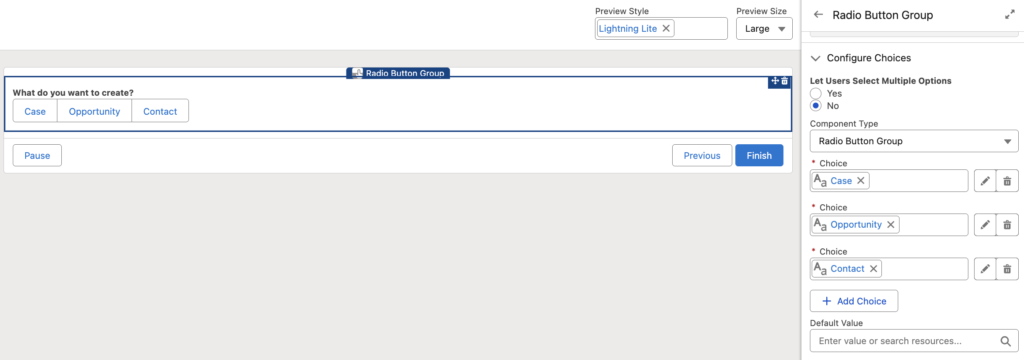
2- Radio Button Group Screen Component
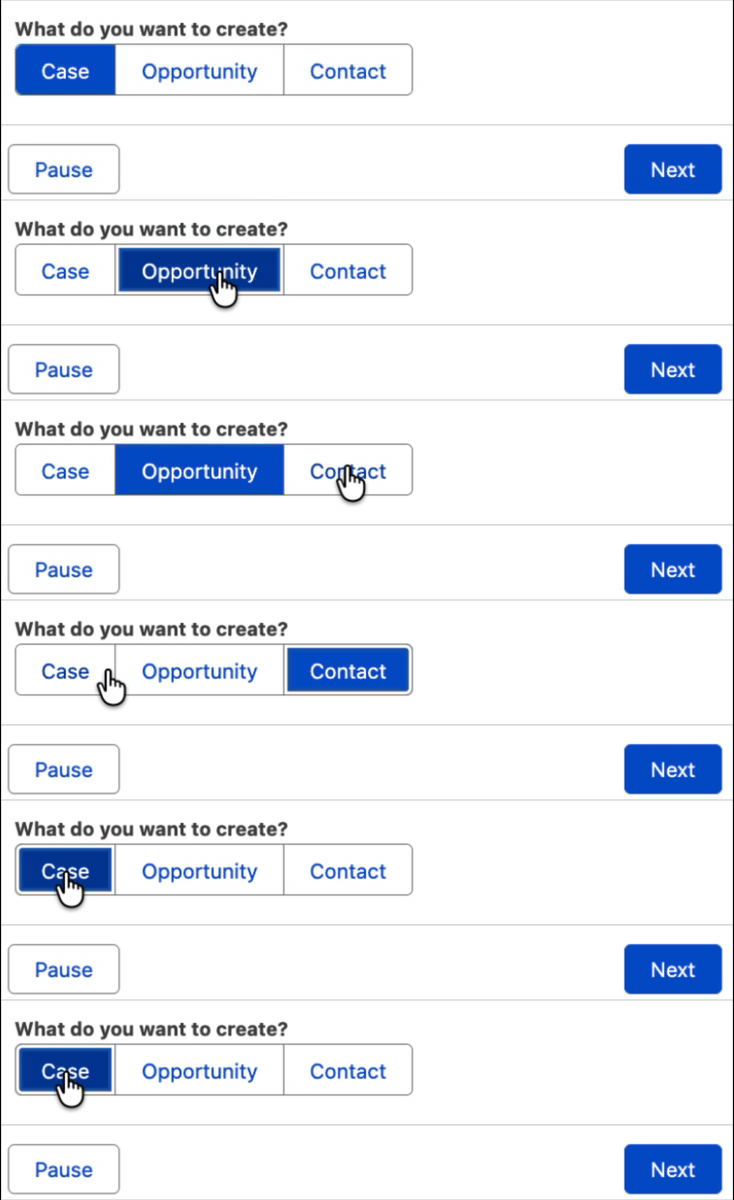
There is a new screen component called Radio Button Group. It is similar to existing selection components such as Picklist. However, instead of showing the options in a dropdown, it displays them as horizontal boxes.
3- Collapse and Expand Fault Paths
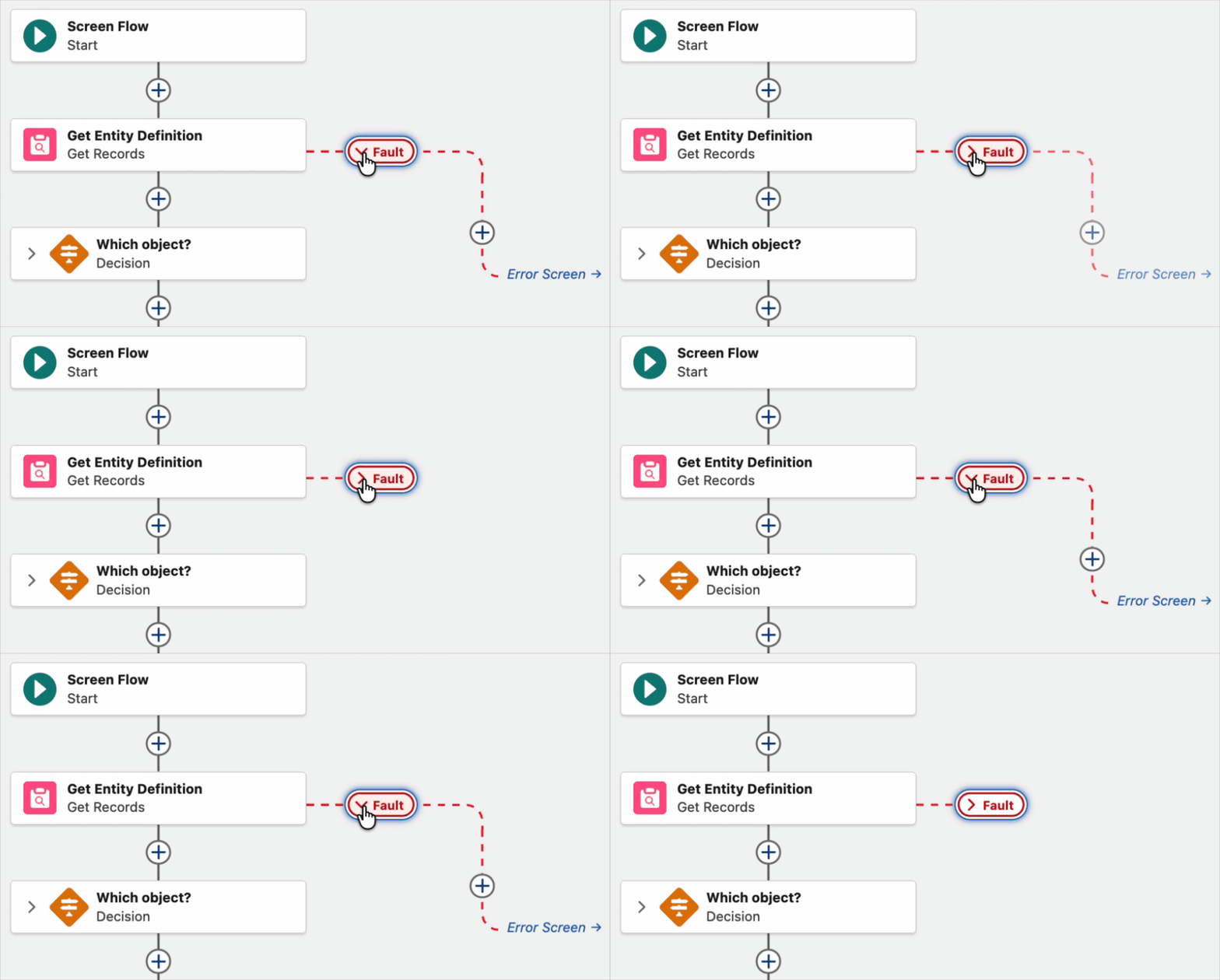
In Spring '26 release, Salesforce introduced the ability to collapse and expand Decision and Loop elements. In Summer '26 release, you can now collapse and expand fault paths too.
4- Max Batch Size in Schedule-Triggered Flows
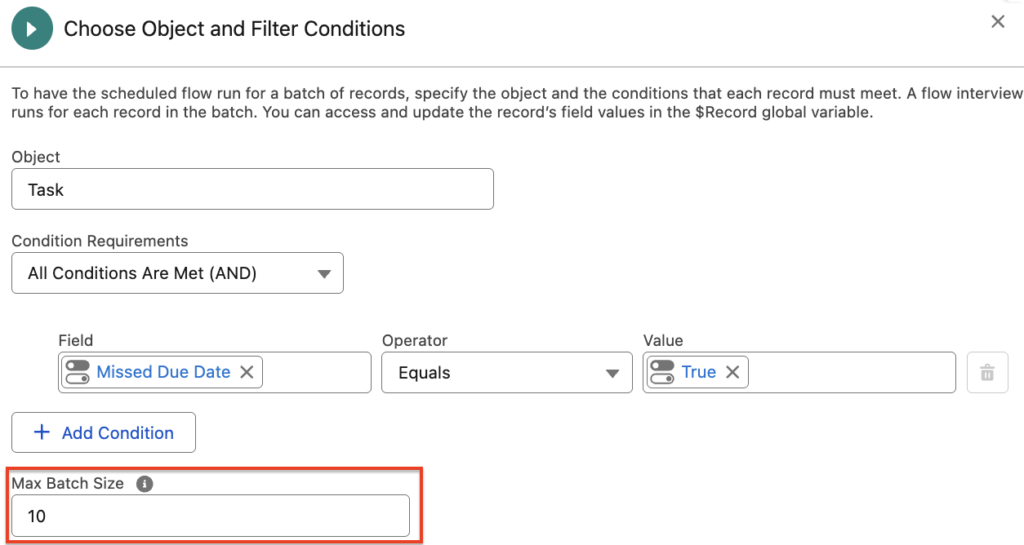
You can now set the maximum batch size in schedule-triggered flows. The default batch size is 200, but you can choose a smaller value when needed. For example, if the flow needs to process 7 records and the maximum batch size is set to 2, Salesforce will process them in 4 batches.
Smaller batch sizes can help improve performance and reduce the risk of hitting Apex governor limits. However, setting the batch size too low can increase the overall processing time.
5- Map Values Using Global Flow Resources
Salesforce introduced a new way to map values in Flow. Using the new Global Flow Resources in the Automation app, you can create reusable mappings and then use them inside any Flow type that supports the Transform element.
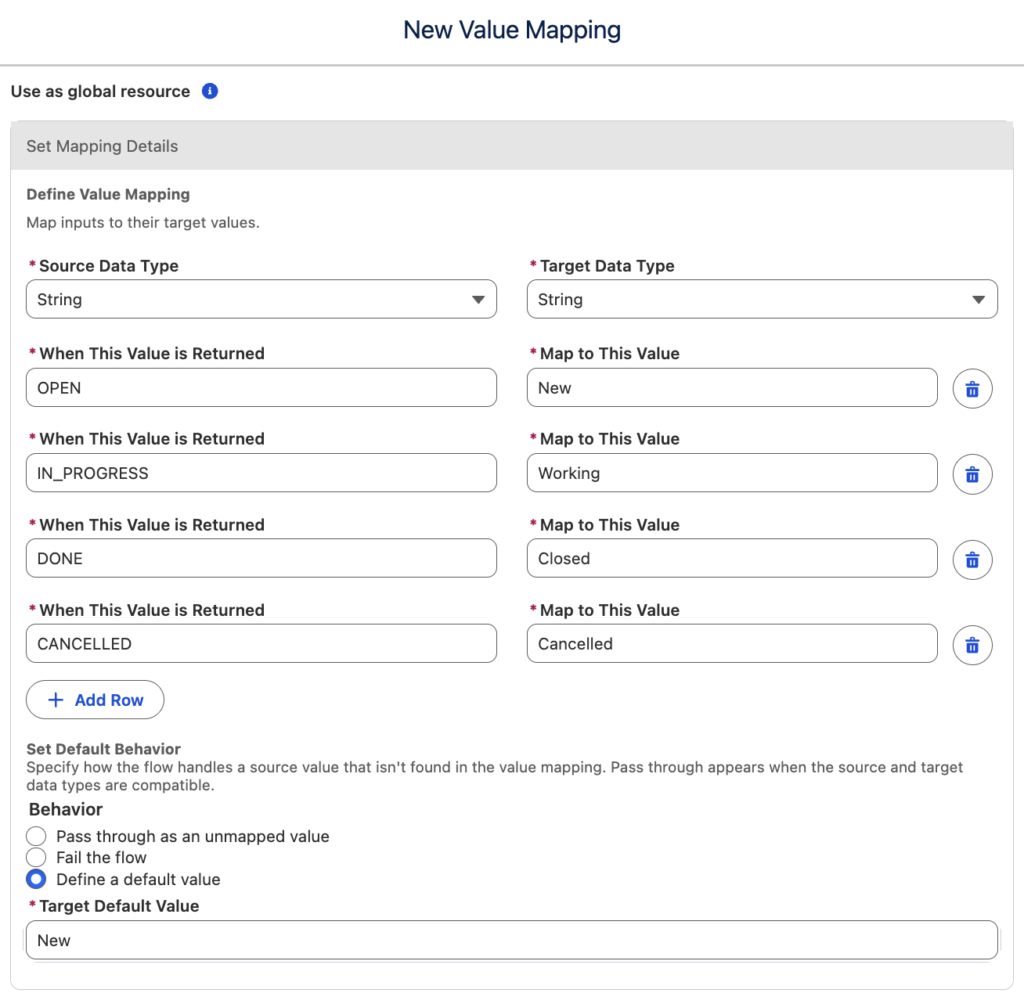
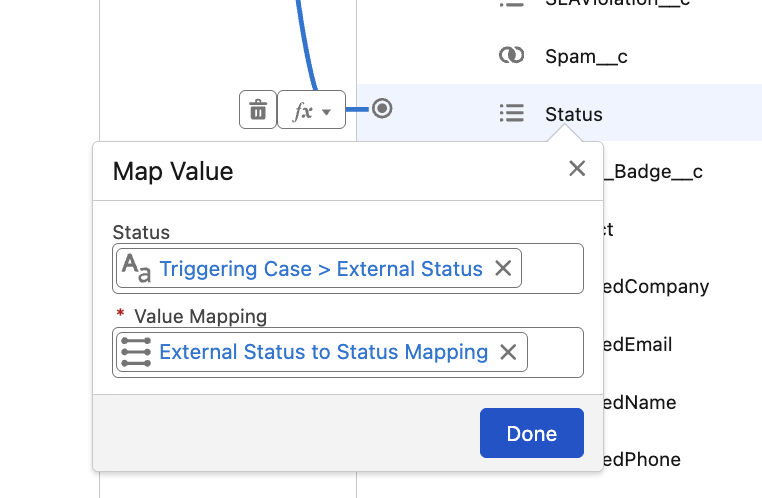
Then, you can use the value mapping in the Transform element. For example, here an external status value is mapped to the standard Status field.
6- Flow Element Error Rate
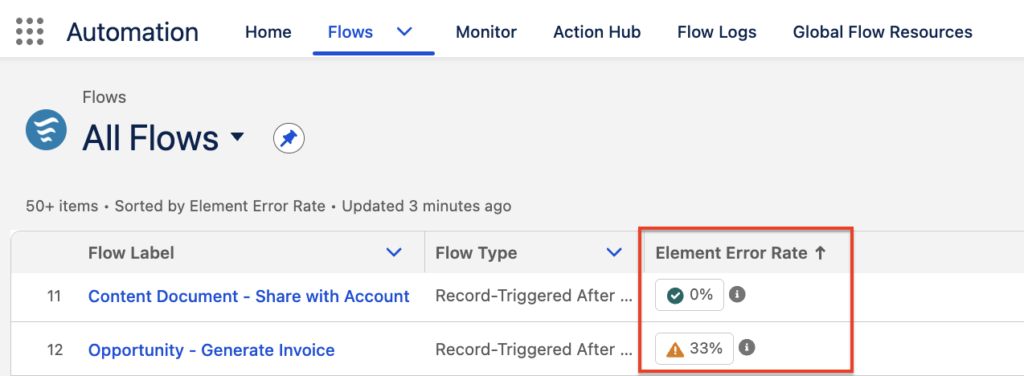
The Automation app introduces a new Element Error Rate column in Flow list views. It shows the percentage of flow elements that failed during the most recent flow run.
7- New Date Operators
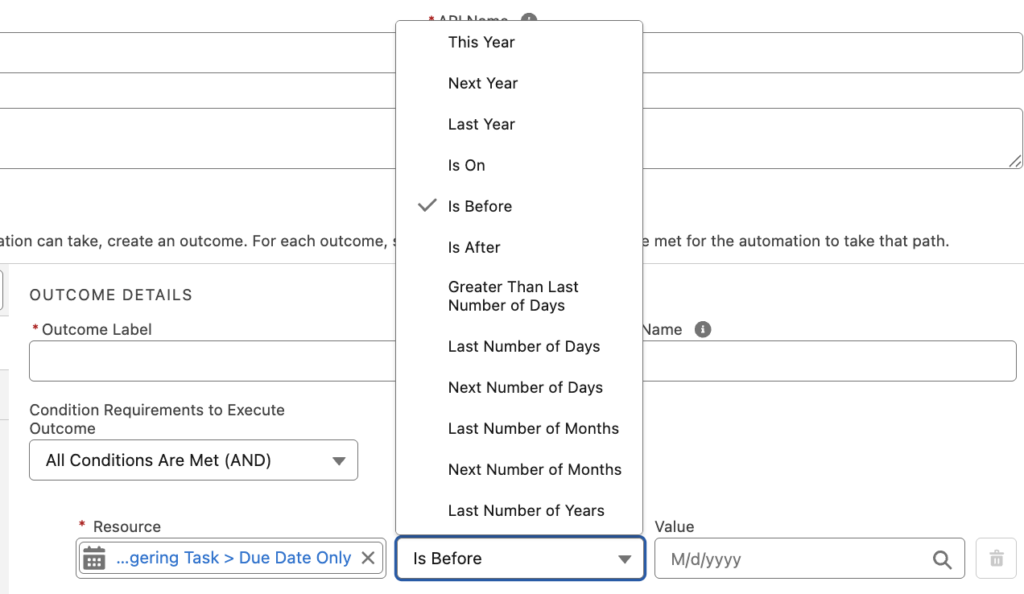
There are 20 new date operators that you can use in Decision elements.
Although some of these are easy to implement in other ways, such as Is Today, others can save a lot of time and effort.
- Is Anniversary of Today
- Is Not Anniversary of Today
- Is Today
- Is Tomorrow
- Is Yesterday
- Is This Month
- Is Next Month
- Is Last Month
- This Year
- Next Year
- Last Year
- Is On
- Is Before
- Is After
- Greater Than Last Number of Days
- Last Number of Days
- Next Number of Days
- Last Number of Months
- Next Number of Months
- Last Number of Years
8- Send Email Action Uses a Persistent Template Reference
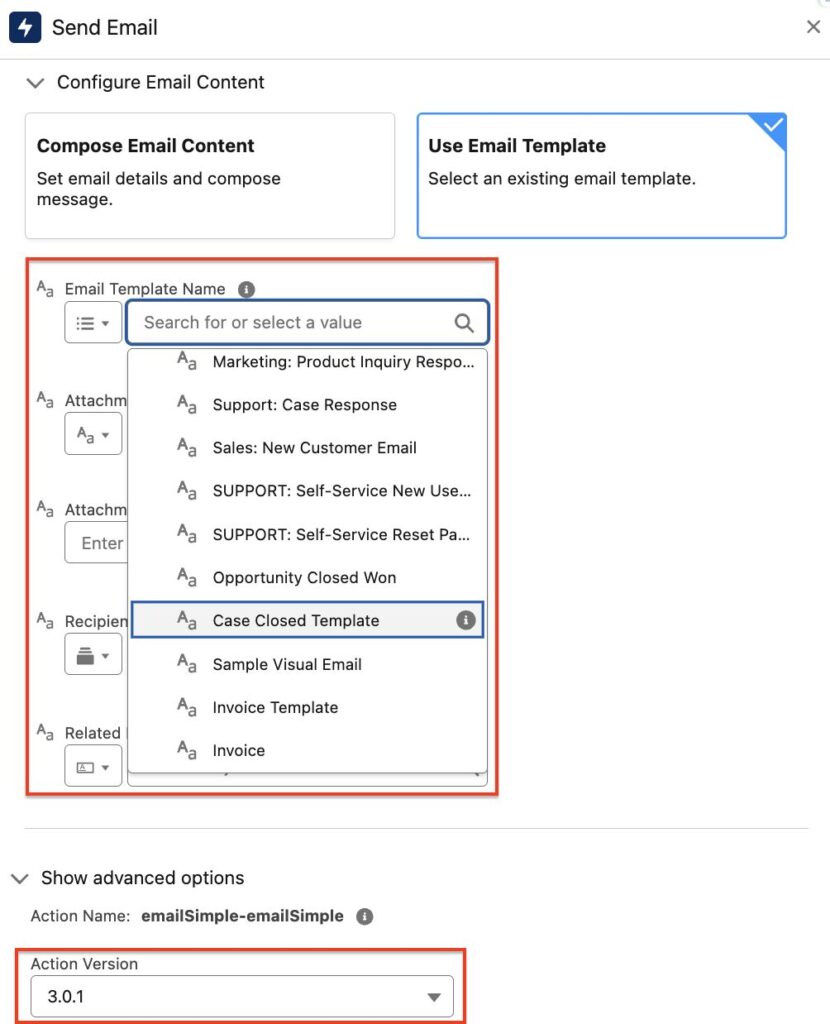
Starting with Summer '26 release, the Send Email action stores the selected email template as a reference that persists across deployment environments.
Previously, the action stored the template ID. Since template IDs change when a flow is deployed from one org to another, the action could break and require manual updates.
Make sure the action version of the Send Email action is 3.0.1 or higher.
9- More Screen Flow Components Support Styling
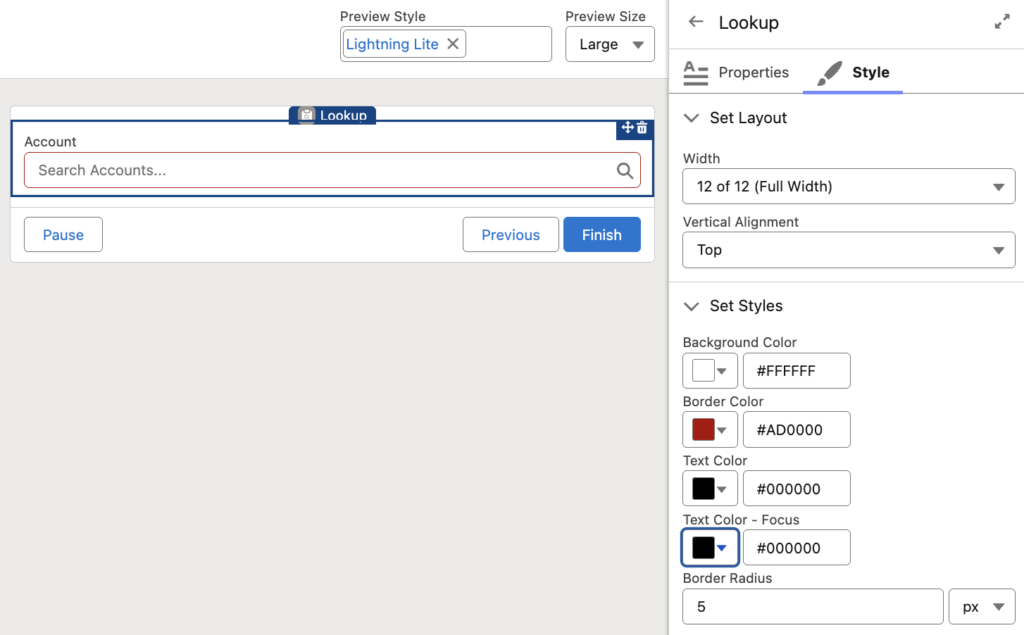
You can now customize the styling of more Screen Flow components, including Action Button, Address, Choice Lookup, Dependent Picklists, Email, Lookup, Name, Phone, Slider, Toggle, and URL.
10- Add Static Resource Images to Display Text Without Leaving Flow Builder
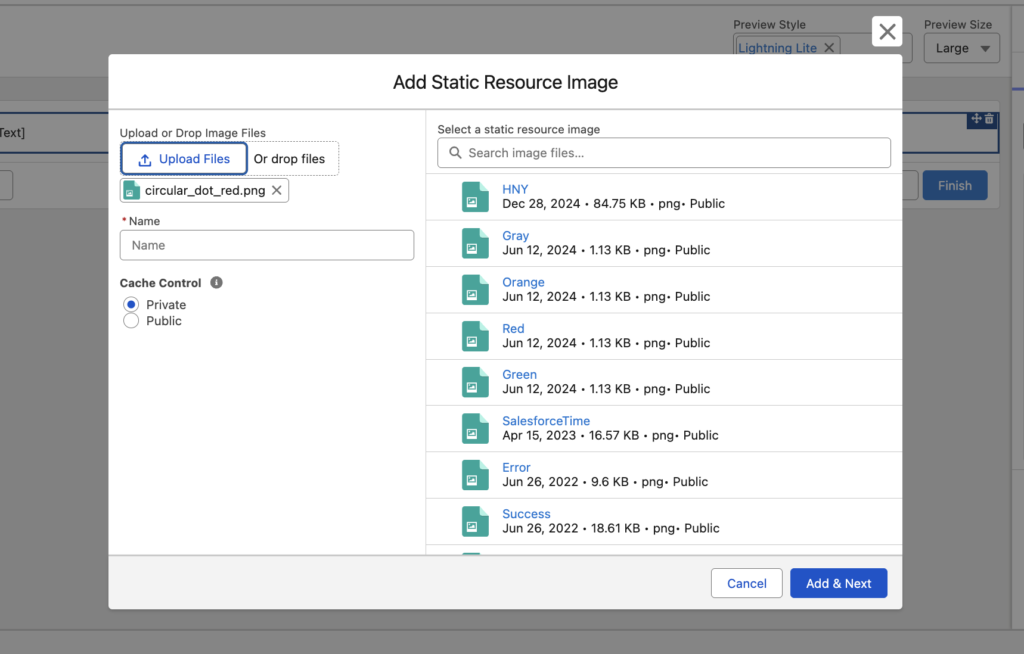
Previously, you had to open Static Resources in Setup, copy the image name, and then use it in the Display Text component.
Now, you can search for existing images, upload new ones, and add alternate text directly from the screen flow in a simple two-step process.
11- Use Formula and Transform Modes for Action Inputs
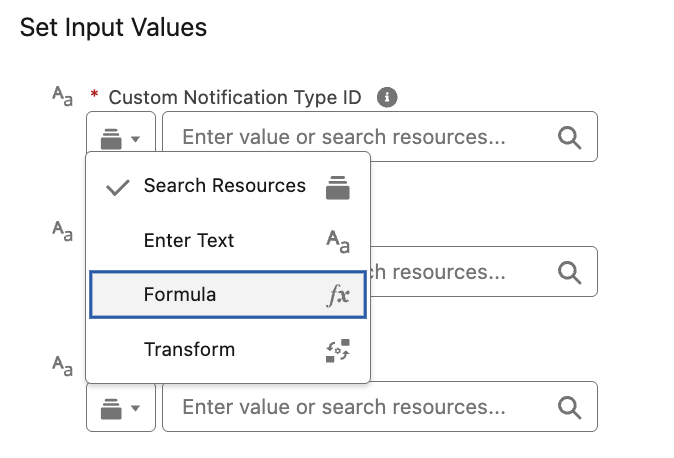
You can now define formulas and data transformations directly in action input parameters, without creating separate formula resources or adding extra Transform elements to the flow.
When configuring an Action element, select Formula mode to create formulas or Transform mode to define data transformations. This helps reduce clutter, keeps flows cleaner, and makes action configurations easier to read and maintain.
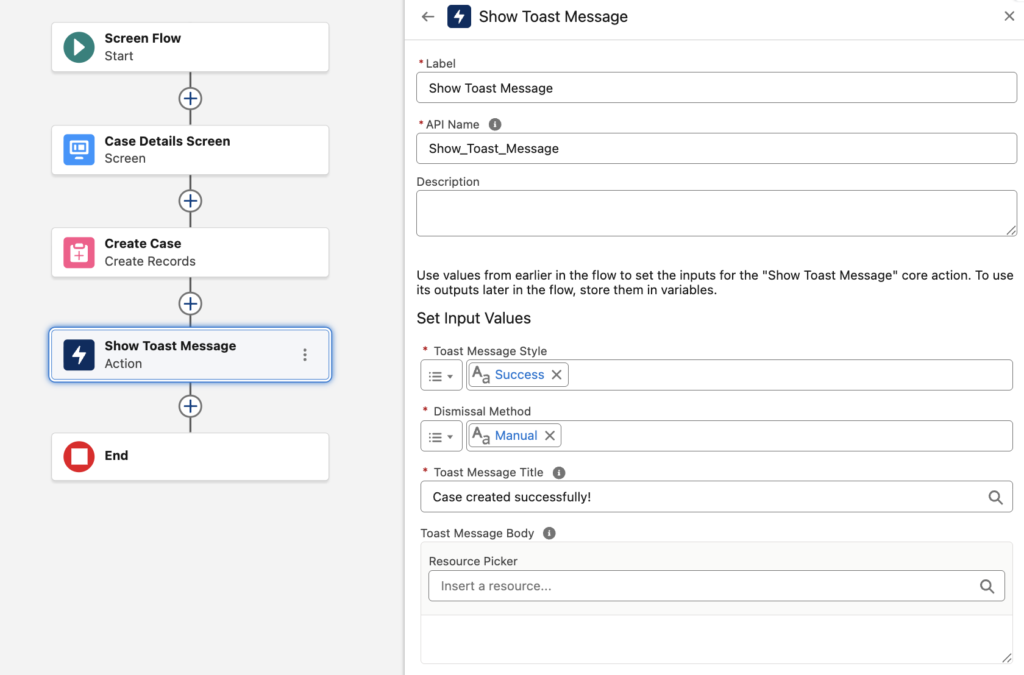
12- Show Toast Message Action
We finally have a standard action for displaying toast messages in Screen Flows.
You no longer need custom actions just to show a simple toast message. The new action lets you choose the toast style, including Success, Information, Warning, and Error. You can also control whether the message closes automatically or requires manual dismissal, and define the title and message that users see.
Read this post to learn more.
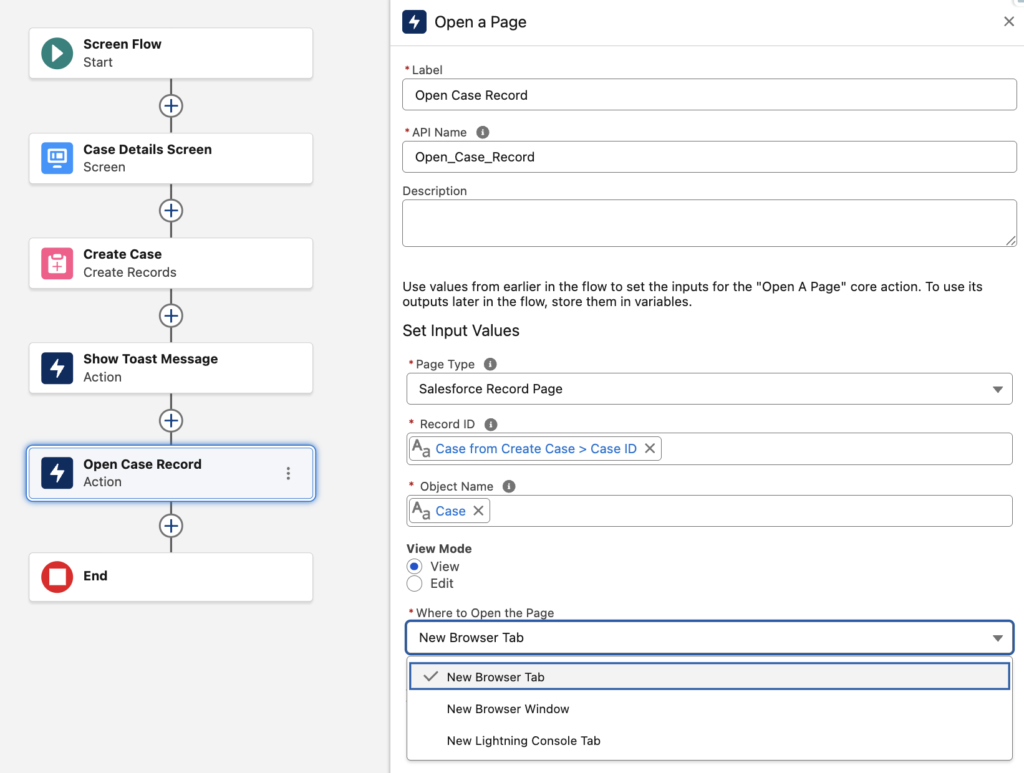
13- Open a Page Action
Salesforce has added a standard action for opening a page from Screen Flow.
You can now configure a Screen Flow to navigate users to a Salesforce record in either view or edit mode. The action also supports opening external links, so you can direct users to pages outside Salesforce when needed.
You can also choose how the page opens, including in a new tab, new window, or new Lightning console tab.
Read this post to learn more.
Thank you Yumi for you great work!:)
Thank you Samet!