

When building Salesforce Screen Flows, we often need to display messages to users. These messages might confirm a successful action, explain an error, highlight a warning, or provide important information. Many admins simply display plain text, such as "Success" or "Something went wrong." However, you can make these messages more visually appealing with a little HTML and CSS. In this post, you can find 7 ready to use HTML message templates for different scenarios. These templates will help you improve the user experience and give your Screen Flows a more professional look.
How to Use These HTML Templates in Screen Flows
Follow these steps to use the HTML templates in Salesforce Screen Flows:
- Create a new Text Template resource and select View as Plain Text.
- Copy one of the HTML templates below and paste it into the Text Template.
- Add a Display Text component to your Screen element.
- Insert the Text Template resource into the Display Text component.
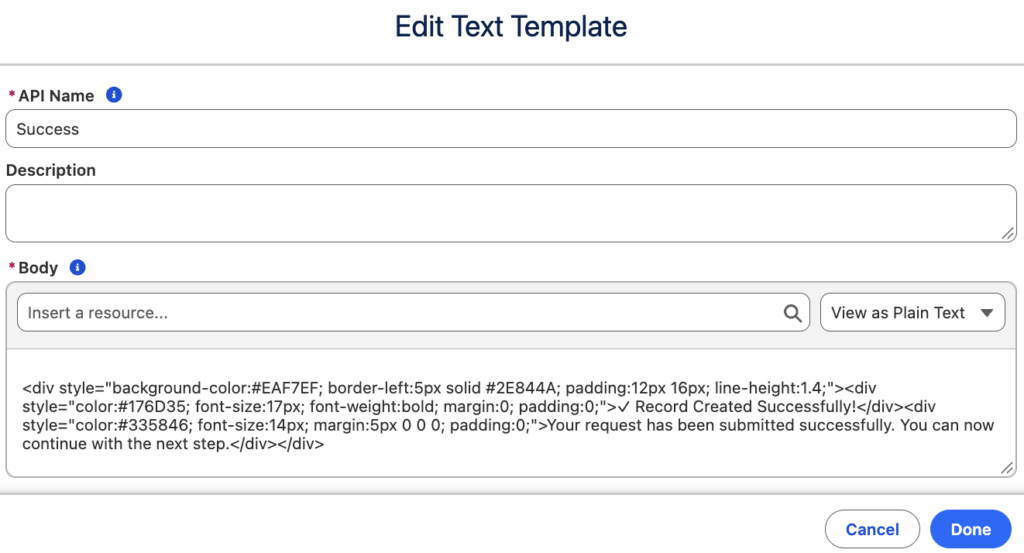
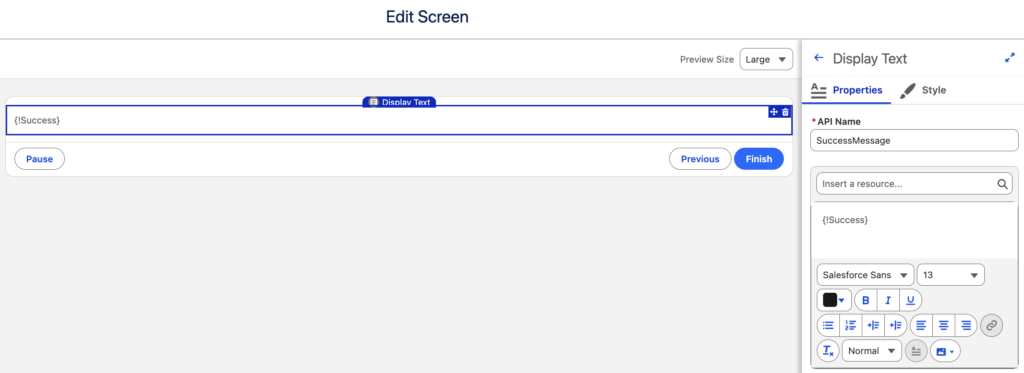
That's it! Run your Flow to see the message. You can also customize the colors, text, and other styles to match your needs.
Tip: Keep the HTML on a single line when pasting it into the Text Template. Line breaks may introduce unwanted spacing in the displayed message.
7 Ready to Use HTML Message Templates
Below, you will find 7 HTML message templates for different scenarios. Each template includes a preview and HTML code that you can copy and customize for your Screen Flows.
1. Success Message
Use this template to confirm that an action was completed successfully. It's perfect for record creation, form submissions, and other successful operations.
<div style="background-color:#EAF7EF; border-left:5px solid #2E844A; padding:12px 16px; line-height:1.4;"><div style="color:#176D35; font-size:17px; font-weight:bold; margin:0; padding:0;">✓ Record Created Successfully!</div><div style="color:#335846; font-size:14px; margin:5px 0 0 0; padding:0;">Your request has been submitted successfully. You can now continue with the next step.</div></div>2. Error Message
Use this template when an action fails or something goes wrong. The red background helps users recognize the error and understand what to do next.
<div style="background-color:#FFF0EF; border-left:5px solid #C23934; padding:12px 16px; line-height:1.4;"><div style="color:#A12622; font-size:17px; font-weight:bold; margin:0; padding:0;">✕ Something Went Wrong</div><div style="color:#713B39; font-size:14px; margin:5px 0 0 0; padding:0;">Error: {!$Flow.FaultMessage}</div></div>Tip: In order to display the actual error message, use the formula from this post.
3. Warning Message
Use this template to alert users about potential issues before they continue. It works well for missing information, important reminders, or actions that require extra attention.
<div style="background-color:#FFF7E5; border-left:5px solid #DD9200; padding:12px 16px; line-height:1.4;"><div style="color:#865600; font-size:17px; font-weight:bold; margin:0; padding:0;">⚠ Please Review Before Continuing</div><div style="color:#735B2F; font-size:14px; margin:5px 0 0 0; padding:0;">Some required information is missing. You can continue, but the record may remain incomplete.</div></div>4. Informational Message
Use this template to share helpful information without interrupting the user's progress. It's ideal for instructions, additional details, and general notifications.
<div style="background-color:#EAF4FF; border-left:5px solid #0176D3; padding:12px 16px; line-height:1.4;"><div style="color:#014B91; font-size:17px; font-weight:bold; margin:0; padding:0;">ℹ Good to Know</div><div style="color:#345B80; font-size:14px; margin:5px 0 0 0; padding:0;">Changes to this record may take a few minutes to appear in related systems.</div></div>5. Confirmation Message
Use this centered template on the final screen of a Flow. It gives users clear confirmation that they have completed the process.
<div style="background-color:#ECF8F3; padding:20px 16px; text-align:center; line-height:1.4;"><div style="color:#2E844A; font-size:30px; font-weight:bold; margin:0; padding:0;">✓</div><div style="color:#176D35; font-size:21px; font-weight:bold; margin:5px 0 0 0; padding:0;">All Done!</div><div style="color:#335846; font-size:14px; margin:7px 0 0 0; padding:0;">Your changes have been saved successfully. Everything is up to date.</div></div>6. Important Announcement
Use this template to highlight important updates, new processes, or policy changes. Its purple background helps announcements stand out from regular informational messages.
<div style="background-color:#F3EEFF; border-left:5px solid #7952B3; padding:12px 16px; line-height:1.4;"><div style="color:#6941A5; font-size:12px; font-weight:bold; margin:0; padding:0;">★ IMPORTANT ANNOUNCEMENT</div><div style="color:#4B2B7F; font-size:17px; font-weight:bold; margin:5px 0 0 0; padding:0;">A New Process Is Available</div><div style="color:#625477; font-size:14px; margin:5px 0 0 0; padding:0;">Starting next Monday, all approval requests must be submitted through the updated process.</div></div>7. Section Header Message
Use this template to introduce a section and guide users through your Screen Flow. It's especially useful for multi-step forms that collect different types of information.
<div style="background-color:#F7F9FB; border-left:5px solid #0176D3; padding:12px 16px; line-height:1.4;"><div style="color:#014B91; font-size:17px; font-weight:bold; margin:0; padding:0;">Case Information</div><div style="color:#475569; font-size:14px; margin:5px 0 0 0; padding:0;">Provide the details below to help us understand your request and determine the next steps.</div></div>Here is how they actually look in a Screen Flow:
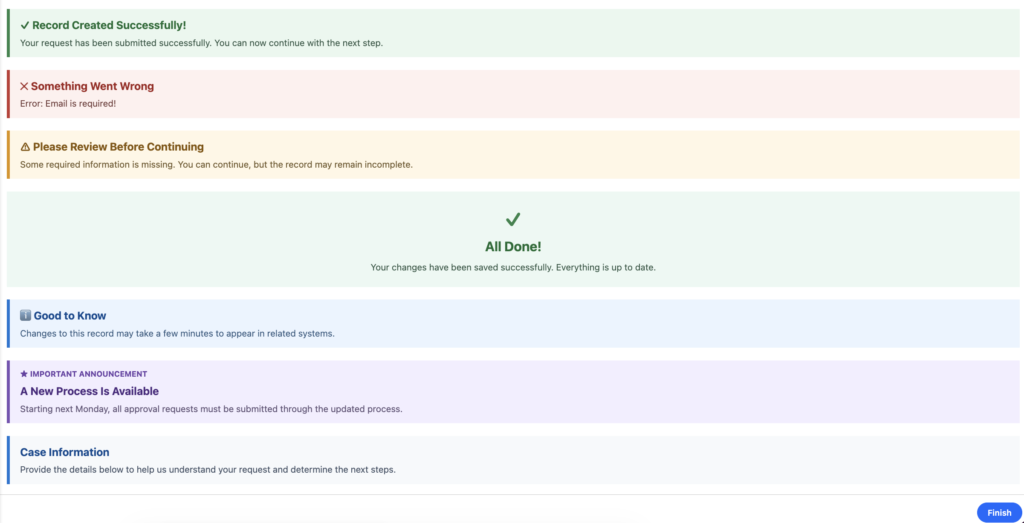
Tip: You don't have to use these HTML templates exactly as they are. Feel free to customize the text, colors, and styles to match your needs. You can also include Flow variables and other resources in your messages to display dynamic information.
Leave a Reply