
Salesforce's Winter '27 release is packed with fresh enhancements for Salesforce Flow. Here is a quick look at what is new in Flow.

1- Screen Flows in Mass Actions for List Views and Related Lists
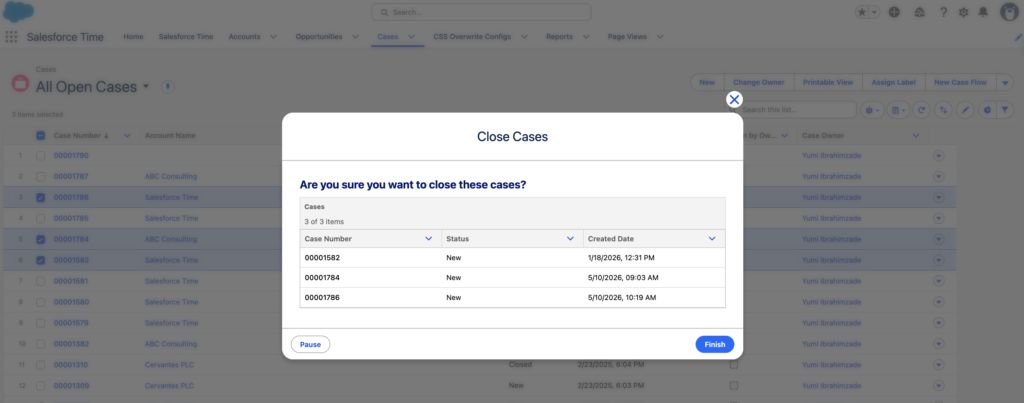
The long wait is over! We can finally use actions to launch screen flows for multiple records from list views and related lists. You can pass the IDs of the selected records to an ids text collection variable. Additionally, when launching the flow from a related list, you can pass the parent record ID as well.
2- Customize Your Flow Builder Experience
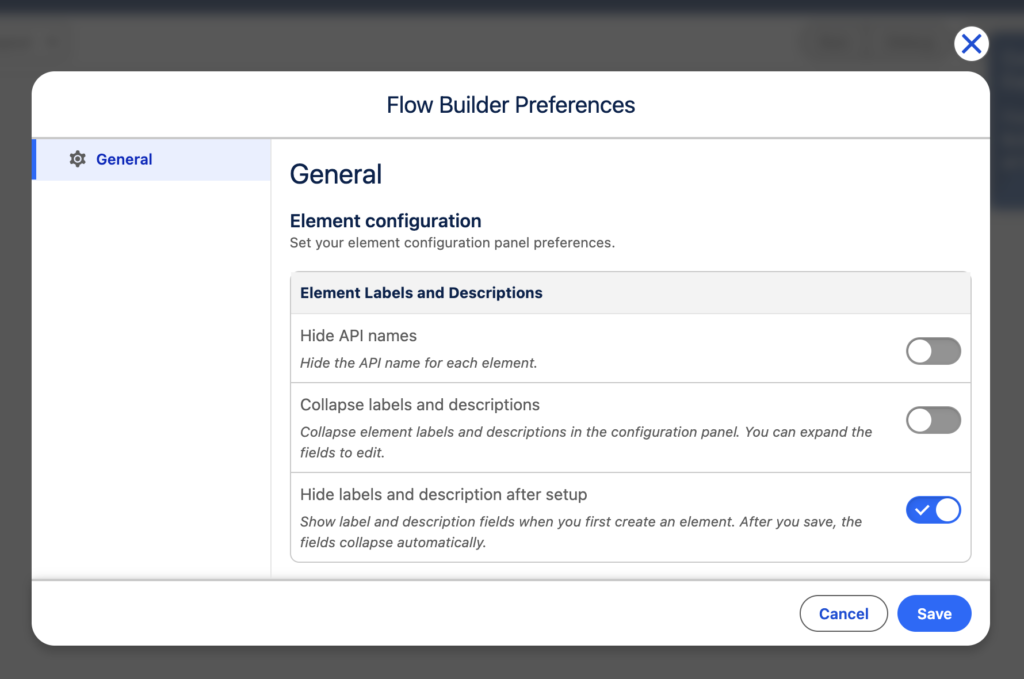
Starting with the Winter '27 release, you can customize your Flow Builder experience. This new setting allows you to:
- Hide API names
- Collapse labels and descriptions
- Hide labels and description after setup
3- Flow Builder UI Changes
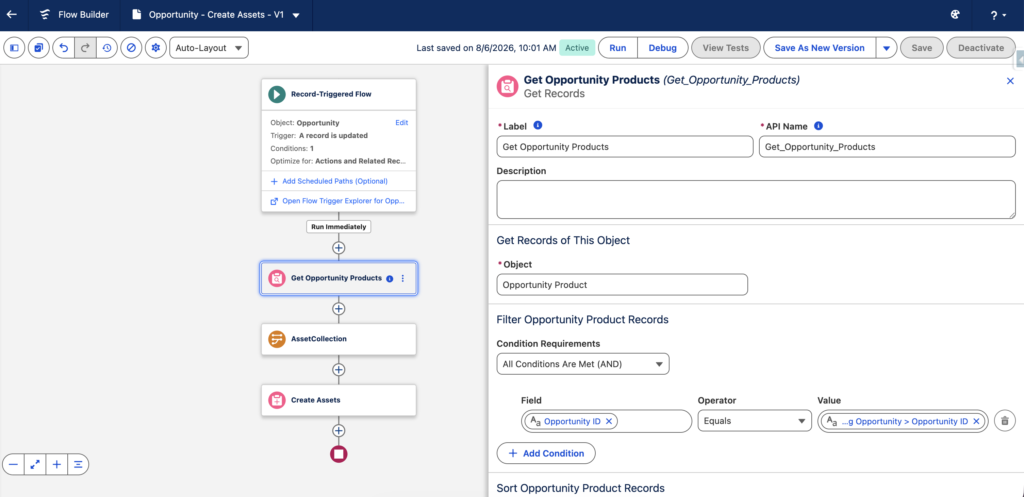
There are several UI changes in Flow Builder and on the canvas. The design is more modern, and the cards take up less space and have less rounded corners.
4- New Way to Add Elements
When you click the plus sign to add a new element, a menu now appears on the right side. Elements are grouped by type, such as Decision Split, Manage Data, and Flow Logic. Over time, your frequently used elements appear at the top.
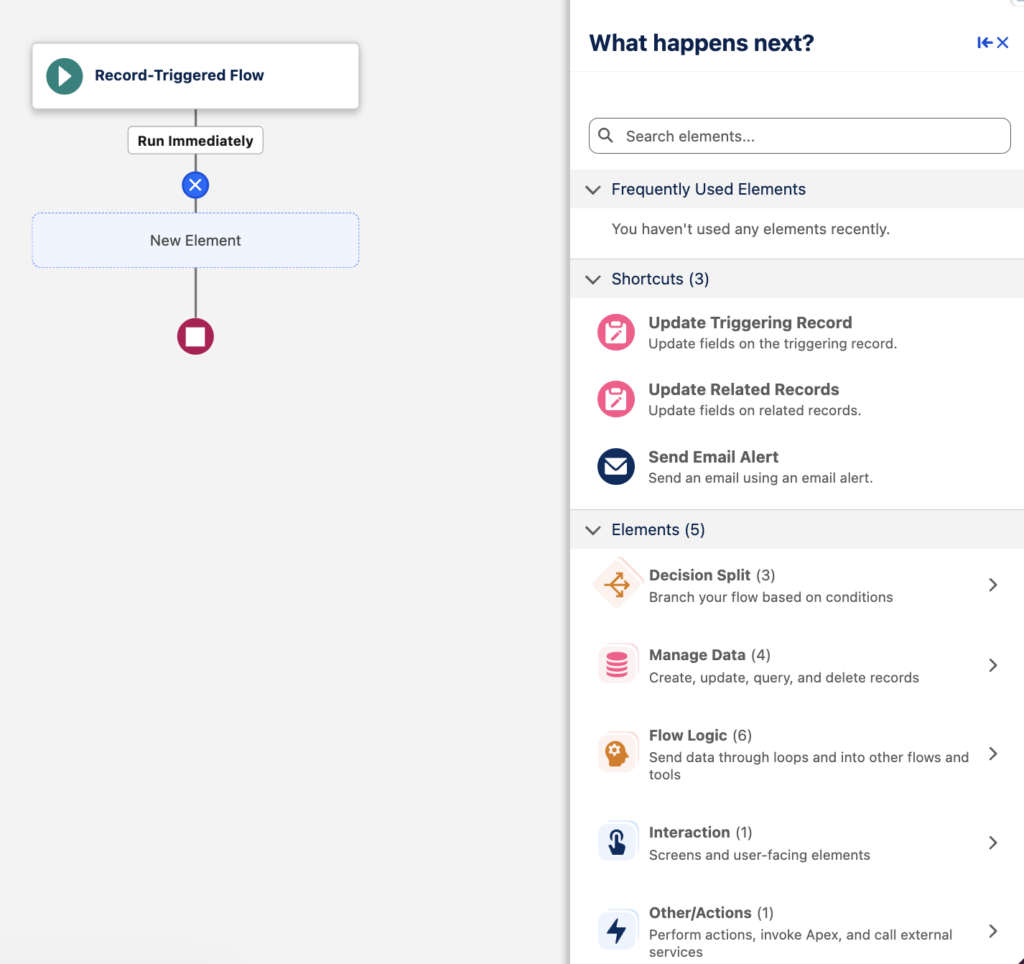
Here are the groups and elements within each one:
- Decision Split: Decision, Split by Date, Split by Field Value
- Manage Data: Create Records, Get Records, Update Records, Delete Records
- Flow Logic: Assignment, Subflow, Loop, Transform, Collection Sort, Collection Filter
- Interaction: Custom Error
- Other/Actions: Action
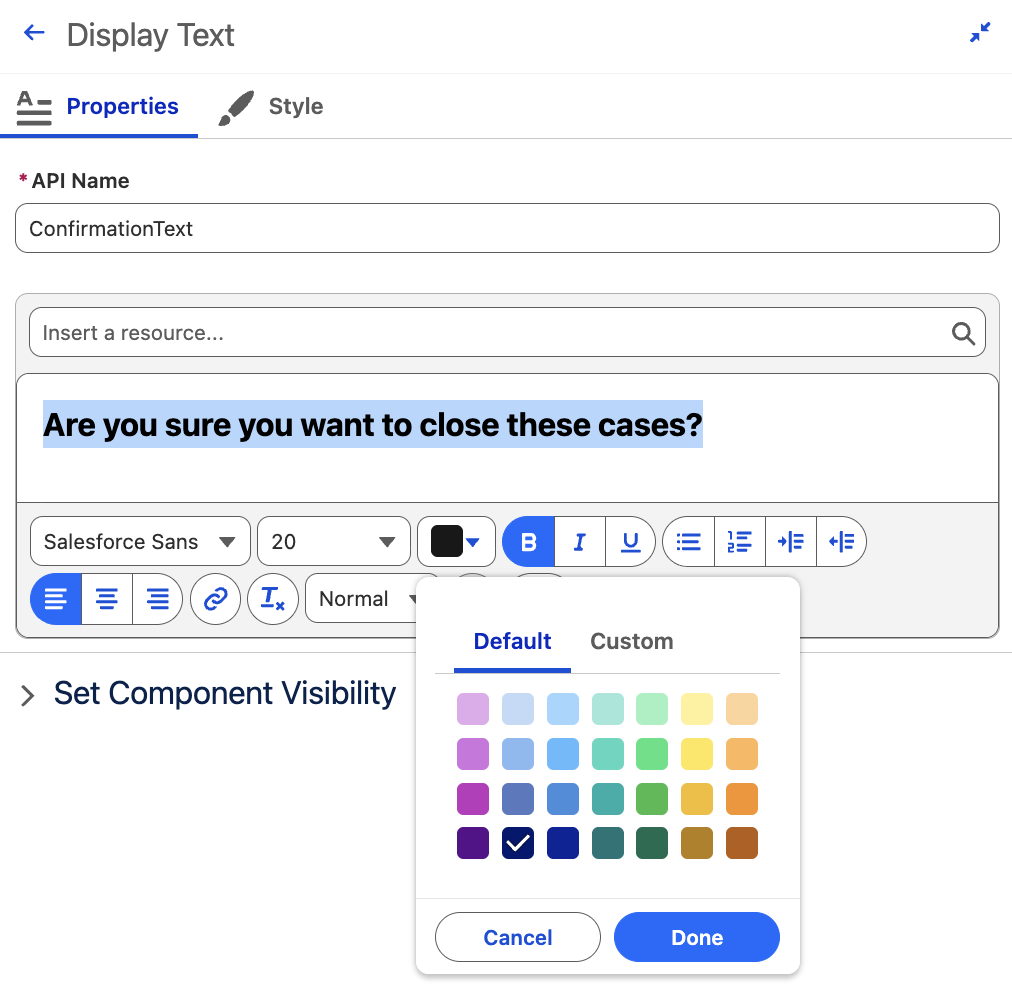
5- Color Picker in Display Text Component and Text Template Resource
The color picker in Display Text component and Text Template resource now shows default colors and includes an option to choose a custom color.
6- Apply Tags to Flows
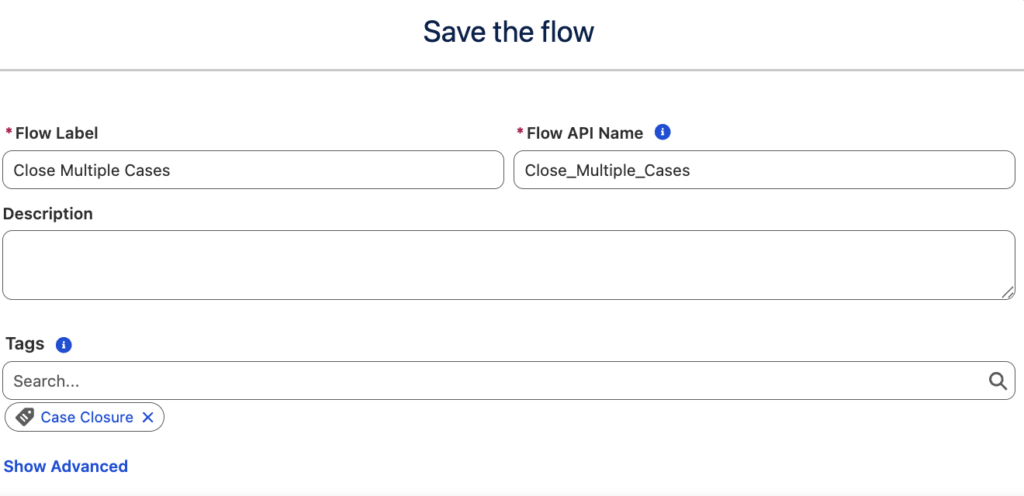
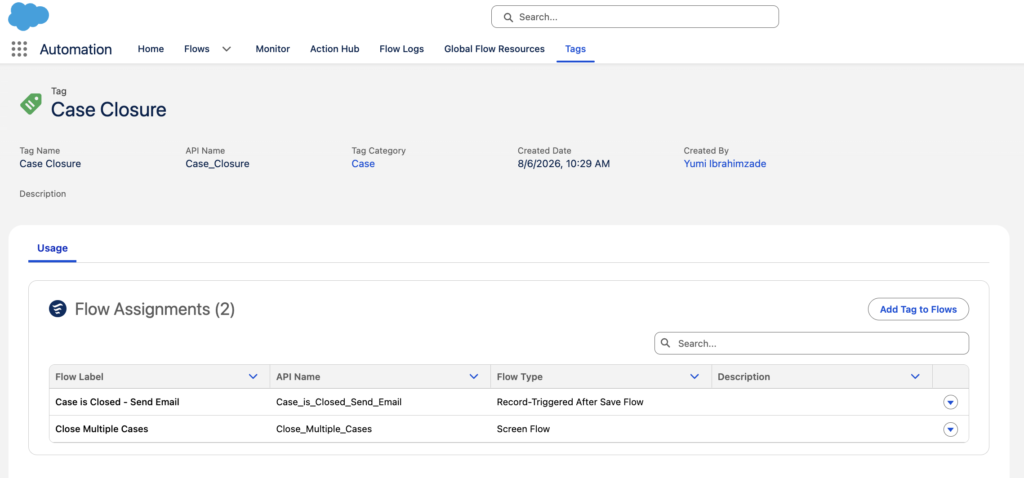
Starting with the Winter ’27 release, you can apply tags to your flows. When you save a flow, you can select multiple tags associated with different tag categories. This is a great way to categorize your flows.
You can find the tags and their associated flows in the Automation app.
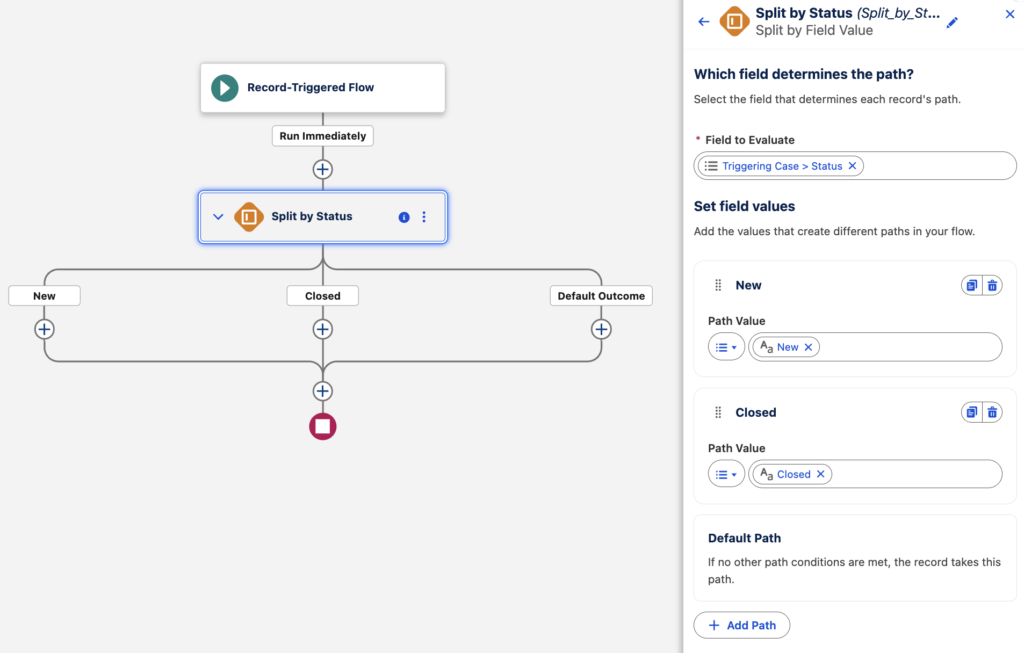
7- Split by Field Value Element
There is a new element called Split by Field Value. Although it is a brand-new element, it is essentially a simplified Decision element that splits the flow based on a field value.
8- Split by Date Element
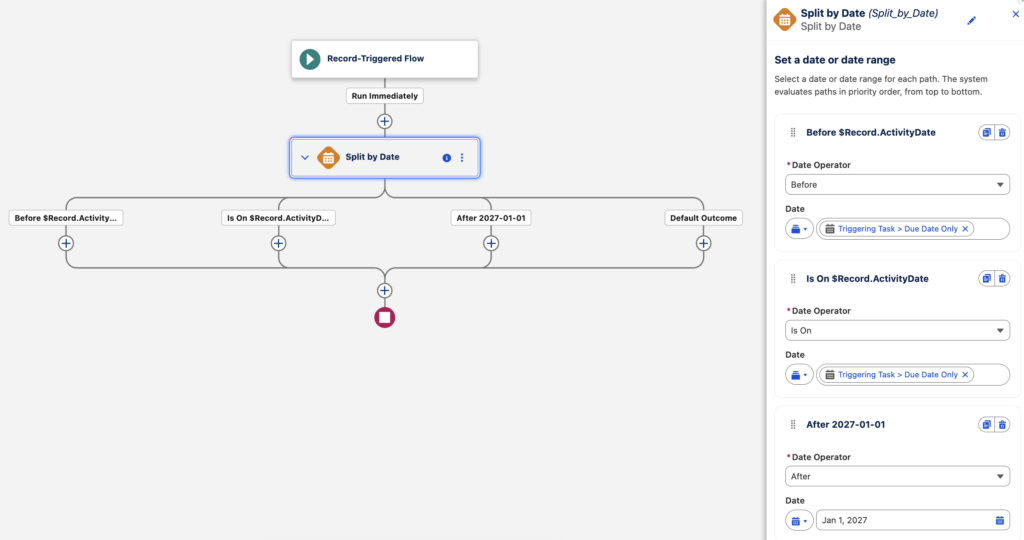
There is another new element called Split by Date. Similar to Split by Field Value, it is a simplified version of the Decision element that splits the flow based on a date value.
When you add a new path, you can choose from the following date operators: Before, Between, After, and Is On. For the value, you can either enter a specific date or use a resource.
9- Flow Version Edit History
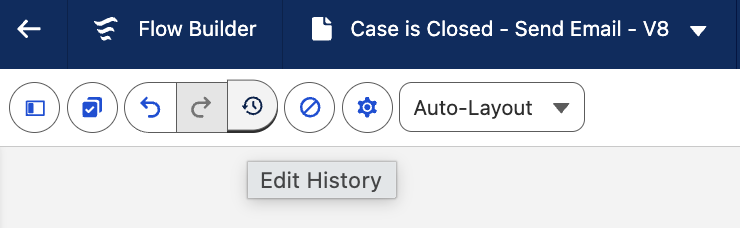
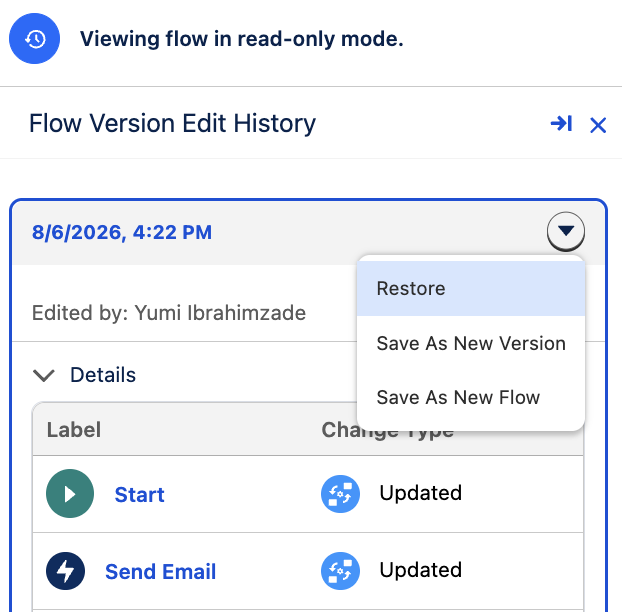
There is a new button for viewing a flow version's edit history. It opens a panel that displays all changes made to that specific version, making it easy to see who changed what.
Clicking an individual edit takes you directly to the relevant element and clearly highlights what changed.
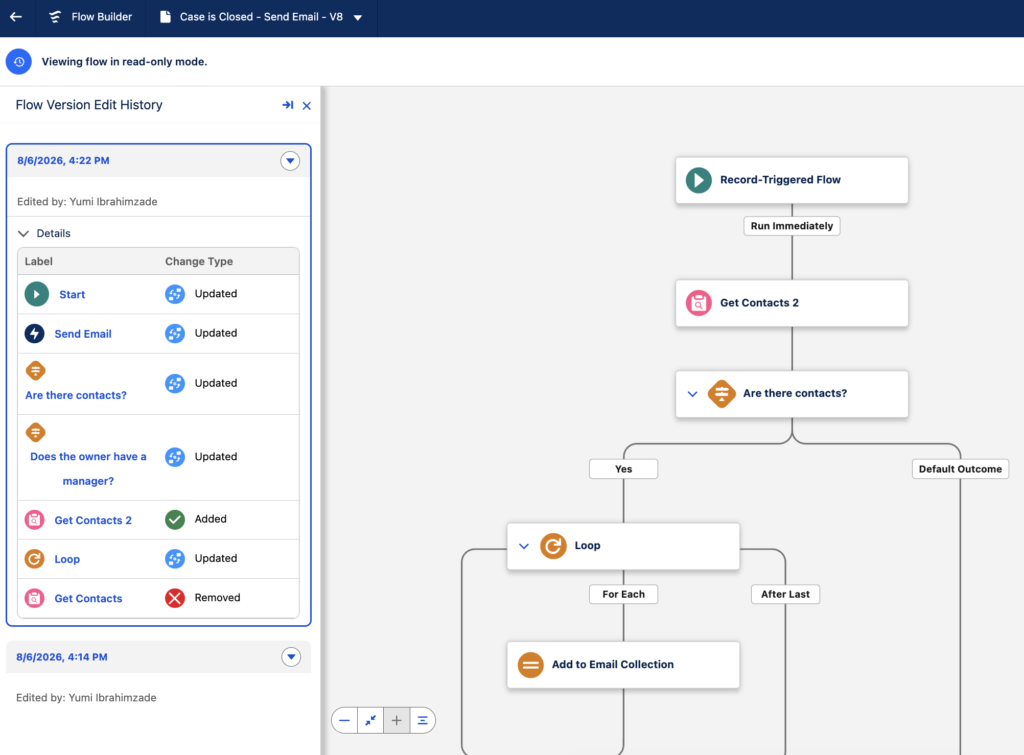
You can also select a point in the edit history and save it as a new version or a new flow, or restore the changes.
10- Flow Test Mode (Beta)
Salesforce has introduced a new beta feature called Flow Test Mode, which you can enable in Process Automation Settings.
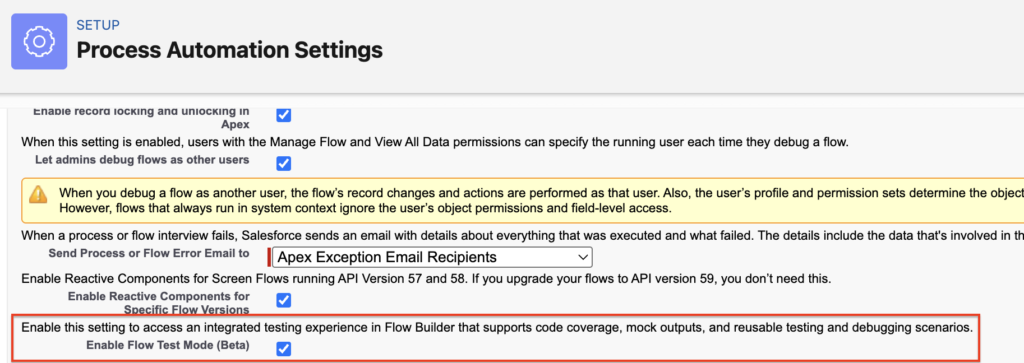
Flow Test Mode provides an integrated testing experience directly in Flow Builder, supporting code coverage, mock outputs, and reusable testing and debugging scenarios.
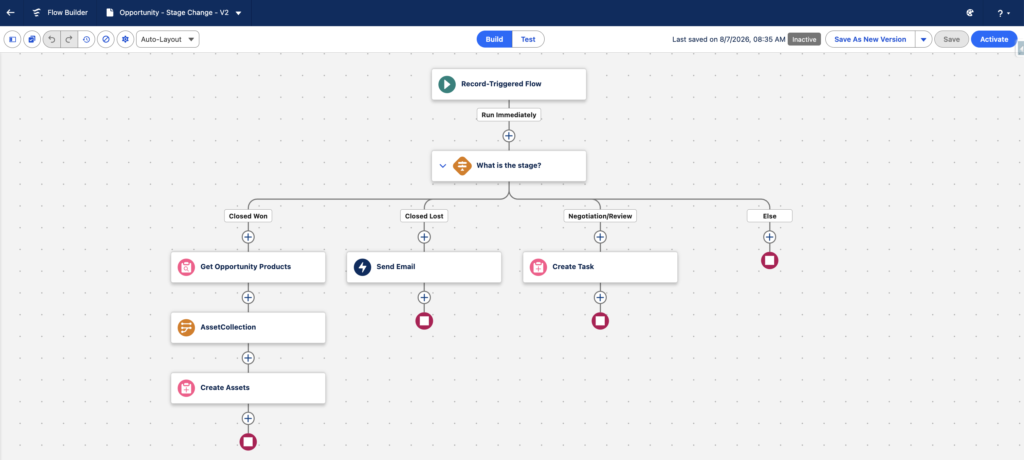
Once you enable this beta feature, you will see two modes in Flow Builder: Build and Test.
Build mode is where you build and configure your flow, which is essentially the Flow Builder experience we have today. You will notice that there is no option to debug the flow in Build mode, as this mode is focused solely on building the flow.
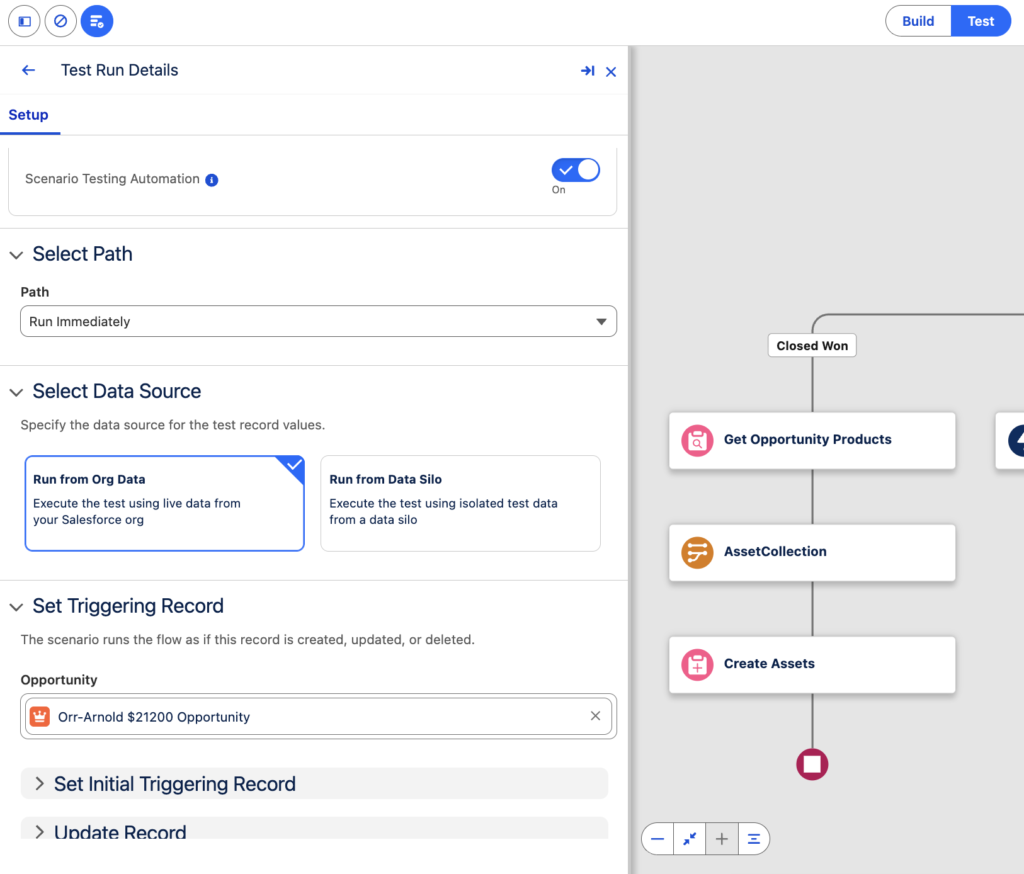
In Test mode, you can test and debug your flow. You can also save test scenarios for reuse and take advantage of automated testing features, such as validating expected results with assertions, using isolated test data, and versioning your tests.
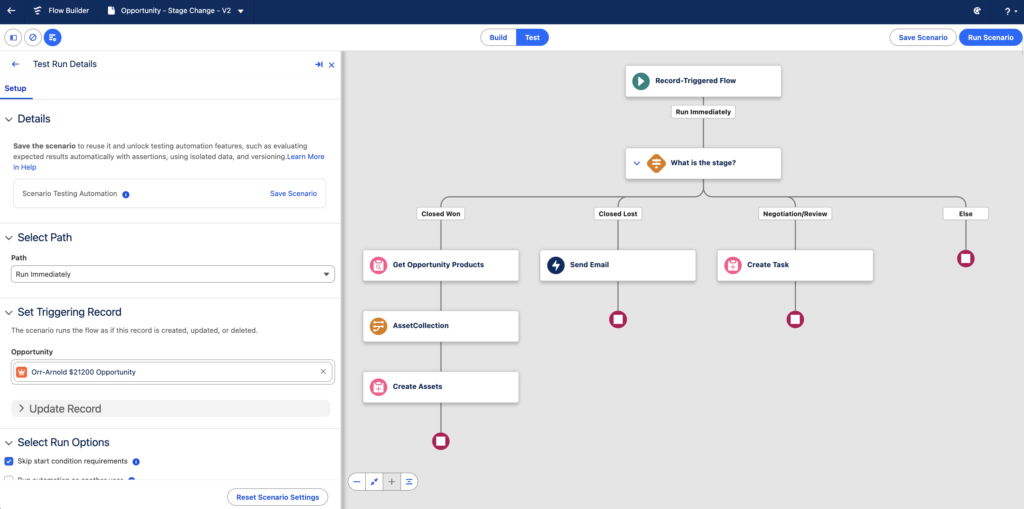
For example, this flow has four different paths, so you can create a separate test scenario for each one. When creating a test scenario, you can choose an existing Salesforce record or run the test using isolated test data from the data silo. Similar to the Flow Tests we have today, you also need to define assertions to validate the expected results.
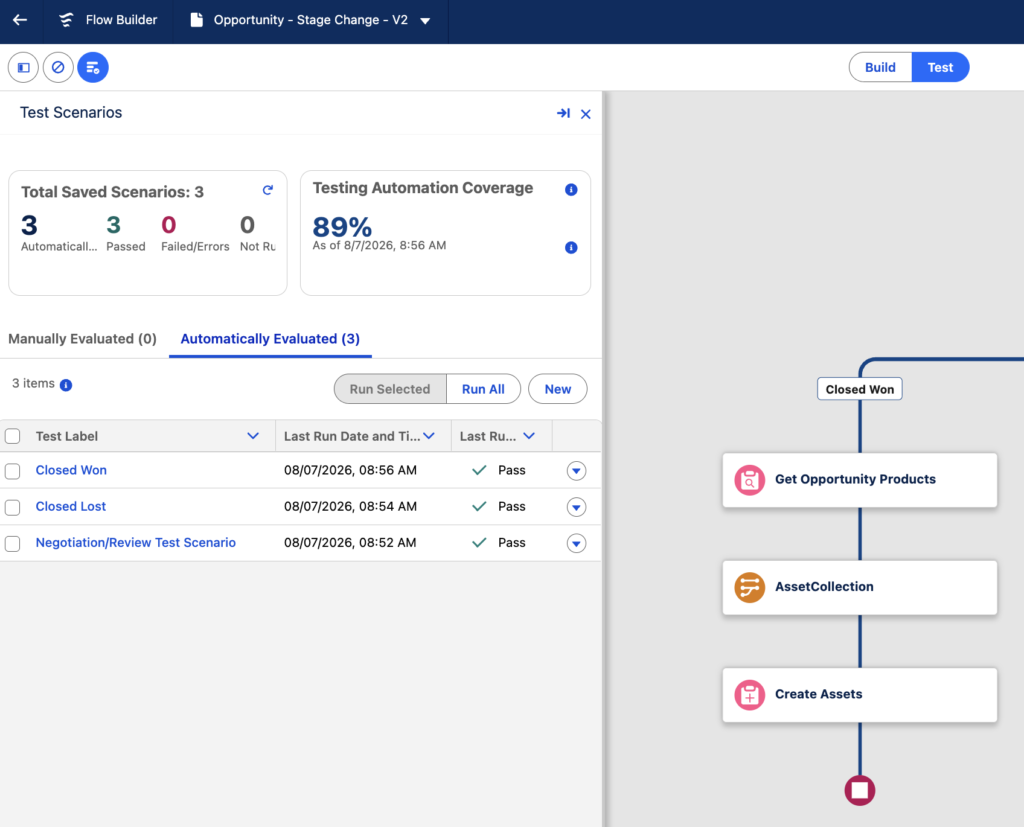
Once you create and run your test scenarios, you can see the test coverage of your flow.
11- Time Screen Component
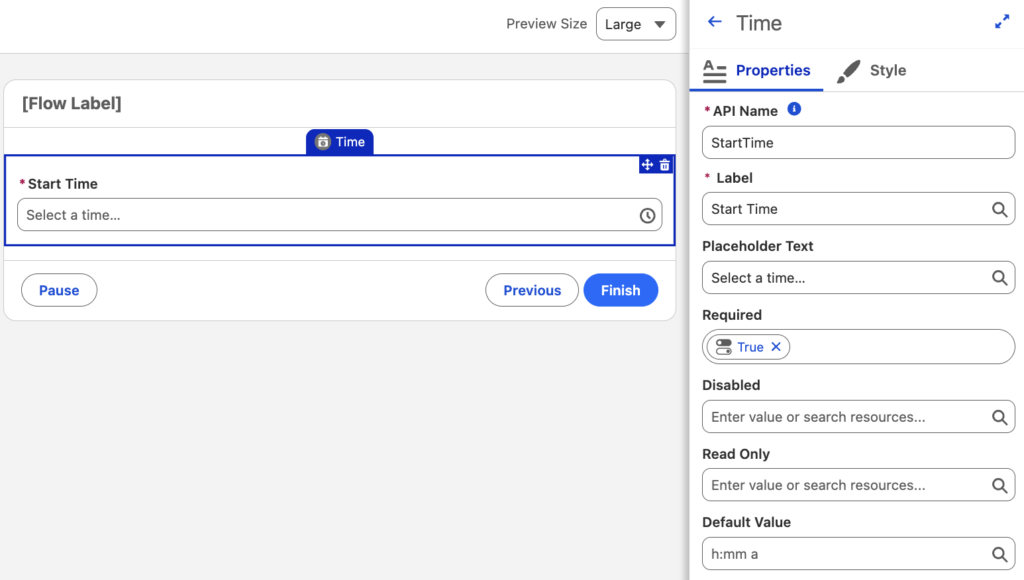
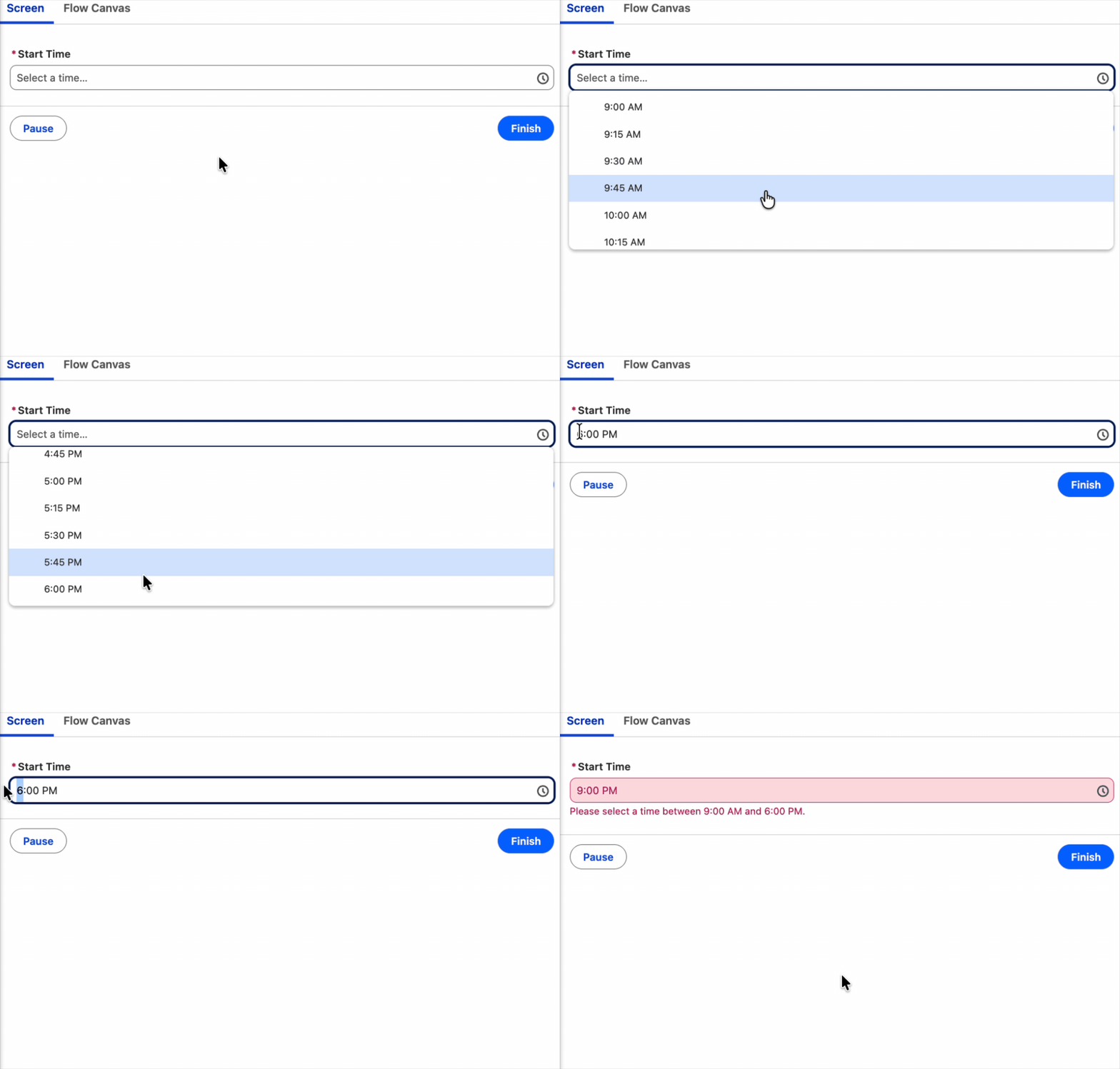
There is a new Time screen component. Until now, we had to rely on workarounds, such as using picklist fields for time entry. Starting with the Winter '27 release, you can use the new Time screen component to capture time inputs directly from users.
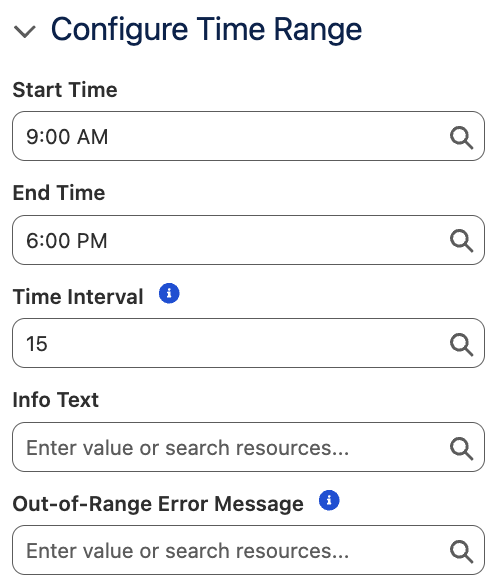
Moreover, you can configure the allowed time range and interval, add informational text, and define a custom error message for values outside the specified range.
Here is how it works:
12- Filter Unused Resources
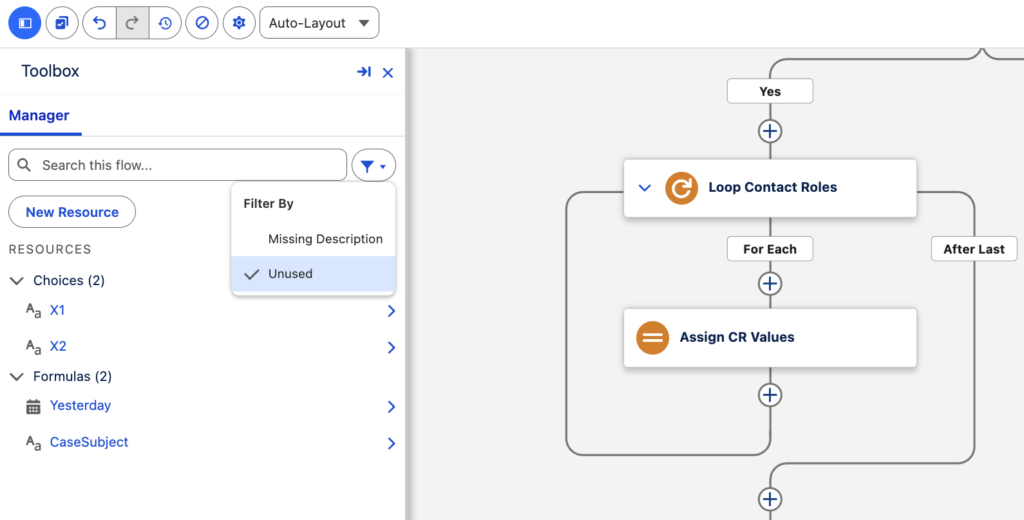
In previous releases, Salesforce added an option to filter Flow resources that are missing descriptions. In the Winter '27 release, Salesforce added another option to filter unused resources. This is a very useful addition that helps keep your flows cleaner!
13- Evaluate Conditional Visibility Rules with Reactive Formulas
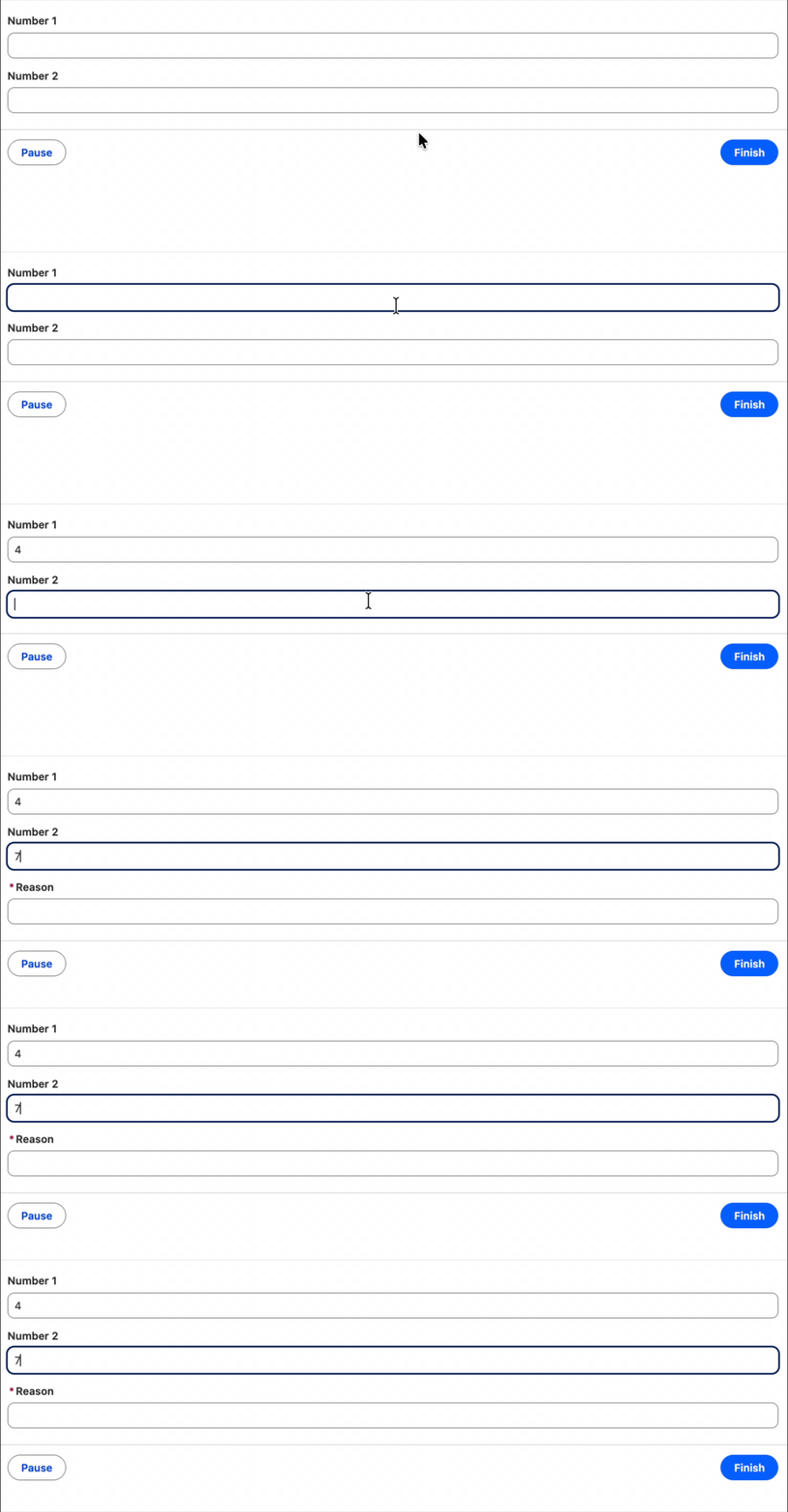
Salesforce now lets you reference reactive formulas directly in conditional visibility rules for Flow screens.
Reactive formulas evaluate correctly when used in component visibility conditions, making it easier to build more dynamic and responsive screen experiences. For example, a formula can react to values entered into other components on the same screen and then control whether another component is shown or hidden.
Previously, conditional visibility rules didn't support formulas that referenced components on the same screen.
14- Make Flows Easier to Read with the New Group Element
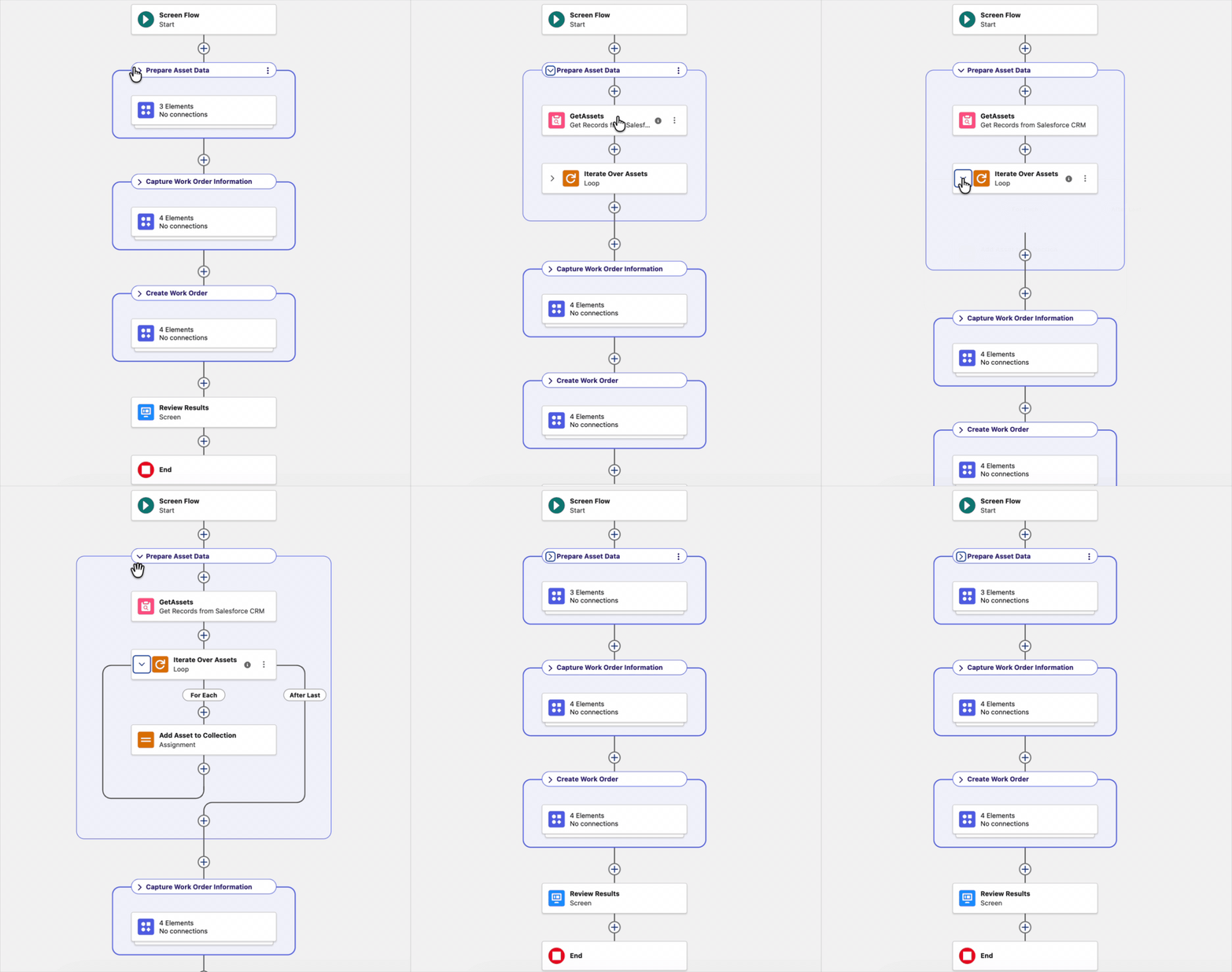
To improve readability and keep the canvas cleaner and easier to understand, Salesforce introduced a new element called Group.
With the Group element, you can simply organize related elements together directly on the Flow canvas.
15- Clone Decision Outcomes
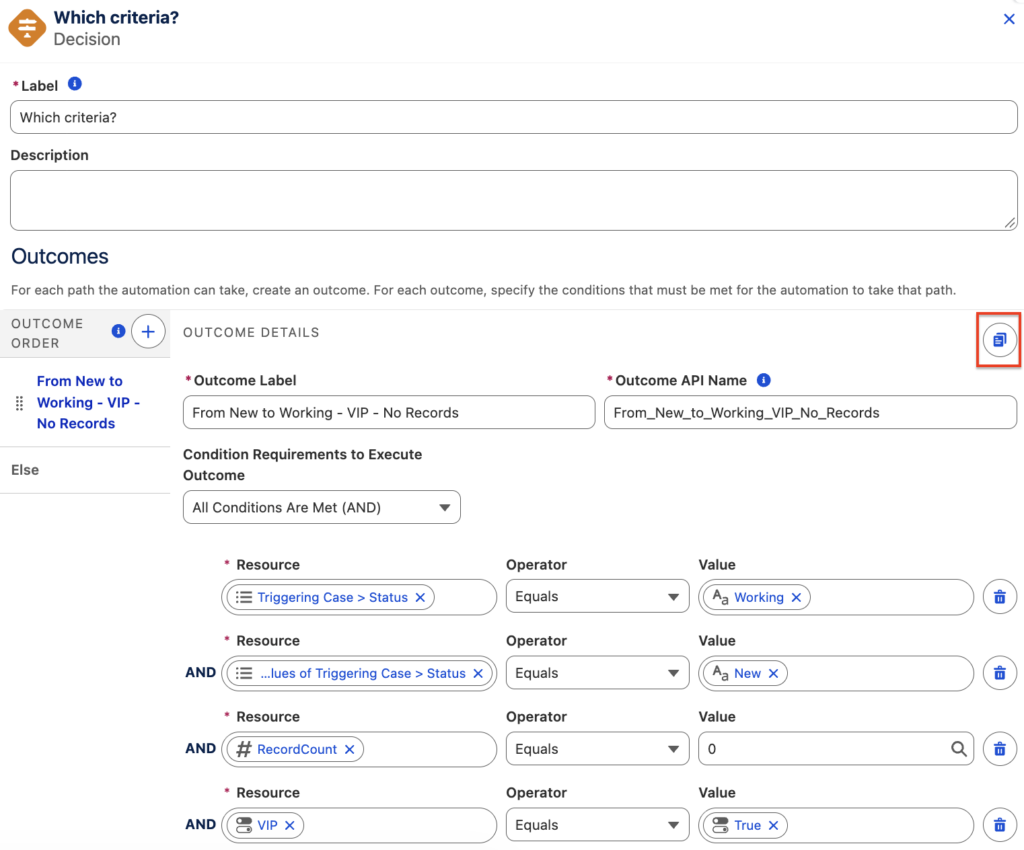
You can now clone outcomes in a Decision element. This will save a lot of time especially when you configure similar and complex outcomes.
Yumi, you always post such insightful and useful Flow information
Thanks for what you do. FYI, my wife and I have been to Israel 7 times (for me) and 10 for her. It's the most amazing country on earth.