

Salesforce Flows can do a lot, and as they grow, they can quickly become complex. When a flow contains many elements and handles multiple parts of a process, finding the specific logic you are looking for can become difficult. This is even more challenging for someone who didn't build the flow in the first place. To improve readability and keep the canvas cleaner and easier to understand, Salesforce introduced a new element called Group. With the Group element, you can simply organize related elements together directly on the Flow canvas. This makes complex flows much easier to navigate and understand.
How to Use the Group Element
Using the Group element is very simple. In Flow Builder, you can add a Group to the canvas just like any other element.
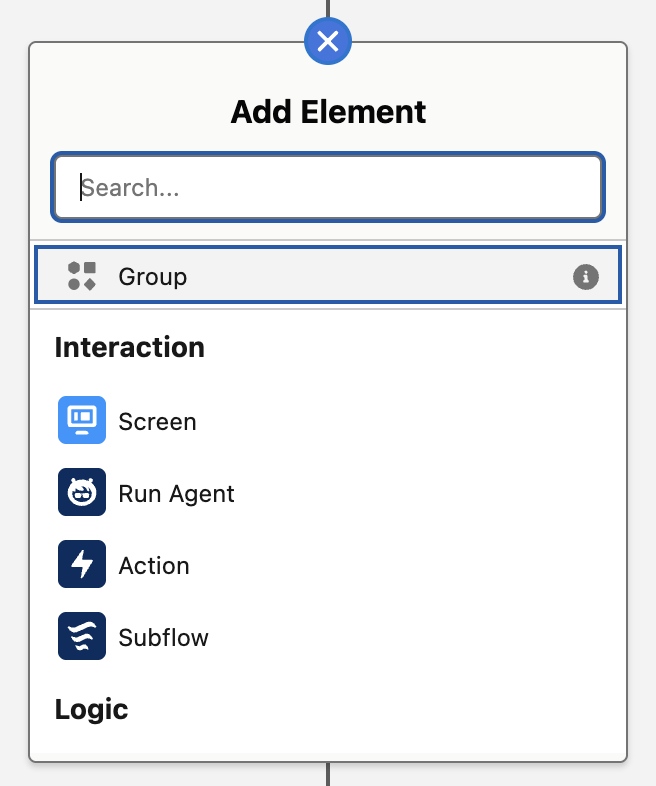
Then, you can place related flow elements inside the group to organize them as part of the same logical section.

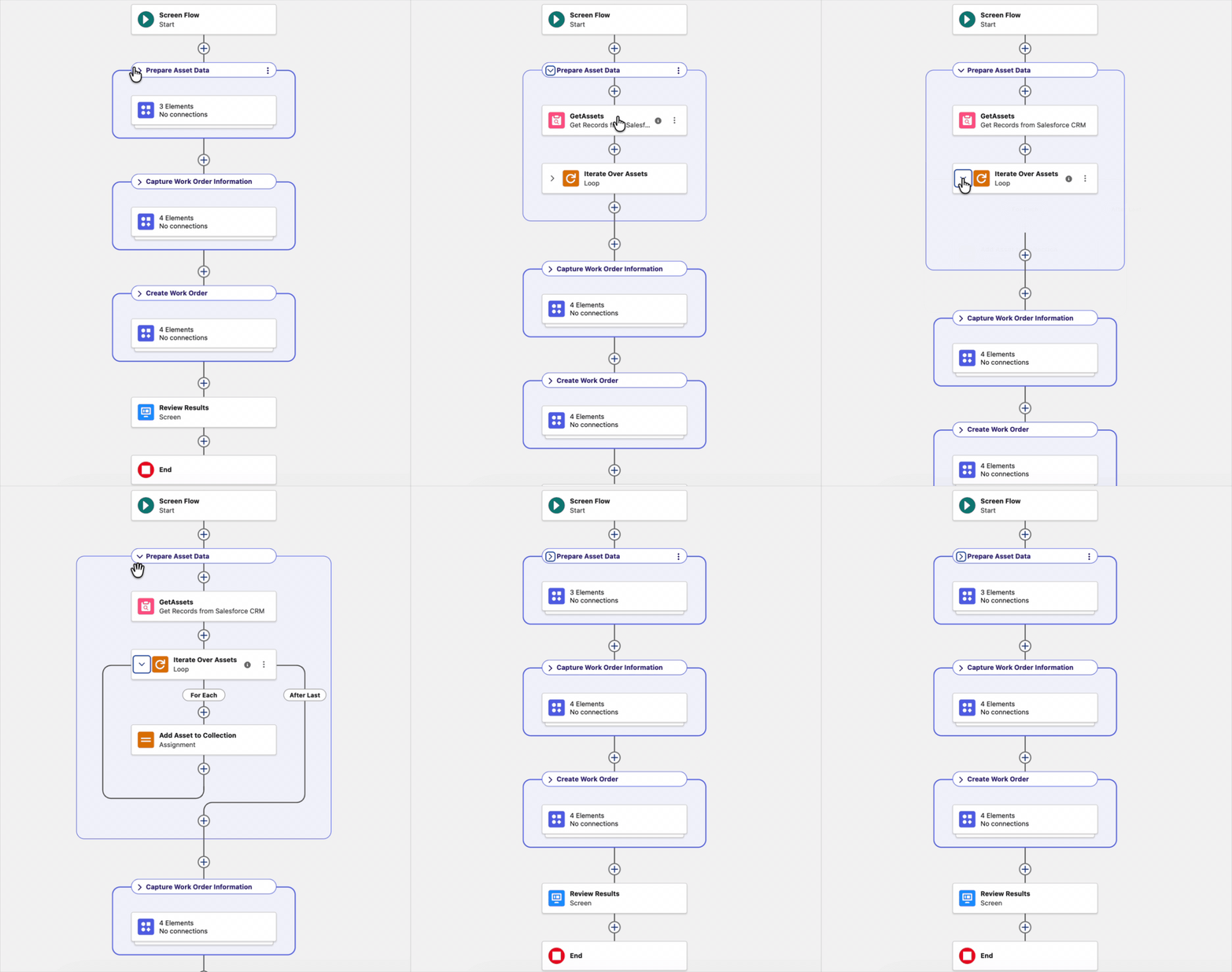
For example, if part of your flow retrieves Asset records, loops through them, and adds them to a collection, you can place all of those elements inside a group called Prepare Asset Data. This makes it immediately clear what that section of the flow is responsible for.
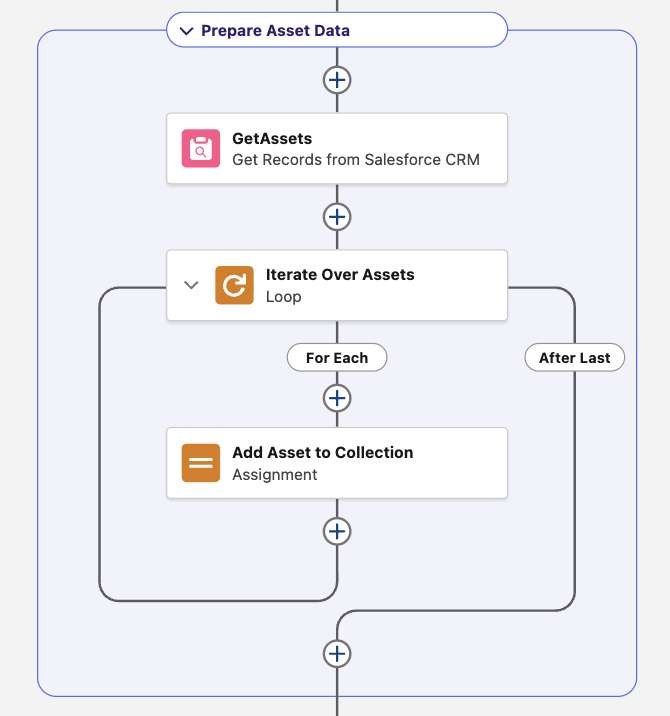
You can also collapse or expand a group directly on the canvas. Collapsing groups can significantly reduce the amount of space used by complex sections of a flow. This makes it easier to focus on the part you are currently working on. When you need to review the details, you can simply expand the group again.
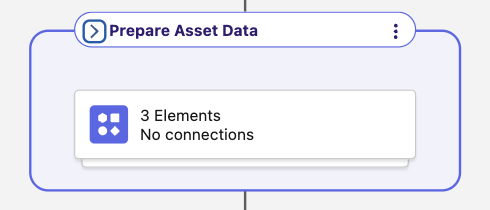
It is important to highlight that Groups do not change how the flow runs. They are just for organizing the canvas and improve readability.
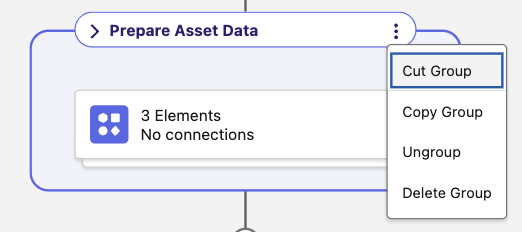
You can also ungroup, cut, copy, and delete groups, which makes them even more useful when reorganizing a flow. For example, you can copy an entire group when you need to reuse a similar section of logic. Or, you can move a group to another part of the flow. These options make it much easier to restructure complex flows without managing each element individually.
Here is the Group element in action:
Leave a Reply