

If you use Salesforce every day, you already use the Recently Viewed list view. It's the system list view that sits in the list view dropdown of almost every object. It shows the records you opened lately, most recent first. It's personal, automatic, and needs no setup. Every user sees their own history, and it's often the fastest way back to the account you were working on five minutes ago.
Now try to recreate that in Flow.
When you use Get Records, you can filter and sort by plenty of fields, but you can't simply sort by view date. Flow has no built-in "recently viewed" switch. The data exists in Salesforce, but Get Records won't hand it to you directly.
In this post, you'll learn how to find the recently viewed records in Flow. Then we'll put it to work by building a Recently Viewed data table for the Account object.
Using the Recently Viewed Object
Sorting by LastViewedDate in a Get Records element sounds like it should work. Unfortunately, it doesn't, and no single Get Records element will give you those records. Salesforce keeps this data in a special object called RecentlyViewed. It stores the records the current user viewed lately, and only for the current user, so there's no need to filter by user.
You can query it with a Get Records element like any other object, but that's only half the job. It holds little more than the record IDs, not the fields you actually want to display, like the account's industry, phone, or owner. To build a useful list, you'll need a second step that takes those IDs and retrieves the full records.
Let's build a Screen Flow that displays the current user's recently viewed Account records.
Building a Screen Flow to Display the Recently Viewed Account Records
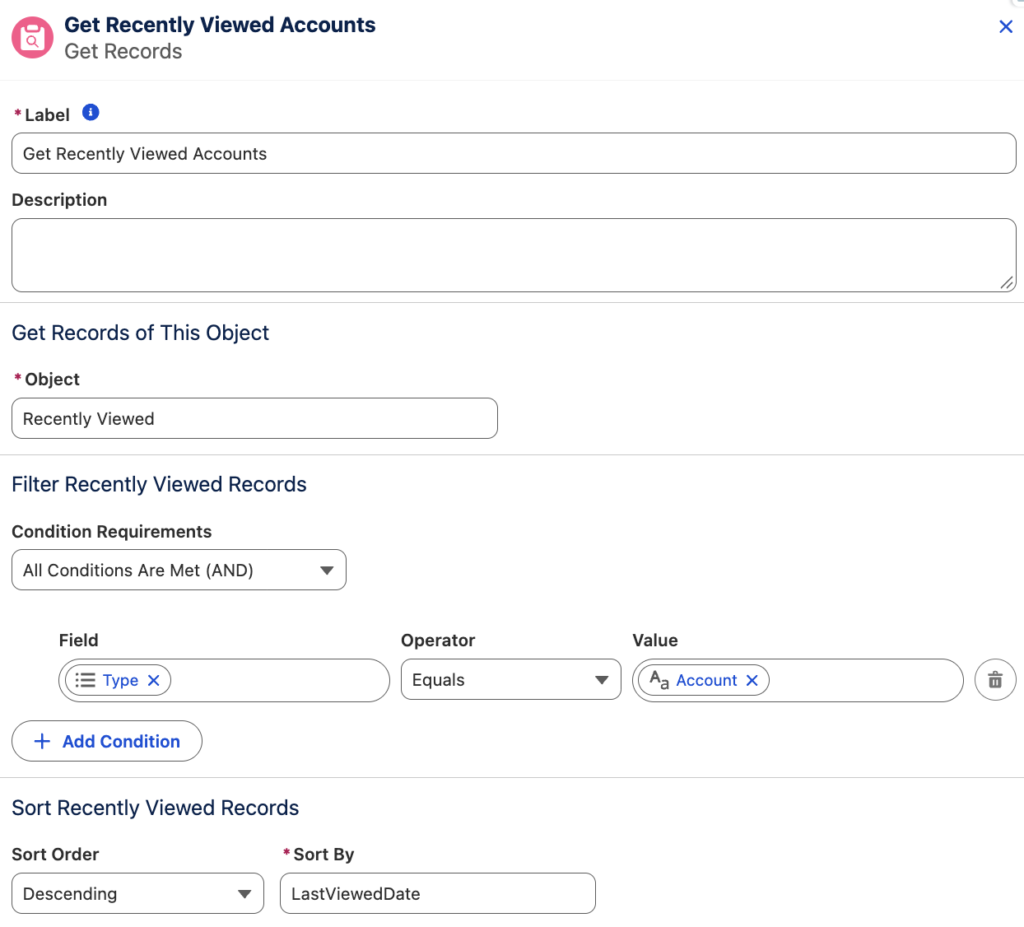
1- Create a Screen Flow and add a Get Records element to get the recently viewed Account records. As you can see, the only filter condition is the Type.
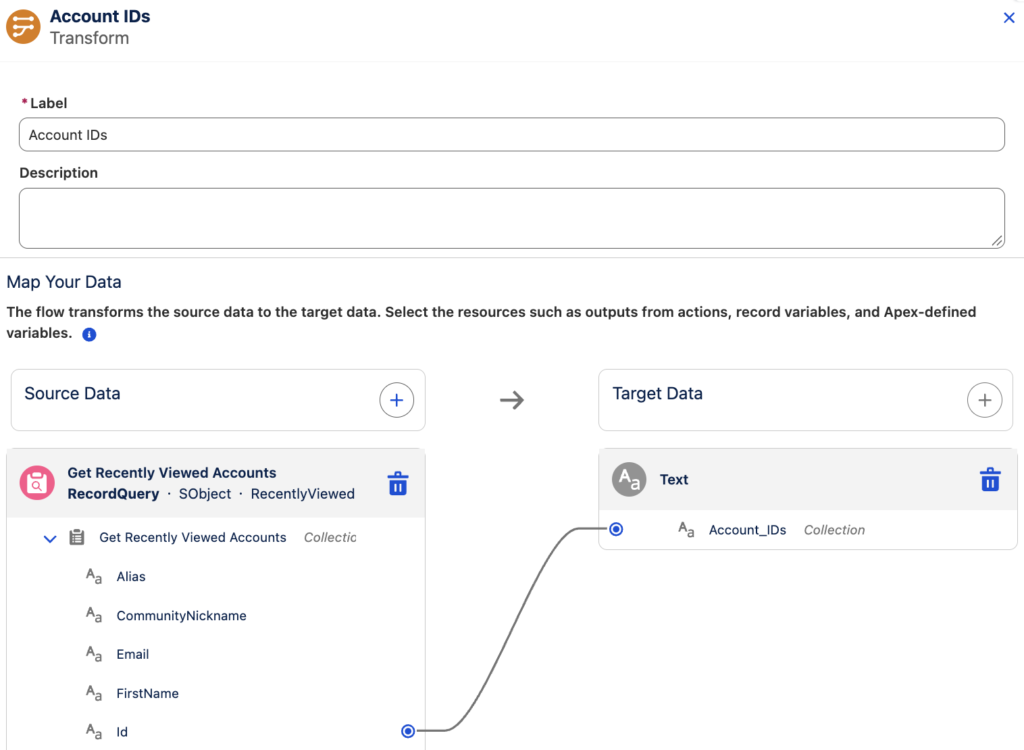
2- Use a Transform element to prepare a text collection of Account record IDs.
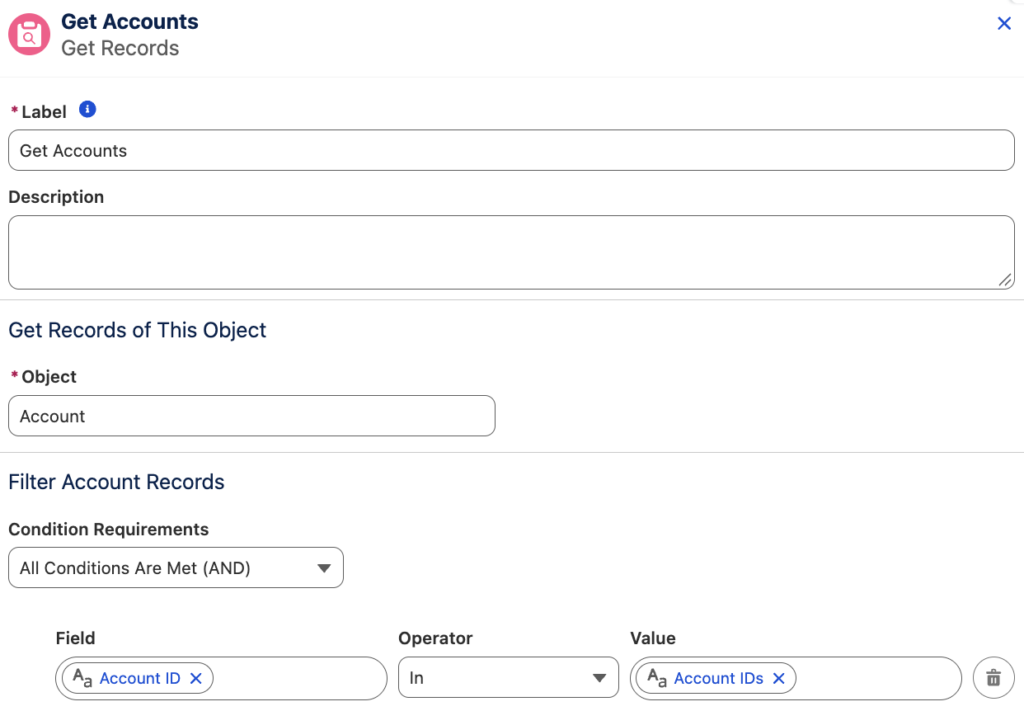
3- Add another Get Records element to get the Account records.
You've found the right records, but they're not in the right order!
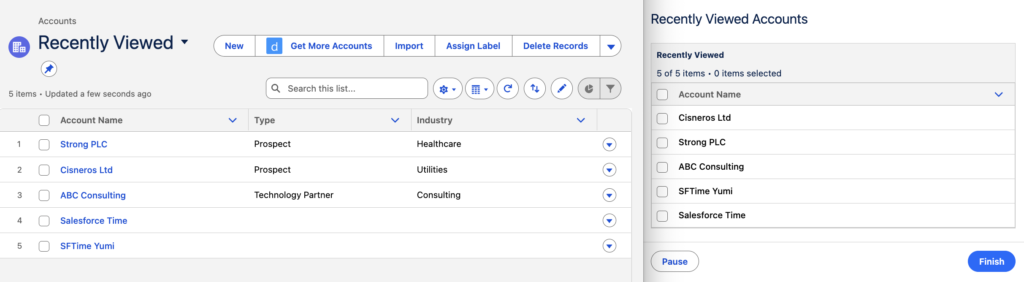
There's no easy way to sort the Account records, because the field you need for sorting lives in the other collection, RecentlyViewed. So first, we'll use the Transform element to join these two collections.
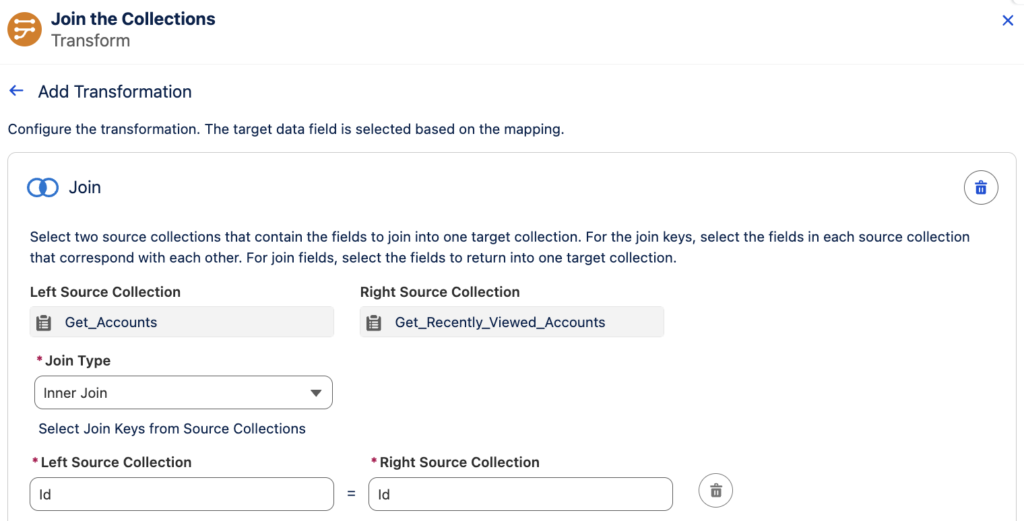
4- Add a Transform element to join the collections.
Select the two collections as the sources and set the target to an Account record collection. Then choose Id as the join key.
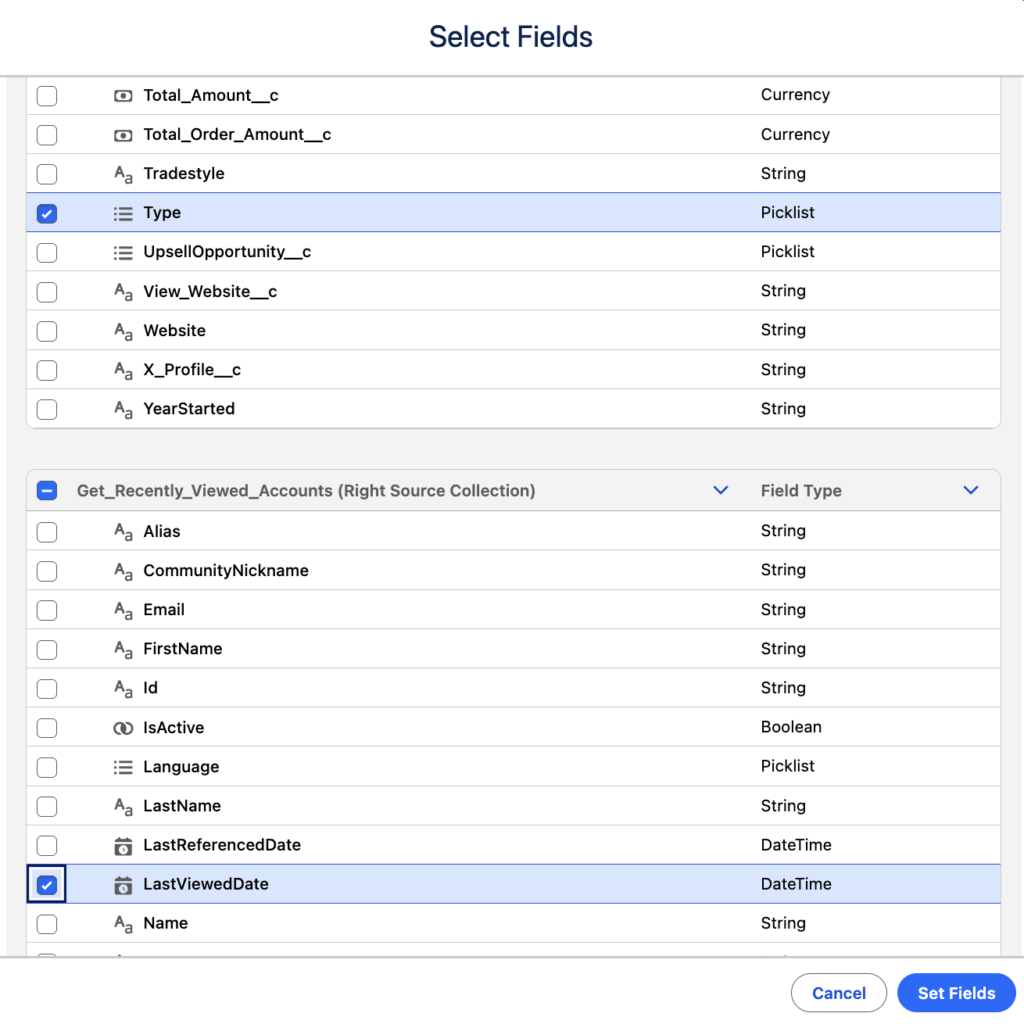
Select the fields you want to display. For example, Name, Industry, Type, and LastViewedDate.
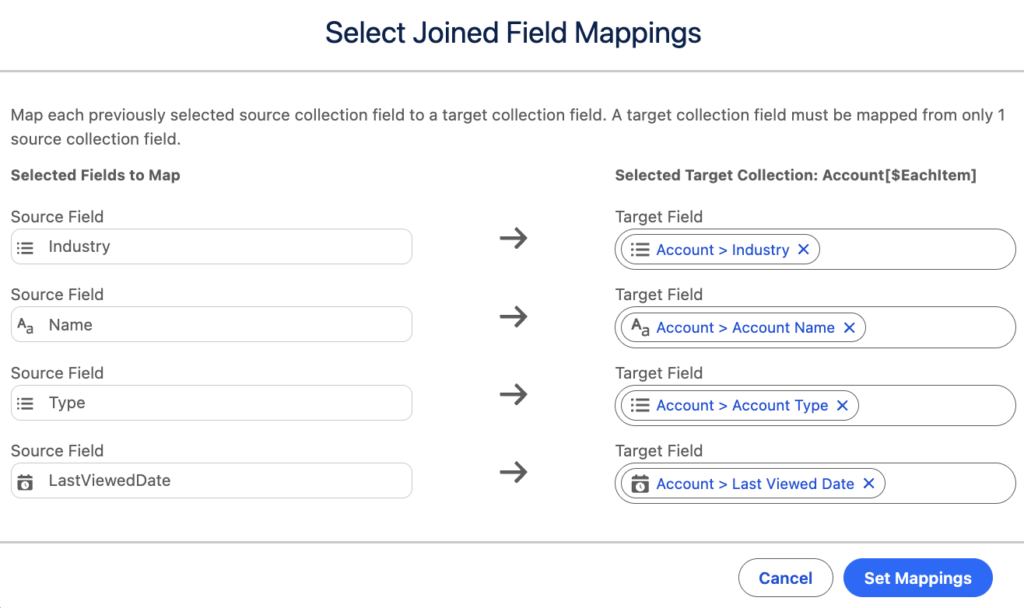
Finally, map the selected fields to the target collection.
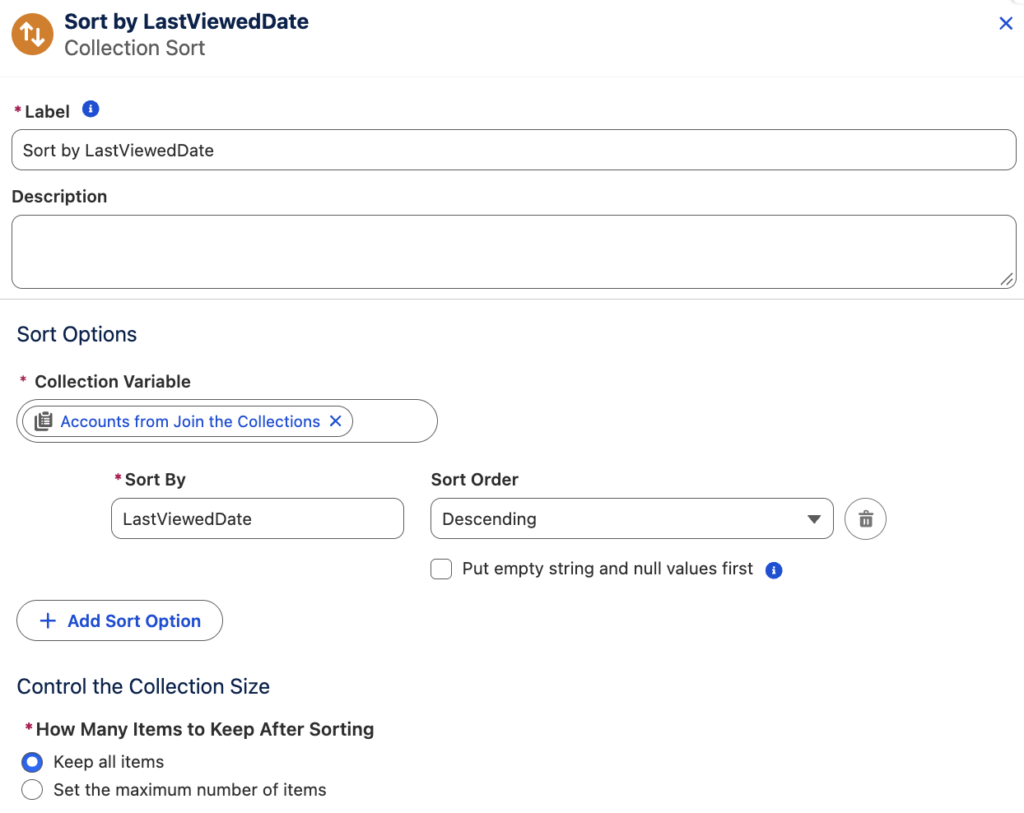
5- Add a Collection Sort element to sort the joined Account collection by the LastViewedDate.
6- That's it! Let's use a Data Table to display these Account records.
Add the fields you want to display. Unlike the standard list view, you can even show the Last Viewed Date!
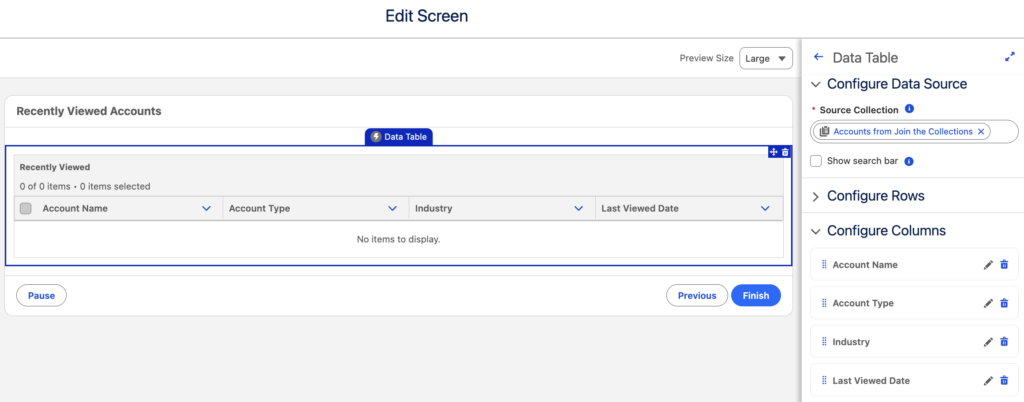
In the end, it will look like this:
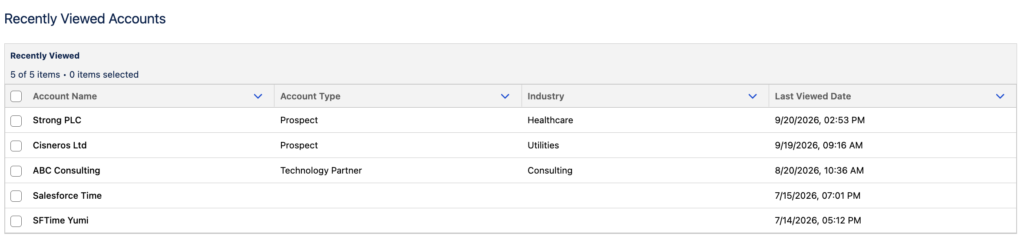
you can add the contact Id additionaly or instead the account Id in table to have a clickable link to record
Right!