

Salesforce Flow is becoming more powerful with every release, but managing logic across multiple flows can still be challenging. One common example is value mapping. Until now, mapping values often meant building and maintaining the same logic directly inside each flow. In the Summer '26 release, Salesforce has added a new feature called Global Flow Resources. This feature lets you control value mappings outside Flow Builder.
Using Global Flow Resources in the Automation app, you can create reusable mappings once and use them in any flow type that supports the Transform element. This makes it easier to manage mappings consistently across multiple flows.
Value Mapping in Flow
Value mapping is a common requirement in flows, especially when working with external systems. For example, you may need to map an external status value to a Salesforce Status field. For simple scenarios, you can use a formula with the CASE() function. However, this approach becomes harder to maintain as the number of values grows. Imagine that you are not mapping statuses, but type values, and you have 100 different values. Would you really add all of them to a formula? Even if you do, what happens when the external system changes an existing value or adds a new one? You would need to update the formula in every flow that uses the same logic.
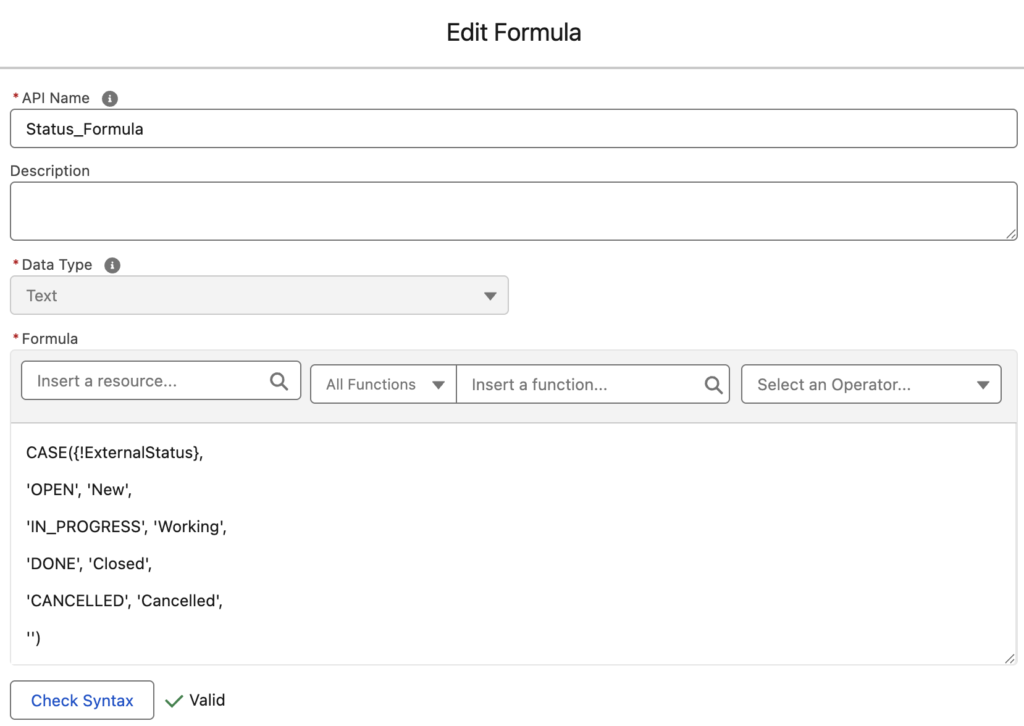
Another option is to create a custom object for value mappings and use a Get Records element to find the right value. This works, but it also consumes a SOQL query each time the flow runs.
Using Global Flow Resources for Value Mapping
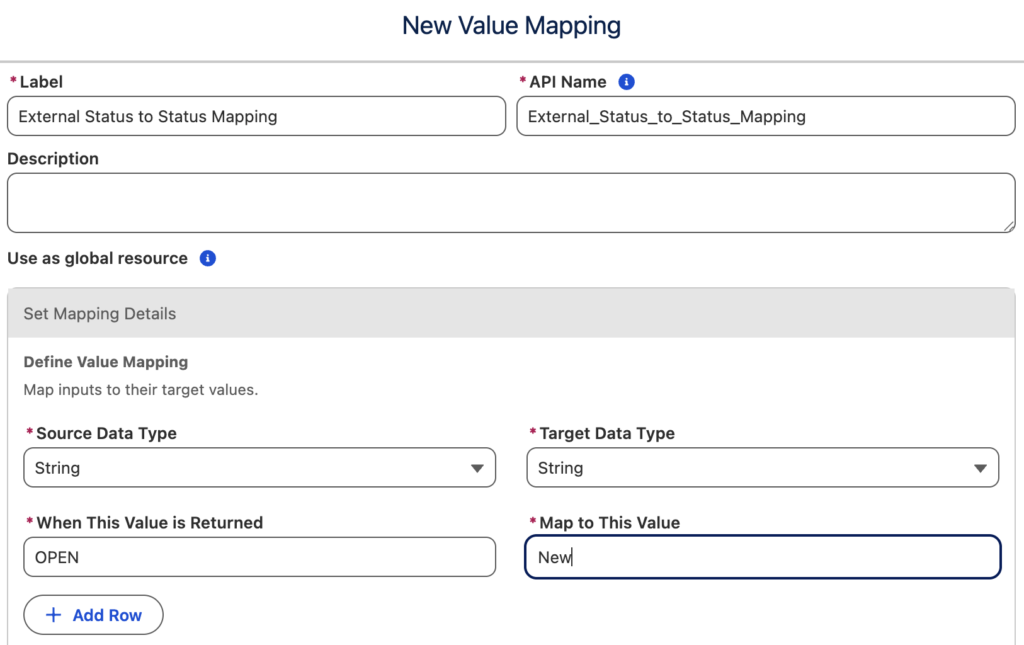
Salesforce has added a new feature called Global Flow Resources in the Summer '26 release. Using Global Flow Resources in the Automation app, you can create reusable value mappings. Here is how to create a new value mapping.
First, give the value mapping a meaningful name. Then, start mapping the source values to their target values. The source and target data types can be String, Number, Boolean, Date, or Date/Time.
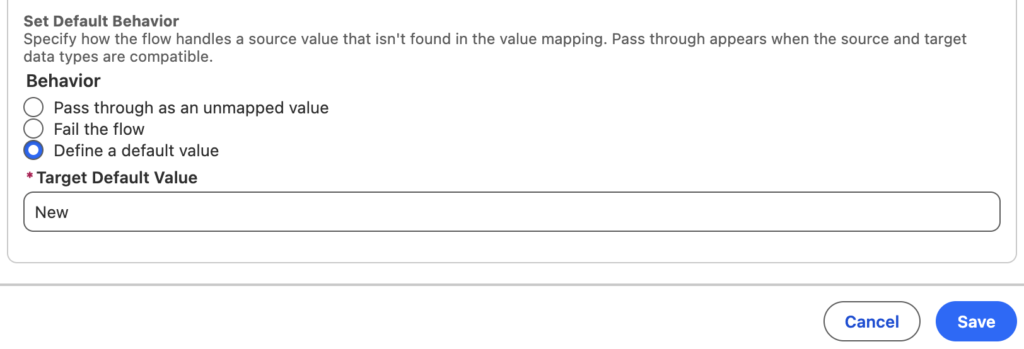
After defining the value mapping, specify how the flow should handle a source value that is not found in the mapping. It can pass the original value through as an unmapped value, fail the flow, or return a default value. For example, if the external status value is "Created" but it does not exist in the value mapping, the flow can return "New" as the default value.
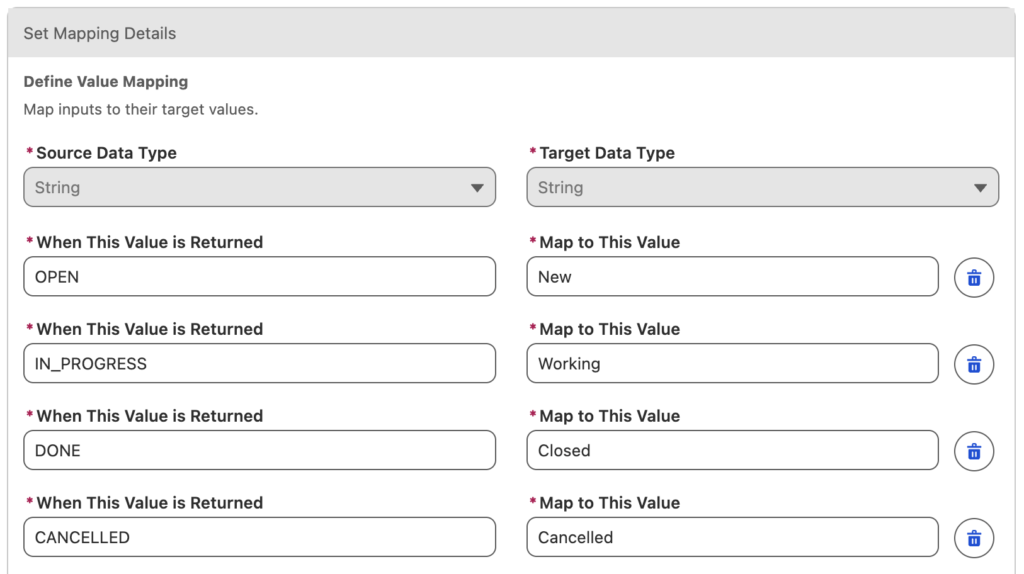
Here is the final value mapping configuration for mapping an external status value to a Salesforce Status value.
How to Use the Value Mapping in Flow
After completing the value mapping, you can use it inside any Flow type that supports the Transform element.
For example, let's say that you have a custom field called External_Status__c on the Case object. Your external system updates this field, and based on its value, you want to update the standard Status field. Here is how you can do this using a value mapping.
1- First, build a record-triggered flow and add a Transform element. In the Transform element, set the triggering Case record as the source data. Then, set the target data as a Case record as well.
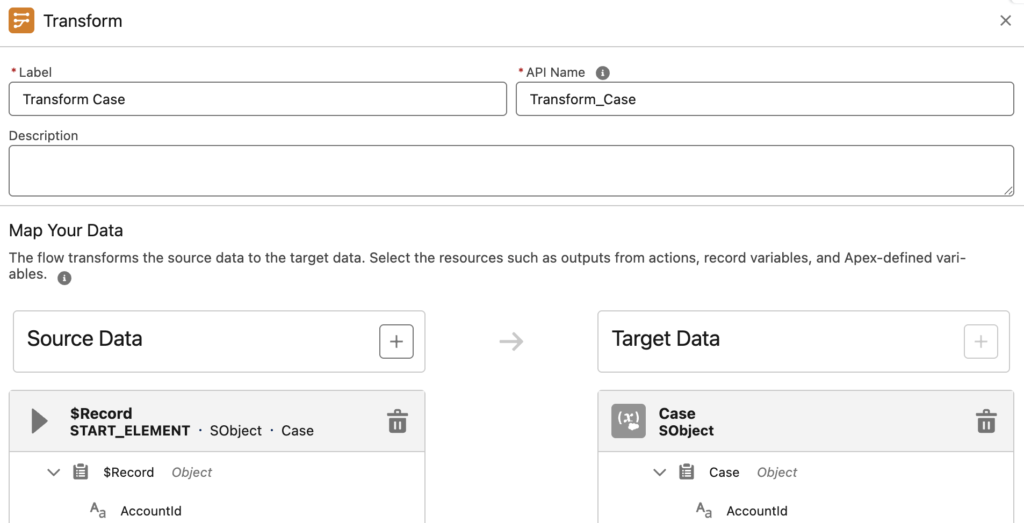
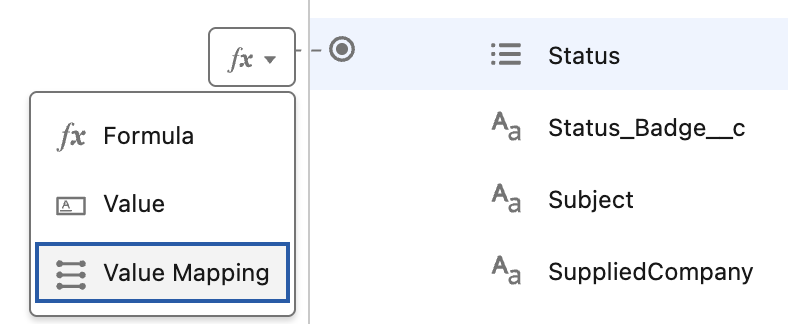
2- Next, find the Status field in the target Case record and click the fx icon. Instead of mapping the value directly or writing a formula, choose the Value Mapping option.
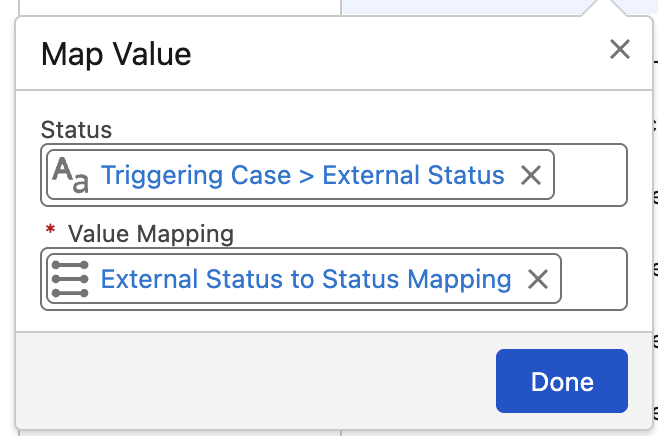
Then, choose the custom External Status field as the value that you want to transform into the standard Status field. For the value mapping, select the Global Flow Resource that you created earlier.
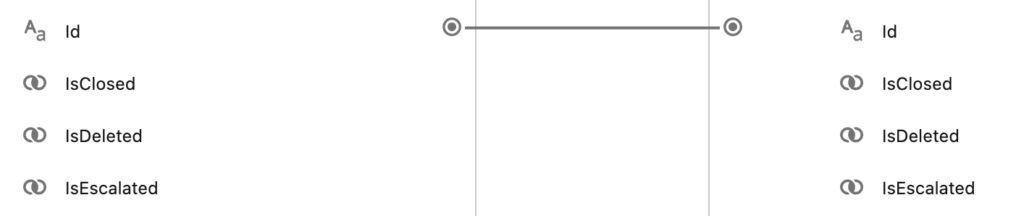
Then, make sure that you map the Id of the triggering Case record to the Id of the target Case record. This lets the flow know which Case record to update in the next step.
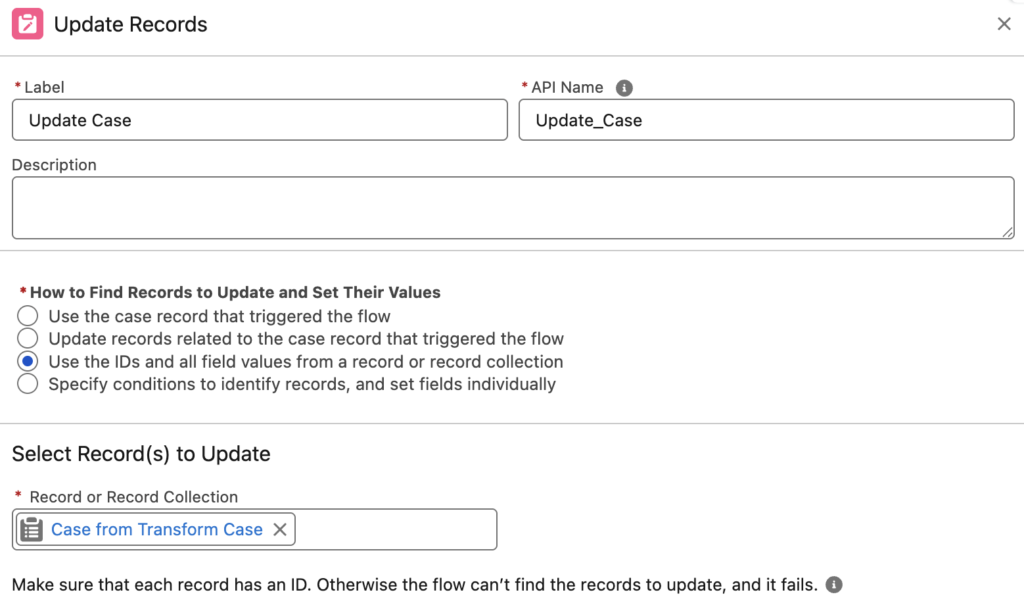
3- Now you are ready to update the record. Add an Update Records element and update the Case record that you prepared in the previous step.
Final Thoughts
Global Flow Resources are a great addition to Salesforce Flow. They can save a lot of time, especially when maintaining value mappings across multiple flows. If you need to change a mapped value, you can update it directly in the Global Flow Resource. There is no need to open and update every flow that uses the same logic.
However, there are still a few limitations to keep in mind. Since value mappings are available only in the Transform element, you cannot use them in before-save record-triggered flows. This may force you to use an after-save flow, even for simple field updates. Another limitation is that value mappings work only with single variables, not collections.
Leave a Reply