
Determining who actually has access to a record in an enterprise Salesforce org can be surprisingly complex. Record visibility can be affected by Organization-Wide Defaults, role hierarchies, sharing rules, Enterprise Territory Management, account, opportunity, and case teams, manual shares, profiles, permission sets, and more. Trying to calculate record access manually by querying individual Share objects can quickly turn into complicated logic that is difficult to build, test, and maintain. Fortunately, Salesforce provides a much easier way to check record access: the UserRecordAccess object.
In this post, we will explain how UserRecordAccess works, review its capabilities and limitations, show how to query it with SOQL, and build practical examples that use it in Salesforce Flow.
What is UserRecordAccess?
UserRecordAccess is a read-only, system-calculated virtual object. Instead of forcing you to piece together the entire sharing model yourself, Salesforce does the heavy lifting under the hood. When you query this object, the platform evaluates all active sharing mechanisms in real-time and returns the absolute access level for a specific user and a specific record (or set of records).
Fields
When you query UserRecordAccess, you can retrieve the following key boolean fields:
- HasReadAccess: Returns true if the user can view the record.
- HasEditAccess: Returns true if the user can modify the record.
- HasDeleteAccess: Returns true if the user can delete the record.
- HasTransferAccess: Returns true if the user can change the owner of the record (applicable to objects that support ownership transfer, like Leads, Cases, or custom objects).
- MaxAccessLevel: A highly convenient picklist field that returns the single highest level of access the user has. The possible values are:
- None
- Read
- Edit
- Delete
- Transfer
- All (usually reserved for system administrators or record owners)
Powering Up with SOQL
Before we build declarative solutions, it is crucial to understand how to query this object programmatically. Because UserRecordAccess is a virtual table, standard SOQL rules do not fully apply. You must always filter by a specific user and record context.
1. Checking Access for a Single Record and a Single User
To find out if a specific user (e.g., a manager auditing a rep's access) can edit a specific Account:
SELECT RecordId, HasReadAccess, HasEditAccess, MaxAccessLevel
FROM UserRecordAccess
WHERE UserId = '005XXXXXXXXXXXX'
AND RecordId = '001XXXXXXXXXXXX'
2. Checking Access for Multiple Records (Bulked Query)
If you are writing Apex triggers or batch jobs, you can query access for up to 200 records in a single execution by using the IN clause with a list of IDs:
SELECT RecordId, HasReadAccess, HasEditAccess
FROM UserRecordAccess
WHERE UserId = '005XXXXXXXXXXXX'
AND RecordId IN ('001XXXXXXXXXXX1', '001XXXXXXXXXXX2', '001XXXXXXXXXXX3')
Crucial Limitations & "Gotchas"
As powerful as UserRecordAccess is, failing to account for its strict API constraints will result in runtime exceptions or inaccurate business logic. Keep these six rules in mind:
- The Mandatory Dual-Filter:
Your WHERE clause must filter on a single UserId and either a single RecordId or a list of RecordIds. You cannot query this object without providing both. - No Standard "Id" Field:
Unlike almost all other standard and custom objects in Salesforce, UserRecordAccess does not have an Id field. Attempting to query, retrieve, or reference a field named Id on this object will result in an immediate runtime exception. This is the root cause behind many failed integrations and Flow crashes. - No Subquery (Semi-Join) Support in the IN Clause:
You cannot use a subquery inside the IN clause of the RecordId filter (e.g., WHERE RecordId IN (SELECT Id FROM Opportunity WHERE ...)). Because UserRecordAccess is processed by the platform's real-time sharing engine and not standard database join paths, traditional SQL-style semi-joins are completely blocked. If you need to evaluate multiple records dynamically, you must first query those record IDs into an Apex list/set and then pass that collection as a bind variable to the query:
List<Opportunity> opps = [SELECT Id FROM Opportunity WHERE IsClosed = false];
List<UserRecordAccess> access = [SELECT RecordId, HasEditAccess FROM UserRecordAccess WHERE UserId = :targetUserId AND RecordId IN :opps]; - Sharing-Enabled Objects Only:
You can only use UserRecordAccess on objects that support sharing settings. For example, detail records in a Master-Detail relationship do not have their own sharing settings, so querying them will fail. - No Restriction Rules Support:
As of the current documentation, UserRecordAccess evaluates classical sharing mechanisms (OWD, Sharing Rules, etc.) but does not natively reflect access blocks caused by Restriction Rules. Keep this in mind if your org heavily utilizes Restriction Rules. - No Declarative UI or Formula Field Support:
Because UserRecordAccess is computed dynamically at runtime, you cannot reference its fields in standard Formula Fields, nor can you use them directly in Component Visibility Filters inside the Lightning App Builder.
Use Case: Secure "Change Owner" Screen Flow (Step-by-Step)
Let's put this into practice.
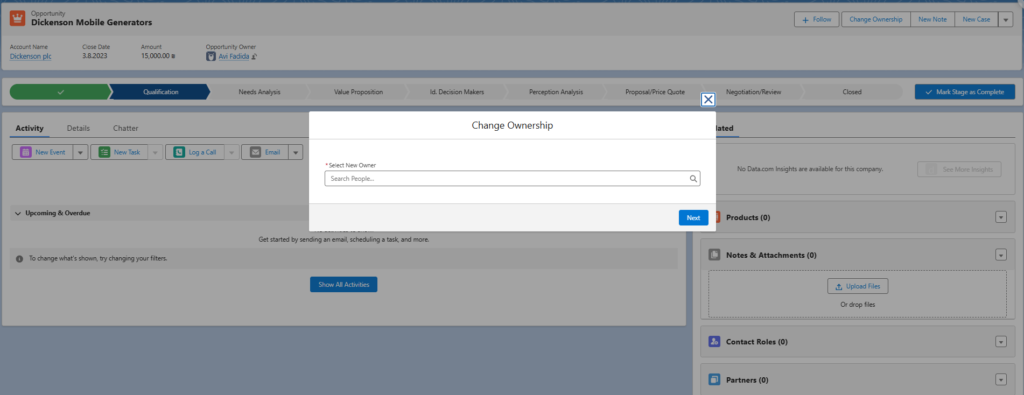
Business Goal: Create a custom "Change Owner" button on the Opportunity record page. If the running user has Edit access to the Opportunity, they should see a screen that allows them to select a new owner. If they do not have Edit access, they should see a polite "Access Denied" screen.
Here is how to build this declarative solution step-by-step:
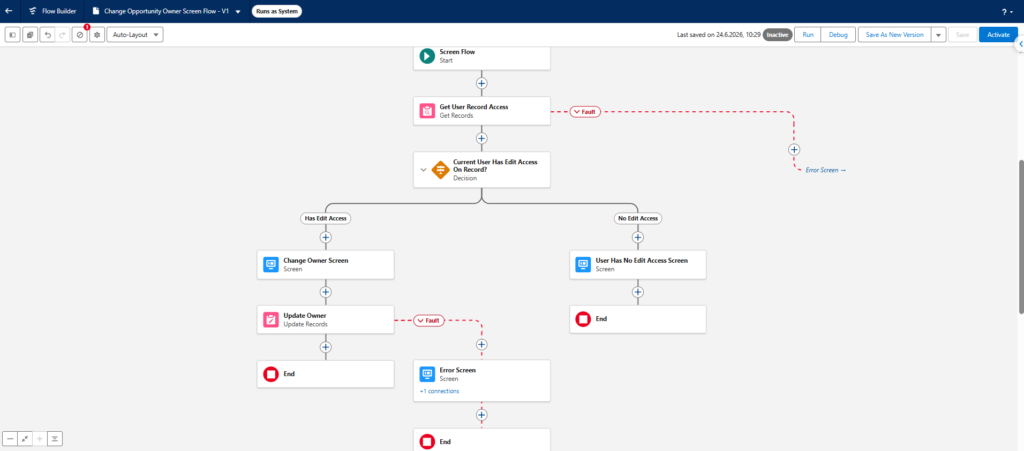
Step 1: Initialize the Screen Flow
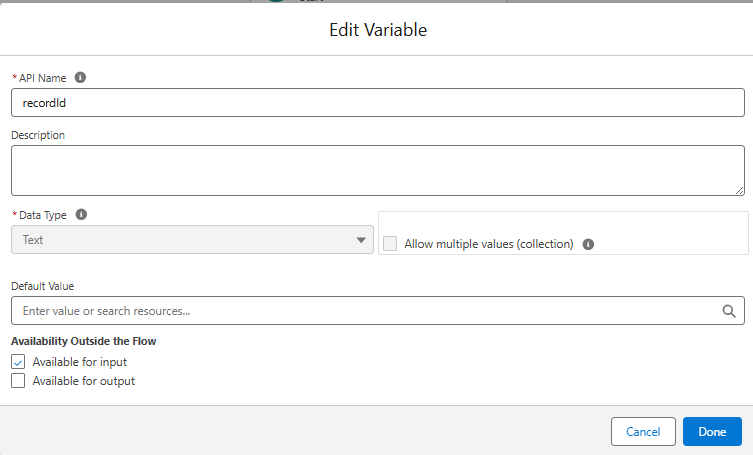
Create a new Screen Flow and define a text variable named recordId (case-sensitive, Available for Input) to automatically capture the ID of the record the user is viewing.
Step 2: Query UserRecordAccess (The "Get Records" Trap!)
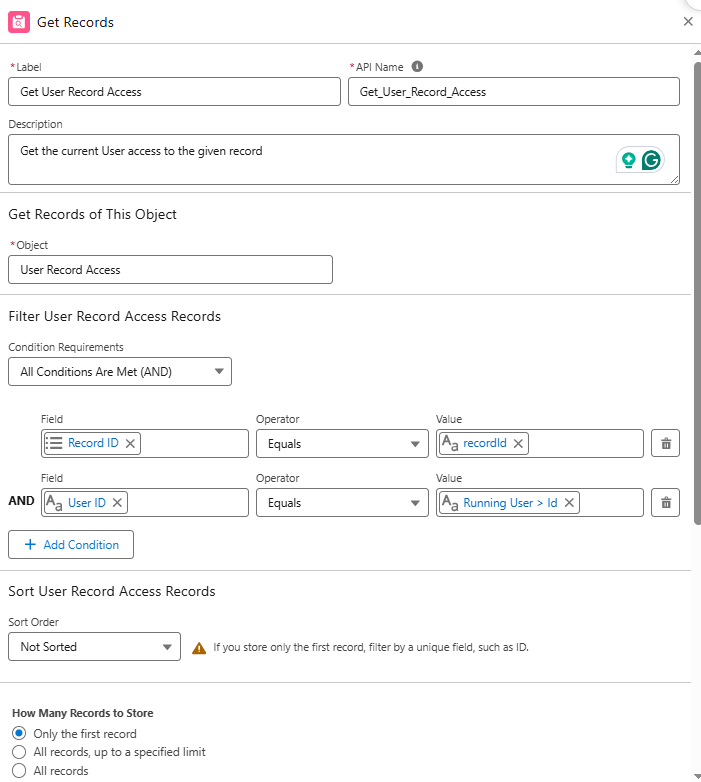
Add a Get Records element to your canvas to fetch the current user's access rights. Configure it as follows:
- Label: Get User Record Access
- Object: User Record Access (API Name: UserRecordAccess)
- Filter Conditions:
- UserId Equals {!$User.Id} (The running user)
- RecordId Equals {!recordId} (The current record)
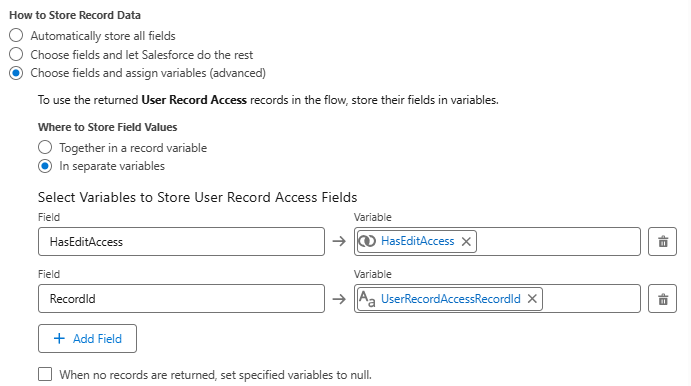
- How to Store Collection Data:
Select "Choose fields and assign variables (advanced)" - Fields to Store in variables:
- Select HasEditAccess.
- The Trap: You must also explicitly select RecordId. Because UserRecordAccess lacks a standard Id field, letting Salesforce store all fields automatically forces the engine to query for Id behind the scenes. This causes the Flow to crash at runtime! Selecting RecordId manually prevents this.
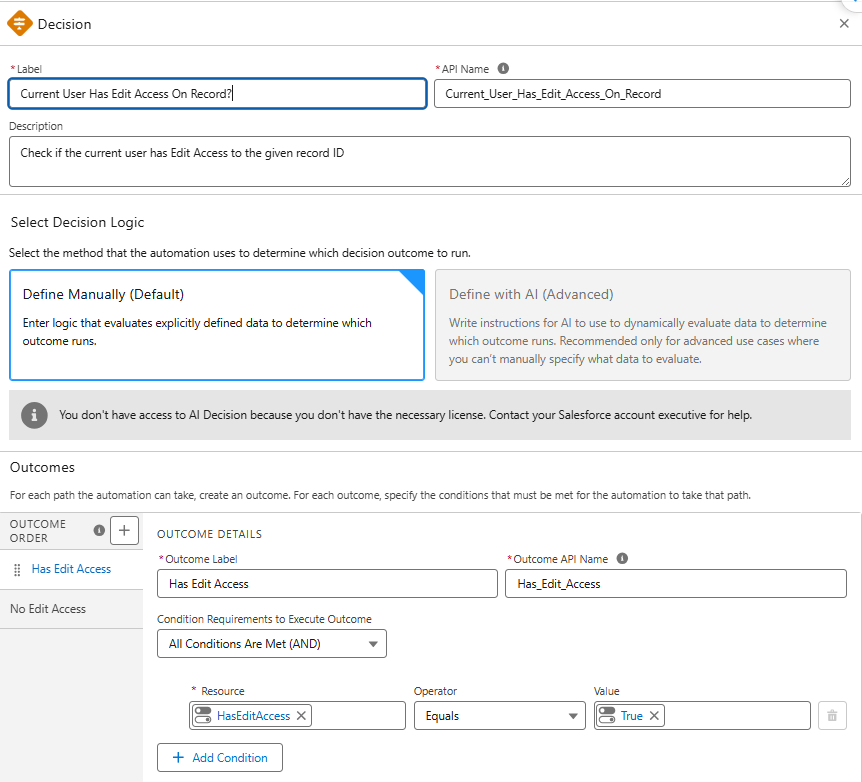
Step 3: Add a Decision Element to Check UserRecordAccess
Drag a Decision element onto the canvas to evaluate the returned boolean.
- Outcome 1: Has Edit Access
- Condition: {!Get_User_Record_Access.HasEditAccess} Equals {!$GlobalConstant.True}
- Default Outcome: No Access
Step 4: Create the Screens (UI Path Routing)
Based on the Decision outcomes, we need to design the interface for both authorization states:
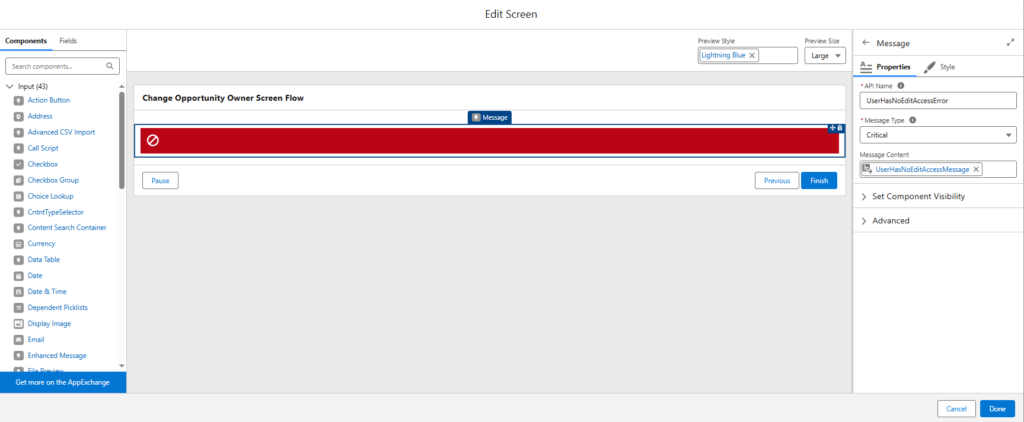
- Access Denied Screen (No Access Path):
Add a Screen element to the default outcome. Display a red warning banner or a Display Text component stating: "Access Denied: You do not have sufficient permissions to modify this record's ownership."
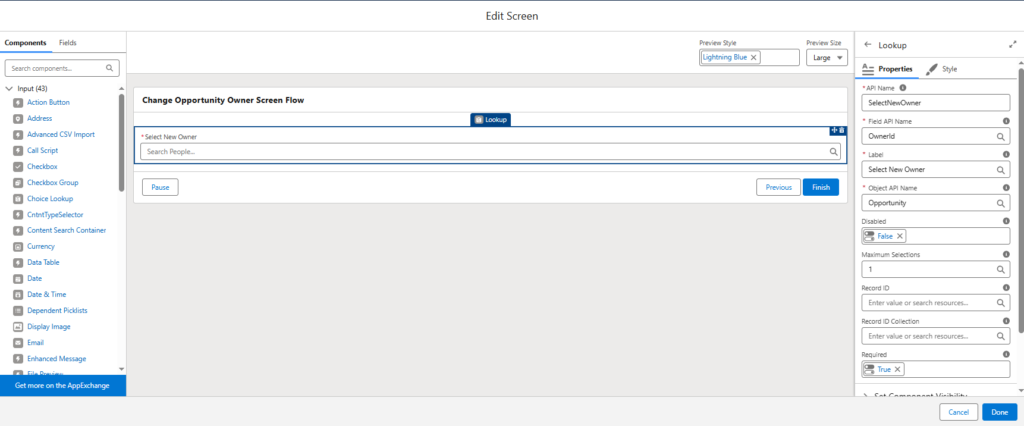
- Change Owner Screen (Has Edit Access Path): Add a Screen element to the "Has Edit Access" outcome. Add a Lookup Component configured to let the user select a User. Use OwnerId as the Field API Name, and Opportunity as the Object API Name to leverage the system's standard lookups.
Step 5: Configure the Record Update (DML Action)
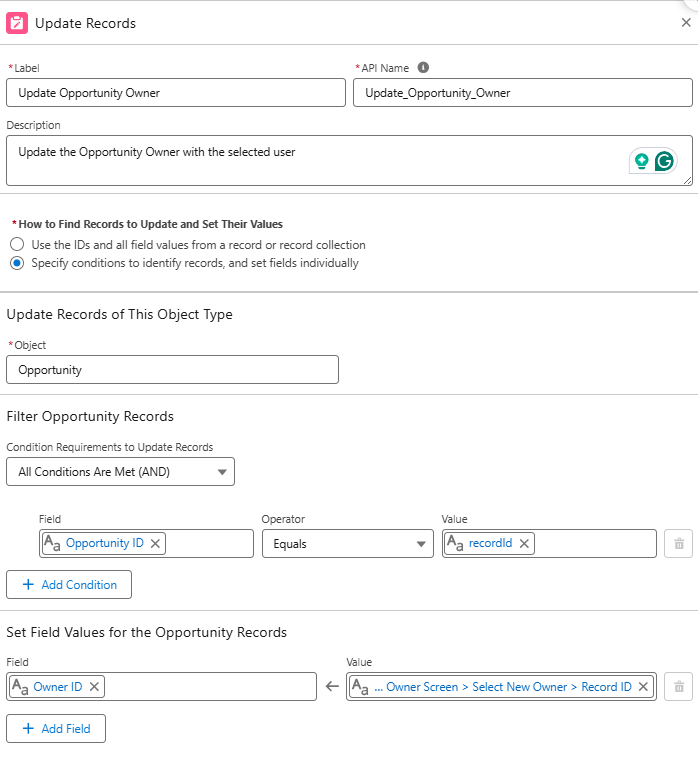
For users who successfully selected a new owner, we must commit this change to the database:
- Add Update Records element under the Change Owner Screen.
- Configure it to "Specify conditions to identify records, and set fields individually".
- Select the Opportunity object, filter by Id Equals {!recordId}, and set the OwnerId field to the value of your Lookup Component from Step 4 (e.g., {!SelectNewOwner.recordId}).
Step 6: Implement Fault Paths for Graceful Error Handling
Even with proactive access checks, database operations or API calculations can occasionally fail (e.g., due to system locks, validation rules, or unexpected data issues).
To prevent users from seeing an unhandled raw system error ("An unhandled fault has occurred..."), we should always implement a Fault Path.
- Add Fault Path to Get User Record Access (Get Records) and Update Records (Update Records) elements.
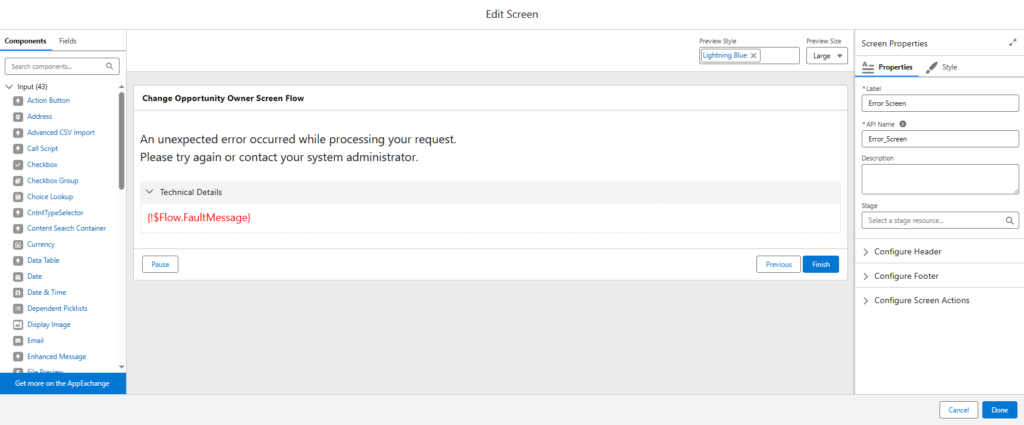
- Add a Screen element and name it as "Error Screen".
- On this "Error Screen", add a Display Text component. Design a user-friendly error message, such as: "An unexpected error occurred while processing your request. Please try again or contact your system administrator."
- Below your friendly message, add a collapsible section or small text block containing the system fault message: {!$Flow.FaultMessage}. This allows you to log the actual error for debugging without cluttering the screen for regular end-users. You can also display a clean error message using this formula.
Step 7: Configure Flow Properties and Run in System Context
Before activating our Flow, there is one last and critical architectural step.
Under standard Salesforce sharing rules, transferring a record's ownership is highly restricted. Even if a user has Edit access to a record, Salesforce may block them from transferring ownership unless they are the record owner, a manager above the owner in the Role Hierarchy, or an administrator.
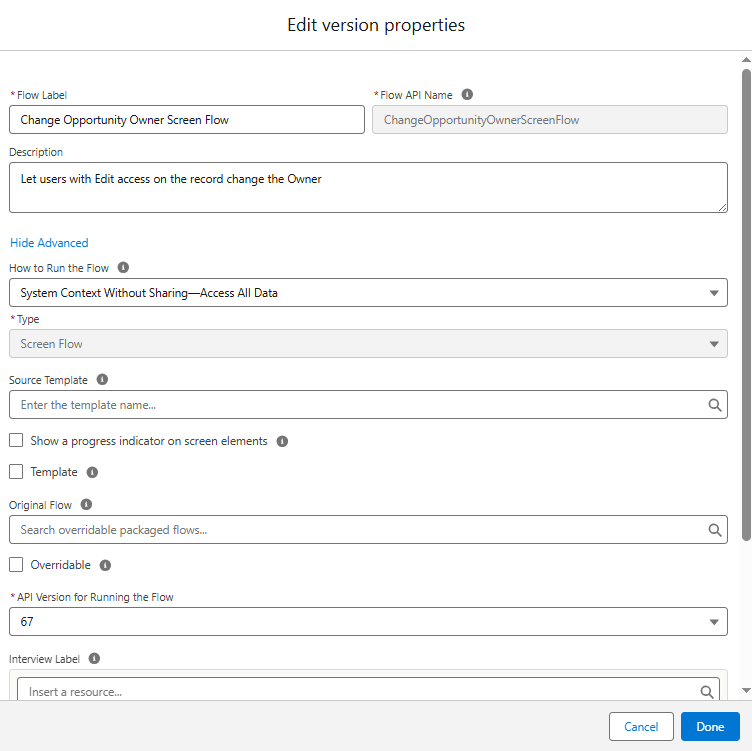
Since we have already enforced our custom security check dynamically (verifying that the user has HasEditAccess), we want the database update itself to execute with elevated system privileges. To achieve this, we must configure the Flow to run in System Context.
- In the Flow Builder canvas, click the gear icon in the top left corner to open View Version Properties.
- Click Show Advanced.
- Set the How to Run the Flow to "System Context Without Sharing - Access All Data".
- Debug and Activate the Flow.
Step 8: Create and Expose the Button
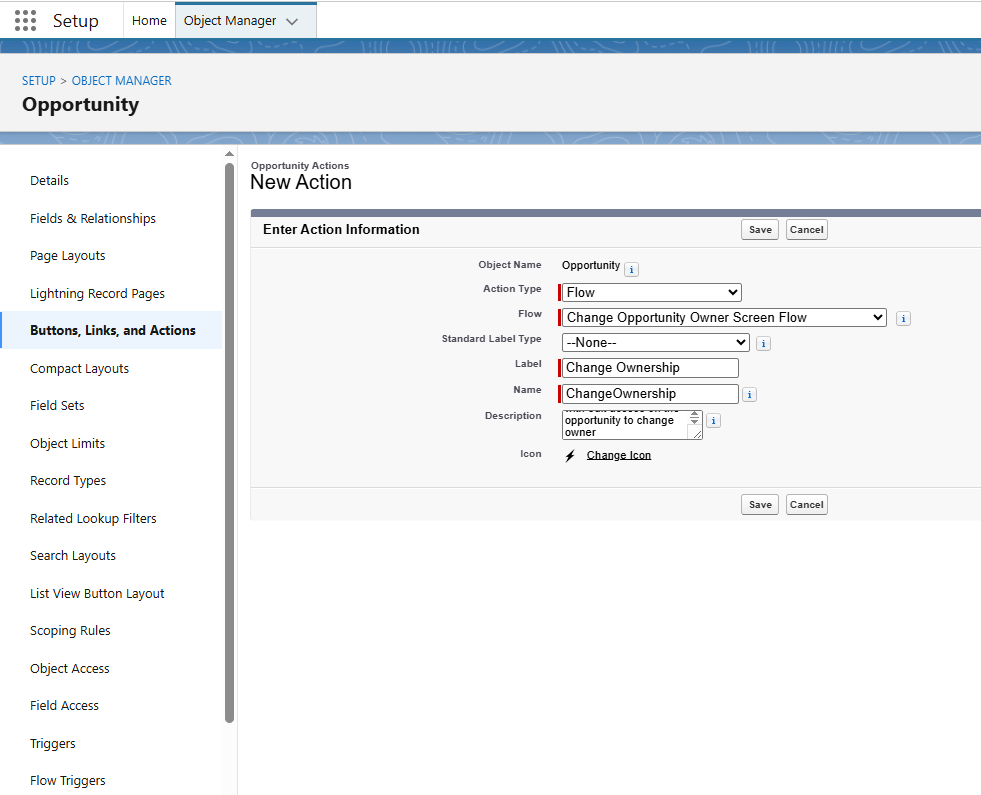
- Navigate to Setup > Object Manager > Opportunity > Buttons, Links, and Actions.
- Click New Action, select Flow as the Action Type, and choose the newly active Screen Flow. Label it "Change Ownership".
- Go to the Opportunity Page Layout or Lightning Record Page, and add the new Action onto the layout/canvas.
Bonus Use Case: A Creative Alternative - The Admin "Access Auditor" Utility
While checking the running user's access (like in the Use Case above) is highly effective, UserRecordAccess can do something even more unique. It can check access for any user in the system.
Let's look at a bonus, highly creative implementation that contrasts beautifully with our primary scenario.
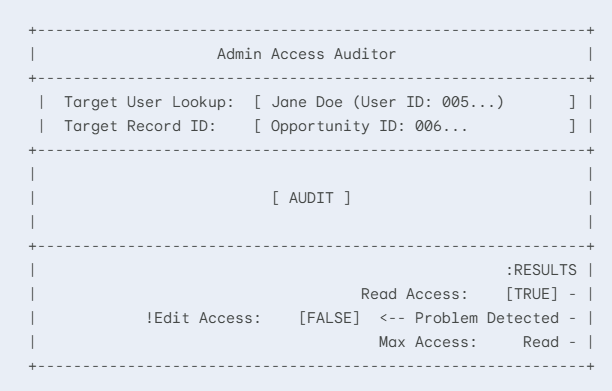
The Solution: An Admin Access Auditor utility. Instead of impersonating a user or asking them to send screenshots, an administrator can use a utility on their Home Page to quickly troubleshoot sharing issues in real-time.
The Modern Single-Screen Architecture (Using Action Buttons)
Instead of building a traditional multi-screen flow that requires navigation clicks (Next/Previous) to fetch and view data, we can leverage Salesforce Flow's modern Action Button component. This allows us to build a Single-Screen Utility that acts like a real-time SPA (Single Page Application):
- A Single Screen Layout: Place everything on a single, clean Screen element:
- Target User Lookup: A required input to select the user whose access is being audited.
- Target Record ID: A required text input to paste the 15 or 18-character Salesforce record ID.
- The Action Button ("Audit"): A dynamic button configured to run an Autolaunched Flow in the background. We use Flow's conditional component visibility to keep this button hidden or disabled until both inputs (User and Record ID) are filled.
- Display Results Section: A Display Text component that dynamically reads the outputs returned by the Action Button.
- The Behind-the-Scenes Autolaunched Flow: When the Admin clicks the Action Button, it instantly passes the selected UserId and RecordId into a lightweight, headless Autolaunched Flow. This background flow executes the UserRecordAccess Get Records element (remembering to query manually for the RecordId and permissions to bypass the standard Id field trap!) and returns the record's access values directly back to the active screen.
- Instant UI Refresh: The screen instantly presents the read/edit permissions and the MaxAccessLevel dashboard in real-time, right in front of the Admin - all without a single page transition or reload.
Conclusion
The UserRecordAccess object is a goldmine for Salesforce Architects and Admins looking to build secure, robust declarative tools without relying on heavy Apex development.
By understanding its strict querying requirements, remembering that it lacks an Id field, and mastering the "Flow Get Records Trap", you can easily build highly sophisticated security checks and troubleshooting tools.
Leave a Reply