
Salesforce is retiring the OAuth 2.0 Username-Password Flow on February 20, 2027. If your integrations still use this authentication method, they may stop working when Salesforce enforces the change.
The biggest concern is that these failures may go unnoticed. A scheduled integration could stop updating Salesforce records without displaying any obvious warning. This is why reviewing your integrations before the deadline is essential.
Here is how to identify affected integrations, migrate to a supported authentication flow, and prevent unexpected failures.
When Will Salesforce Retire the OAuth Username-Password Flow?
Salesforce will enforce the retirement on February 20, 2027.
Salesforce first announced the change in Spring '26 and originally planned to enforce it with Winter '27. They later postponed enforcement to February 20, 2027, around the Spring '27 release.
You can review the release update directly in Salesforce:
- Open Setup.
- Search for Release Updates.
- Find Retirement of OAuth 2.0 Username-Password Flow for Connected Apps.
- Review the available testing and activation instructions.
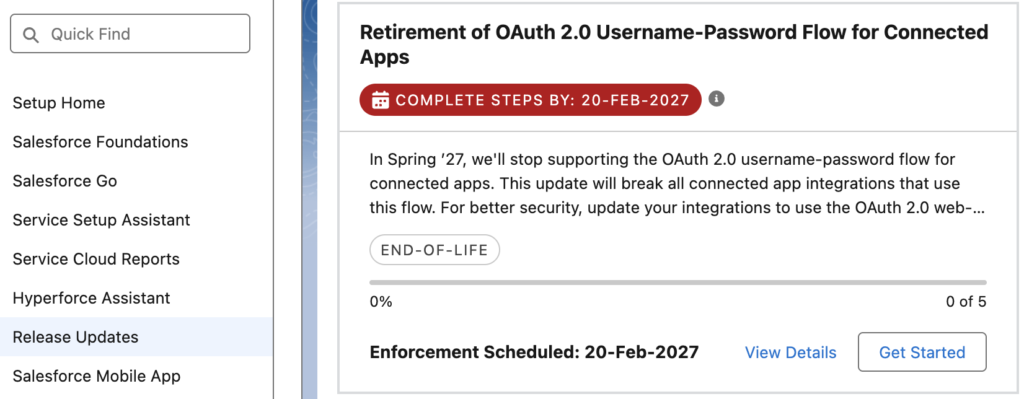
If you don't see this release update, Salesforce indicates that your org already blocks the username-password flow. Salesforce also blocks this flow in orgs created in Summer '26 and later.
This is a breaking change, not just a deprecation notice. Integrations that still use the retiring flow will fail when they request new access tokens after enforcement.
What Is the OAuth Username-Password Flow?
The OAuth 2.0 Username-Password Flow lets an external application authenticate to Salesforce by sending a user's credentials directly to Salesforce.
The integration typically stores:
- Client ID (Consumer Key)
- Client Secret (Consumer Secret)
- Salesforce Username
- Salesforce Password
- Security Token, when required
The application sends these credentials to Salesforce's OAuth token endpoint.
For example:
curl --request POST \
  https://login.salesforce.com/services/oauth2/token \
  --data-urlencode "grant_type=password" \
  --data-urlencode "client_id=YOUR_CLIENT_ID" \
  --data-urlencode "client_secret=YOUR_CLIENT_SECRET" \
  --data-urlencode "[email protected]" \
  --data-urlencode "password=YOUR_PASSWORD_AND_SECURITY_TOKEN"
If Salesforce accepts the credentials, it returns an access token. The integration then uses that token to call Salesforce APIs. Many developers chose this flow because it was simple. It didn't require a browser-based authorization process or certificate management.
However, this simplicity creates security risks.
External applications must store Salesforce passwords, which increases the risk of credential exposure. Password changes, account lockouts, and security-token resets can also interrupt integrations.
The flow doesn't support refresh tokens or OAuth scopes, and it bypasses the modern interactive MFA authentication process.
Salesforce wants integrations to use more secure OAuth authentication methods instead.
How to Find Integrations Using the Username-Password Flow
Salesforce provides several ways to investigate OAuth authentication activity.
1. Check Salesforce Login History
Start with Salesforce Login History.
- Navigate to Setup → Login History.
- Click Create New View.
- Enter a name such as OAuth Username-Password.
- Under the filter criteria, select Login Subtype.
- Set the operator to equals.
- Select OAuth Username-Password.
- Add Login Subtype to the displayed columns.
- Save the view.
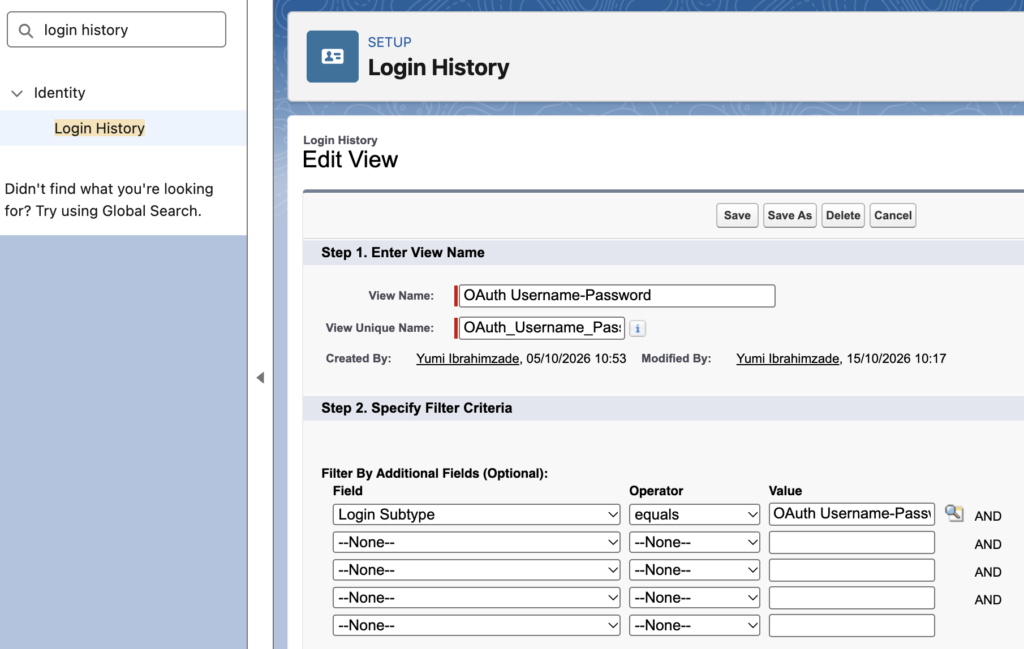
The Application column can help you identify which external system uses the flow. Sometimes, however, the application name won't clearly identify the integration. You may need to check the integration user, source IP, or external system configuration.
Important: Salesforce Login History generally retains six months of data, and custom views can display up to 20,000 records.
An integration that hasn't authenticated during that period won't appear in the available records. Therefore, finding no matching records doesn't guarantee that your org has no affected integrations.
2. Review Connected Apps
Next, open Setup → App Manager.
Review the Connected Apps that your integrations use. For each application, identify its purpose, owner, integration user, and authentication method.
You can also open Setup → Connected Apps OAuth Usage.
However, there's an important limitation:
Salesforce doesn't display username-password flow integrations in Connected Apps OAuth Usage, even when those integrations have active sessions.
3. Search Your Integration Configurations
Review the authentication settings in your middleware platforms, custom applications, scripts, and integration repositories.
Look for:
- OAuth Username-Password
- Resource Owner Password Credentials (ROPC)
- Password Grant
- grant_type=password
- Salesforce username and password together with Client ID and Client Secret
For custom code, search for:
grant_type=passwordYou can also search for requests to:
/services/oauth2/tokenKeep in mind that several OAuth flows use this endpoint. The endpoint alone doesn't identify the retiring flow.
Check the grant_type parameter to confirm the authentication method. If the application sends grant_type=password, you need to migrate it.
4. Check Managed Packages and Third-Party Applications
Don't limit your investigation to integrations that your development team built. Third-party applications and managed packages may also use the retiring flow.
In some cases, the vendor manages the authentication code, so you cannot change it yourself. In those cases, contact the vendor and ask:
- Does your application use Salesforce OAuth Username-Password Flow?
- Will the application support the February 20, 2027 retirement?
- Does it support OAuth Client Credentials, Web Server with PKCE, or another supported flow?
- Do we need to install an update?
- Do we need to change any Salesforce configuration?
Don't assume that an installed managed package automatically supports the new authentication requirements.
Which OAuth Flow Should You Use Instead?
Salesforce recommends different authentication methods for different integration architectures.
| OAuth Flow | Recommended Use Case | User Interaction |
|---|---|---|
| Client Credentials | Server-to-server integrations, middleware, scheduled jobs, and data synchronization | No |
| Web Server with PKCE | Applications that authenticate individual users | Yes, during initial authorization |
| JWT Bearer | Certificate-based server-to-server integrations | No interactive login required |
For many server-to-server integrations, OAuth Client Credentials offers the simplest replacement.
However, you should choose the flow based on the application's requirements.
For example, if an application must access Salesforce using each user's permissions, Client Credentials may not work because Salesforce executes requests under a configured Run As user.
How to Migrate to OAuth Client Credentials Flow
The OAuth Client Credentials Flow lets an application authenticate with its Client ID and Client Secret.
It doesn't require a Salesforce username, password, or security token in the token request.
Instead, Salesforce executes API requests using the permissions of a configured Run As user.
This flow works particularly well for background processes and server-to-server integrations.
Step 1: Create an External Client App
Salesforce recommends External Client Apps for new integrations instead of legacy Connected Apps.
To create one:
- Navigate to Setup → External Client App Manager.
- Click New External Client App.
- Enter the application name, API name, and contact email.
- Save the application.
Next, open the application and configure its OAuth settings.
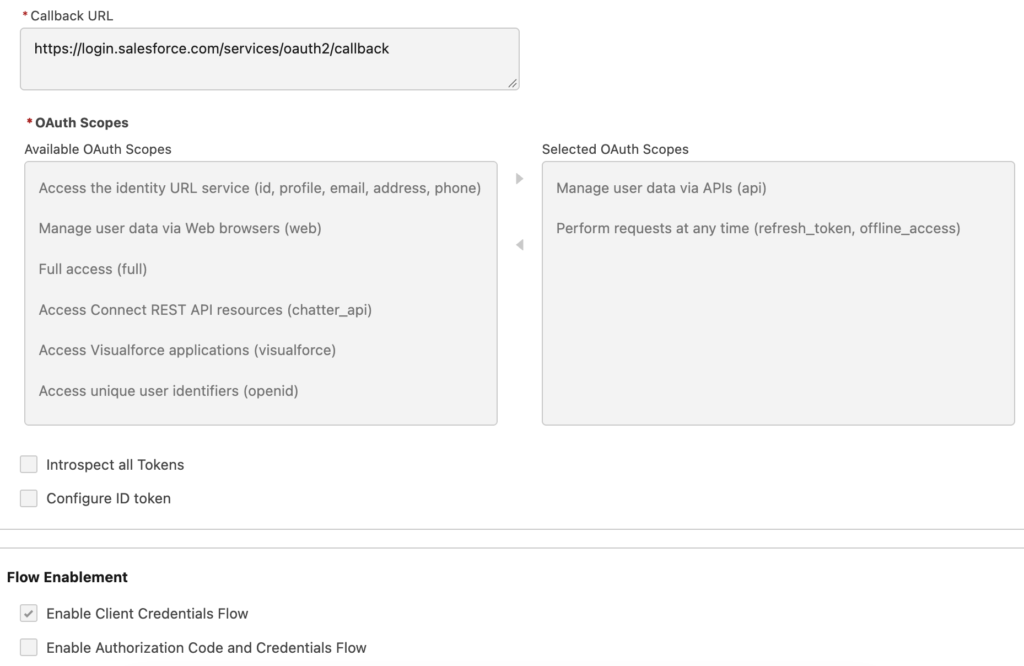
Enable OAuth and select the required OAuth scopes.
For a typical Salesforce API integration, include:
Manage user data via APIs (api)
Salesforce may require a callback URL in the configuration interface, even though the Client Credentials Flow doesn't redirect users.
Enable Client Credentials Flow and save your changes.
The exact screens may vary depending on your Salesforce release and application configuration.
Step 2: Configure the Run As User
Client Credentials requires a Run As user. Salesforce uses this user's permissions and record access when the integration executes API requests.
To configure the user:
- Open External Client App Manager.
- Find your External Client App.
- Select Edit Policies.
- Enable Client Credentials Flow in the applicable policies.
- Select the Run As user.
- Save your changes.
Use a dedicated integration user whenever possible.
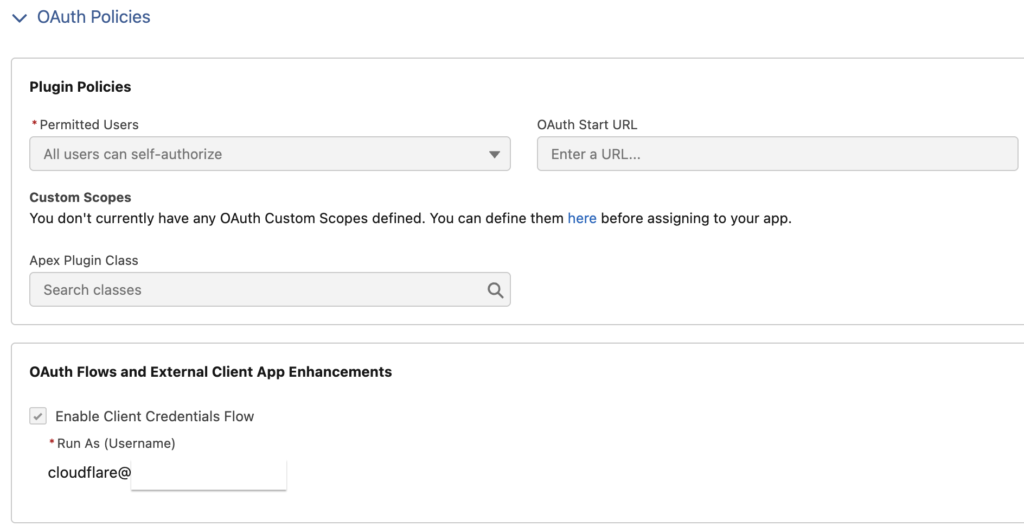
Salesforce provides the Salesforce Integration user license for suitable API-only integration scenarios.
Assign permission sets that give the integration only the access it needs.
For example, if the integration creates Cases and updates Accounts, grant the relevant permissions instead of giving it System Administrator access.
Also consider record-level access, field-level security, and other restrictions.
If you switch to a different integration user during migration, the new user may not have the same access as the original user.
That difference can cause API operations to fail even when authentication succeeds.
Step 3: Get the Client ID and Client Secret
Open your External Client App and navigate to the OAuth settings.
Find Consumer Key and Secret.
The Consumer Key represents the Client ID. The Consumer Secret represents the Client Secret.
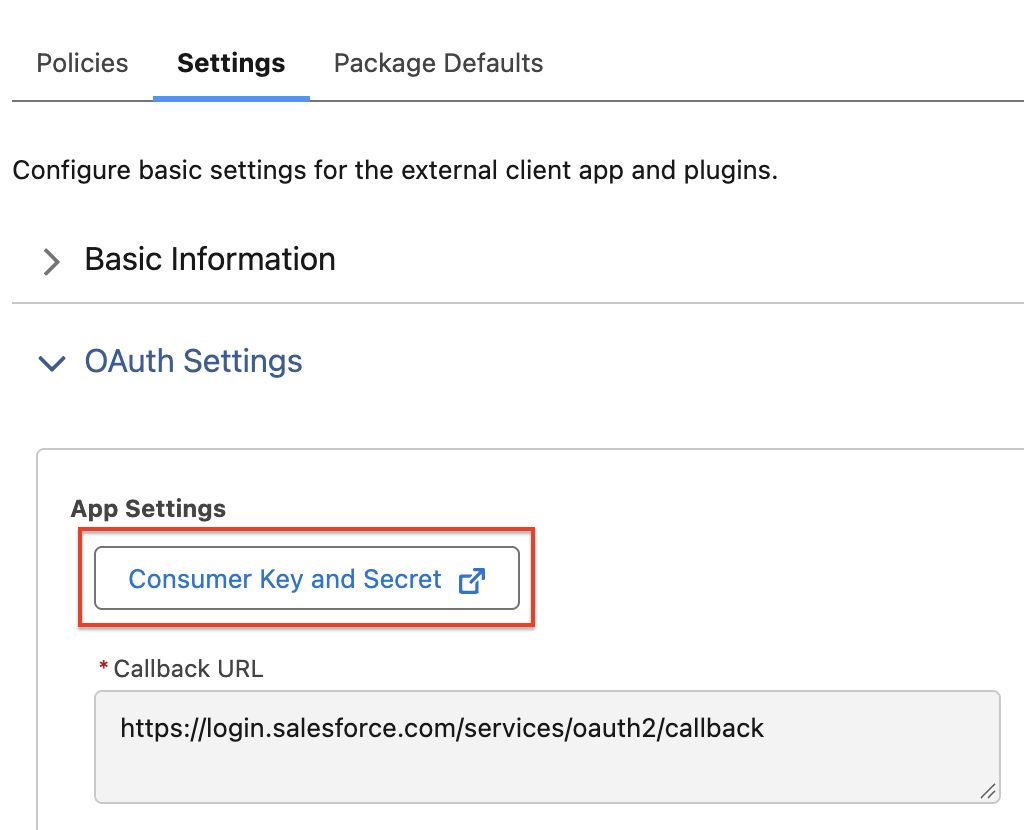
Configure these values in your external integration.
Step 4: Update the Authentication Request
Now update the external application's token request.
Previously, the integration used:
grant_type=passwordWith Client Credentials, it uses:
grant_type=client_credentialsFor example:
curl --request POST \
  "https://YOUR_DOMAIN.my.salesforce.com/services/oauth2/token" \
  --data-urlencode "grant_type=client_credentials" \
  --data-urlencode "client_id=YOUR_CLIENT_ID" \
  --data-urlencode "client_secret=YOUR_CLIENT_SECRET"
The request no longer includes the Salesforce username, password, or security token.
If authentication succeeds, Salesforce returns an access token and an instance URL.
Step 5: Handle Token Expiration
The Client Credentials Flow doesn't provide refresh tokens.
When an access token expires or becomes invalid, the application must request another token using the Client ID and Client Secret.
Update your integration to handle this process.
For example, a scheduled integration can request a token before it starts processing records.
Avoid requesting a new access token for every individual API call unless your architecture requires it.
Also implement appropriate retry handling so temporary authentication problems don't cause unnecessary failures.
Alternative: OAuth Web Server Flow with PKCE
If your application needs to authenticate individual Salesforce users, consider the OAuth Web Server Flow with PKCE.
This flow lets users sign in directly through Salesforce and authorize the external application.
The application doesn't need to collect their Salesforce passwords.
Here's how it works:
- The application redirects the user to Salesforce's authorization endpoint.
- The user signs in and authorizes the application.
- Salesforce sends an authorization code to the configured callback URL.
- The application exchanges the code, together with the PKCE code verifier and other required parameters, for an access token.
- The application uses the token to call Salesforce APIs on behalf of that user.
PKCE adds protection against authorization-code interception.
This flow works well for applications that need to respect each Salesforce user's identity and permissions.
Depending on the OAuth scopes and policies, the application can also use refresh tokens to maintain access without requiring the user to sign in for every API request.
For example, this method is used for connecting Claude with Salesforce hosted MCP servers.
Alternative: OAuth JWT Bearer Flow
The JWT Bearer Flow provides another option for server-to-server integrations.
Instead of sending a Salesforce password, the application creates a signed JWT assertion using a private key.
Salesforce validates the assertion against the certificate associated with the OAuth application.
This approach can work well when your integration platform already supports JWT authentication or your security architecture requires certificate-based authentication.
However, you must manage certificates and configure the appropriate user authorization model.
If Client Credentials meets your integration requirements, it may offer a simpler implementation.
What About Existing Connected Apps?
Salesforce also plans to end support for legacy Connected Apps in Summer '27. Existing apps can continue operating, but Salesforce will no longer provide the same level of support or bug fixes for their authentication and integration flows.
If you already plan to modify an integration's authentication method, consider migrating its Connected App to an External Client App.
Salesforce provides a migration option in App Manager for eligible applications.
However, migrating the Connected App won't automatically fix the username-password flow.
External Client Apps don't support that authentication method. You must still update the external integration to use a supported OAuth flow.
How to Test Whether Your Integrations Will Break
Salesforce lets administrators block the username-password flow before the enforcement date. You can use this setting to identify integrations that still depend on it.
I recommend testing in a sandbox before changing production.
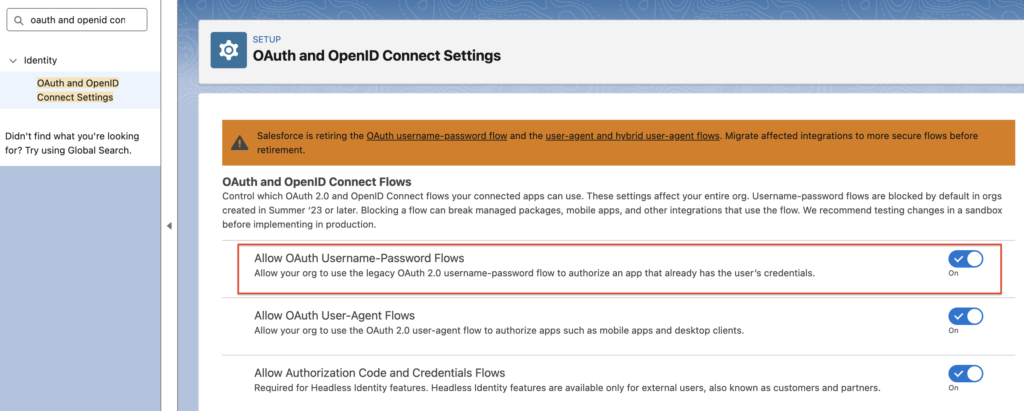
Step 1: Disable the Flow in Sandbox
Navigate to:
Setup → OAuth and OpenID Connect Settings
Find:
Allow OAuth Username-Password Flows
Disable the setting.
Salesforce will then reject new authentication requests that use the username-password flow.
Step 2: Run Your Integrations
After disabling the flow, run your integrations and see which ones are failing. However, don't rely only on a successful connection test.
Some integrations reuse existing sessions or cached tokens, so they may continue working temporarily.
Test whether each integration can obtain a fresh access token using a supported flow.
Step 3: Investigate Authentication Failures
If an integration still uses the username-password flow, Salesforce will reject its authentication request.
The external system may return an error such as:
{
  "error": "invalid_grant",
  "error_description": "authentication failure"
}
The exact error response may vary.
Salesforce Login History may also display a failure status such as:
OAuth Username-Password Flow DisabledLook for these errors in Salesforce Login History and your external integration logs.
Final Thoughts
Salesforce's retirement of the OAuth Username-Password Flow improves security, but it also creates a real risk for organizations that still rely on older integrations.
Some integrations may have run for years without requiring updates. Others may depend on third-party vendors or managed packages, making their authentication configurations harder to identify.
Start by checking Login History and identifying applications that use the OAuth Username-Password subtype. Then review your external integration configurations and search for grant_type=password.
For server-to-server integrations, consider OAuth Client Credentials. For applications that authenticate individual users, consider Web Server Flow with PKCE.
Most importantly, don't wait for the deadline.
Find your affected integrations, migrate them to supported OAuth flows, and test everything before February 20, 2027.
Leave a Reply