
The standard Data Table component in Salesforce Screen Flow allows users to select records and edit field values directly within the table. With inline editing, you can build more interactive screens without using custom components.
The Data Table component provides two separate collection outputs:
- Selected Rows: Stores the records that the user selects.
- Edited Rows: Stores the records that the user edits, including their updated field values.
However, what happens when users select and edit records at the same time? For example, imagine a screen where users select products and enter a quantity for each product.
The Selected Rows collection stores the selected records but does not include the updated field values. On the other hand, the Edited Rows collection stores the updated field values, regardless of whether the user selects those records.
Unfortunately, as of today, the Data Table component does not provide a single output that combines the selected records with their edited values.
In this post, we will explore two different ways to combine selected and edited rows using standard Salesforce Flow functionality.
Example Scenario
Let's say you want to build a Screen Flow that allows users to select products and enter quantities within a Data Table.
For this example, we will use the Price Book Entry object. I created a custom Quantity field on this object specifically for this use case.
Configure the Data Table component to display Price Book Entry records, allow multiple row selection, and enable inline editing for the custom Quantity field.
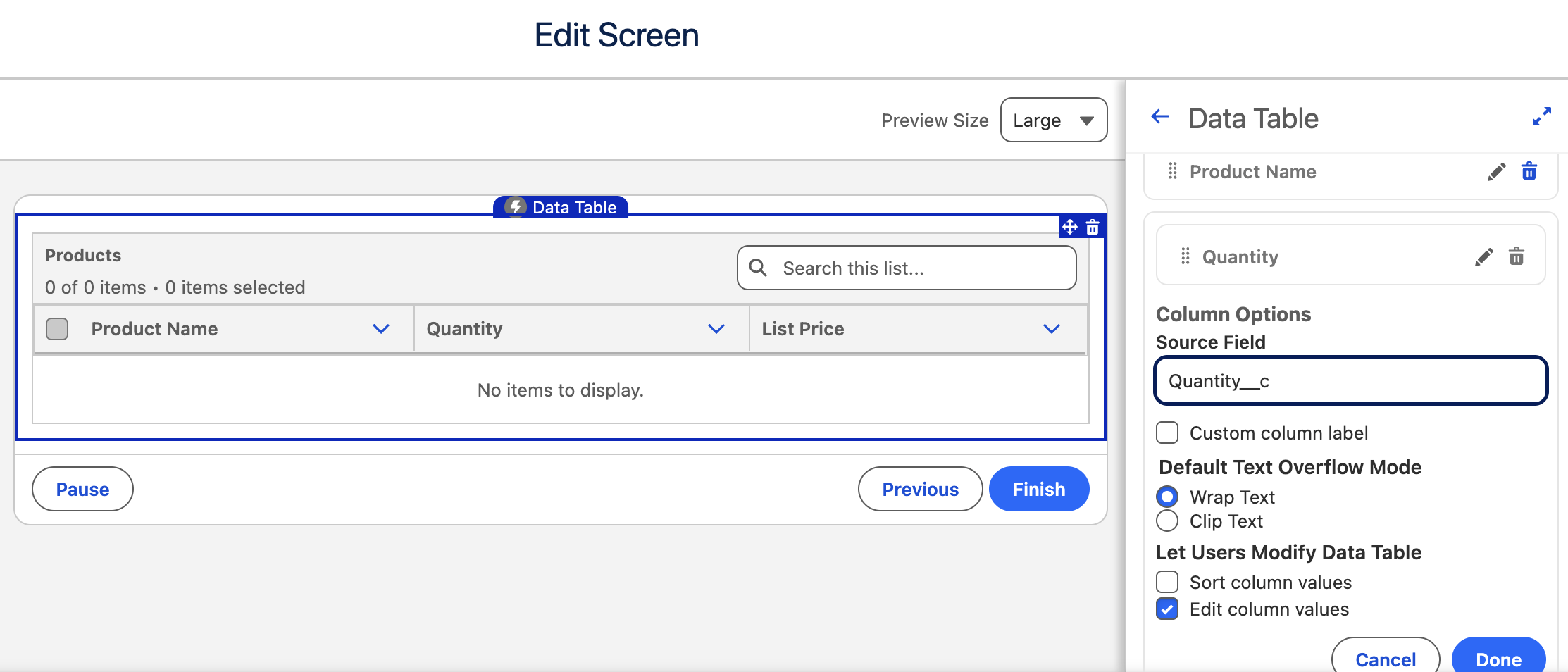
This configuration allows users to select the products they want and enter a quantity for each product directly within the table.
However, users can also enter a quantity without selecting a row or select a row without entering a quantity.
As a result, neither the Selected Rows nor the Edited Rows output alone provides the collection we need.
To get the selected Price Book Entry records along with their updated quantities, we need to combine these two collections.
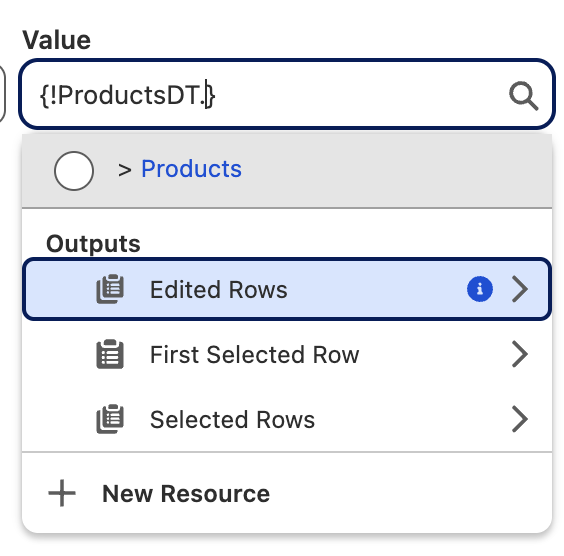
Let's look at two different ways to combine selected and edited rows using standard Salesforce Flow functionality.
Option 1: Combine Selected and Edited Rows Using the Transform Element
The Transform element allows you to join collections based on matching field values. Since both the Selected Rows and Edited Rows collections contain Price Book Entry records, you can join these collections using the Id field.
First, add a Transform element after the Screen element and select the Selected Rows and Edited Rows outputs of the Data Table component as the source collections. Choose OpportunityLineItem as the target data (in this example, we will create Opportuniry Products).
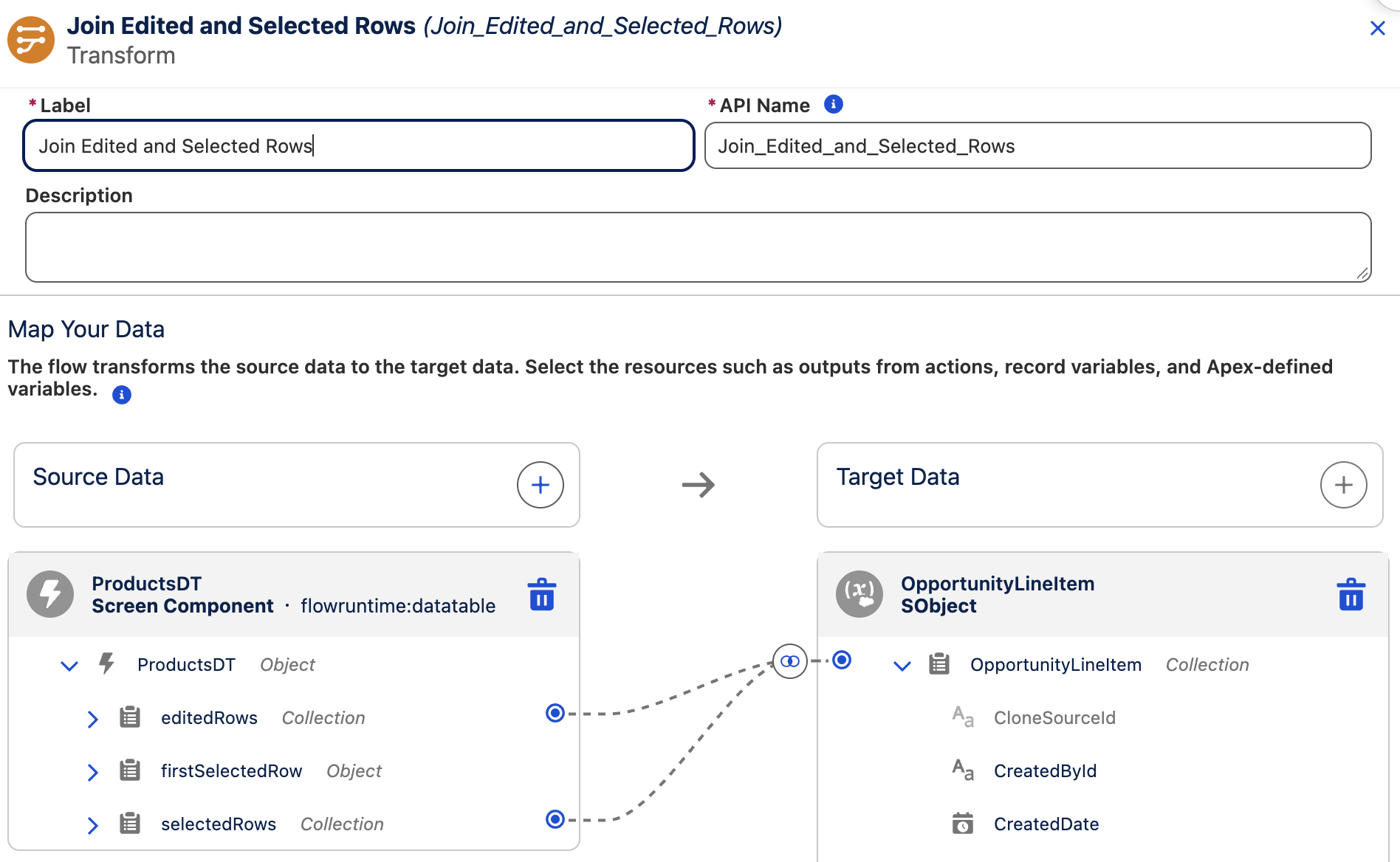
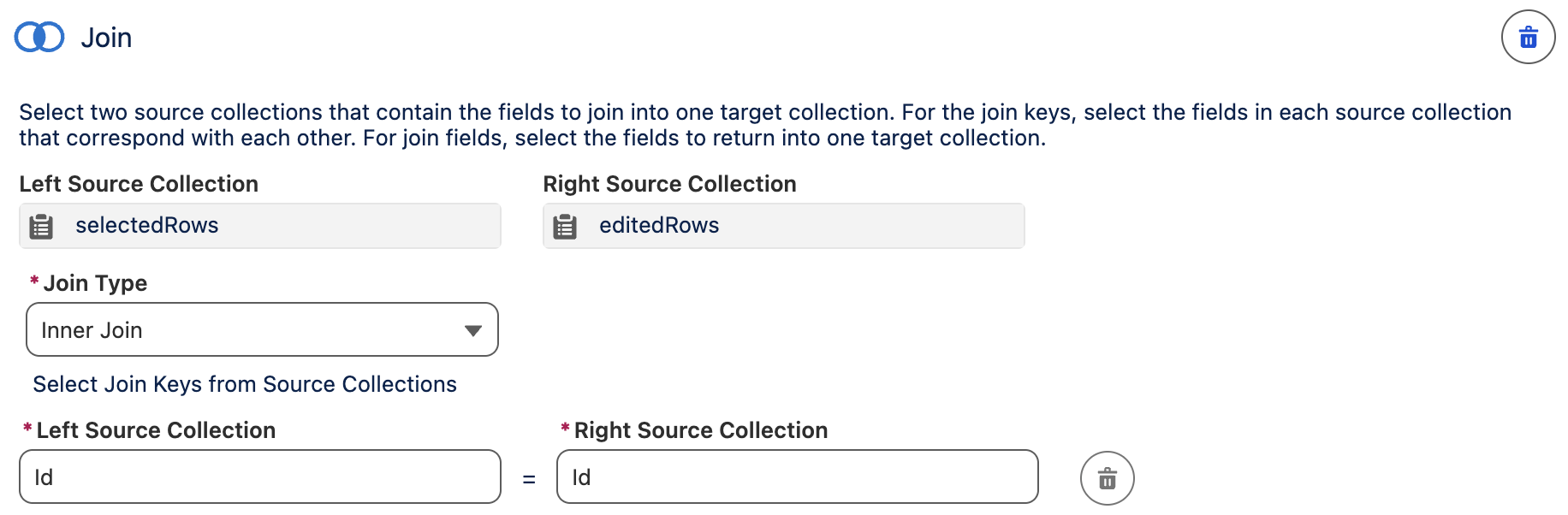
Next, configure a join between the two source collections using the Id field from both collections. This allows the Transform element to match the selected records with their corresponding edited records.
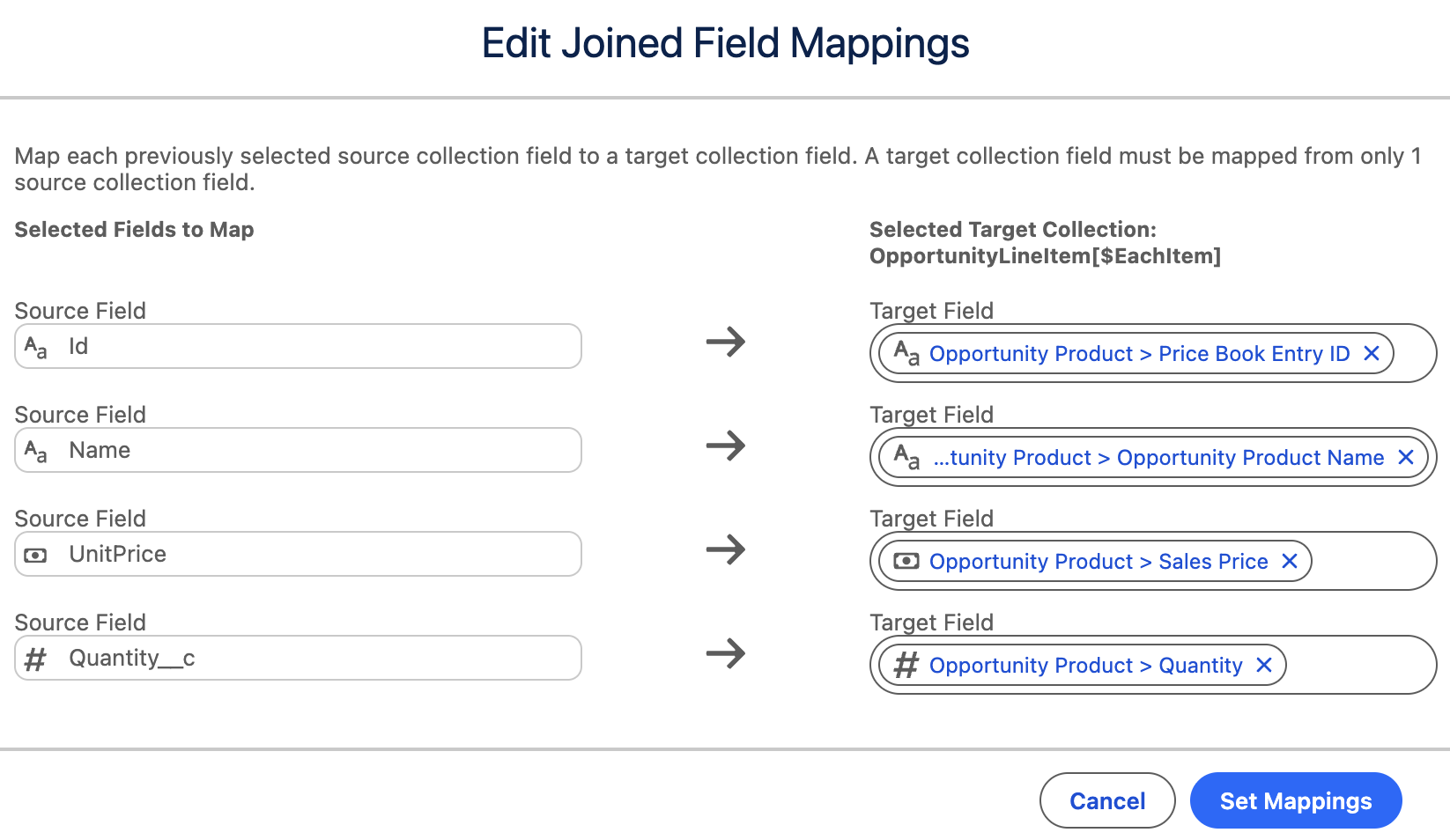
Finally, map the relevant fields from the source collections to the target collection. Make sure to map the custom Quantity field from the Edited Rows collection and not from the Selected Rows collection. Otherwise, you will retrieve the original quantity instead of the value that the user entered.
That's it! The Transform element returns a collection of Opportunity Product records that the user both selected and edited, including their updated quantities. You can achieve all of this with a single Transform element, without using any loops or assignments (Well, you still need to assign the Opportunity ID).
Limitation of This Approach
Although this approach is simple and efficient, it has one important limitation. The Transform element performs an inner join, which means that it returns only records that exist in both source collections.
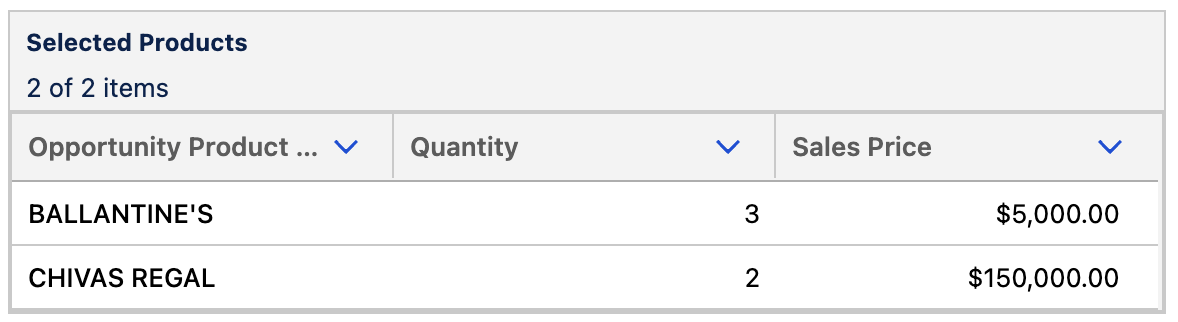
For example, if a user selects a Price Book Entry record without editing its Quantity field, the Transform element excludes that record from the target collection. This is an important limitation, especially if the Quantity field already has a default value and the user wants to keep it unchanged. In this case, the resulting collection will not include that record, even though the user selected it.
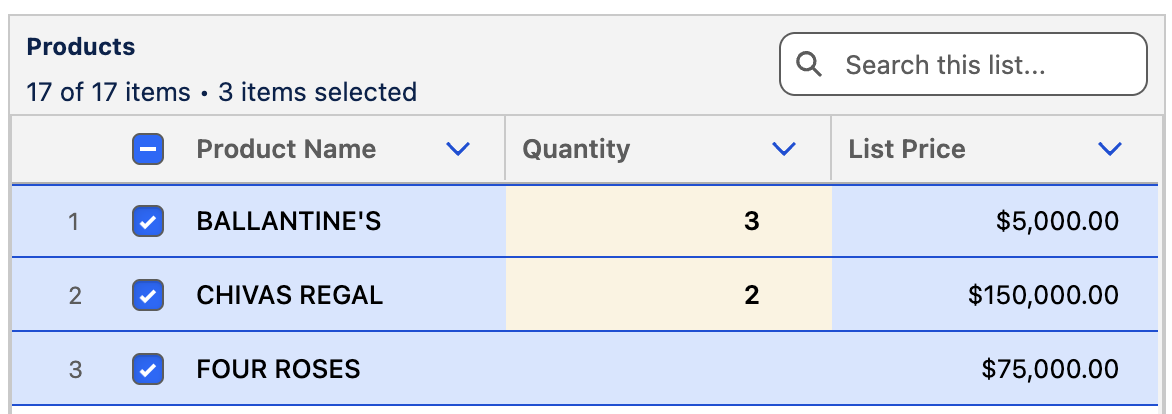
For example, let's choose 3 lines but edit 2 of them.
This approach will return a collection with 2 records.
If your business requirements allow users to select records without editing them, you can use the second approach to retain all selected records and apply the edited values whenever available.
Option 2: Combine Selected and Edited Rows Using Loop and Collection Filter
If you want to retain all selected records regardless of whether the user edits them, you can use a combination of Loop, Collection Filter, Decision, and Assignment elements.
Unlike the previous approach, this solution uses the Selected Rows collection as the starting point and applies the edited values whenever available.
First, add a Loop element after the Screen element and loop through the Selected Rows output of the Data Table component.
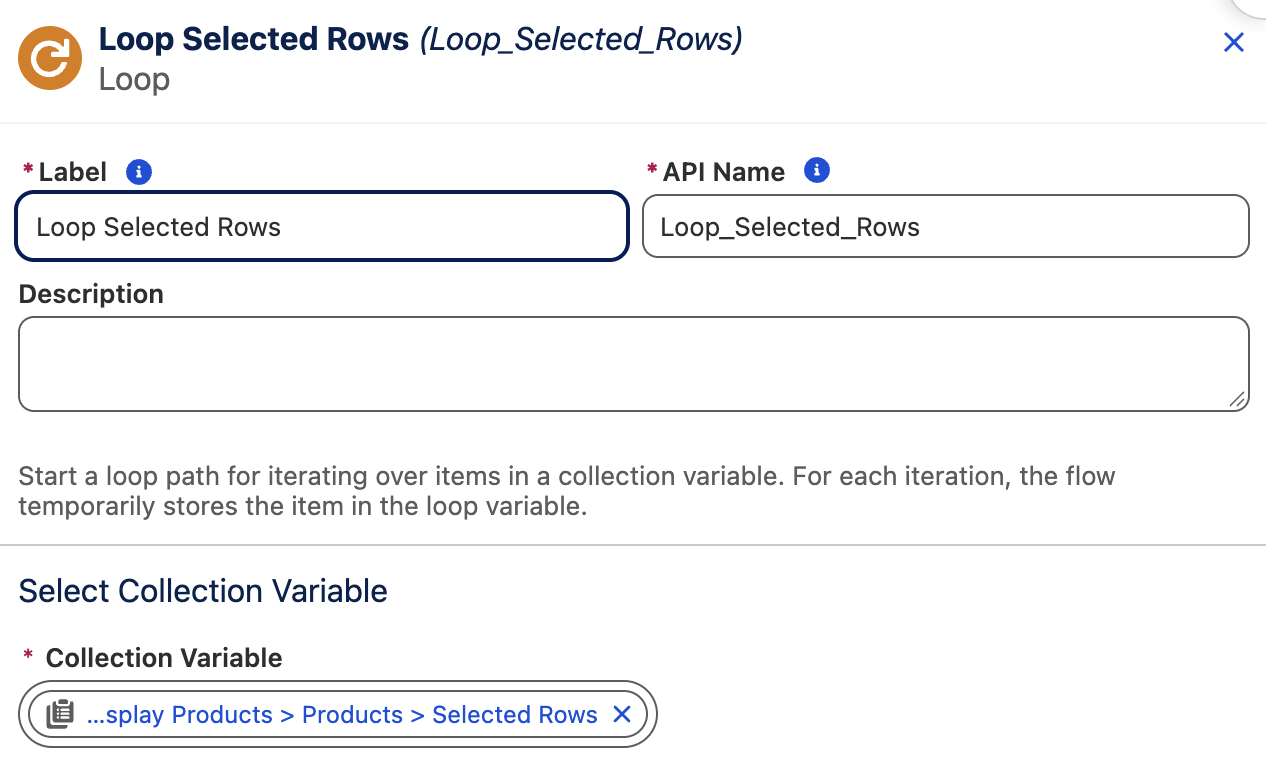
Next, add a Collection Filter element inside the loop to filter the Edited Rows collection. Configure the filter condition to match the Id field with the Id of the current item from the loop.
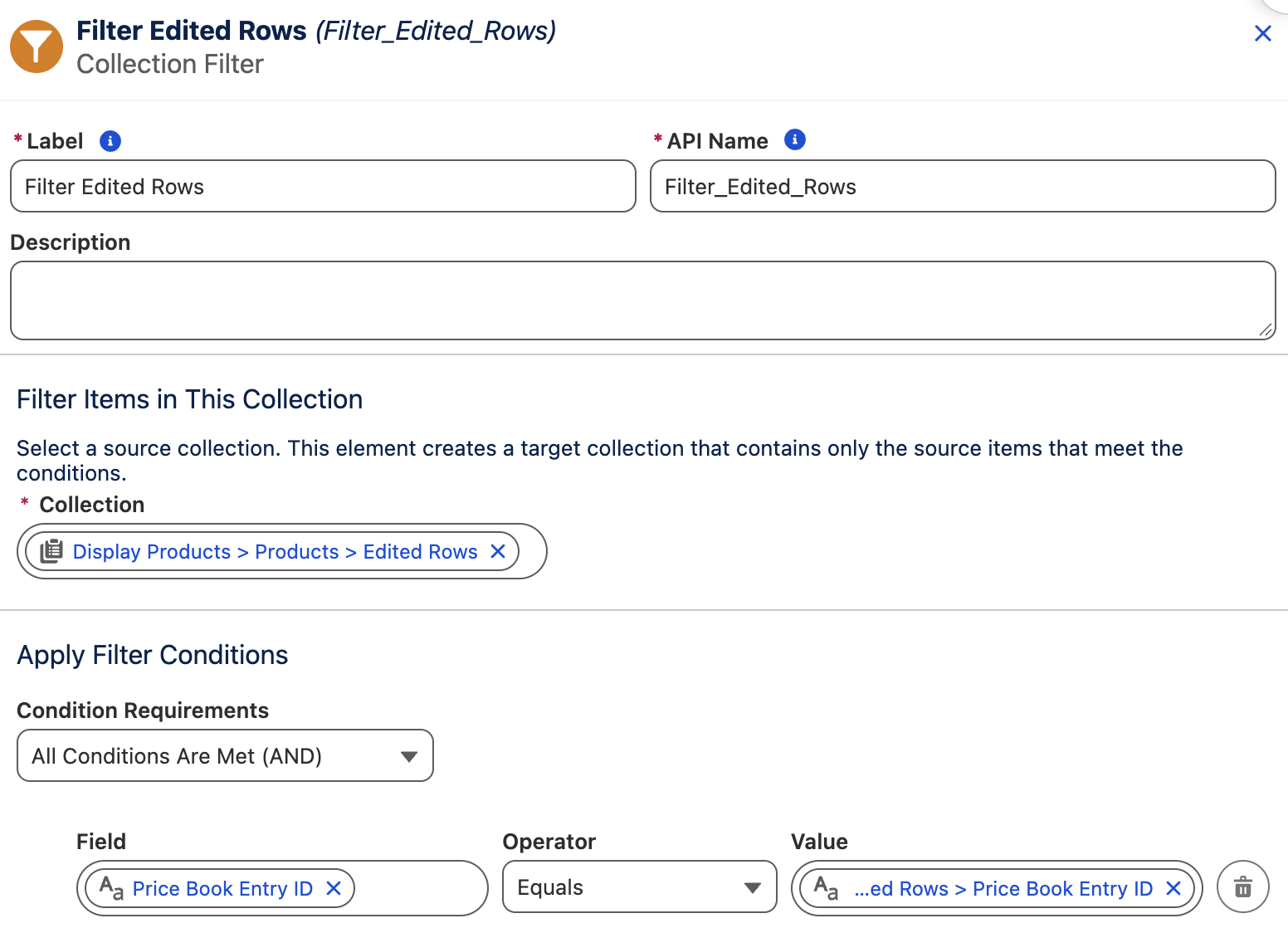
If the Collection Filter element finds a matching record, it means that the user both selected and edited that record.
Add a Decision element to check whether the filtered collection contains a record.
- If it contains a record, loop again to extract the single Edited Row, and then use an Assignment element to assign the Quantity value from the matching edited record.
- If it does not contain a record, keep the original field values.
Finally, add the current item from the loop to a new OpportunityLineItem record collection, regardless of whether the user edited it.
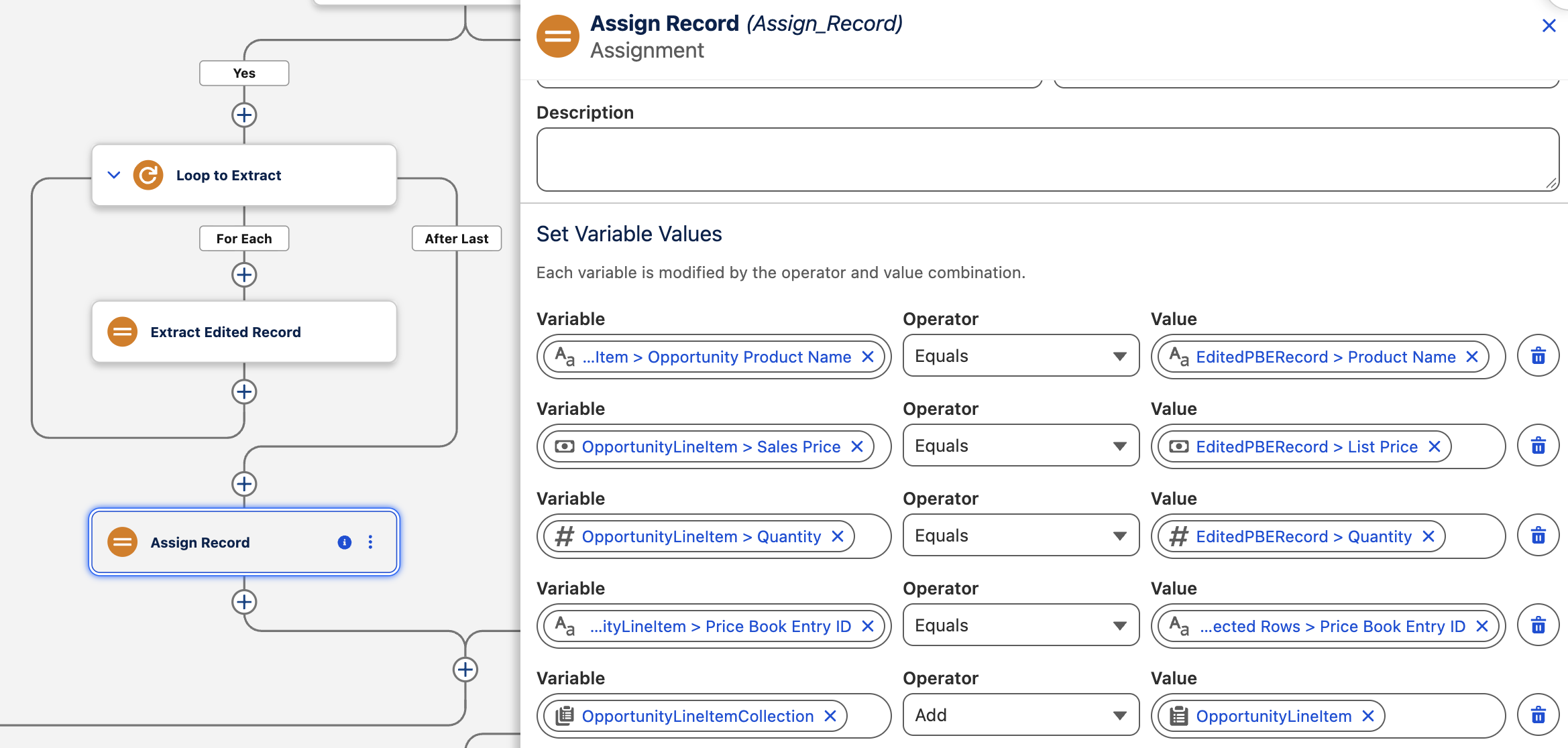
Once the loop finishes, the new collection contains all the records that the user selected, including their updated quantities where applicable.
Here is the entire logic to combine the selected and edited rows.
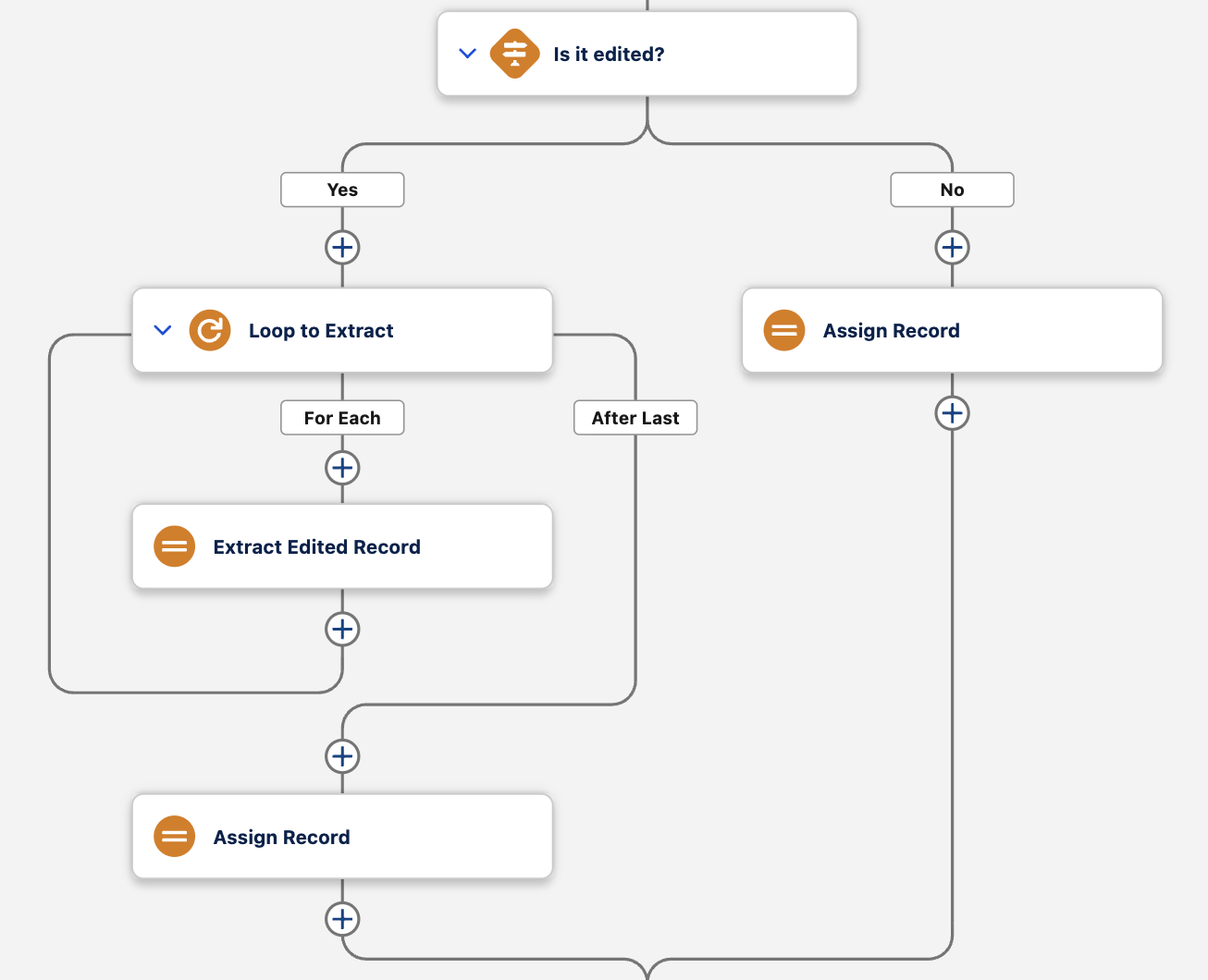
Although this approach requires more Flow elements than the Transform approach, it gives you more control over the resulting collection. Most importantly, it preserves selected records even when the user does not make any changes to them.
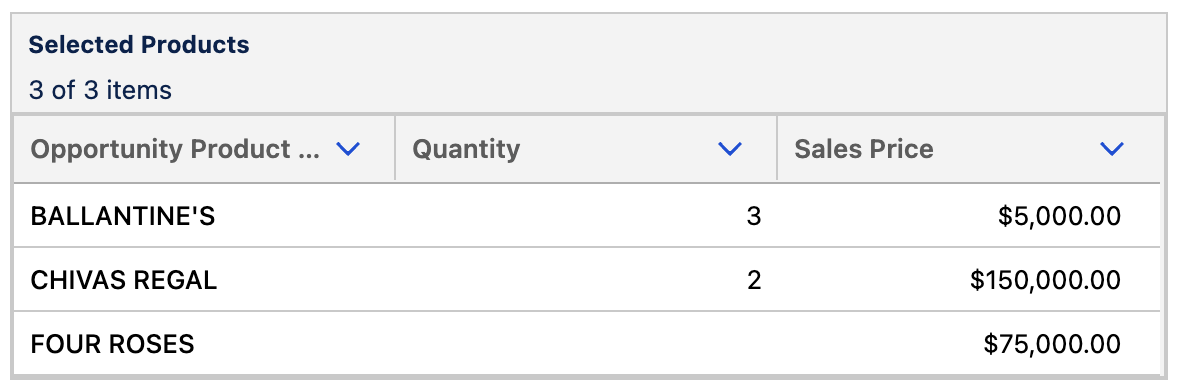
As you can see, this approach returns all the selected records with their edited values.
Final Thoughts
The standard Data Table component in Salesforce Screen Flow supports both row selection and inline editing. However, working with these two features together requires additional logic to combine their separate outputs.
As we covered in this post, you can overcome this limitation using standard Flow elements.
The Transform element offers a simple and elegant solution if you only need records that the user both selected and edited. On the other hand, the Loop and Collection Filter approach gives you more flexibility and allows you to retain all selected records, regardless of whether the user edited them.
Ultimately, the right approach depends on your business requirements. Although the Transform element requires fewer Flow elements, the simplest solution is not always the most suitable one.
Hopefully, Salesforce will introduce a native output that combines selected records with their edited values in a future release. Until then, you can use either of these approaches to achieve the desired result.
Leave a Reply