

Salesforce introduced a small but useful enhancement in the Winter '27 release. This new feature makes it easier for support agents to access files and attachments added when a Case was created. Previously, users had to navigate to the Files or Attachments related list to find these files. With the new Show Original Case Attachments feature, users can view the original files and attachments directly below the Case Description field.
This is especially helpful when customers submit Cases with screenshots, documents, or other files that provide additional context about their issues.
How to Enable Show Original Case Attachments Feature
Enabling this feature is simple:
- Navigate to Setup.
- Search for Support Settings.
- Find and enable Show Original Case Attachments.
- Click Save.
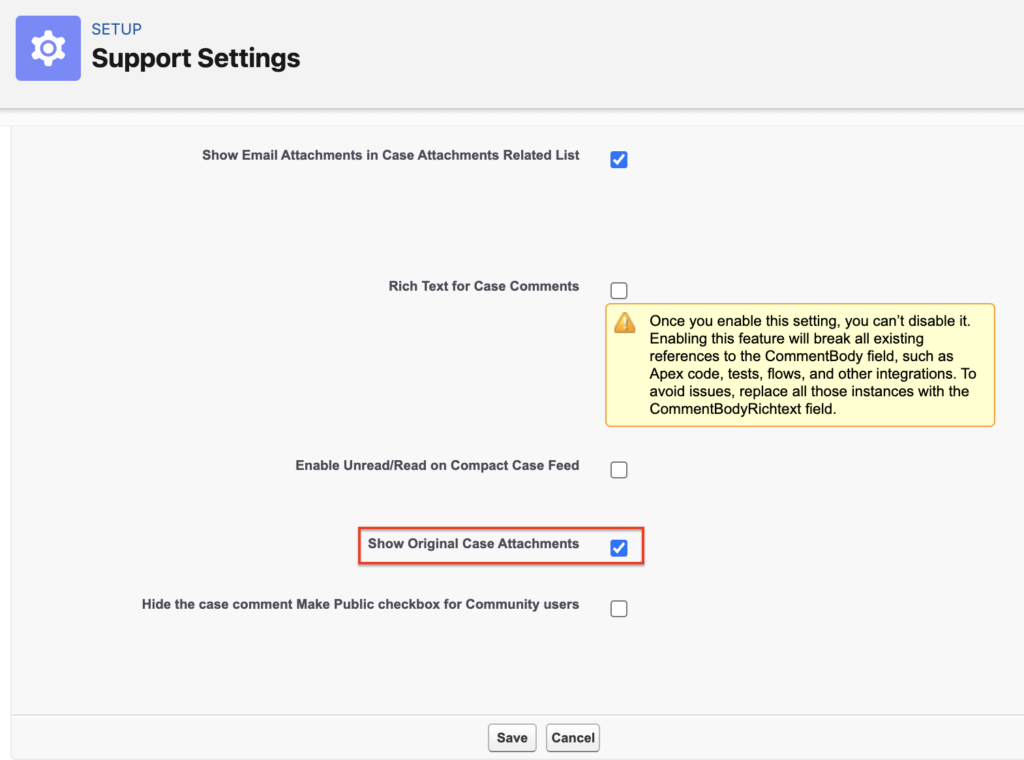
Note: If you don't see this option in Support Settings, you may need to contact Salesforce Support.
How Does It Work?
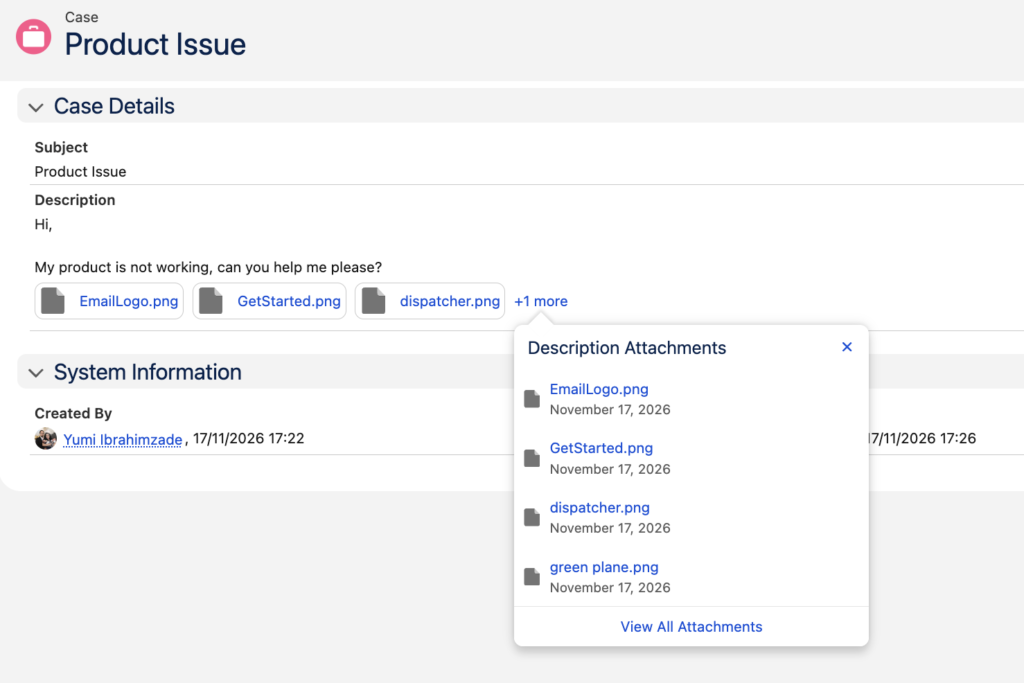
When you enable this feature, Salesforce displays the files and attachments added during Case creation directly below the Description field.
- Up to three attachments are displayed as visual tiles.
- If there are more than three attachments, a + more option lets agents browse additional files.
- Users can click View All Attachments to access the complete list of attachments.
This makes it easier to review the original Case details without switching between different sections of the record.
For example, here is a Case record that Email-to-Case created. The Case has four attached files, and Salesforce displays them below the Description field.
It's also worth mentioning that users can click these files to open them directly from the Description field. However, keep in mind that this feature only displays files attached during Case creation. If you upload additional files after creating the Case, Salesforce won't display them below the Description field.
Final Thoughts
This is a simple but very useful improvement to the support process. Instead of searching through related lists, support agents can immediately see the files that customers submitted when creating their Cases.
Sometimes, even small usability improvements can make a big difference in day-to-day work.
Leave a Reply