
Prompt Templates in Salesforce let you create reusable prompts that use generative AI to perform various tasks with Salesforce data. You define the instructions, provide the relevant context or data, and let the AI model generate the desired output. Since Prompt Templates use AI models, you don't have to teach them everything from scratch. These models already understand many concepts and languages, which opens the door to many useful use cases. One of them is translating text from one language to another.
In this post, you will learn how to translate text in Salesforce using Prompt Templates.
Creating a Prompt Template to Translate Text
Flex Prompt Templates give you more control over the inputs and instructions you send to the AI model. They are a good fit for reusable use cases that are not tied to a specific Salesforce record or predefined action.
Create a Flex Prompt Template and add a Free Text input that will contain the text you want to translate.
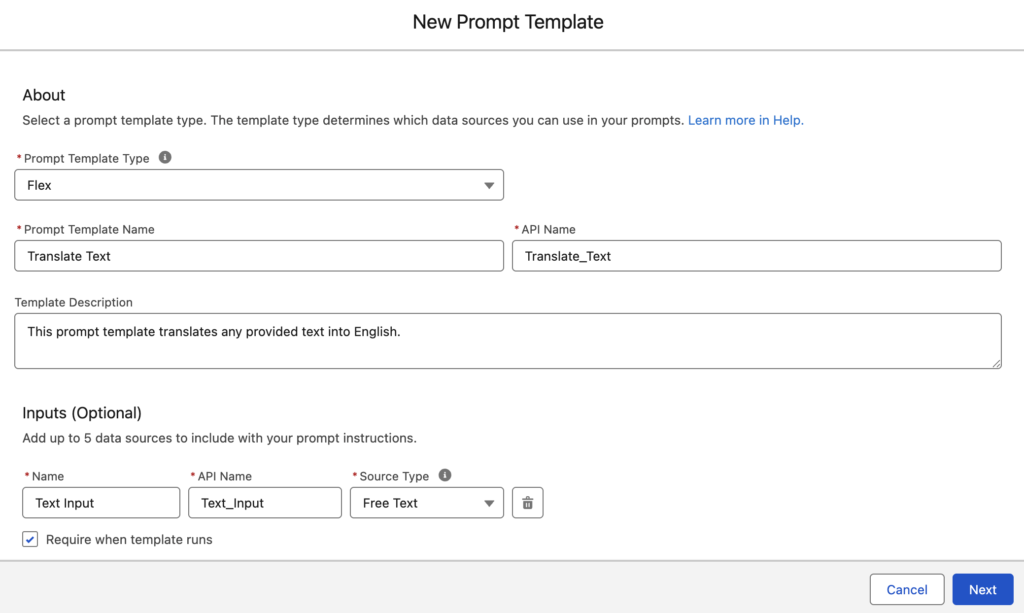
Then, enter a prompt like this:
You are an AI-assisted translator. If the Text Input is not in English, translate it into English.

Instructions:
Follow these instructions precisely and do not add any information that is not provided.

* If the Text Input is not in English, translate it into English.
* Do not explain what you are doing. Return only the translated text.

Text Input: {!$Input:Text_Input}
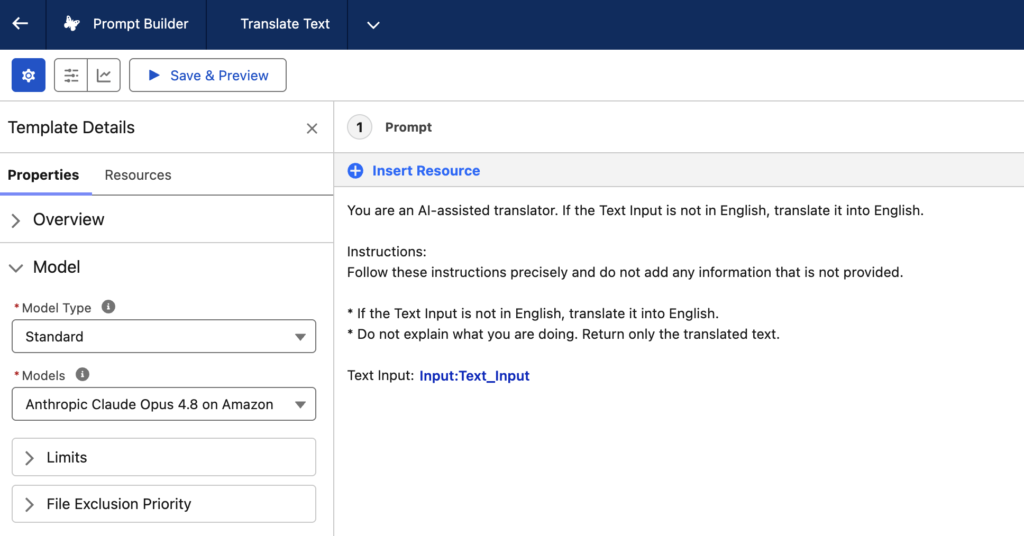
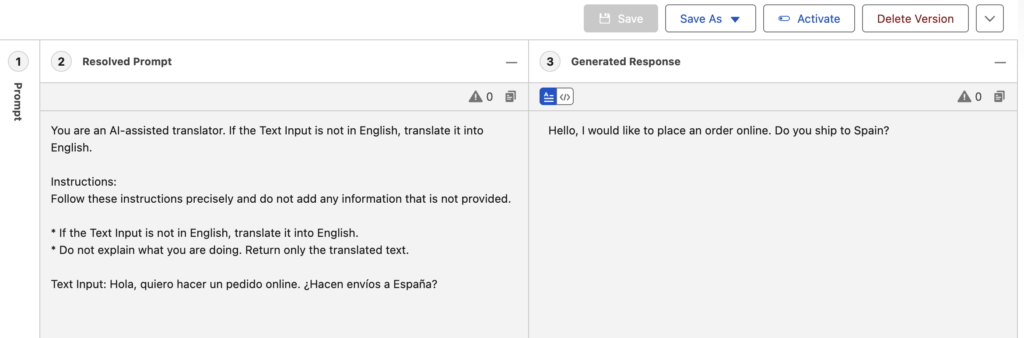
Your prompt template is ready. You can now enter any text that you want to translate into English. In this example, the prompt template translates a text from Spanish into English.
Calling the Prompt Template from Flow
Now that we have a Prompt Template that can translate any text into English, it is time to automate the process using Flow. You can call this Prompt Template from any type of Flow, depending on your use case.
In this example, we will build an on-demand solution that translates the text when the user clicks a button from a Case record. Therefore, we will use a Screen Flow.
1- Create a Screen Flow and add an input Case record variable called recordId. We will use this variable to pass the entire Case record into the Flow.
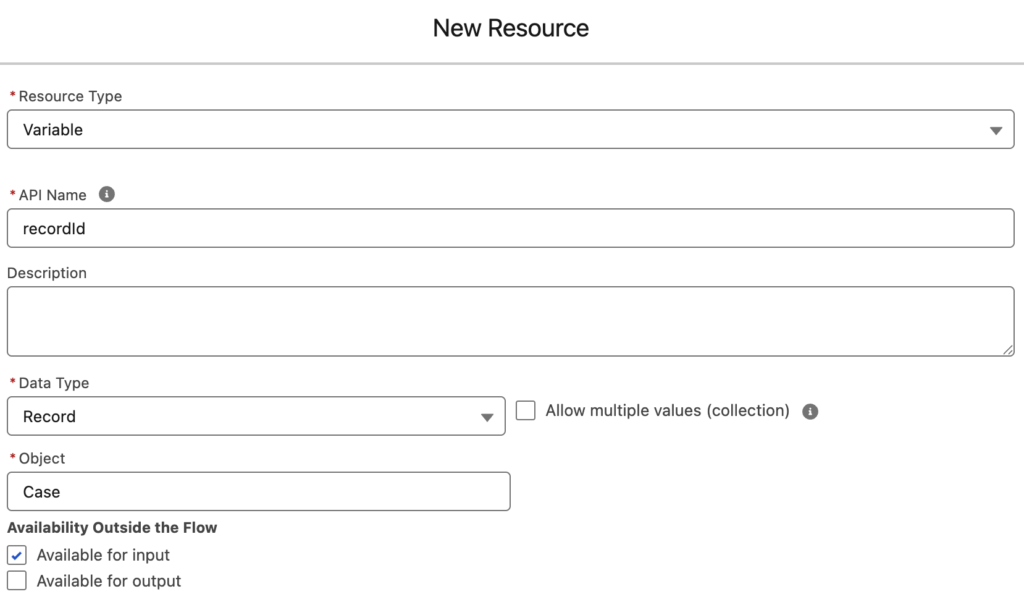
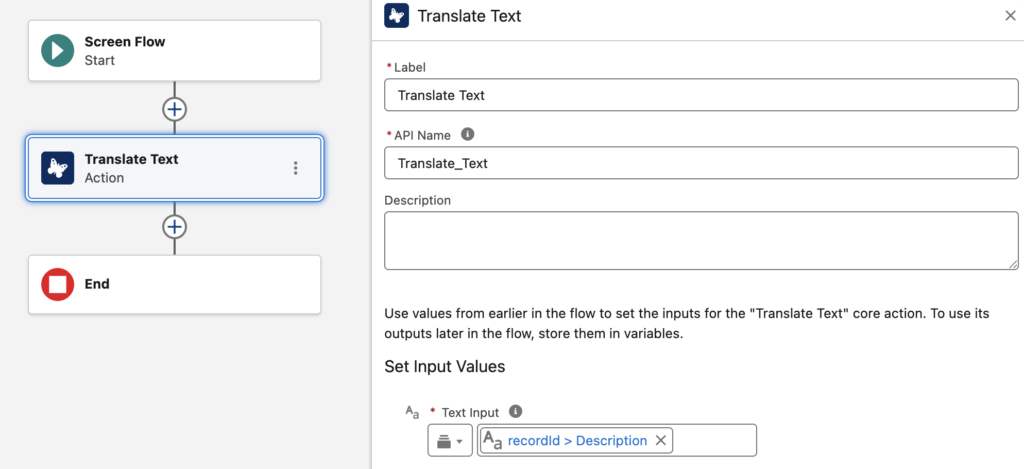
2- Let's translate the Description field of the Case. Add the Translate Text Prompt Template that you created in the previous step to the Flow.
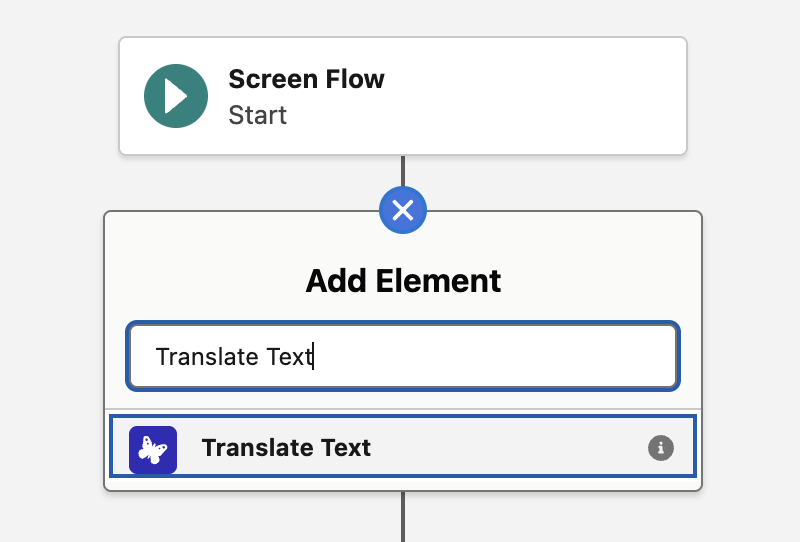
This Prompt Template has only one input: Text Input.
Set the Case Description field as the value for this input.
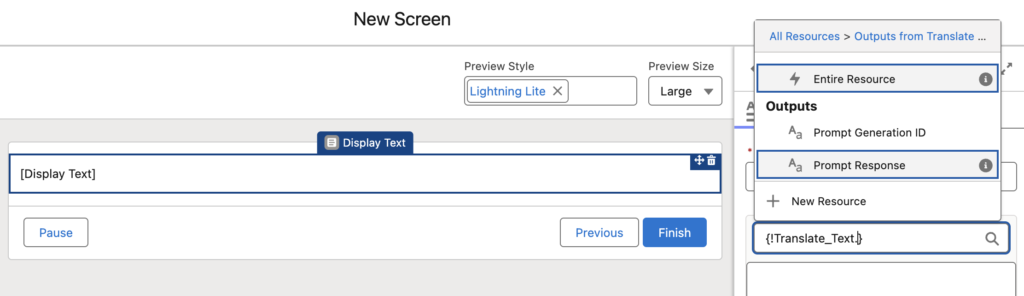
3- Once the text is translated, you can use the result however you want. For example, you can update the Case record with the translated text or simply display it to the user.
In this example, we will display the translated text on the screen. Add a Screen element with a Display Text component, then select the output of the Prompt Template.
4- Save and activate the flow.
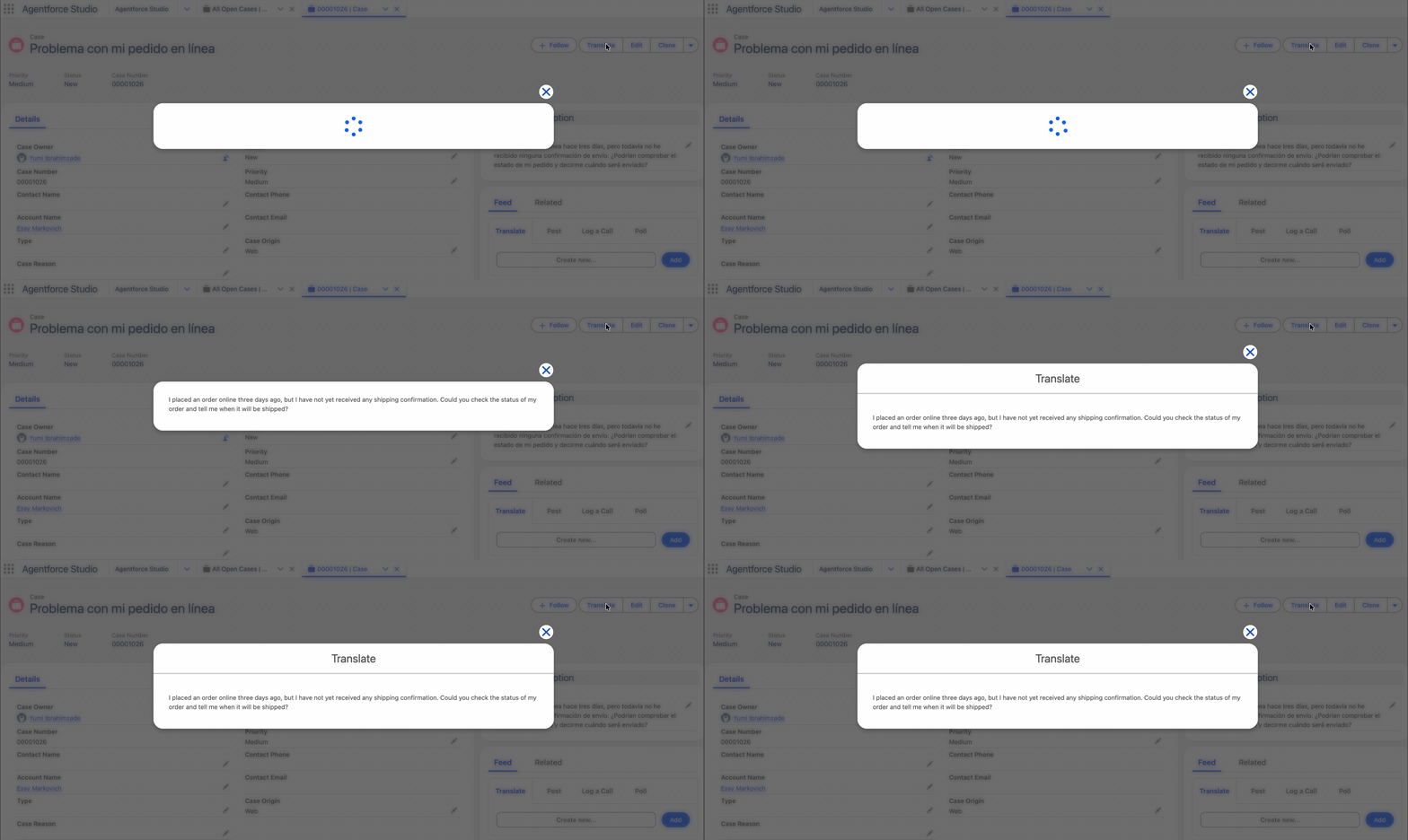
Here is how it works.
Leave a Reply