
Picture this: a sales rep opens an Opportunity to find the latest customer agreement. One version is attached to Salesforce, another sits in a SharePoint document library, and a third was shared in Microsoft Teams. The customer is waiting, but nobody is sure which copy is current.
For companies using Salesforce and Microsoft 365, the problem usually isn't a lack of document tools. It's that the tools aren't connected to the work people are doing.
Salesforce handles the customer relationship. SharePoint handles document storage and collaboration. When both are important, an integration can make the experience much simpler.
Why Connect Salesforce and SharePoint?
In Short:
A Salesforce and SharePoint integration lets users access SharePoint documents directly from Salesforce records while keeping the actual files in SharePoint. It combines CRM context with Microsoft 365 document management, helping reduce app switching, duplicate uploads, and manual folder organization.
For Salesforce Admins and Architects, the benefits are practical. Teams can find files in the context of an Account, Opportunity, Case, or custom object. Admins can apply consistent folder structures. And an organization that already relies on SharePoint can continue using its existing Microsoft 365 document storage and governance capabilities.
The guiding principle is simple: keep users in Salesforce, keep documents in SharePoint.
- Less hunting for files: Put documents next to the CRM records and workflows they support.
- Fewer unnecessary copies: Store new documents in SharePoint instead of duplicating them in Salesforce Files.
- Consistent folder structures: Connect SharePoint folders to Salesforce objects and record data.
- Keep SharePoint controls: Preserve the role of Microsoft 365 permissions, metadata, and version history.
How Does a Salesforce to SharePoint Integration Work?
Before choosing a connector or building a custom solution, decide which platform should be the authoritative location for each type of document.
If SharePoint is your organization's document repository, the integration should surface those documents in Salesforce without requiring a second copy for everyday access.
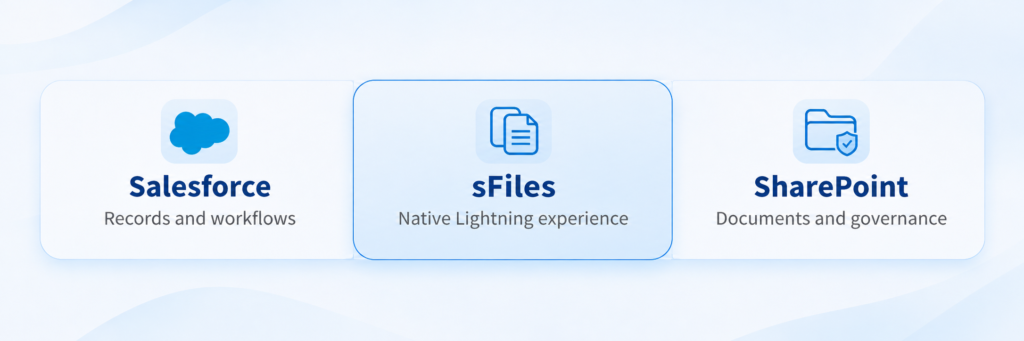
One approach is sFiles, a Salesforce-native integration that connects Lightning components to SharePoint folders and libraries. With sFiles, employees can access and manage SharePoint content from Salesforce records while the documents remain in SharePoint.
Here is what that looks like in a working Salesforce environment.
Access SharePoint Documents Directly from Salesforce Records
Imagine an account executive preparing for a renewal. They need the customer's contract, a pricing document, and the latest project files. Without a connection between systems, that could mean opening SharePoint and navigating through sites and folders.
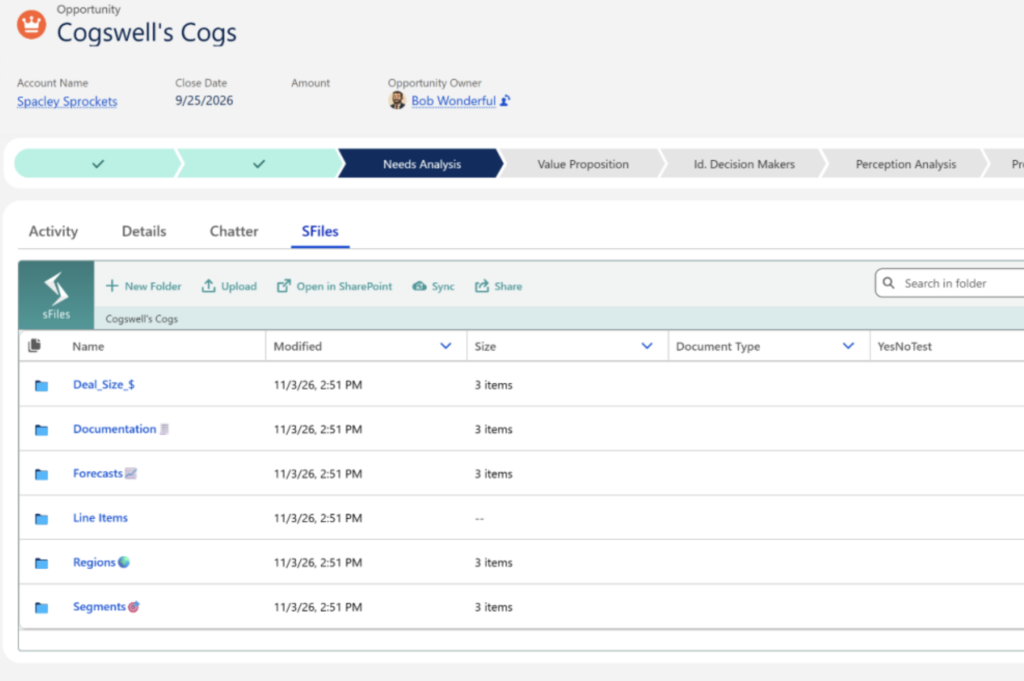
With sFiles, the documents can be displayed directly on a related Salesforce record. Users can upload, preview, download, rename, organize, and open SharePoint documents through a Lightning component, subject to their configured permissions.
This works well for Accounts, Opportunities, Cases, and custom objects. People continue using Salesforce to manage the business process, while the integration gives them access to the documents relevant to that record.
Automatically Create Consistent SharePoint Folder Structures
Document organization becomes difficult when every team follows its own conventions. One person uses "Customer Agreements", another uses "Contracts", and someone else saves everything in a general project folder.
With sFiles, Admins can configure an initial folder structure for a Salesforce object. When a record's SharePoint folder is initialized, the predefined subfolders can be created automatically.
For example, a project could start with Contracts, Documentation, Forecasts, and other standardized subfolders, without anyone manually rebuilding that hierarchy for each new record.
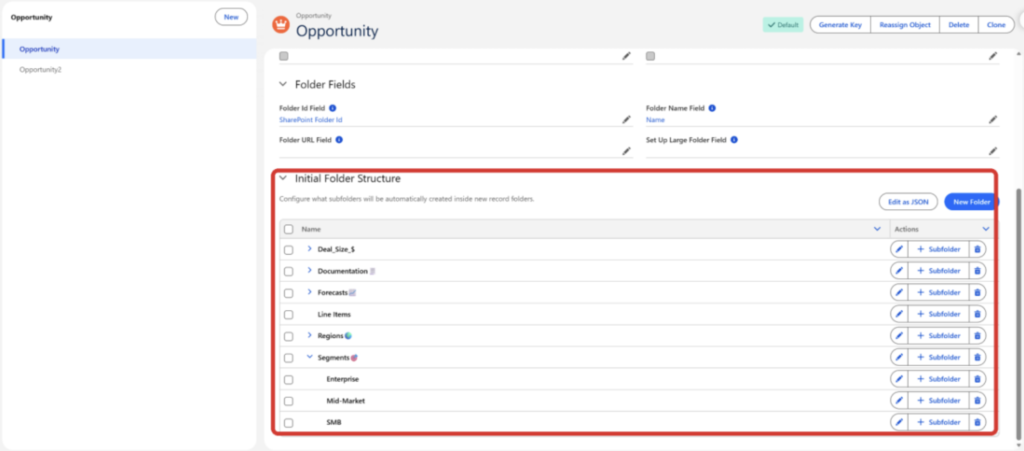
Admin distinction: Initial folder structures are configuration-driven. They do not require a Salesforce Flow. If folder operations must be triggered by Salesforce business events, sFiles Enterprise provides additional Flow and Apex capabilities.
Upload a File Once, Then Access It in Salesforce and SharePoint
Suppose a salesperson receives a signed agreement and uploads it to an Opportunity through sFiles. The file goes to the SharePoint folder associated with that Salesforce record rather than being stored as a separate Salesforce File.
That distinction matters. It allows SharePoint to remain the document repository while Salesforce users still have a familiar place to work with files.
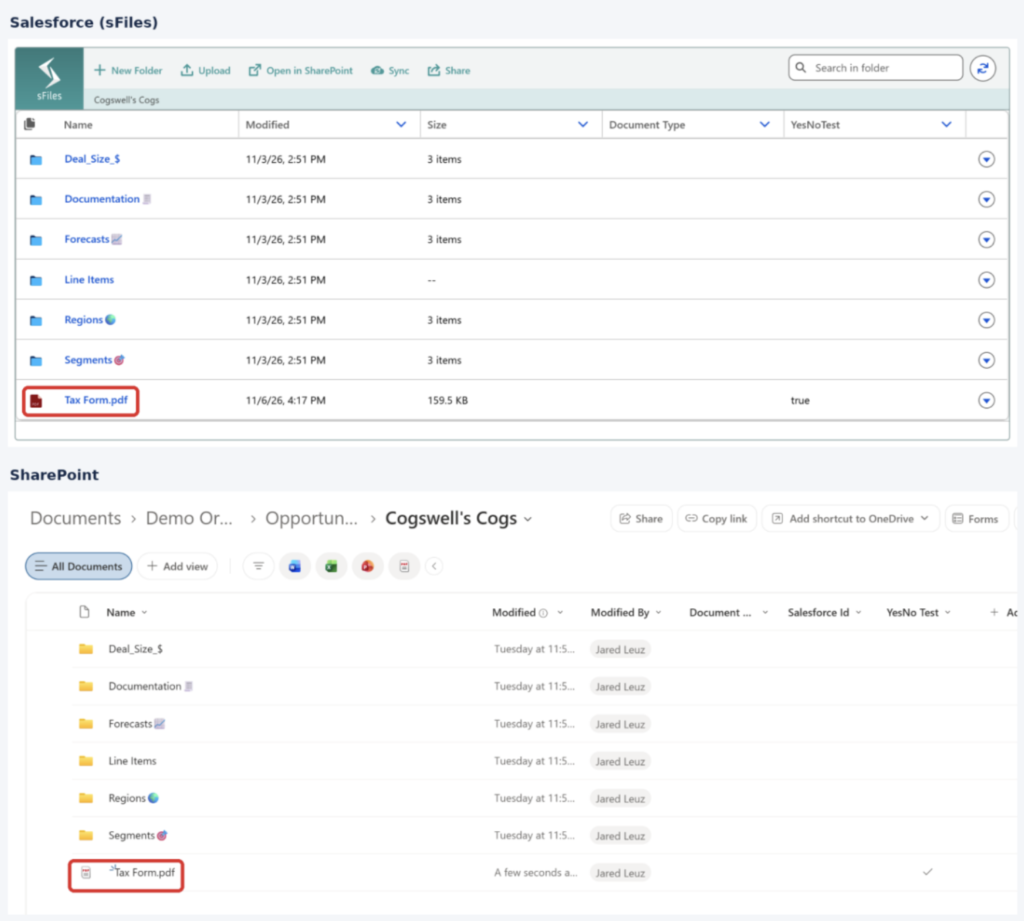
For organizations already using Microsoft 365, this can reduce the need to duplicate files between platforms and avoid additional Salesforce Files storage for documents uploaded through this process.
It is not an automatic migration of existing Salesforce Files, and actual storage savings depend on document volumes, the storage already available, and your licensing arrangements.
Design Permissions Carefully and Carry Salesforce Context into SharePoint
Permissions are two different systems
Access to a Salesforce Opportunity is not the same as access to a SharePoint document. Those permissions are controlled by different platforms.
With sFiles per-user Microsoft authentication, SharePoint access is evaluated using the authenticated user's Microsoft identity. This helps keep SharePoint's existing permissions meaningful even when a user opens files from Salesforce.
However, removing a Salesforce record permission does not automatically revoke existing direct SharePoint access. Architects should account for this when they design authentication, external user access, and any permission automation.
SharePoint metadata can reflect Salesforce data
SharePoint document libraries often use columns to classify documents. sFiles can populate configured SharePoint column values using supported Salesforce record information when files are uploaded.
In the example below, the SharePoint column SalesforceId is configured to use the Salesforce record's Id field.

This can help teams retain useful CRM context in SharePoint without requiring users to retype the same information for each uploaded document.
Connect SharePoint Document Tasks to Salesforce Flow
Not every document task should depend on a person remembering what to do next. Consider an Opportunity that moves to Closed Won and starts an implementation process.
An Admin may want Salesforce to create a SharePoint folder for the next phase, or perform other supported document operations tied to that business event.
sFiles Enterprise provides Flow and Apex capabilities for supported SharePoint actions. The example below shows a record-triggered Opportunity Flow with a Create SharePoint Folder action.
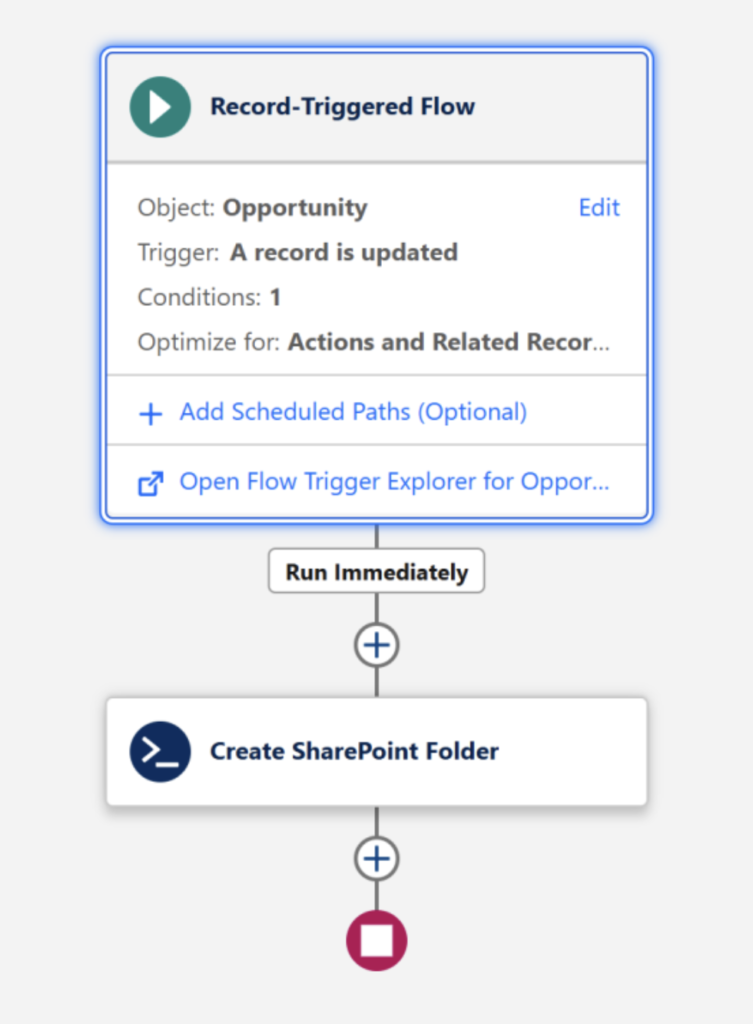
This is one way to keep document management aligned with Salesforce business processes. Microsoft Power Automate is also a valid choice for Microsoft 365-centric workflows. The right automation platform depends on where the event starts, where the logic belongs, and what the process needs to do.
What should Salesforce Admins decide before connecting SharePoint?
• Where should each document type live? Define whether SharePoint or Salesforce Files is authoritative, and plan existing-file migration separately if needed.
• Which Salesforce records need file access? Map Accounts, Opportunities, Cases, custom objects, and any parent-child relationships.
• What folder structure makes sense? Decide how records map to folders and which metadata should be applied automatically.
• Who can access the documents? Review Microsoft authentication and SharePoint permissions independently from Salesforce sharing rules.
• Are multiple sites, libraries, or tenants involved? Identify the required topology, not just a happy-path single-library demo.
• What must happen automatically? Separate configuration-driven behavior from event-driven Flow or Apex automation, including error handling.
These decisions matter more than the connector's feature list. The strongest integration is the one that matches your document governance model and the way your people actually work.
Salesforce and SharePoint integration FAQs
Can Salesforce connect to SharePoint?
Yes. Options include Salesforce Files Connect for supported scenarios, custom integrations using Microsoft Graph, and purpose-built applications such as sFiles. The experience and available actions differ by approach.
Can users see SharePoint files inside Salesforce?
Yes. sFiles displays associated SharePoint folders and documents in Salesforce Lightning components on supported records. The files remain stored in SharePoint.
Can Salesforce Flow create SharePoint folders?
Yes, when the integration supports that action. sFiles Enterprise provides Flow and Apex operations for supported SharePoint processes, including folder creation. Its predefined initial folder structures can also be configured without Flow.
Does using SharePoint reduce Salesforce file storage?
It can. Files uploaded through sFiles are stored in SharePoint rather than as Salesforce Files, helping avoid Salesforce file storage usage for those uploads. Existing Salesforce Files are not automatically removed or migrated.
Do SharePoint permissions automatically match Salesforce record access?
No. Salesforce sharing and SharePoint permissions are separate. With per-user authentication, sFiles uses the user's Microsoft identity for SharePoint access, and any cross-platform permission synchronization needs to be designed explicitly.
Two Strong Platforms, One Simpler Workflow
Salesforce excels at CRM data and business processes. SharePoint excels at document storage, collaboration, and governance within Microsoft 365. Integrating them means neither platform has to take on the other's job.
Users spend less time searching and switching between tools, while Admins benefit from more consistent document organization and less repetitive work. Architects also gain a clearer approach to storage, permissions, and automation.
Keep Users in Salesforce. Keep Documents in SharePoint.
That is the idea behind sFiles: connect the documents to the records where work happens, without requiring a second repository for the same files.
To see how this works in a real environment, explore the sFiles Salesforce and SharePoint integration.
Love how this turned out, Yumi! Appreciate you working with Jared to put this together.
One thing we see all the time is companies already using both Salesforce and SharePoint, but still spending way too much time hunting down documents or manually moving files between the two.
Great breakdown!