
The Loop element in Salesforce Flow is useful when you need to iterate through a collection of records or values. However, it can only be used when you already have a collection to work with. Sometimes, you may want to repeat an action multiple times instead, such as creating a specific number of records, without having a collection to begin with. In those cases, a practical workaround is to use a Number variable as a counter together with Decision and Assignment elements to build a fake loop.
Let's see how to repeat actions in Salesforce Flow using a counter and a fake loop.
Repeat Actions in Flow with a Counter-Based Fake Loop
Let's look at an example. Suppose that when an Opportunity is marked Closed Won, you want to create Asset records based on the quantity of the related Opportunity Line Item. This approach is useful when each Asset needs to have its own serial number. It means you cannot simply create a single Asset record with a quantity value. Instead, you need to create a separate Asset record for each unit.
To keep things simple, let's assume we only have one Opportunity Line Item to convert into Asset records.
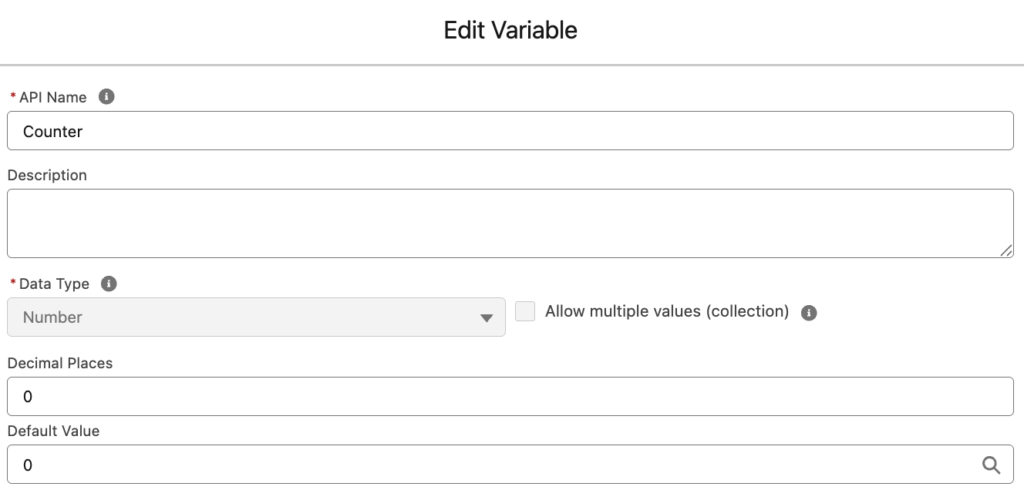
1- Create a single record variable and a record collection variable for Asset. Then create a number variable for the Counter and set its default value to 0.
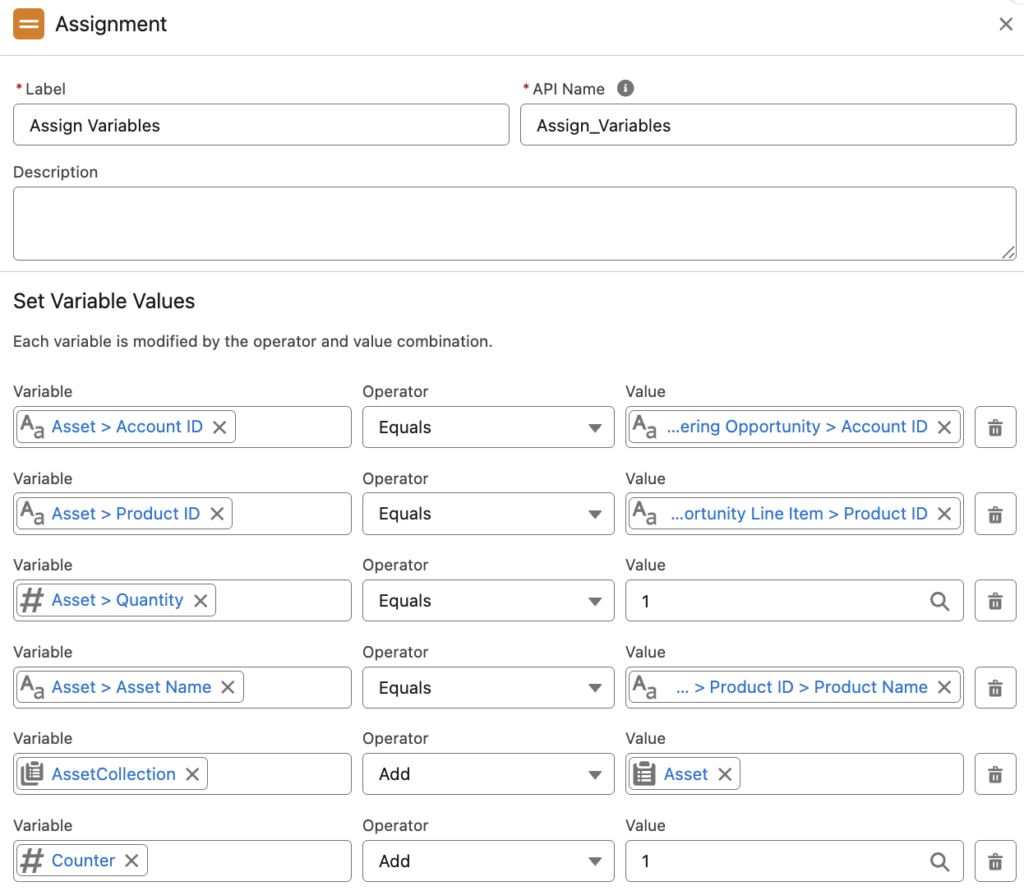
2- Add an Assignment element to populate the Asset record variable. In the same Assignment element, add the record variable to the record collection and increment the Counter by 1.
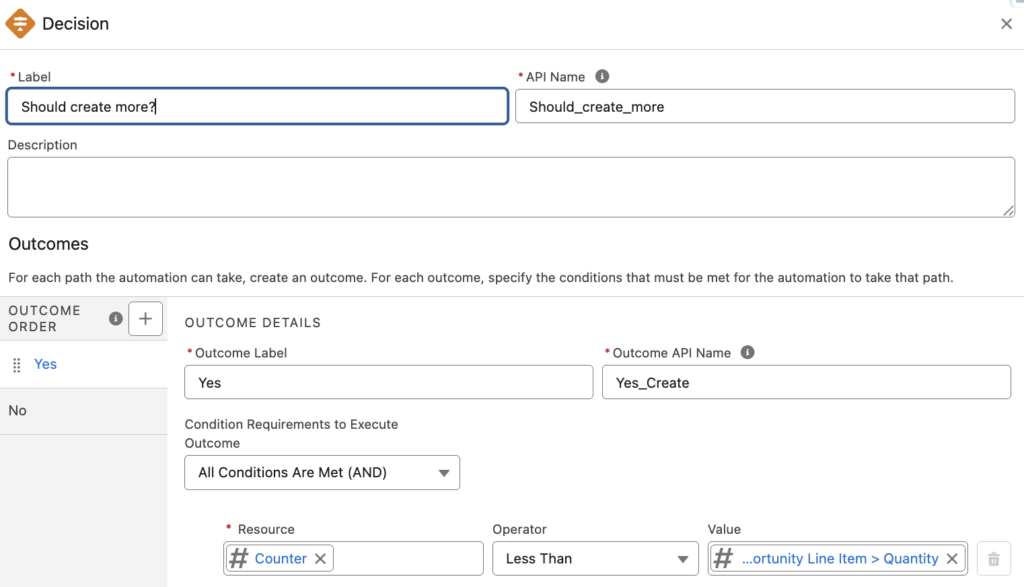
3- Add a Decision element and compare the Counter to the number of records you want to create. In this example, we want to create records based on the Opportunity Line Item quantity. Therefore, compare the Counter to the record's Quantity field. If the counter is less than the quantity, it means we need to create more records.
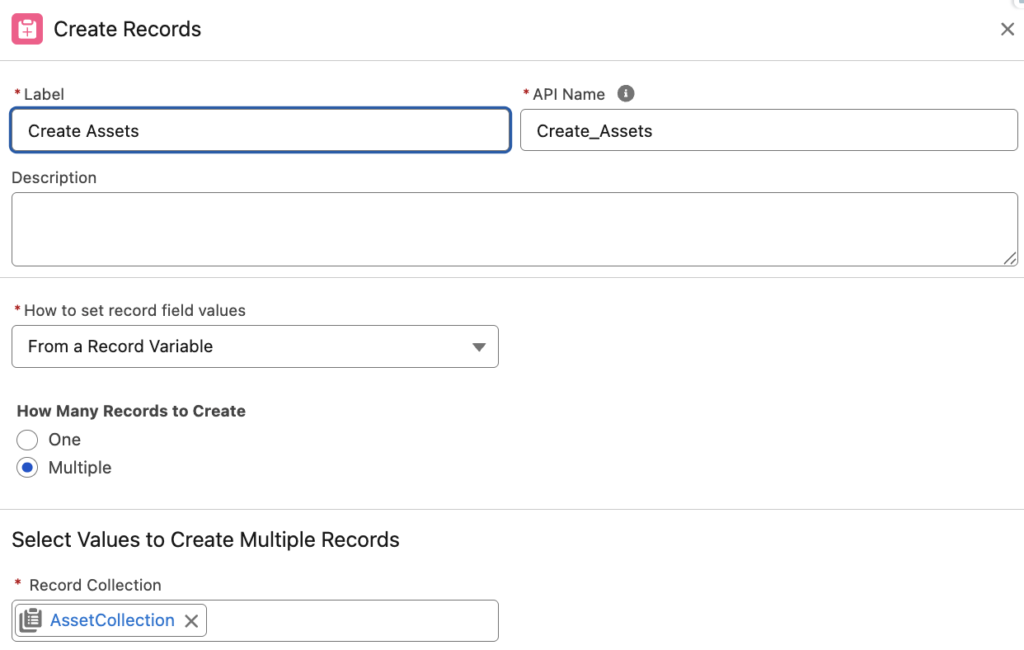
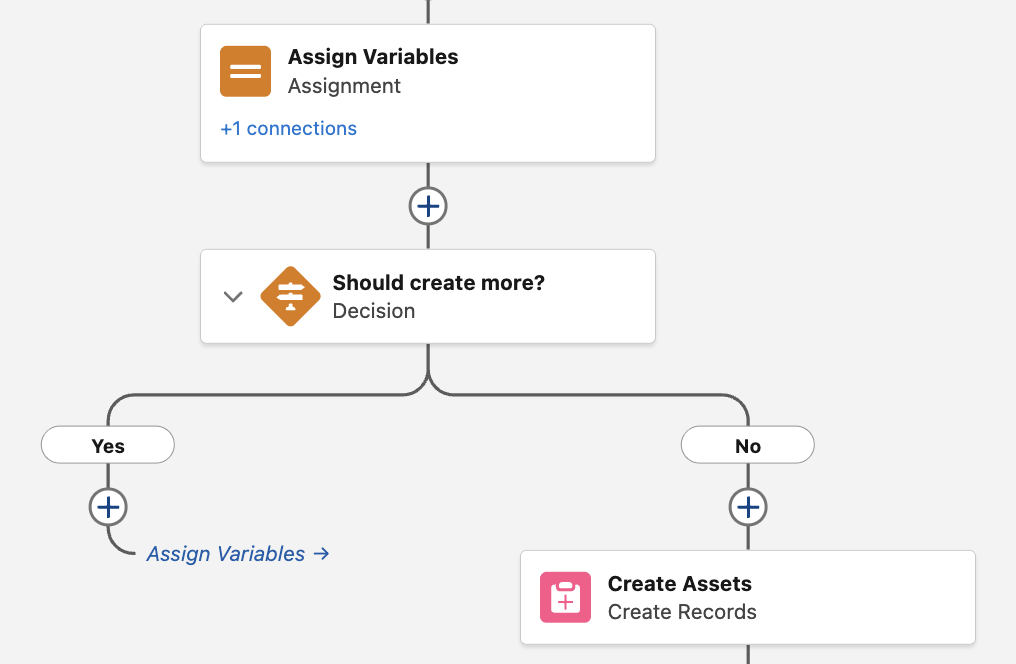
4- If the outcome of the Decision is "Yes", go back to the previous Assignment element. Otherwise, it means you have assigned enough Asset records, so create them. To create them all at once, add a Create Records element.
At the end, your fake loop should look like this.
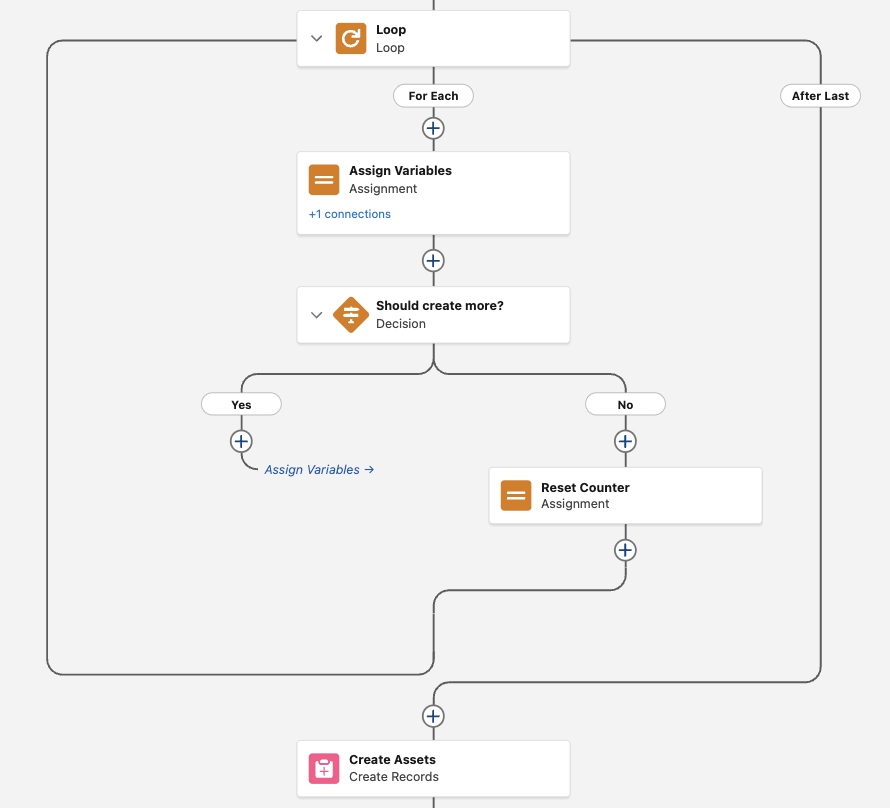
Fake Loop Inside a Real Loop
Now that we understand the concept, we can apply it to all Opportunity Line Items. Start by looping through the Opportunity Line Item records, and run the fake loop inside the real Loop element. Once the Counter reaches the Quantity of the current record, reset the Counter to 0 and move back to the Loop element to process the next record. After the loop finishes, create all Asset records at once.
Let's assume we have an Opportunity record with these line items:
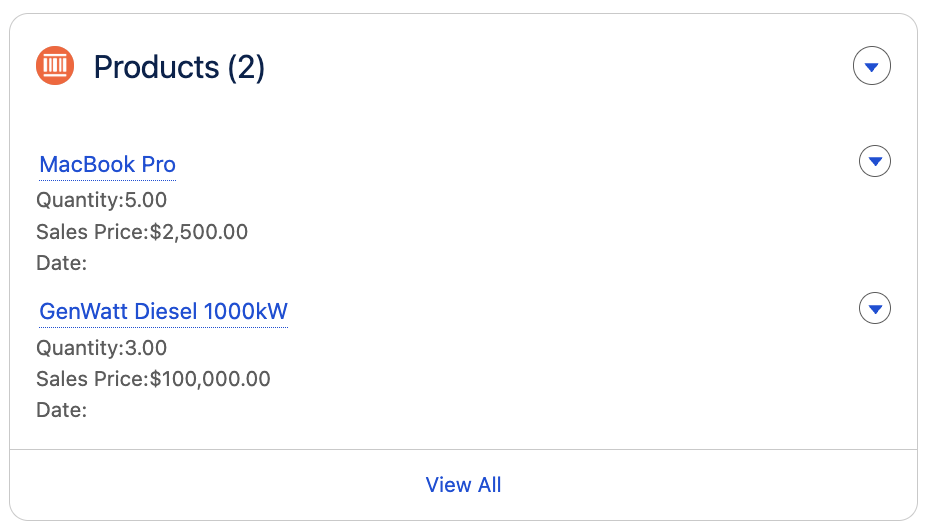
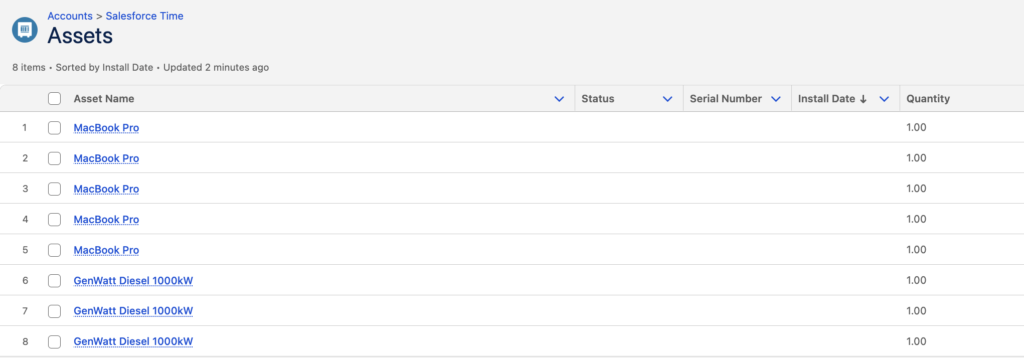
After we change the Opportunity Stage to Closed Won, the Flow creates 8 Asset records under the Account.
It is important to note that, in this example, we used a Number variable as the Counter. However, you can use other variable types in similar scenarios, such as Date. For example, you can create records for each day between two date fields.
Leave a Reply