

In Screen Flows, users often see the standard Salesforce spinner between screens or while the flow is processing. In many cases, it appears only for a moment. However, it becomes much more noticeable when the flow performs heavier work, such as creating or updating multiple records, running complex logic, or making an HTTP callout. While the standard spinner does the job, it may not always provide the best experience. Especially in customer-facing flows where branding and user experience matter more. Salesforce doesn't provide a direct option to customize this spinner. However, with a simple trick, you can replace the standard Flow spinner with your own custom spinner.
Using Custom Label to Apply CSS to Lightning Pages
As mentioned in this post, when you add a custom label that contains HTML code to a Lightning page, Salesforce renders the code. Using the same idea, you can also apply CSS through a custom label.
You can use this technique to replace the standard Screen Flow spinner with a custom spinner, or even with any image you want. Here is how to achieve it.
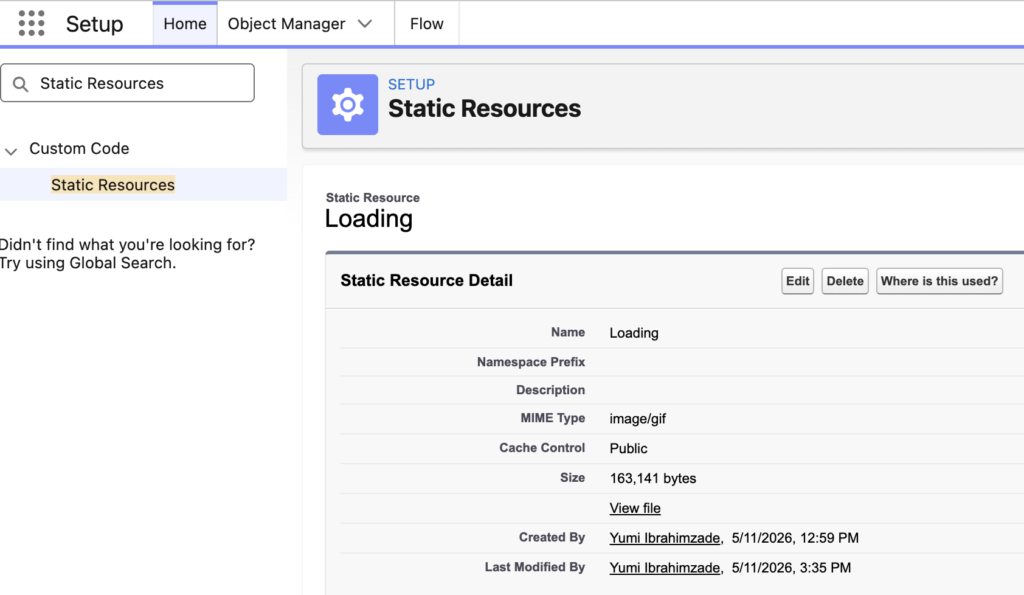
1- Upload your image to Static Resources in setup.
Tip: To create a loading effect, use a GIF image.
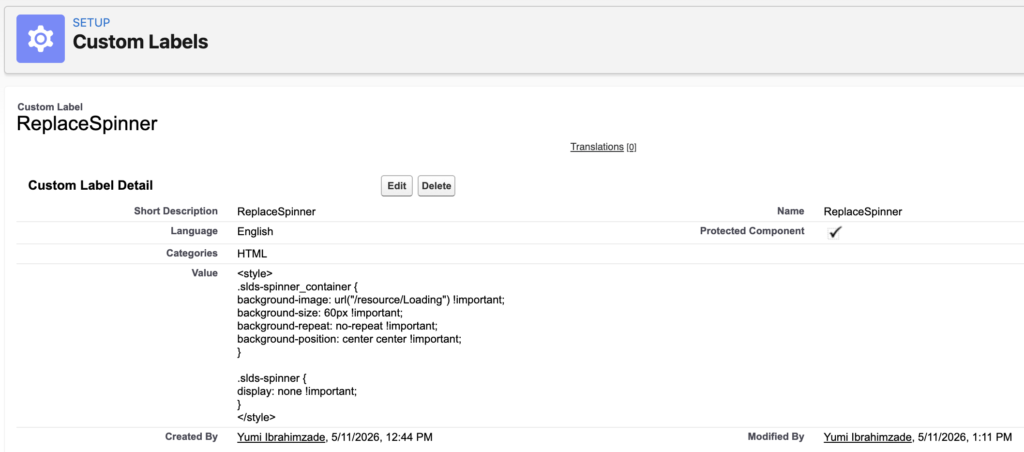
2- Create a Custom Label to replace the standard spinner with your custom image.
<style>
.slds-spinner_container {
background-image: url("/resource/Loading") !important;
background-size: 60px !important;
background-repeat: no-repeat !important;
background-position: center center !important;
}

.slds-spinner {
display: none !important;
}
</style>
Make sure to replace "Loading" with the name of your Static Resource.
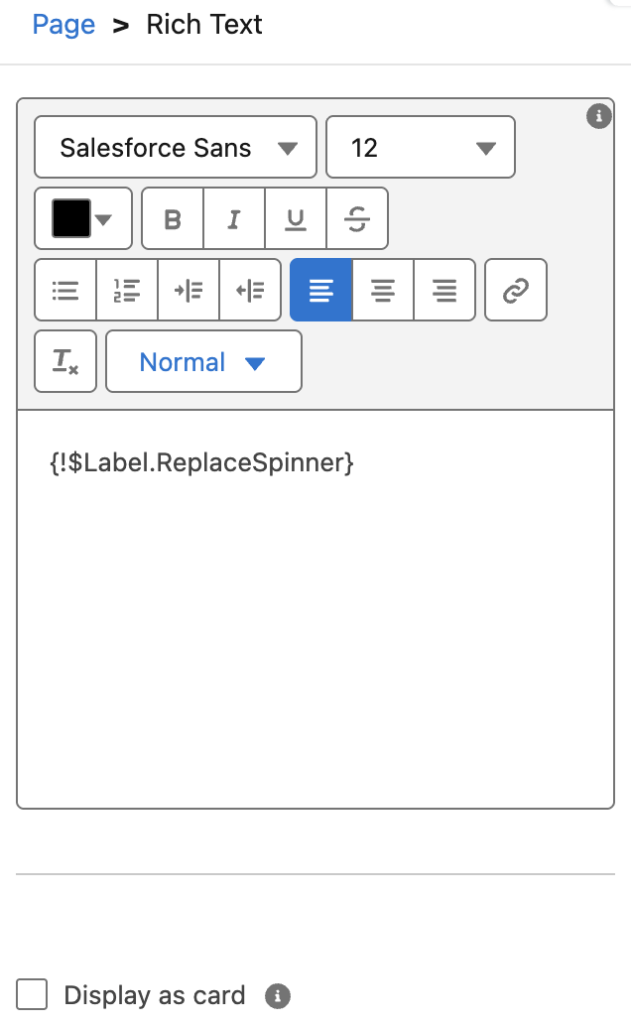
3- Now, it's time to add the custom label to your Lightning page.
Add a Rich Text component to your Lightning page and write this:
{!$Label.ReplaceSpinner}
This will load and render the CSS from your custom label.
That's it! When you view the Lightning page, system will load and render this CSS and replace the standard Flow spinner with your custom image.
It is important to mention that this is more of a workaround than a standard configuration. Since the CSS doesn't target a specific Flow, all Screen Flows on that Lightning page will show the custom spinner. Also, until you refresh the page, the CSS may continue to apply to other Screen Flows as well.
Keep this in mind before implementing this solution, especially in pages that contain multiple flows or where users may navigate between different Screen Flows without refreshing the page.
Example
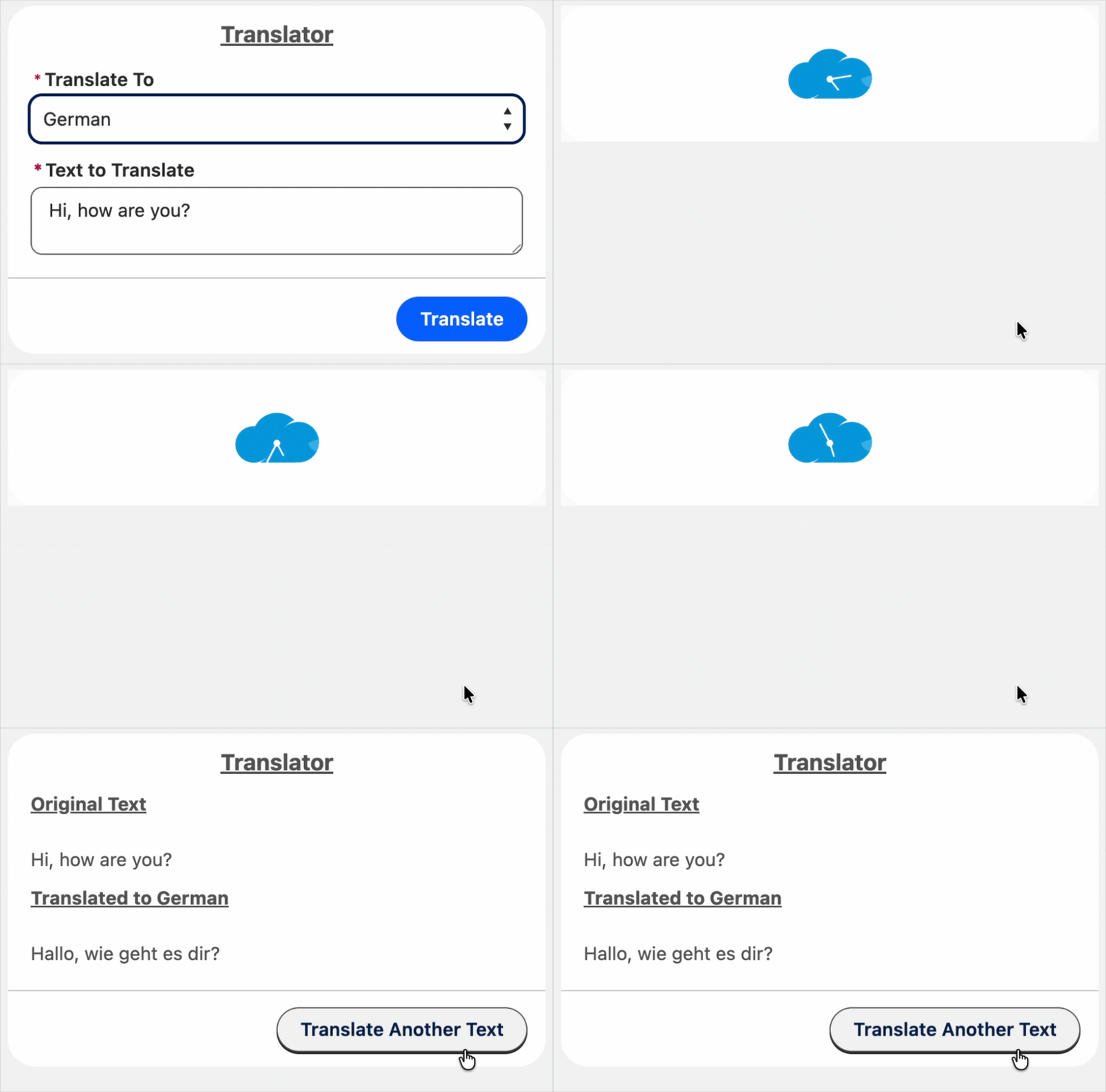
Here is a Screen Flow that makes an HTTP callout to Google Translate to translate text. Since it performs a callout, it takes a few seconds to receive the response, so the standard spinner is displayed for a short time.
Using this solution, the flow now shows a moving Salesforce Time icon, which is a custom GIF image, instead of the standard spinner.
Leave a Reply