
A Prompt Template in Salesforce is a reusable AI prompt that lets you combine instructions with dynamic inputs. Rather than writing everything from scratch each time, you define the prompt once and pass values into it when it runs. Those inputs can be simple variables or full Salesforce records such as Account, Case, or Opportunity. Most of the time, prompt templates are used with record data, but that is not the only option. Did you know that you can also pass a file as an input? When you pass a file as a Content Document, Salesforce does not just read the file name. It can process the actual file itself. This means that a prompt template can work with unstructured data from images and PDFs and turn it into something useful for your Flow automation. In this post, we will see how to process images and PDFs in Salesforce Flow using Prompt Templates.
Creating a Prompt Template to Process Unstructured Data
A Flex Prompt Template is a customizable prompt template that lets you define your own instructions and inputs. It is useful when you want more control and need to work with custom use cases, such as processing record data, text, or files in Flow.
Here is how to create a Flex Prompt Template that gets a file as an input.
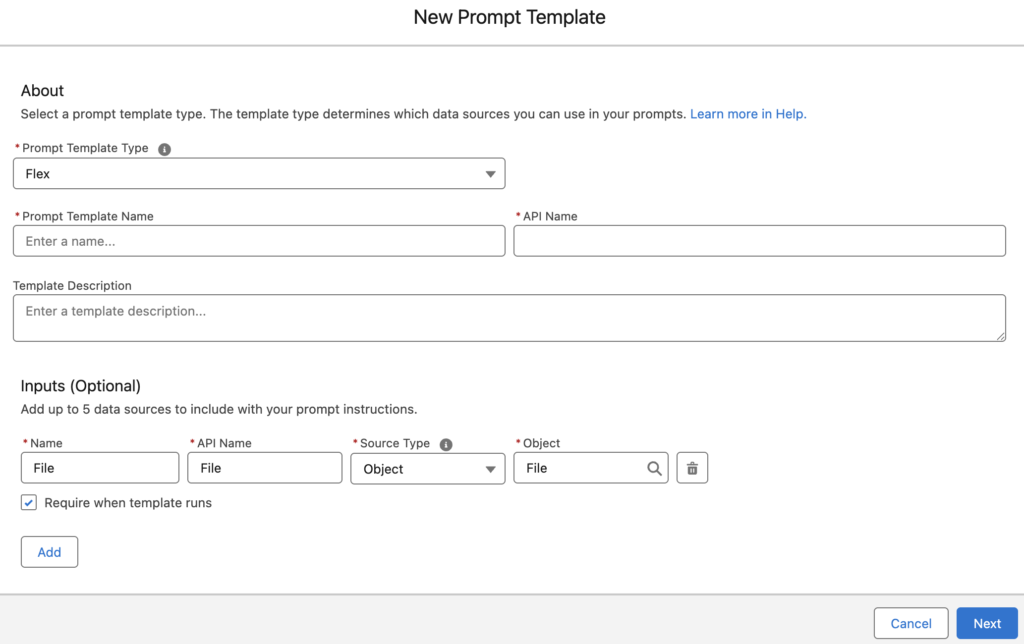
Prompt Templates have some file limitations. They support only image, PDF, and text files, and the total file size cannot exceed 15 MB. Also, if you pass an image file, it must be in JPG or PNG format.
Let’s continue with a simple example and create a prompt template to process a business card image. In this scenario, the prompt template will receive an image of a business card, process the file itself, and return the contact details in JSON format. There can be many different use cases for this capability, but a business card example is a good way to see how it works in practice.
Here is a simple prompt that we can use in this example.
You are an AI agent that extracts contact details from a business card photo.
Extract the following fields: First Name, Last Name, Title, Company Name, Email, and Mobile Phone.
Return the response in JSON format.

Here is an example output:

{
  "FirstName": "Yumi",
  "LastName": "Ibrahimzade",
  "Title": "Salesforce Solution Architect",
  "CompanyName": "Salesforce Time",
  "Email": "[email protected]",
  "MobilePhone": "0549000000"
}
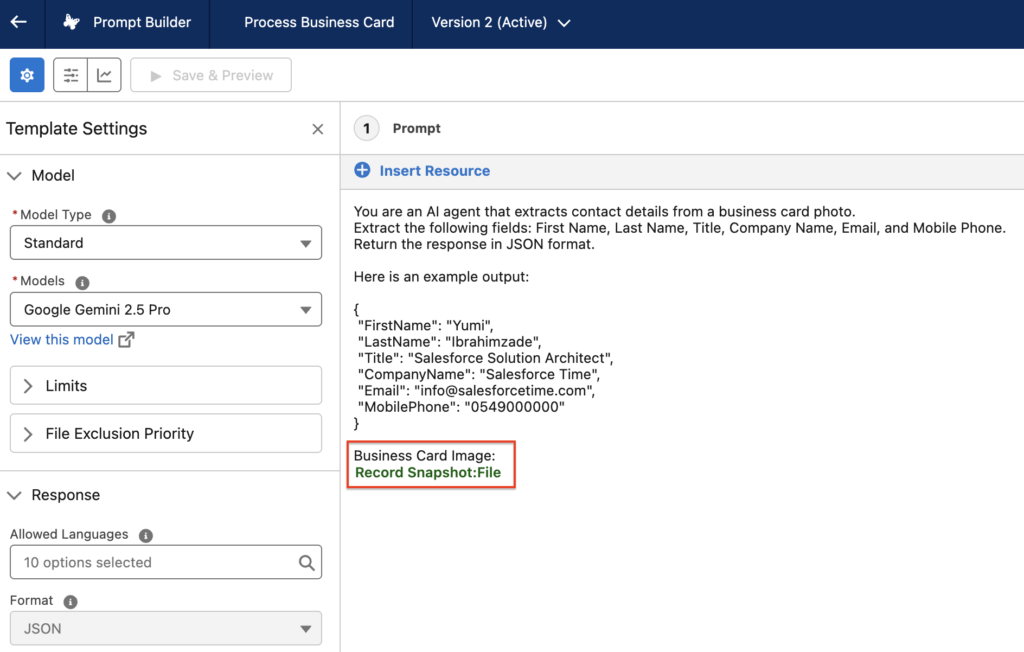
Then, click Insert Resource to add the input file to the prompt.
We are using Google Gemini 2.5 Pro as the model, but you can choose any model that you want. Also, pay attention that the response format is JSON.
If you preview this Prompt Template with an actual business card image, you will see that it successfully processes the image and returns the extracted details in JSON format.
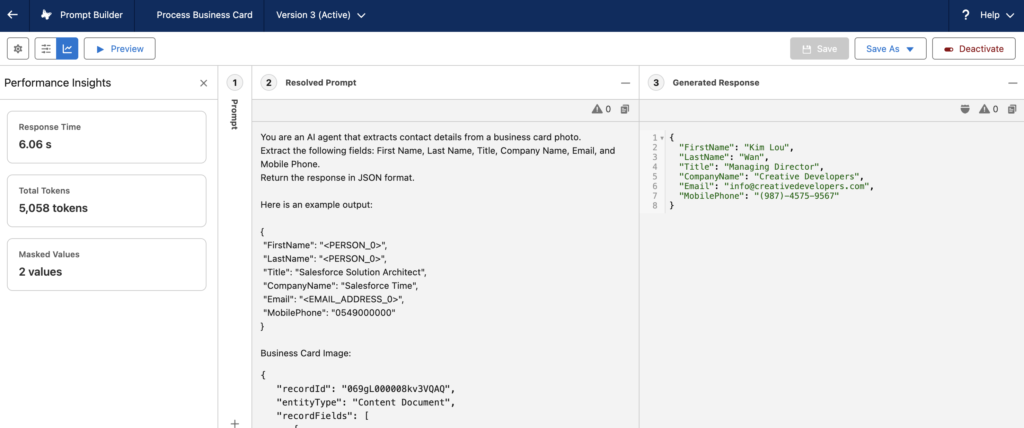
The prompt in this example is intentionally simple to make the concept easy to understand. In real use cases, make sure to improve the prompt by adding clearer instructions and handling possible variations.
Now that we have a way to extract contact details from a business card, let's use it in Flow.
How to Process Images in Flow Using a Prompt Template
The main part of this solution is the Prompt Template, so the rest is mostly up to your imagination. For that reason, we will look at the Flow only briefly. In this example, we will build a Screen Flow where the user takes a photo of a business card, and then the Flow calls a screen action to process the image. Let's start by creating the screen action first.
Using an Autolaunched Flow to Call the Prompt Template
Here is the autolaunched Flow that calls the Prompt Template to process the image. It receives the Content Document Id as an input, gets the Content Document record, and then calls the Prompt Template.
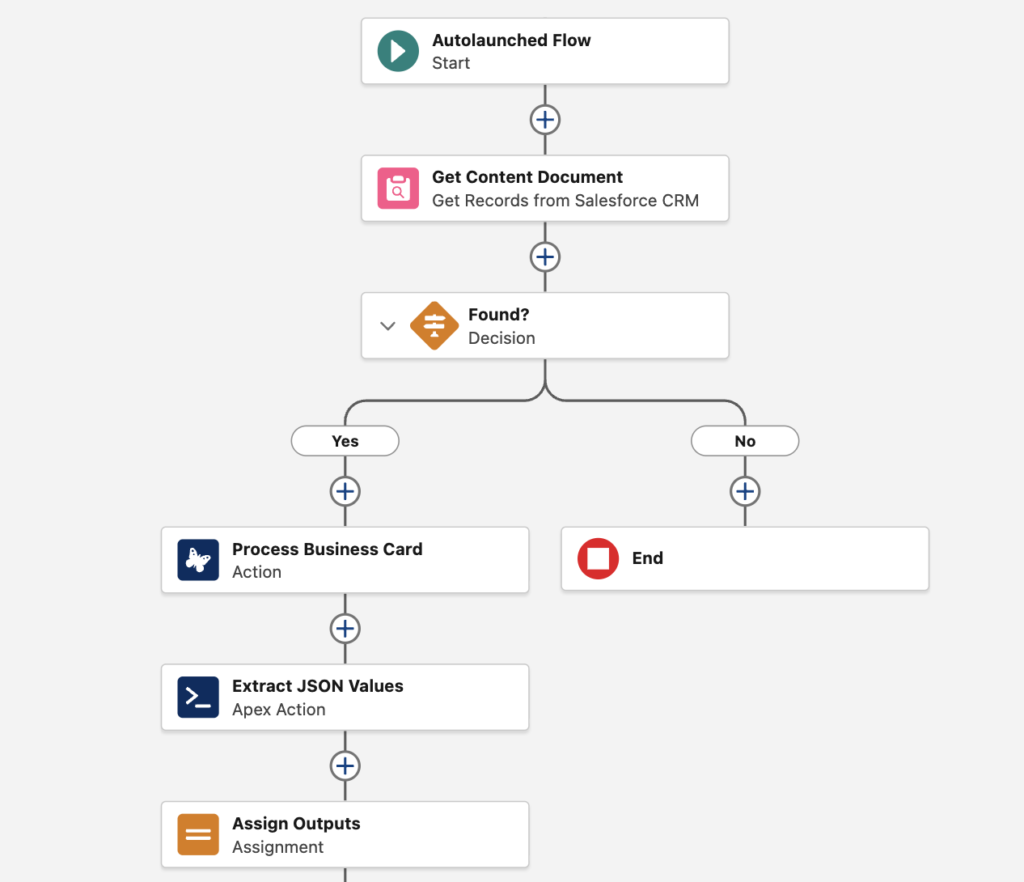
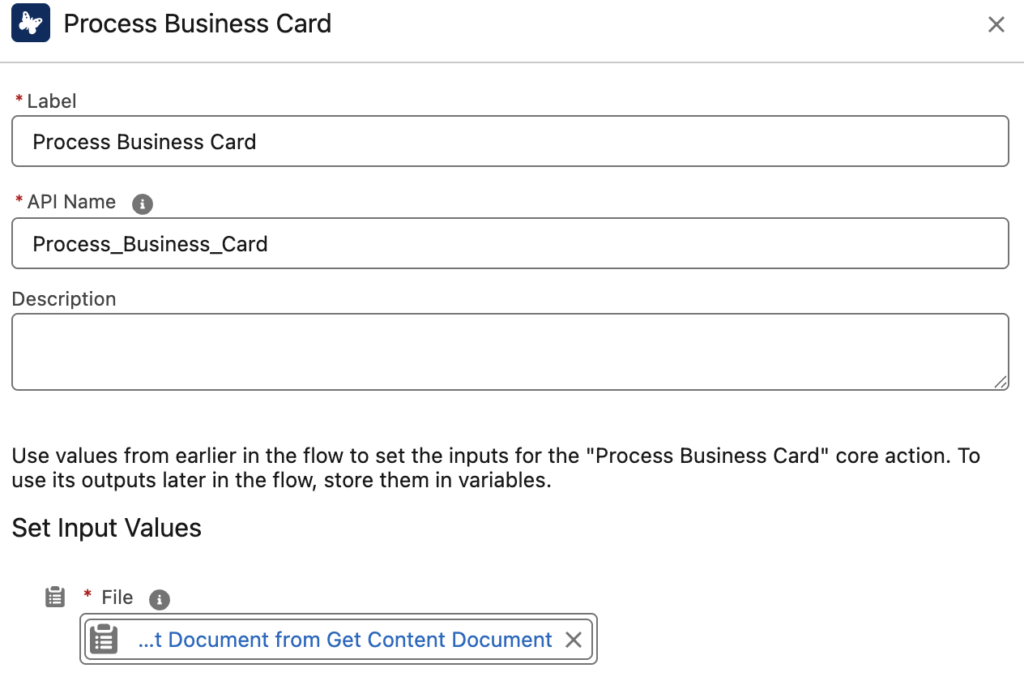
Here is how it calls the Prompt Template. As you can see, it simply passes the Content Document record as the input.
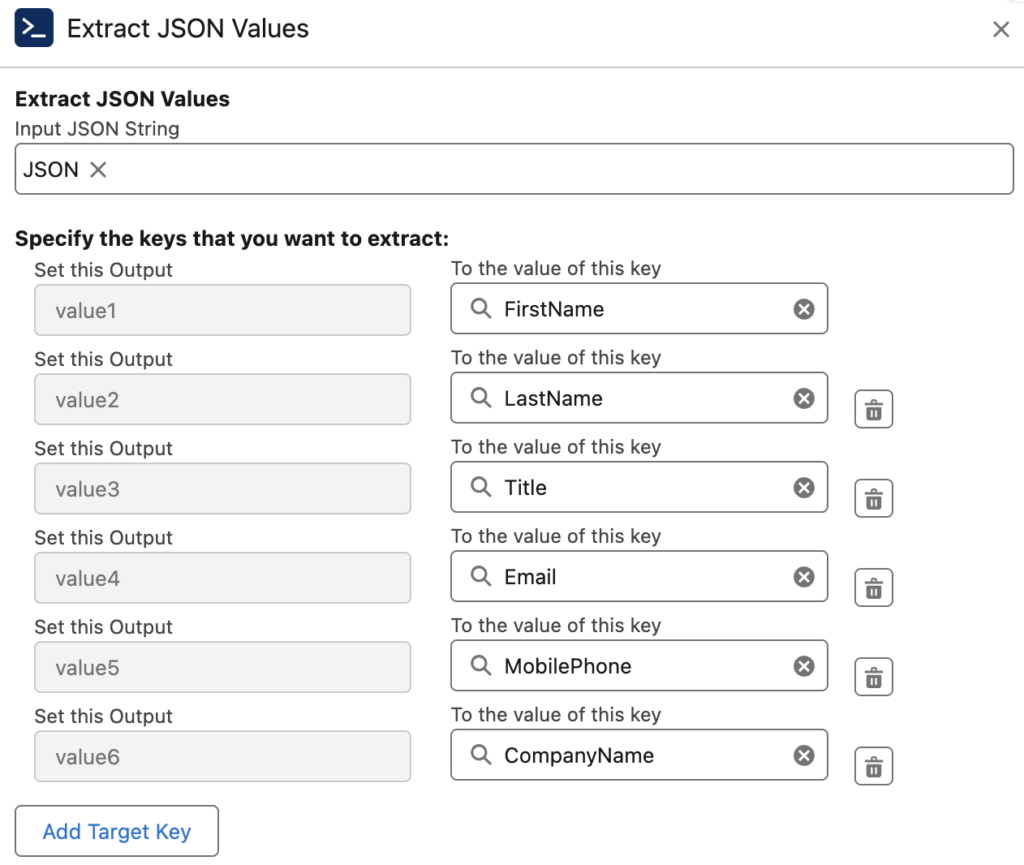
The Prompt Template returns the output in JSON format, so you need to parse it somehow. Since there is no standard action to parse JSON in Flow, you can use DataMapper from UnofficialSF. Using the Extract JSON Values action from Data Mapper, you can easily parse the JSON.
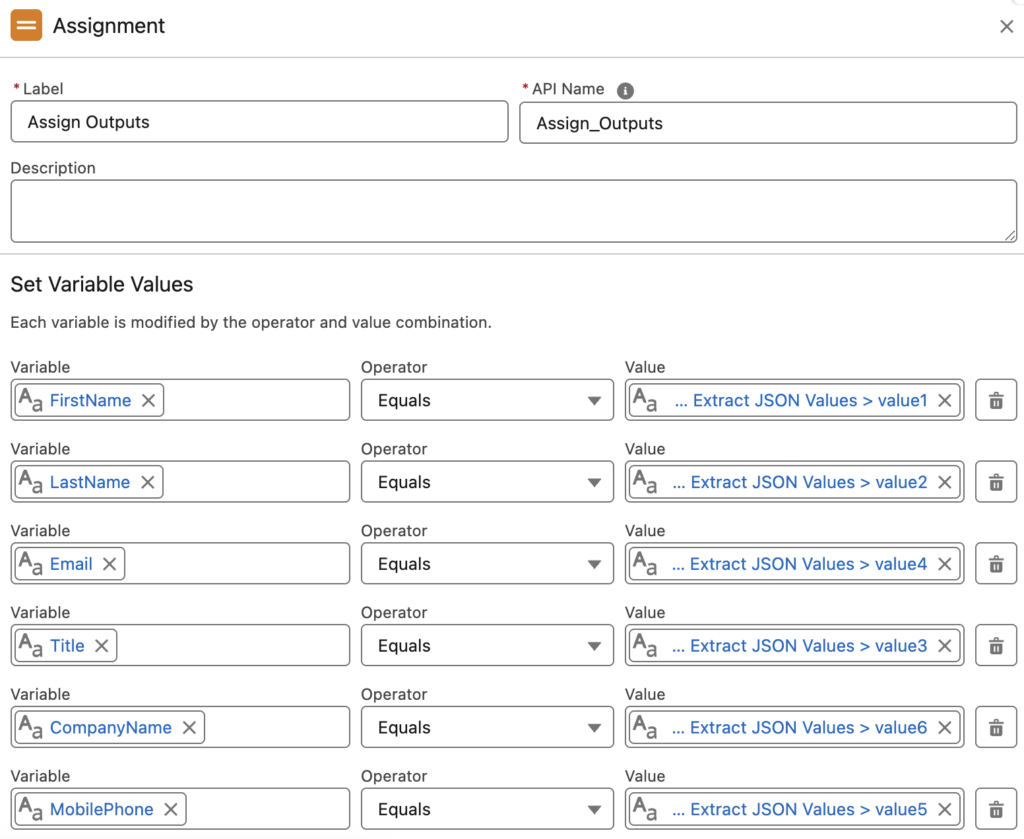
Then as the last step, assign these values to output variables.
Using a Screen Flow to Capture and Process the Business Card Image
Now, let's look at the main Screen Flow that users will use to take a photo and extract contact details from a business card.
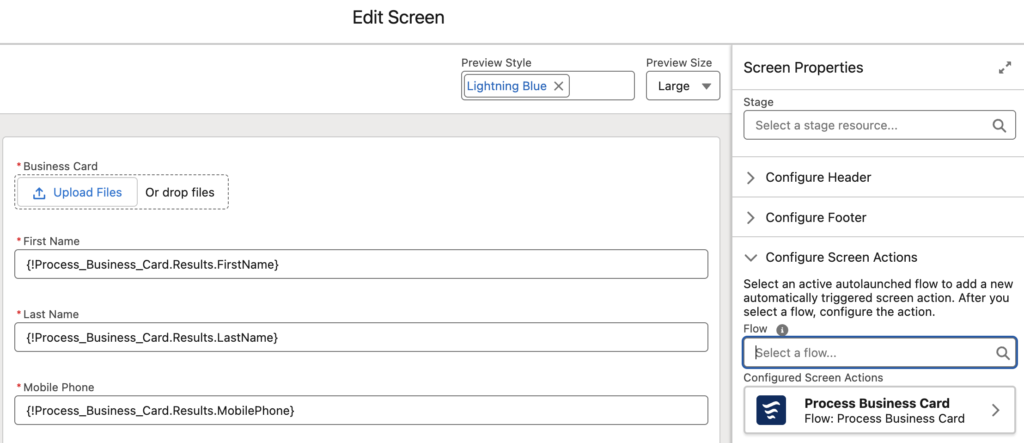
It starts by uploading a file or taking a photo on mobile devices. Then, it sends the Content Document Id to the autolaunched flow that we built earlier. As you can see, all the fields on the screen have default values from the screen action.
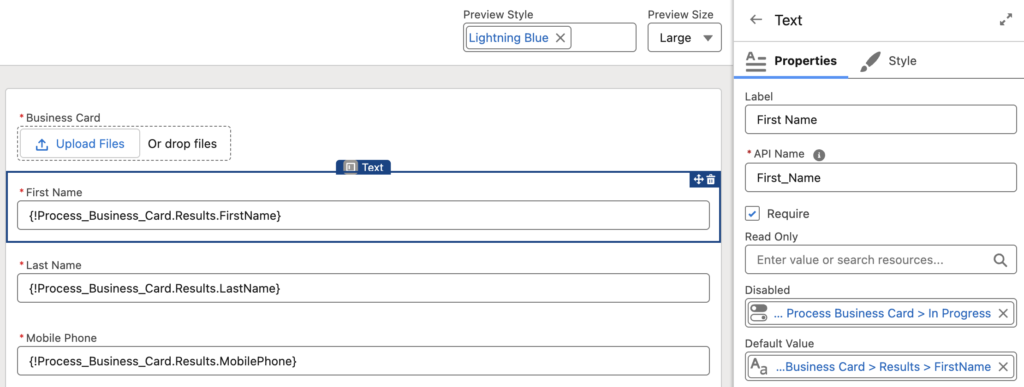
Since the screen action calls an autolaunched flow, which then calls a Prompt Template, the process can take a few seconds. To improve the user experience and avoid mistakes, you can disable the fields while the screen action is in progress. You can do this simply by setting the In Progress output of the screen action to the Disabled property of the field.
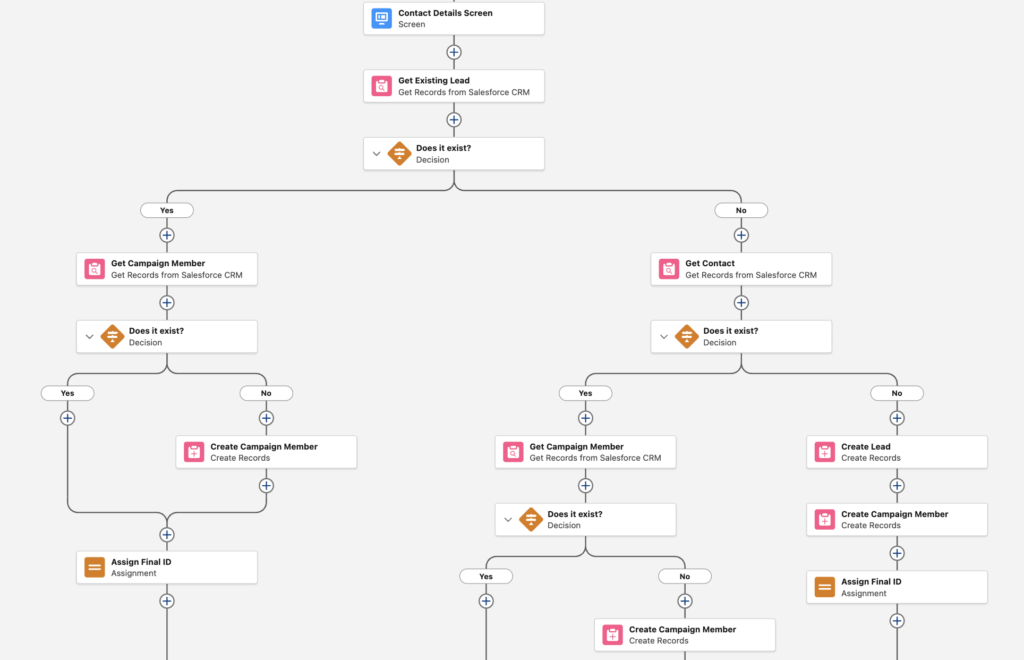
Assuming that the flow is launched from a Campaign record, after this screen it creates a Lead and a Campaign Member. Of course, it first checks whether a matching Lead or Contact already exists. In that case, it creates only the Campaign Member.
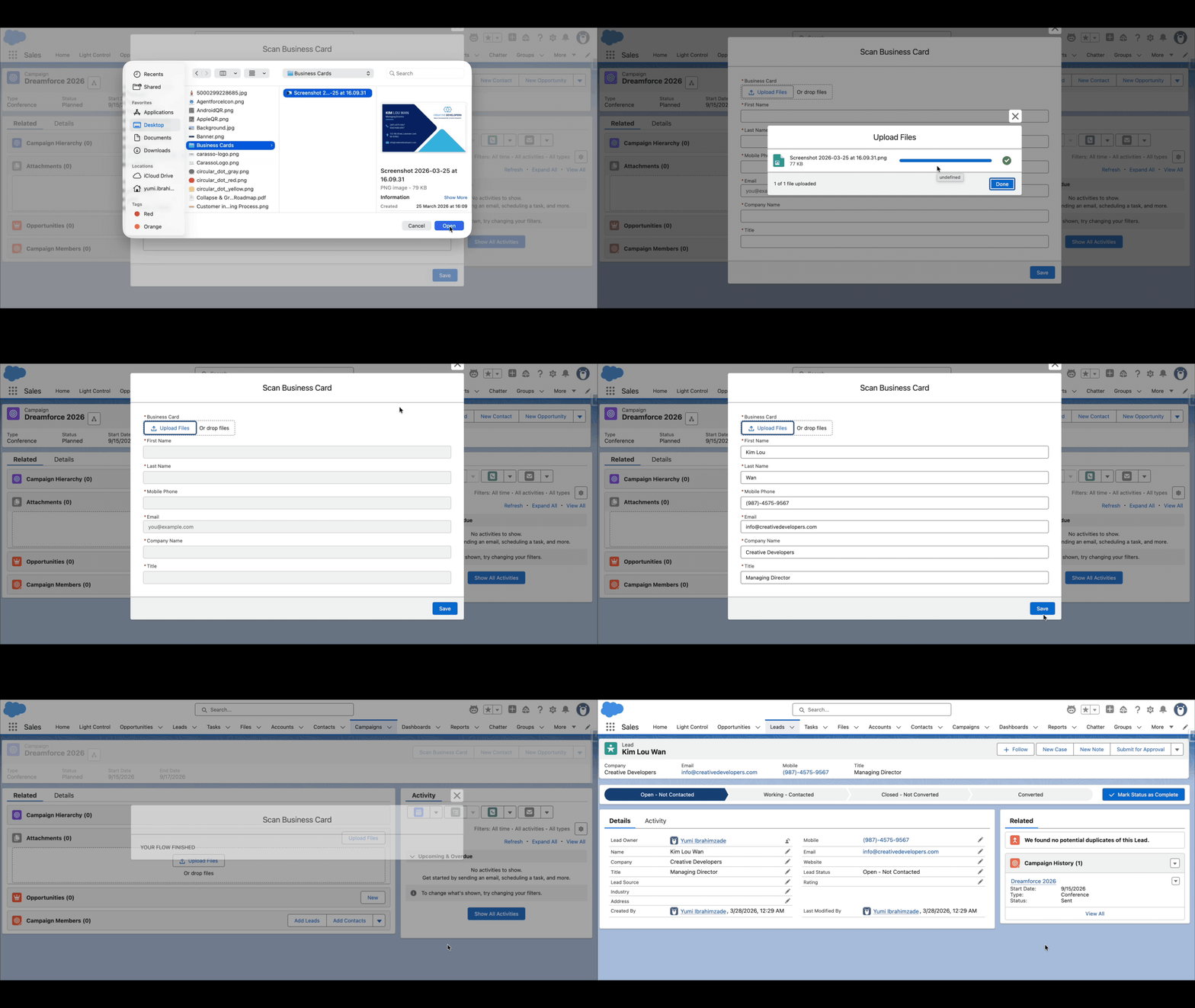
Here is the entire solution in action.
Final Thoughts
As you can see, Prompt Templates can do much more than work with record data. By passing a file as an input, you can process unstructured data from images and PDFs and use the result in Flow.
In this example, we used a business card image to extract contact details and create CRM records, but there can be endless use cases for this capability. For example, you can process a resume PDF to extract candidate details during recruiting, or analyze a customer document or screenshot to capture important information and create a Case.
This opens the door to many practical automations that start with a file and end with structured Salesforce data and actions.
Leave a Reply