

Record-triggered flow is one of the most common and powerful flow types in Salesforce. However, it has certain limitations. One major limitation was not being able to select ContentDocument or other file objects as the starting object. In other words, you couldn't trigger a record-triggered flow when a file was uploaded in Salesforce. In Winter '26 release, Salesforce introduced a new feature to use Automation Event-Triggered Flow to address this gap. However, it had many limitations and didn't work with custom objects. Here is the good news: In the Spring '26 release, Salesforce has finally made it possible to trigger a record-triggered flow when a file is uploaded. You can now build record-triggered flows on ContentDocument and ContentVersion objects.
Build Record-Triggered Flows on Content Document and Content Version Objects
This update is a big deal for file automation in Salesforce. Until now, you usually needed an Apex trigger and class to react to file uploads or deletions. With record-triggered flows on file objects, you can build the same automations without code. Since it's a record-triggered flow, you can use flow actions, add async or scheduled paths, and even apply it like a file-related validation rule. For example, you can block file uploads or prevent file deletion based on a criteria.
Since this isn't a new flow type or a special action, there's nothing new to learn. You simply build the same record-triggered flow you already know. The only difference is the starting object.
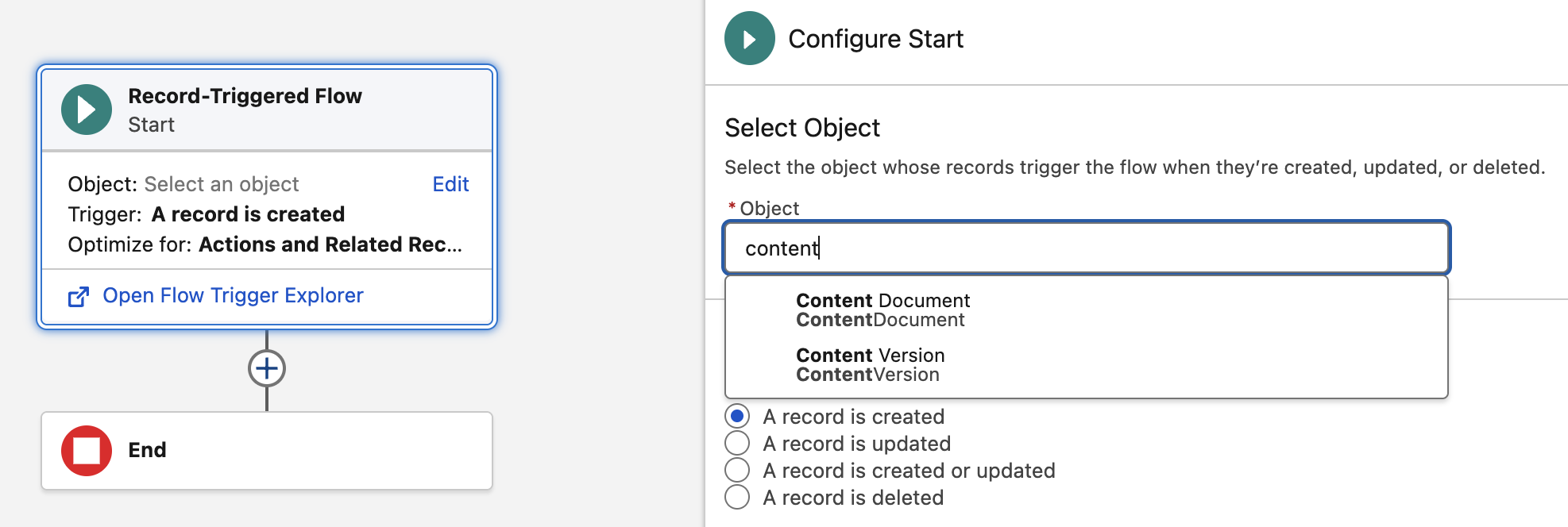
Here are a few useful examples of record-triggered flows running on the ContentDocument object.
1- Using Record-Triggered Flow to Block File Deletion
It's possible to use a before-save record-triggered flow with a Custom Error element to build complex validations in Salesforce. This approach lets you enforce rules that standard validation rules can't handle. You can also block record deletion. Now that record-triggered flows can run on ContentDocument and ContentVersion, you can block file deletion based on any criteria.
For example, this record-triggered flow runs before a ContentDocument is deleted and shows an error message when the criteria is met. As a result, it blocks the file deletion.

When a user tries to delete the file, Salesforce shows this error message:

2- Using Record-Triggered Flow to Share Files with Records
ContentDocumentLink is a junction object that connects a ContentDocument (file) to a record. To share a file with another record, you simply create a ContentDocumentLink between the file and the target record.
In this example, a record-triggered flow runs when a file is uploaded. If the file is uploaded to a Contact, the flow shares the file with the Contact's parent Account.
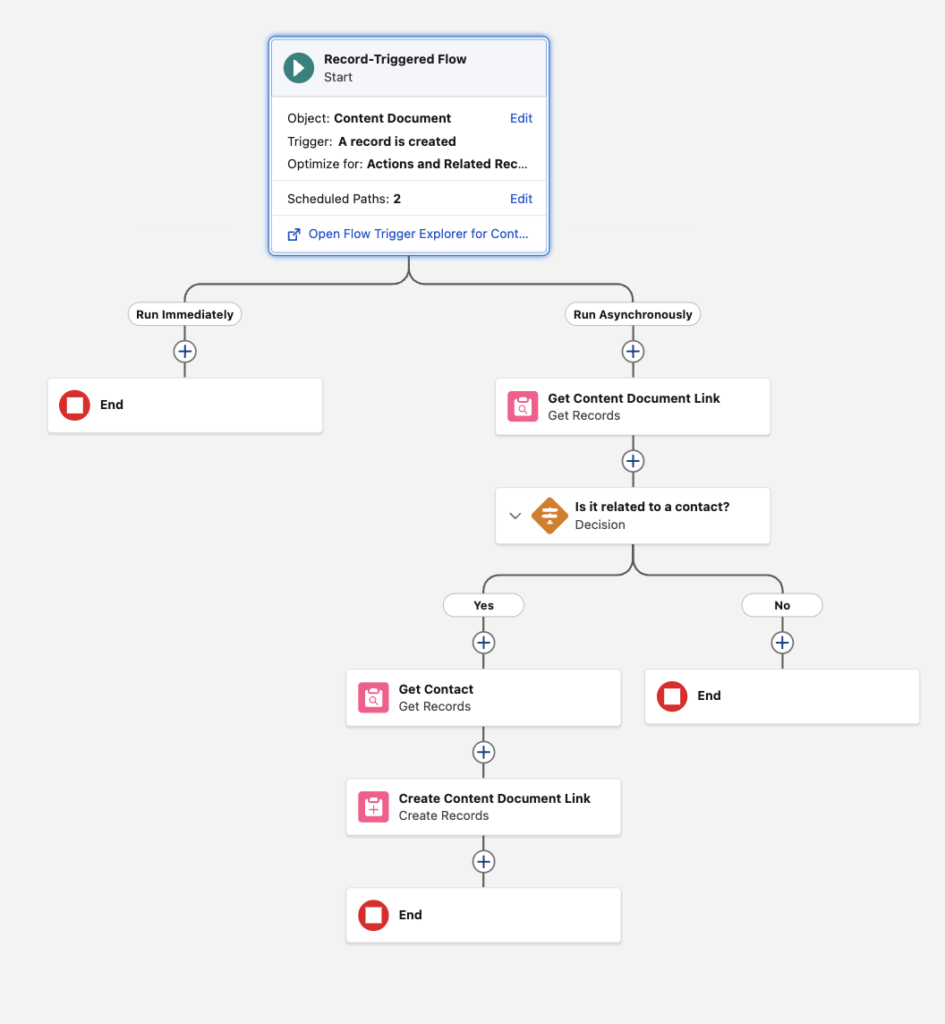
When a file is uploaded to a record, Salesforce creates a ContentDocumentLink record. The LinkedEntityId field stores the Id of the related record. This flow checks whether LinkedEntityId starts with "003", which is the key prefix for the Contact object. If so, it creates another ContentDocumentLink record to relate the same ContentDocument to the parent Account of the Contact record.
One important detail matters here. Salesforce creates the ContentDocumentLink after the ContentDocument record exists. Because of this timing, the flow uses an async path so it can find the ContentDocumentLink record.
Summary
This is a huge step forward for file automation in Salesforce, and it's a feature we've needed for a long time. You can now use record-triggered flows on ContentDocument and ContentVersion to handle file uploads and file updates with no code.
However, there is still one small limitation. You still can't build a record-triggered flow on ContentDocumentLink object. This means you can't trigger a flow when someone shares an existing file with a record. In that scenario, Salesforce creates only a ContentDocumentLink, not a new ContentDocument or ContentVersion.
Leave a Reply