

A Kanban board is a view that shows work as cards, usually grouped by a status or stage, so you can track progress at a glance. In Salesforce, you can already switch an object list view to Kanban and let Salesforce display records as cards grouped by a picklist field. In the Spring '26 release, Salesforce brought this experience into Screen Flow with a new Kanban Board screen component. With this component, you can display records in a Kanban view.
Let’s see how to use the Kanban Board component in Flow.
Kanban Board Screen Component
Using the Kanban Board screen component, you can display a collection of records in a Kanban view. You can also group the cards, calculate totals for each group, and select up to five fields to display on each card.
Let's see how to configure this component to display a collection of Opportunity records.
1- Select Data Source
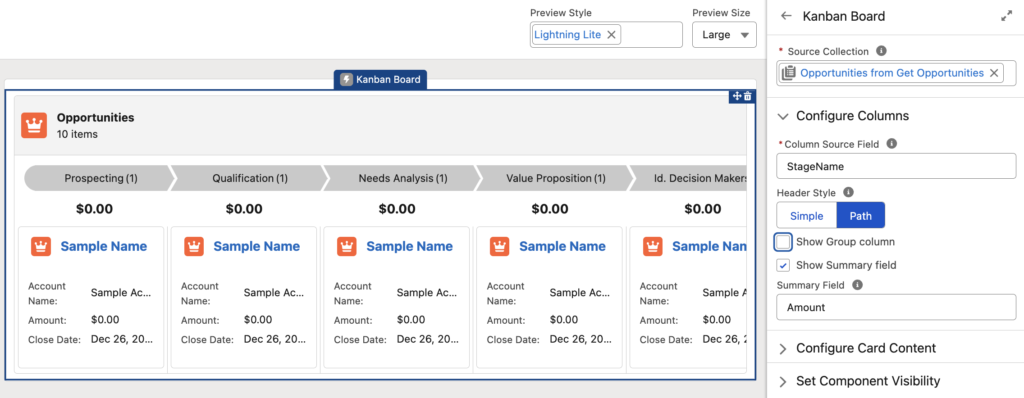
Add the Kanban Board to your screen, and give it a name and label. Then select the source collection. In this example, the source collection is a collection of Opportunity records.
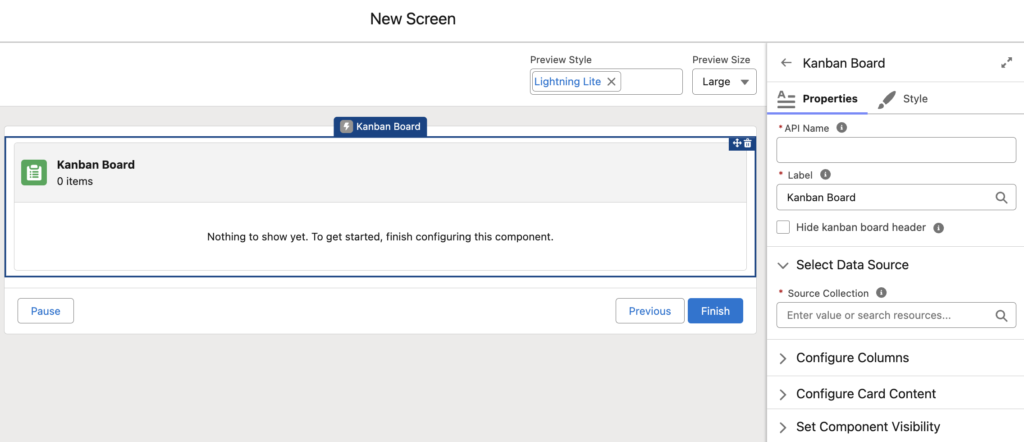
2- Configure Columns
Select a picklist field from the source collection to use as the Kanban column heading. Salesforce groups the records by this picklist field. For example, in this flow, we group Opportunity records by Stage.
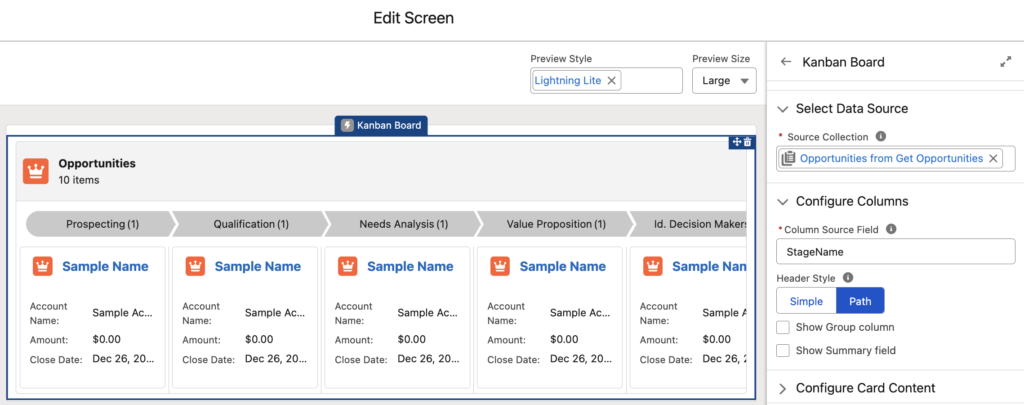
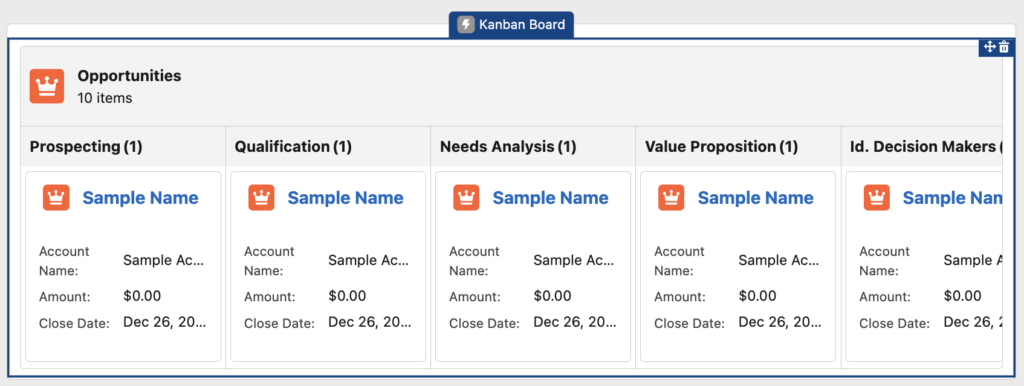
The component offers two header styles. Choose Simple for plain text headings, or Path for a progress bar style header.
Here is how the Simple header looks:
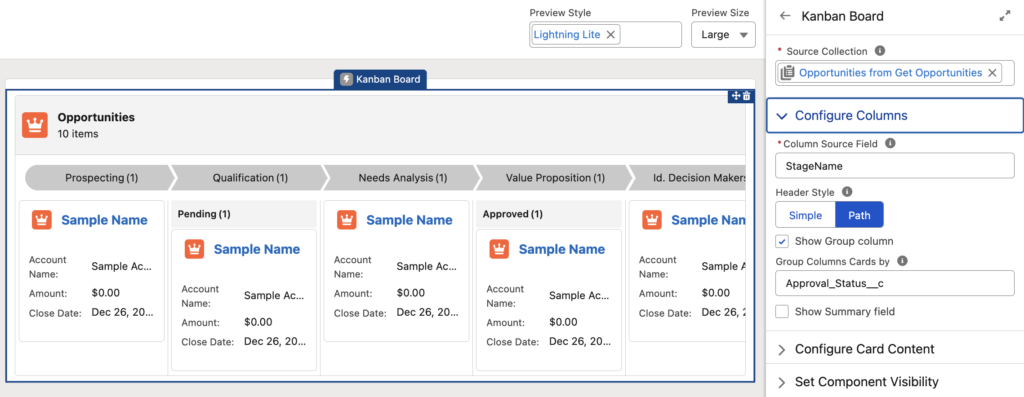
Optionally, you can group cards within each Kanban column. Think of this as a sub group. For example, here the Opportunity records use Approval Status for the sub group, so each column is further grouped by approval status.
Here's the most useful step: Show Summary Field. Kanban Board can calculate the total of any number (or currency) field for each column and each card group within a column. For example, it displays the total amount for each stage.
3- Configure Card Content
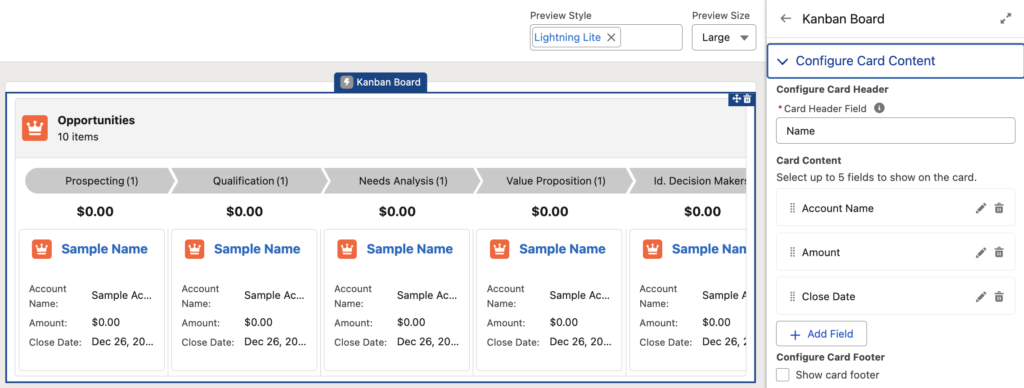
Now it's time to configure the card content.
Select the card header field, and choose up to 5 fields to display on the card. Optionally, you can also display a card footer.
Kanban Board in Action
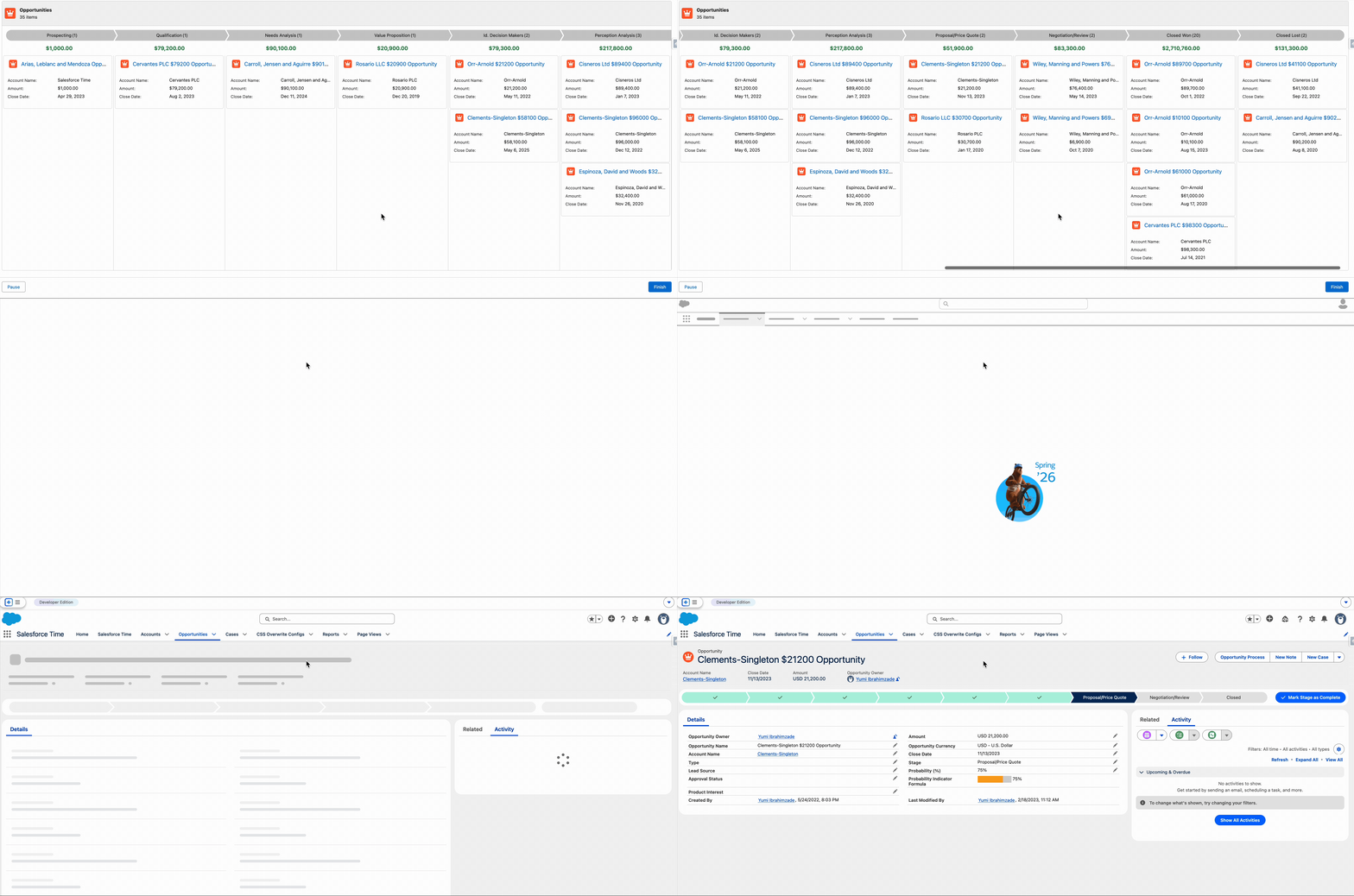
Let's see the screen flow in action. As you can see, it displays Opportunity records as cards. The component shows the total amount for each stage, and the record names are clickable.
It's important to note that this component only displays records. It doesn't provide any output, and you can't drag and drop cards to change field values.
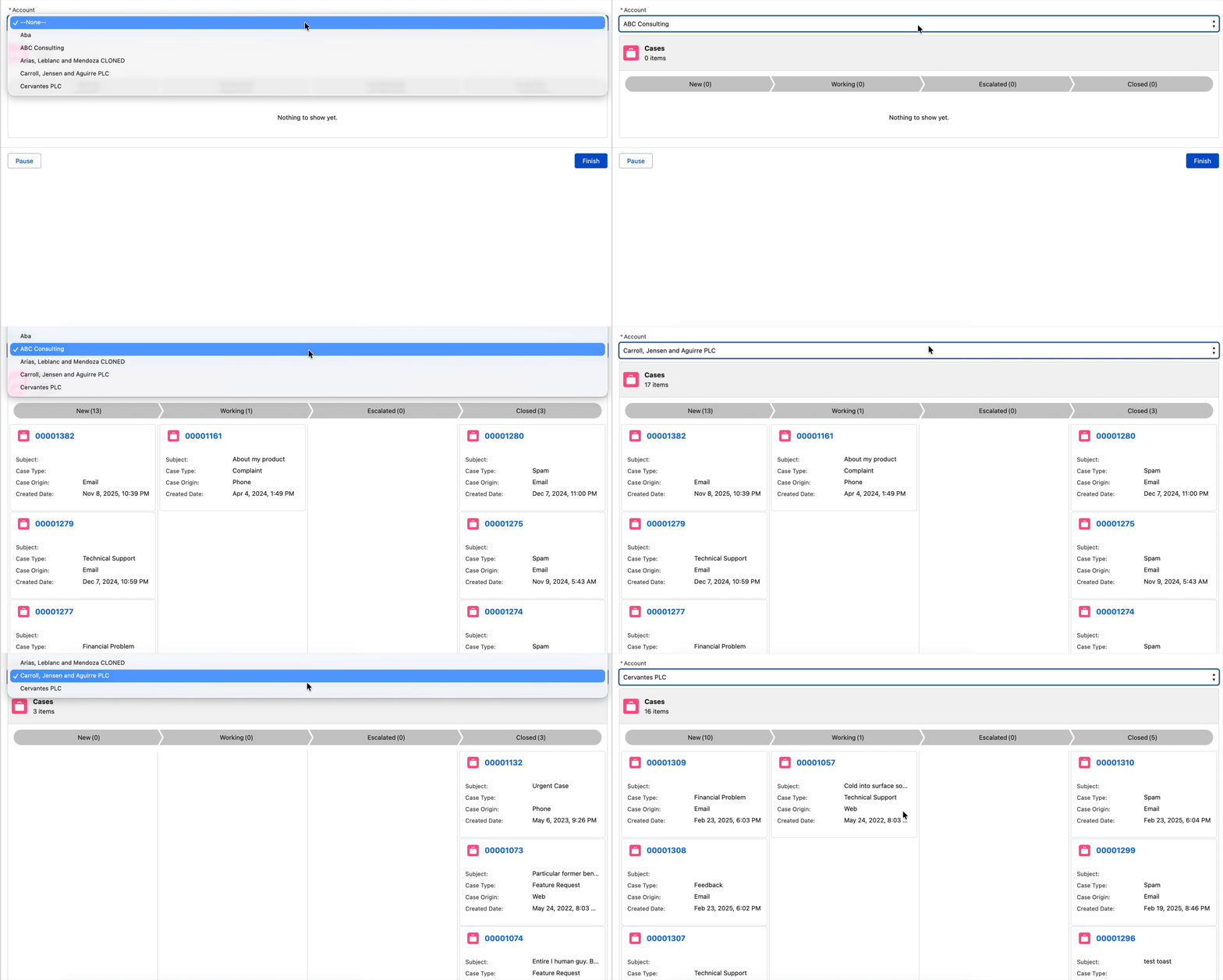
One more key detail: it's reactive, so it updates as the source collection changes.
„ It's important to note that this component only displays records. It doesn't provide any output, and you can't drag and drop cards to change field values.“
What a spoiler …