

Previewing a file inside a Screen Flow can be a game changer. Especially when users need to verify a document before continuing, approve something, or simply understand what they are working with. Until now, Flow didn't offer a native way to do this, so we had to rely on custom, unofficial solutions to display files on a screen. In the Spring '26 release, Salesforce has introduced a new Screen Flow component called File Preview. With this component, you can preview a file directly on a Flow screen, making the experience smoother, faster, and fully supported out of the box.
Here is how to preview a file in Screen Flow.
How to Use the File Preview Component
The File Preview component has a very simple configuration. You just need to provide the Content Document Id of the file you want to preview.
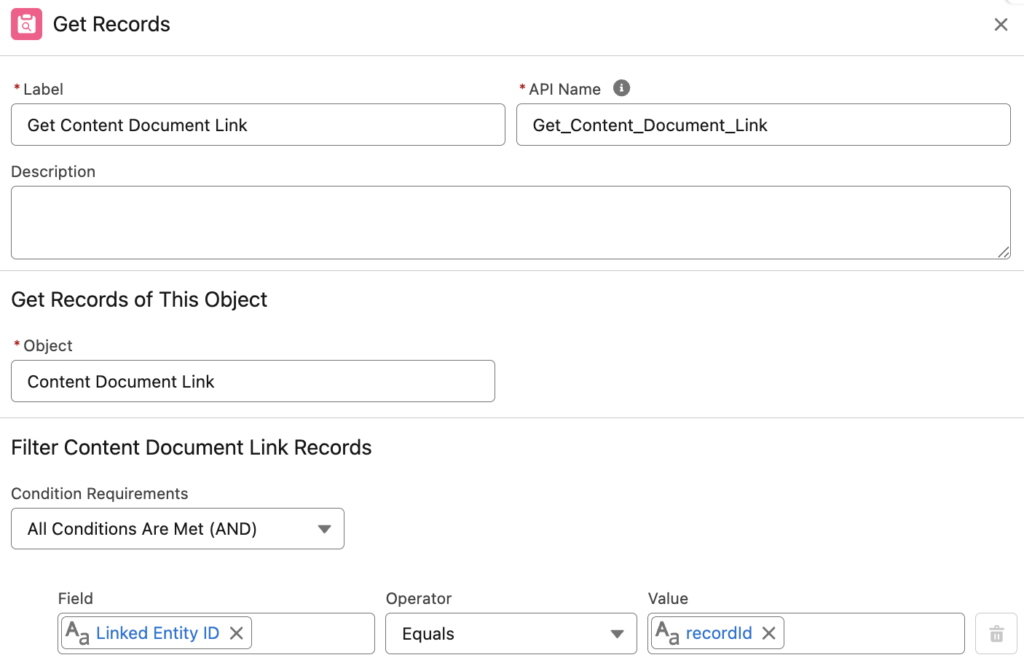
To find the Content Document Id, you can use a Get Records element to retrieve the Content Document Link record (the record that links a file to a record). Then, pass the ContentDocumentId field from that Content Document Link record into the component.
For example, this Get Records element finds a file that is related to a specific record.
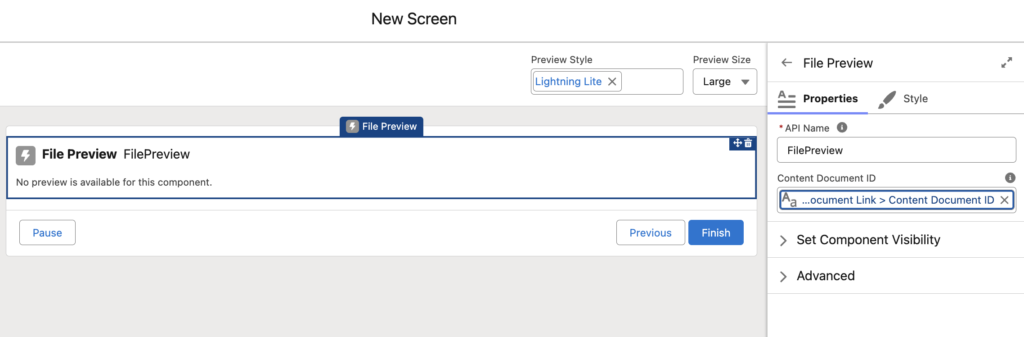
As you can see, it found a PDF file, and the File Preview component lets users preview it directly on the Flow screen.
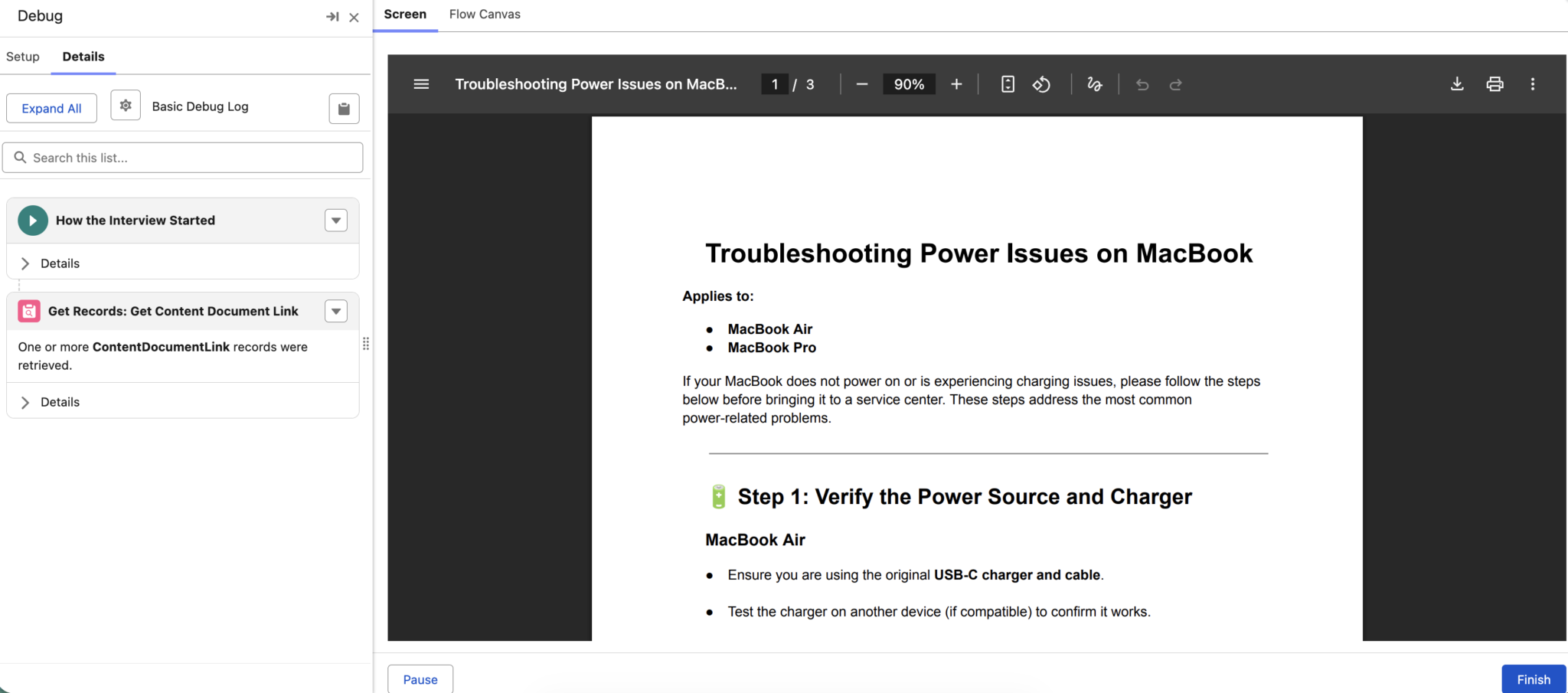
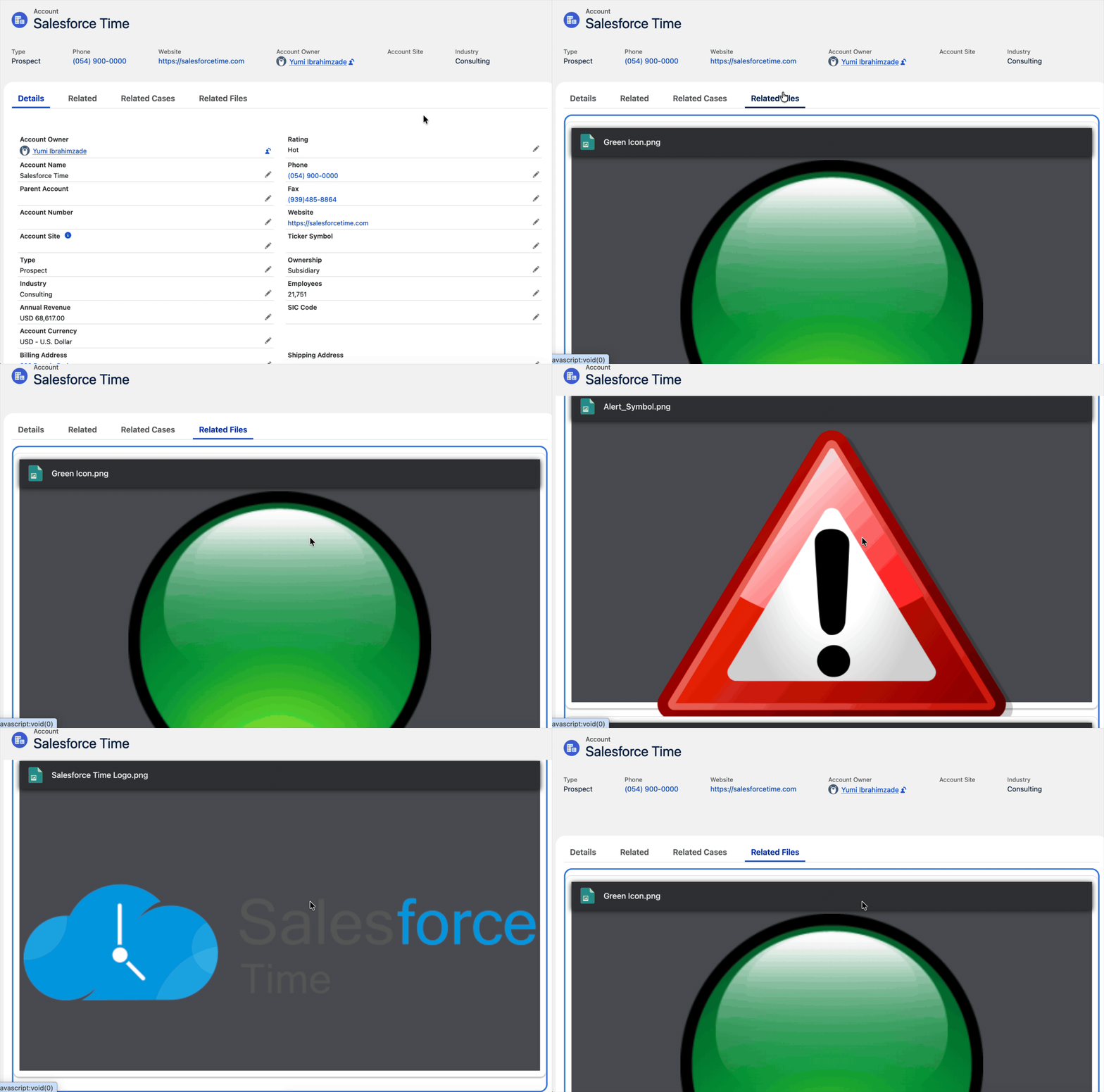
How to Preview Multiple Files on Flow Screen
In some cases, you may want to preview multiple files. Since the File Preview component supports only a single Content Document Id, it might sound like previewing more than one file is not possible. But that's not true. To preview multiple files, simply drop the File Preview component into a Repeater, and that's it!
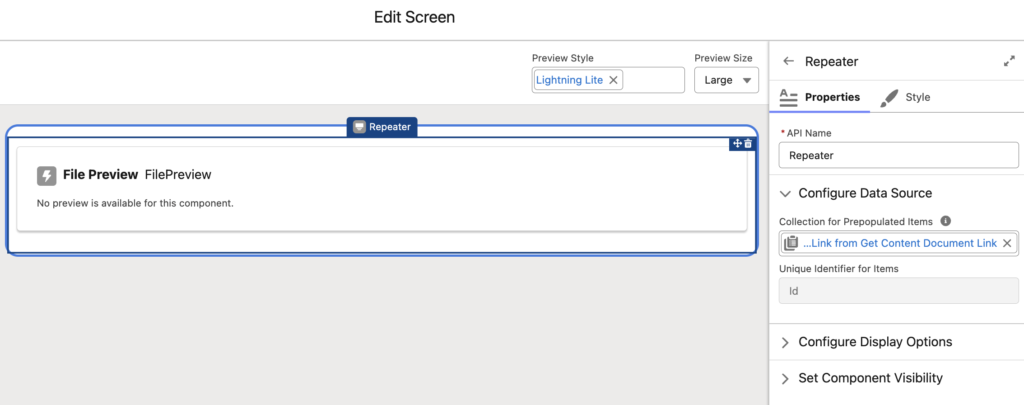
In the end, it lets users preview multiple files directly on the Flow screen.
Is File Preview Component Reactive?
There are multiple file upload components, yet none of them support file preview. However, the new File Preview component is reactive, which means you can preview the same file the user just uploaded.
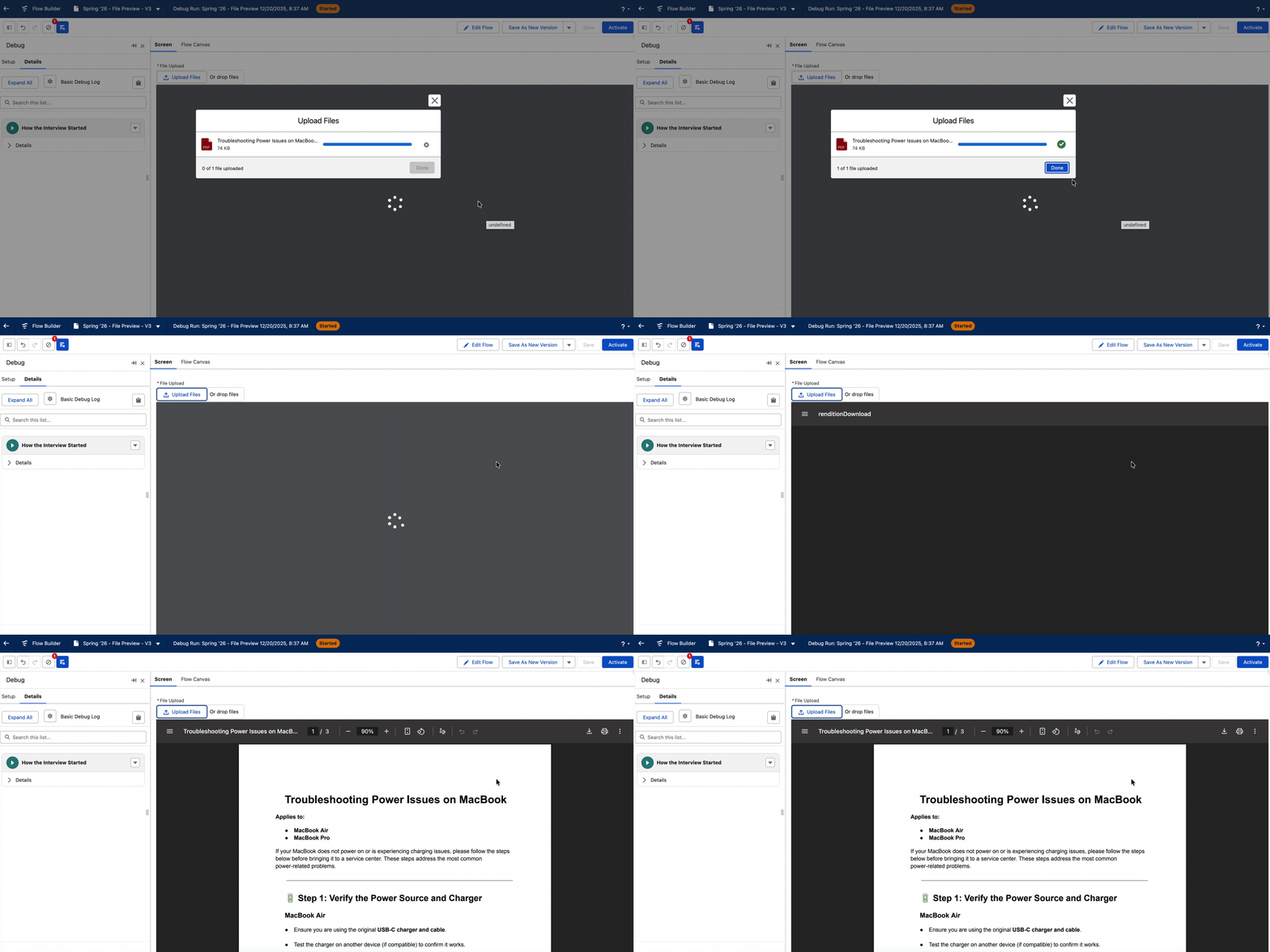
Here is a formula that returns the single Content Document Id from the File Upload component (assuming you don't allow multiple file uploads).
SUBSTITUTE(SUBSTITUTE({!FileUpload.contentDocIds}, '[', ''), ']', '')
The Formula is theGold 🙂