
Salesforce's Spring '26 release is just around the corner, and it's packed with fresh enhancements for Salesforce Flow. Here is a quick look at what is new in Flow for Spring '26.

1- Screen Styling
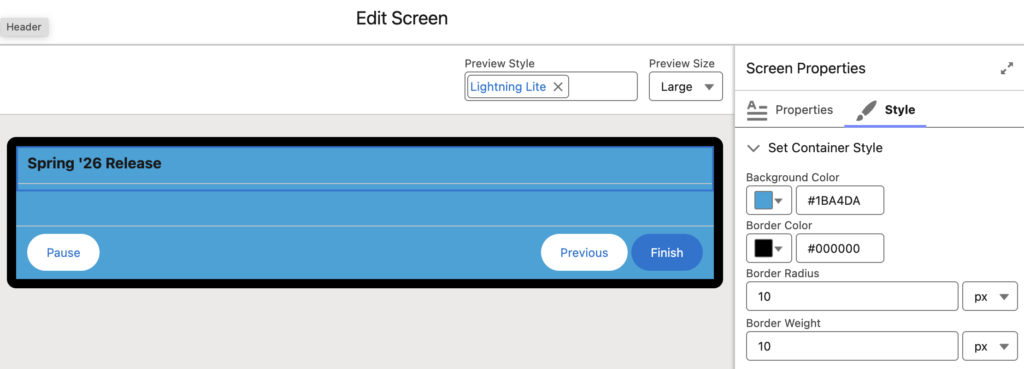
Starting with the Spring '26 release, you can control the styling of your screens.
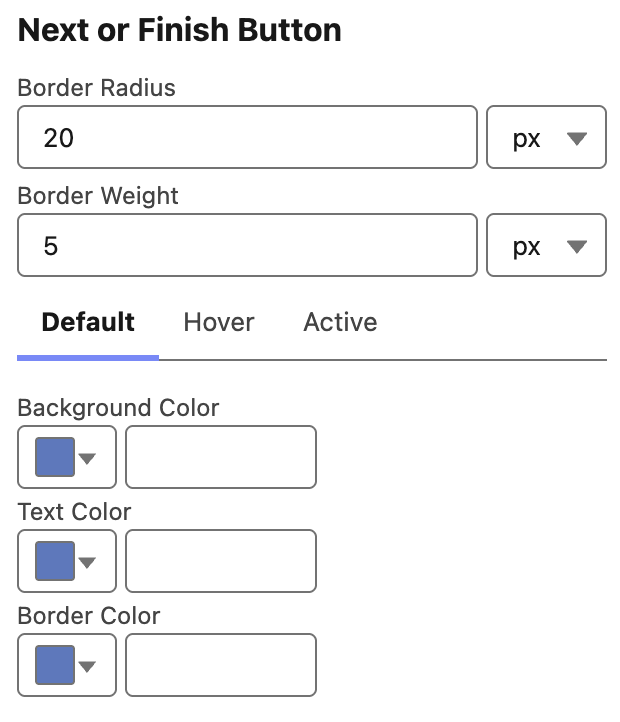
You can set the background color, border color, border radius, border width, and the header size and color of the screen element. You can also style the Next/Finish, Previous, and Pause buttons separately. In addition, you can define different styles for the default, hover, and active states of the buttons.
2- More Screen Component Styling Options
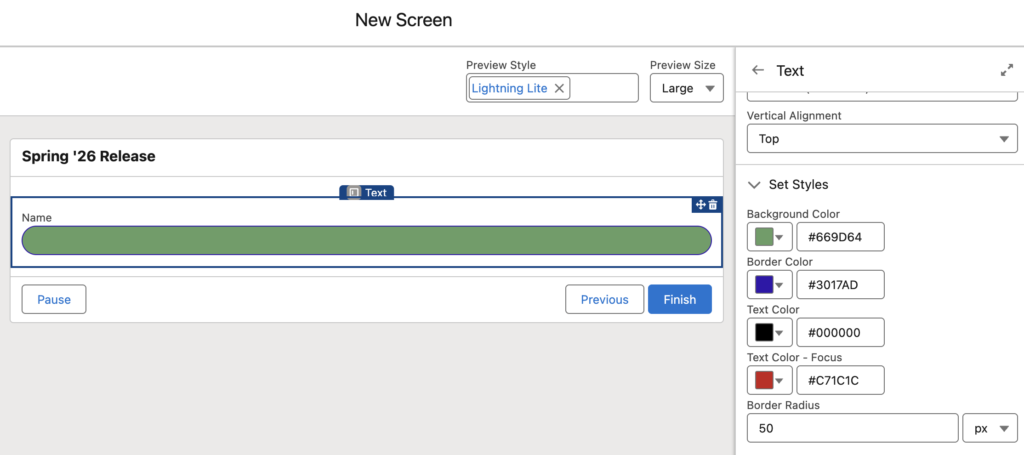
Starting with the Spring '26 release, there are more styling options for individual screen components. In addition to setting the width and vertical alignment of screen components, you can now configure the background color, border color, text color, text color on focus, and border radius.
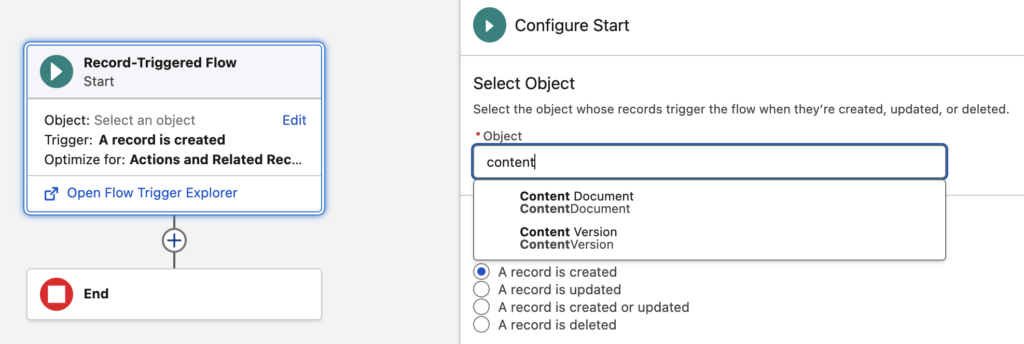
3- Build Record-Triggered Flows on Content Document and Content Version Objects
It's finally here! You can now build record-triggered flows on ContentDocument and ContentVersion objects.
4- Data Table Enhancements
Starting with the Spring '26 release, you can let users sort and edit data table columns. This means we finally have inline editing in the standard data table! Although it is limited to text, email, checkbox, phone, number, percent, and currency fields, it is definitely a good start.
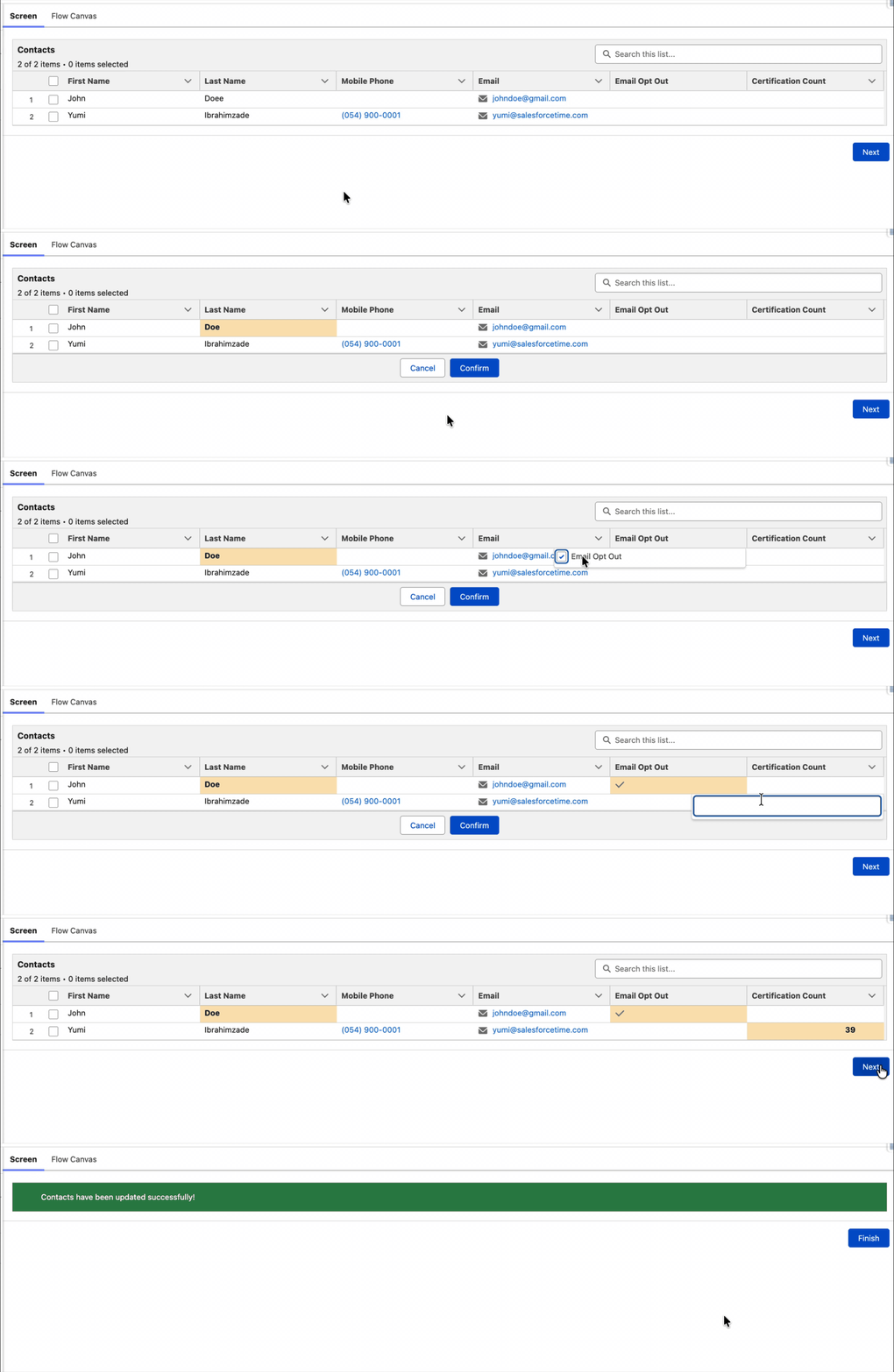
Read this post to learn more about this release update.
5- Flow Debug Improvements
When you debug a flow, the values you enter to test it are saved in your browser cache. So the next time you debug, those values are still there and you don’t need to re-enter them each time. Even if you close and reopen the debug side panel, your inputs remain. This behavior applies to both Screen Flows and Record-Triggered Flows.

6- Flow Canvas Scrolling
Salesforce has improved Flow canvas scrolling in the Spring '26 release. You now have four different ways to move around the canvas: trackpad, arrow keys, mouse wheel, and scroll bar.

7- Kanban Board Screen Component
Salesforce has introduced a new, useful screen component called Kanban Board in the Spring '26 release. With this component, you can display records in a Kanban view. You can also group Kanban board cards, calculate totals for each group, and select up to five fields to show on each card.
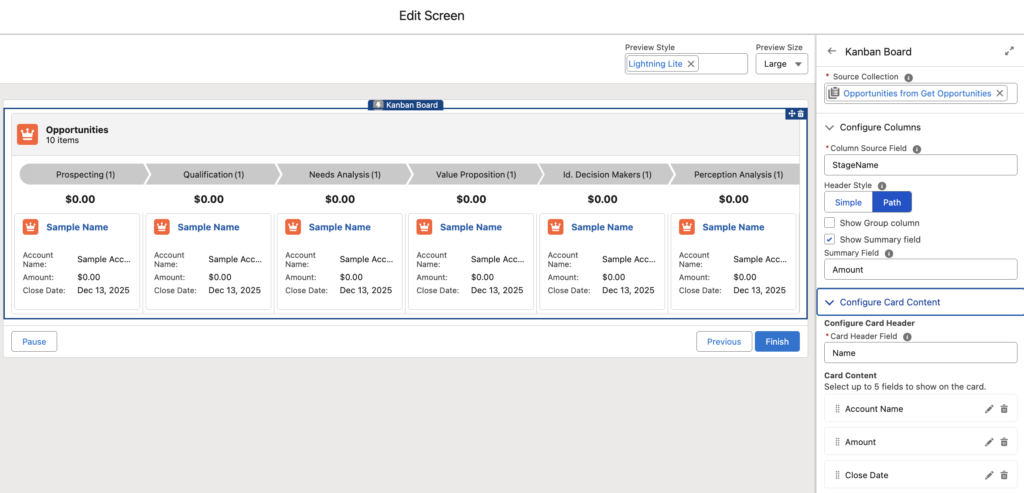
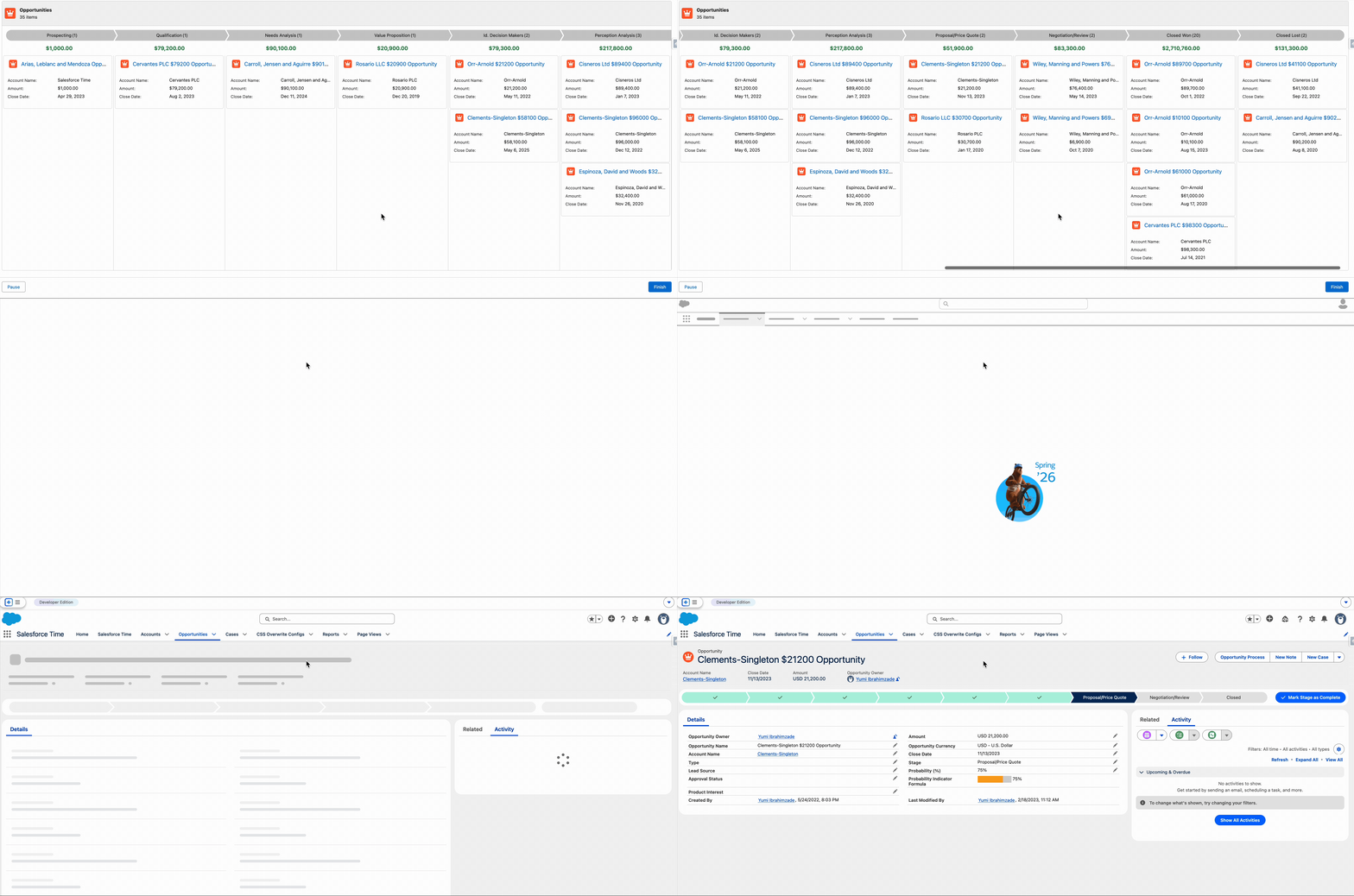
It is important to mention that this component is for displaying records only, it doesn't provide any output.
Read this post to learn how to use the Kanban Board component in flow.
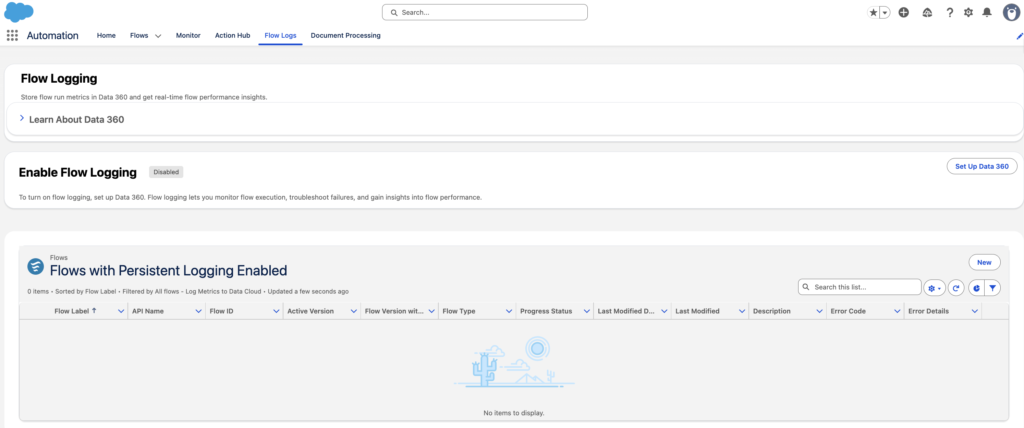
8- Flow Logging
Now you can enable logging to monitor flow execution with detailed metrics, including completion time, status, and errors. You can turn on/off logging for individual flows, and all data is stored and persisted in Salesforce Data Cloud. Flow logging lets you monitor flow execution, troubleshoot failures, and gain insights into flow performance.
It is important to mention that this feature consumes Data Cloud credits.
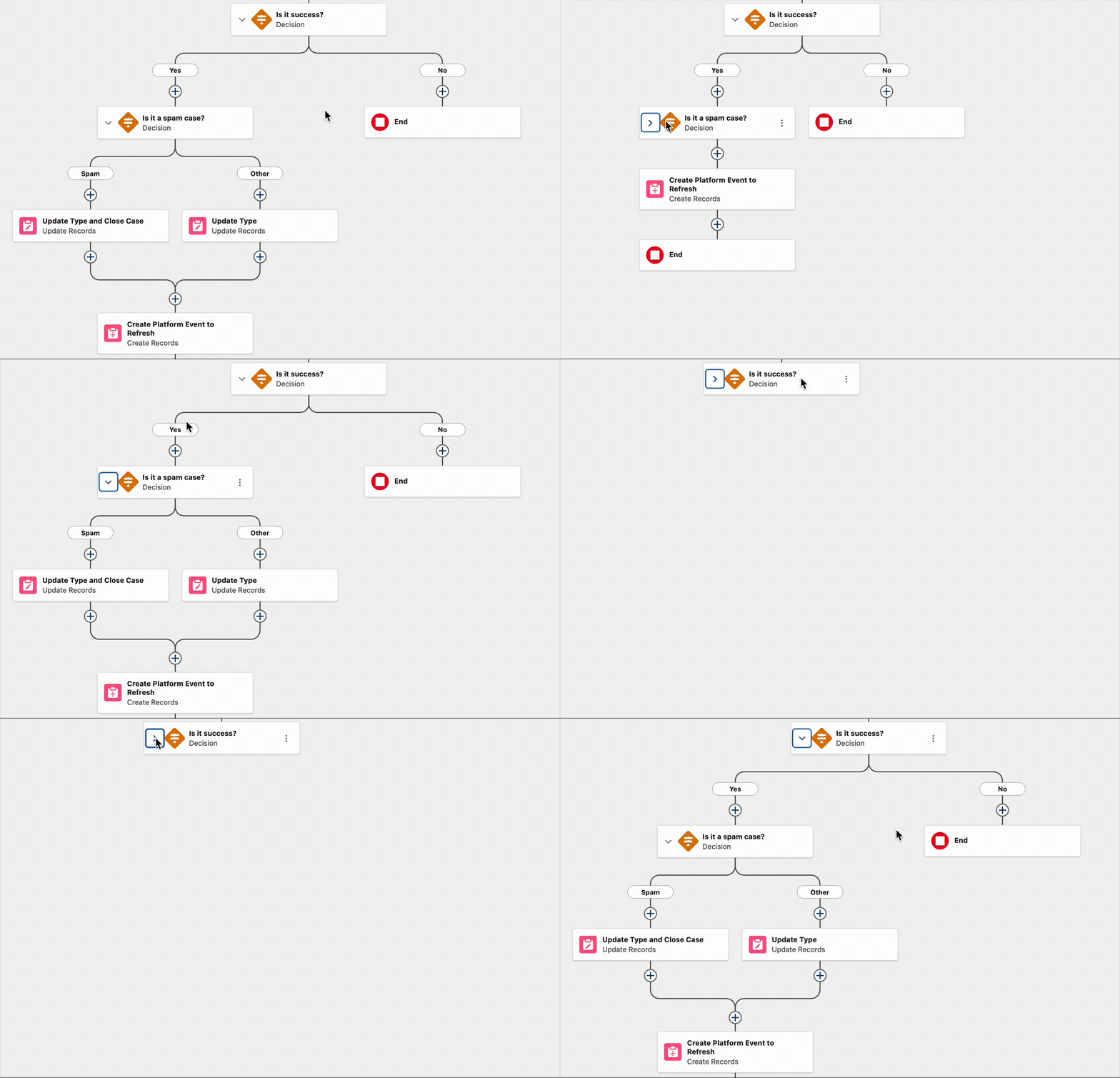
9- Collapse and Expand Decision and Loop Elements
You can now collapse and expand Loop and Decision elements. This makes complex flows much easier to read and navigate, especially when a decision has multiple outcomes.
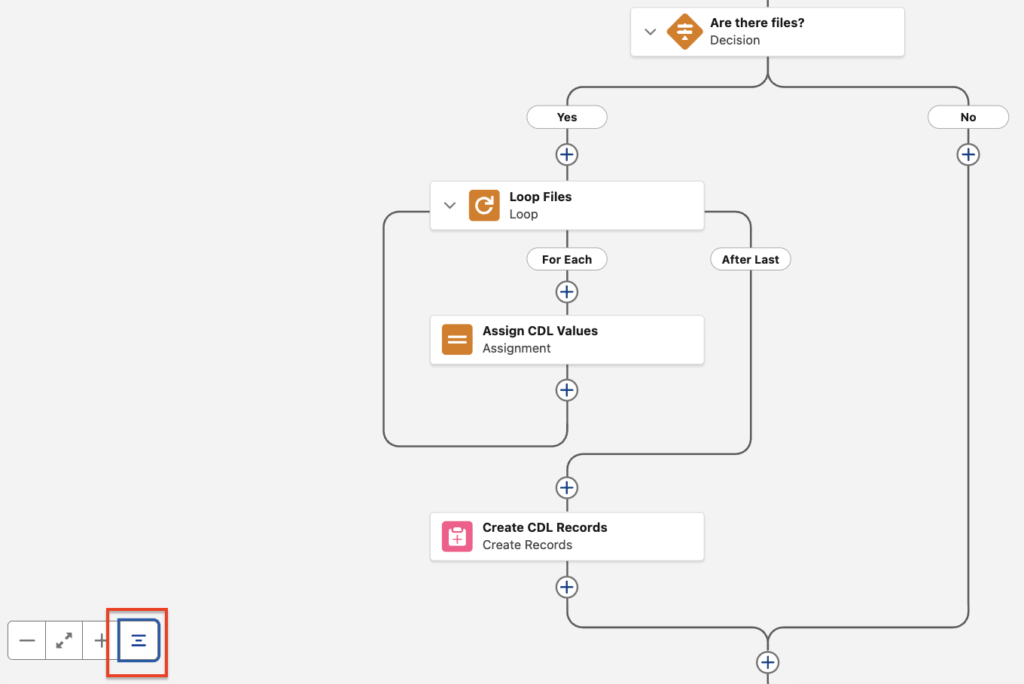
Moreover, you can expand/collapse all Decision and Loop elements using this button.
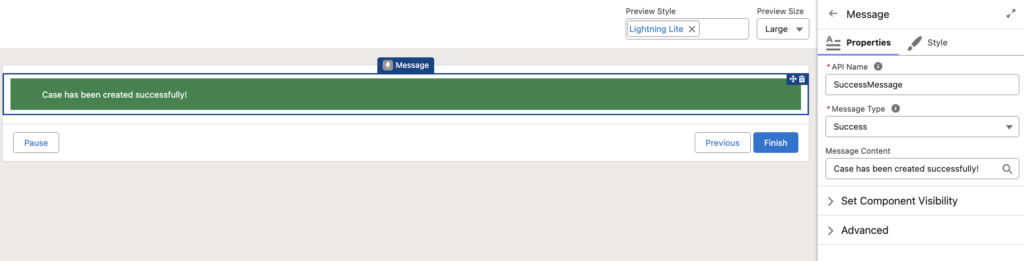
10- Message Screen Component
Salesforce has introduced a new screen component called Message. With this component, you can display info, success, warning, and error messages. The message type determines the color and icon of the message.
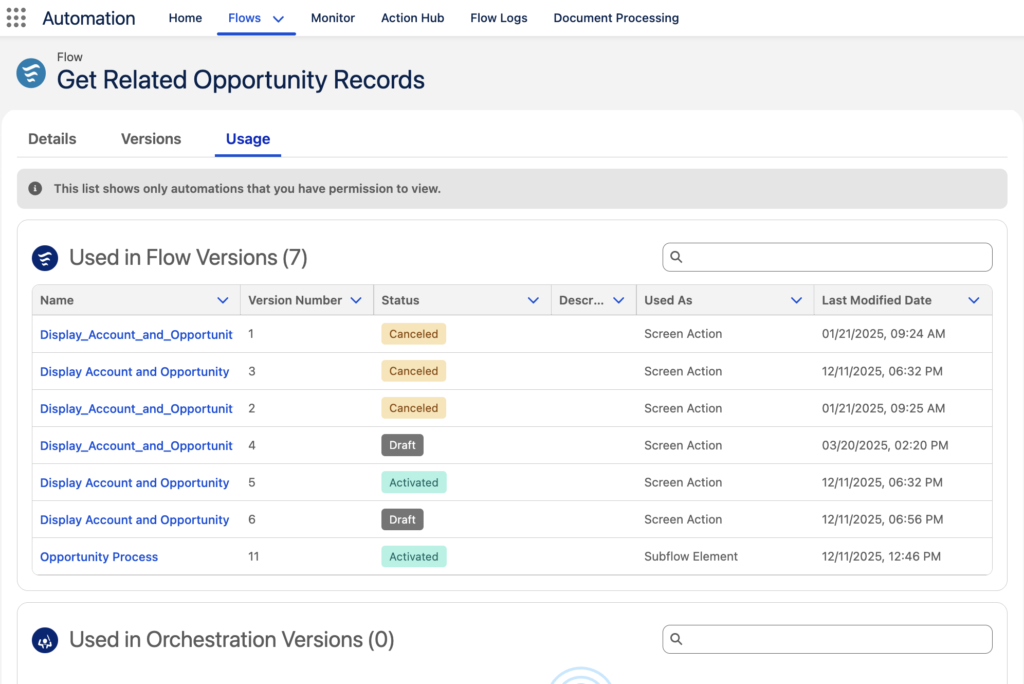
11- View Flow Usage
When you open a Flow record in the Automation app, you will see a new Usage tab. It shows bidirectional relationships including which automations use that Flow and which automation versions depend on it.
As you can see, this Flow is used in two different Flows. Once as a screen action and once as a subflow.
12- Open Screen Flows in Lightning Experience with a URL
There is a new standardized URL format to open screen flows in Lightning Experience and Lightning console apps. It has multiple benefits, such as faster performance, keeping your users in Lightning console apps, and providing a more consistent browser experience.
This new URL format also supports the Salesforce Cosmos theme, and flow local actions!
To open a flow in Lightning Experience, append /lightning/flow/YourFlowNameHere to your URL. To run a specific flow version, append /lightning/flow/YourFlowNameHere/versionId to your URL.
For example;
/lightning/flow/New_Task_Flow
To pass data into a flow through its URL, append ?flow__variableIdHere=value to the end of your URL.
For example, this Flow has a text input variable called AccountID. Here is how you can pass a value to this variable:
/lightning/flow/New_Task_Flow?flow__AccountID={!Account.Id}
Here is what you need to do in order to pass a value to multiple input variables:
/lightning/flow/New_Task_Flow?flow__AccountID={!Account.Id}&flow__Type=Customer
13- File Preview Screen Component
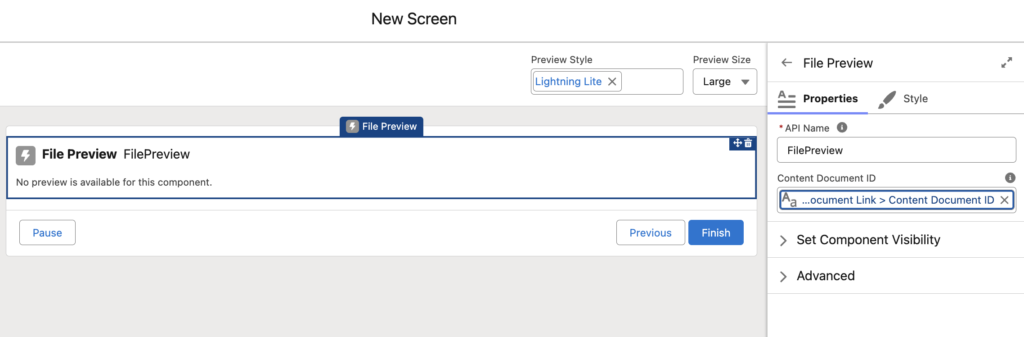
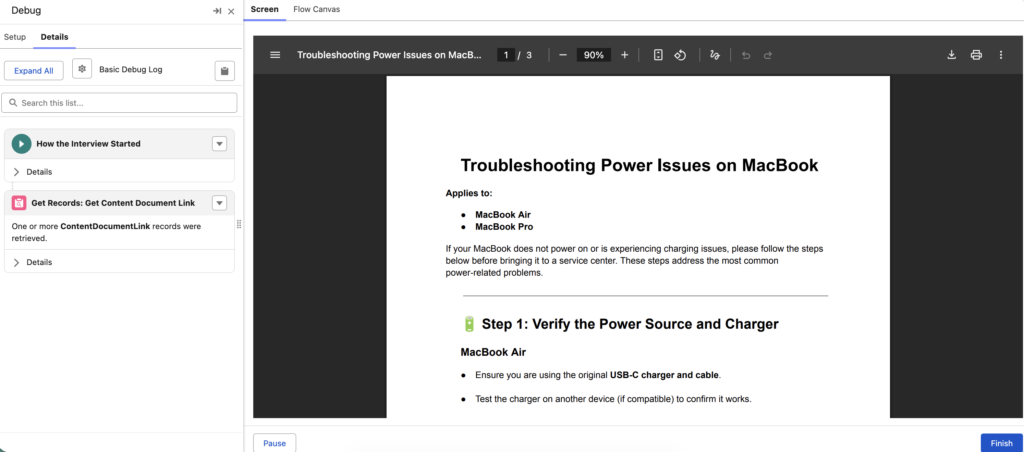
Salesforce has introduced a new screen component to preview files in screen flow. You can simply enter the content document Id of the file to preview.
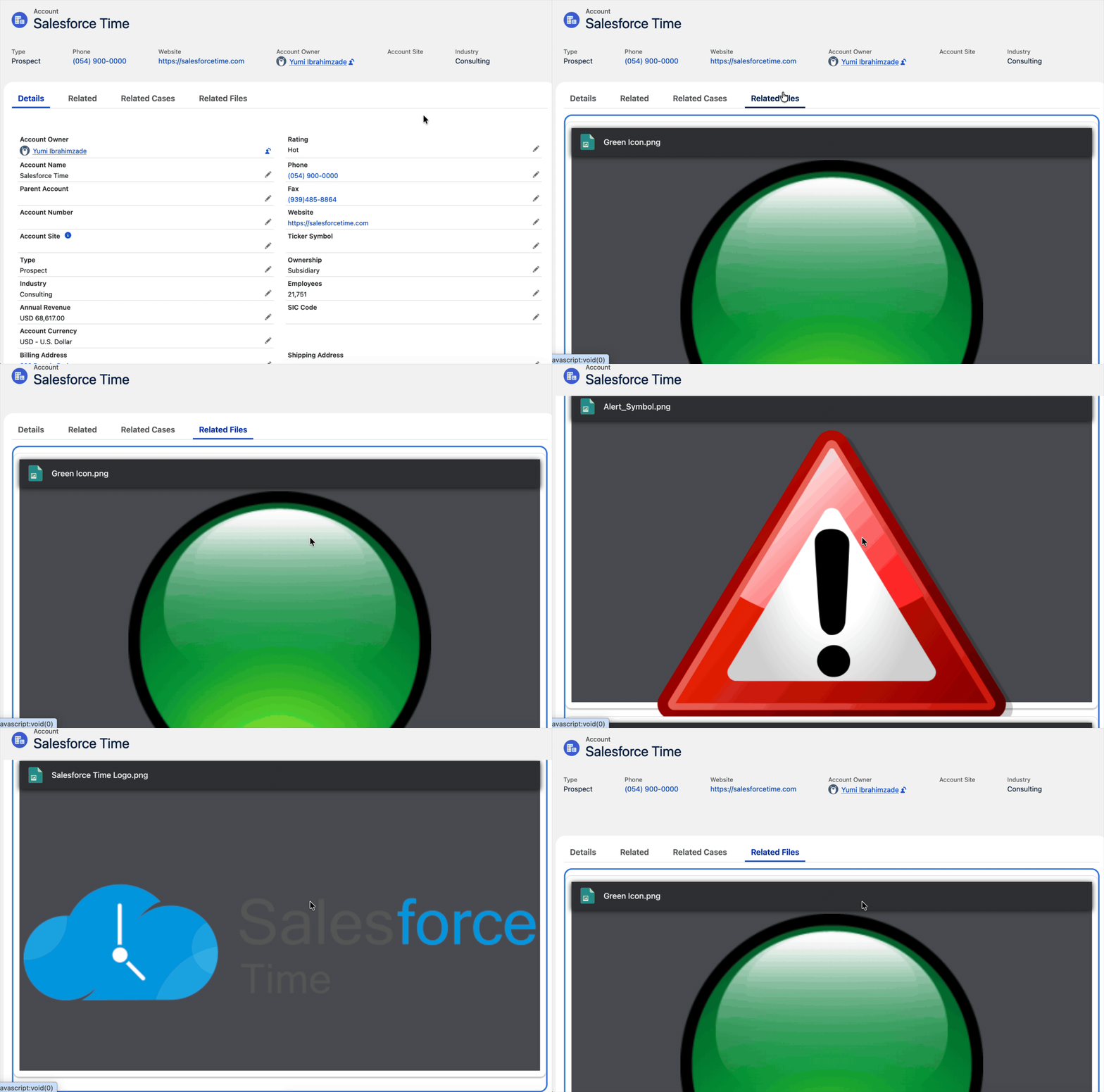
Want to preview multiple files? No problem, just drop the File Preview component into a Repeater, and that's it!
Read this post to learn more about this new screen component.
14- Flow Embedded Analytics
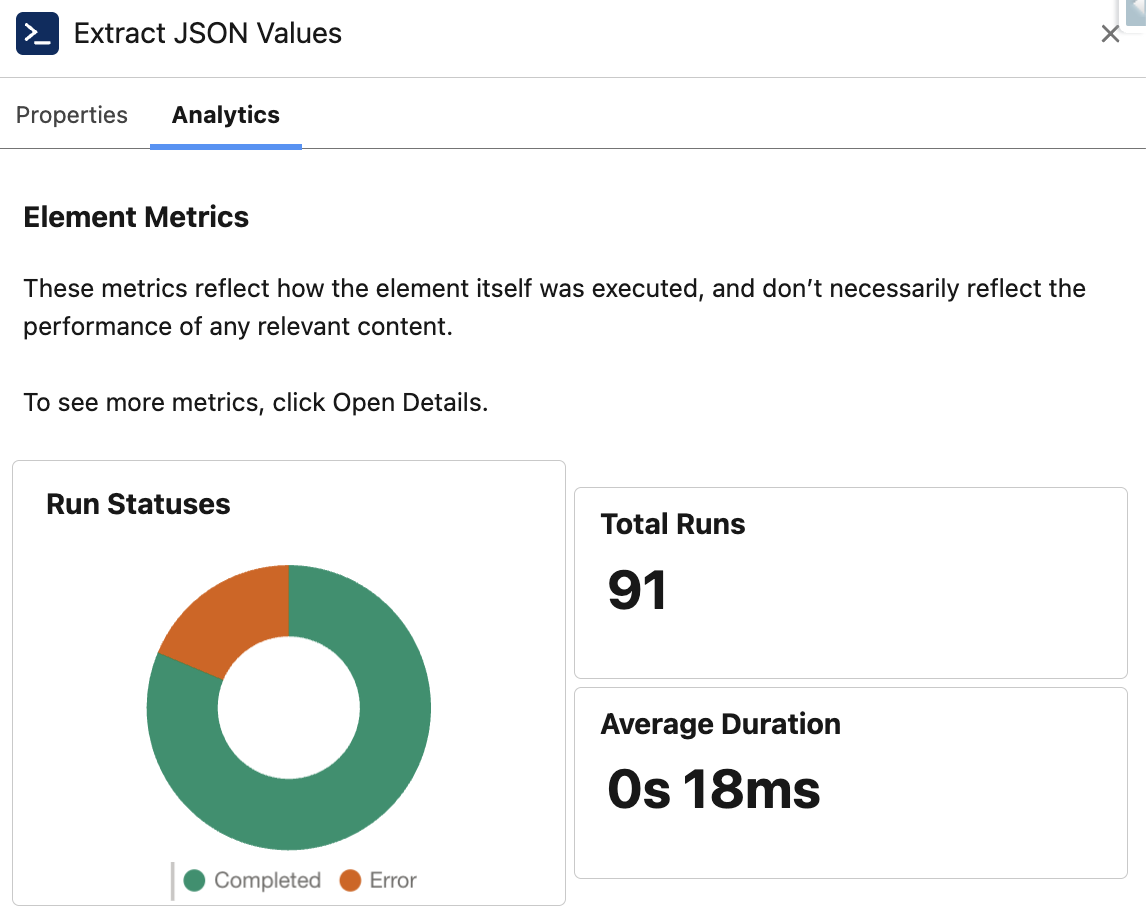
With the Salesforce Spring '26 release, Flow debugging just got a whole lot more visual. Flow Embedded Analytics is now available in every org, bringing real execution insights directly into Flow Builder. You can see total runs on each element right on the canvas, plus aggregated stats such as element run status and total duration in the side panel.
Read this post to learn more about Flow Embedded Analytics.
Leave a Reply