
If you've ever tried to build a nice looking Lightning Page in Salesforce, you've probably run into this. The Rich Text component is fine for basic formatting, but the moment you want real control, it gets annoying fast. There's no code view, and there's no place to write clean HTML. So in many situations, you can't build exactly what you want. In this post, you will learn a simple trick to render HTML on Lightning Pages.
Rendering HTML on Lightning Pages
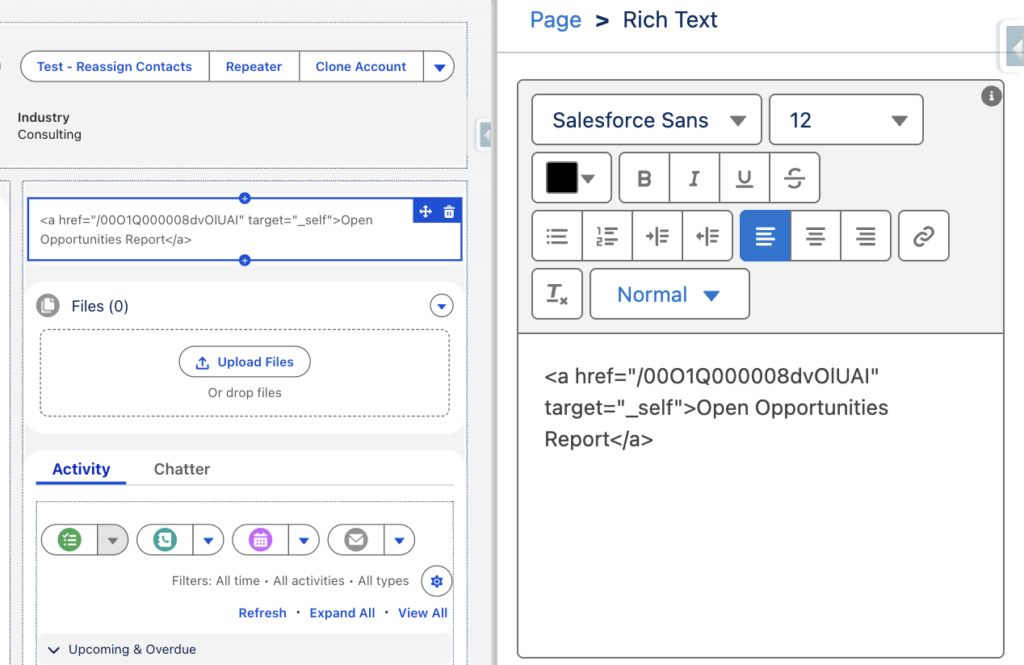
As you can see, when you paste HTML into a Rich Text component, it doesn't actually render it. And since there's no plain text mode or code view, there's no direct way to render HTML on Lightning Pages.
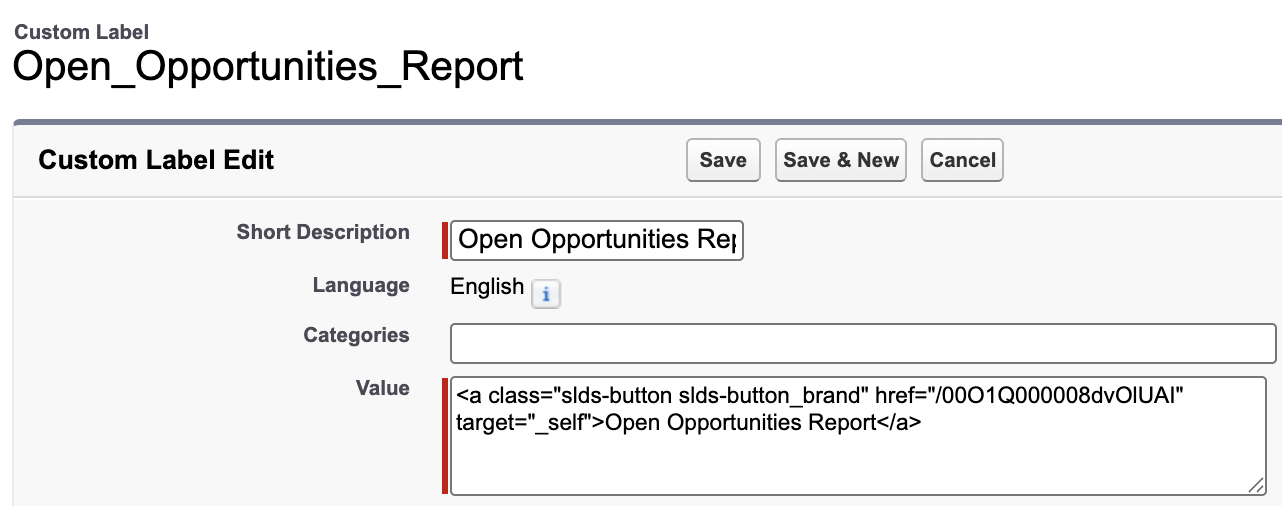
Here's a simple trick to render HTML on Lightning Pages: put your HTML code inside a Custom Label, then reference that label inside a Rich Text component. When you do that, Salesforce actually renders the HTML. However, since the Rich Text component doesn't include a resource picker, you need to type the Custom Label manually in this exact format:
{!$Label.API_Name_of_the_custom_label}For instance, here is a custom label that opens a report in the same tab.
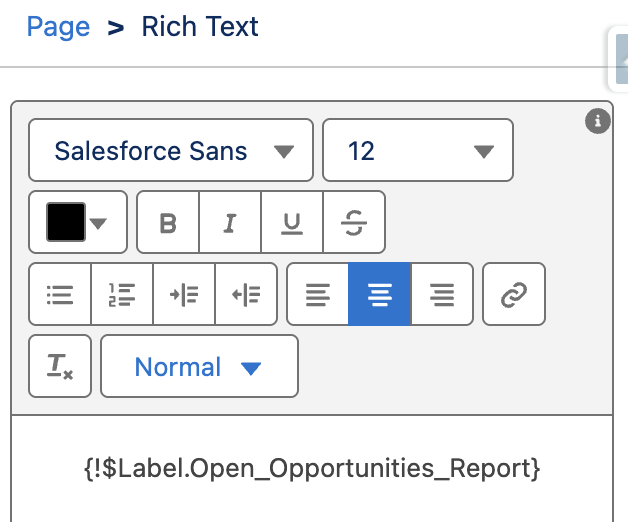
Here is how you can add the custom label to a Lightning Page:
As you can see, Salesforce renders the HTML and displays a button that opens the report in the same tab.

Read this post to learn more about opening links in a rich text component in the same tab.
Does it only support simple HTML tags?
There are endless things you can do with HTML in Custom Labels. And it doesn't only support simple HTML tags. For example, you can display images and videos, and even apply CSS on Lightning Pages. And the best part: it's all done with Custom Labels, no code required.
Leave a Reply